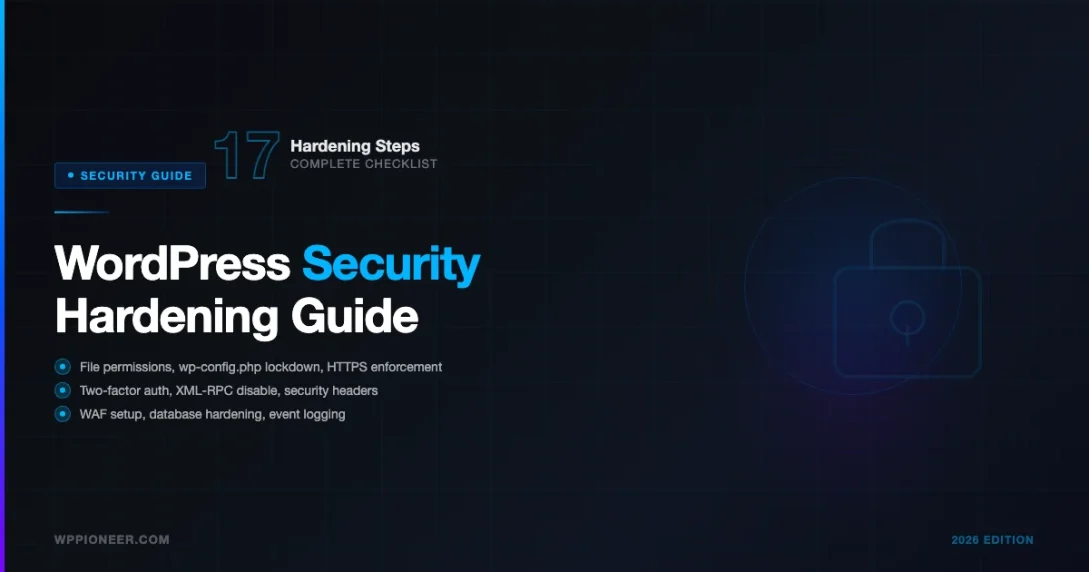
WordPress powers over 40% of the web, which makes it a prime target for attackers. While security plugins add a layer of protection, true WordPress security starts at the server and code level. This hardening checklist covers the specific configuration changes, file permission settings, and code-level protections that prevent the most common WordPress attacks in 2026.
Why WordPress Hardening Matters Beyond Plugins
Security plugins like Wordfence and Sucuri are reactive tools. They scan for known threats and block suspicious traffic. Hardening is proactive: it removes attack surfaces before anyone can exploit them. According to Sucuri’s annual Website Threat Research Report, over 90% of compromised WordPress sites were running outdated software or had misconfigured file permissions. Most of these infections could have been prevented with basic hardening.
The techniques in this guide follow recommendations from the official WordPress Hardening documentation and the OWASP Top Ten security risks. Every change is specific, testable, and reversible. Before diving in, it helps to check your WordPress site security baseline so you know where gaps exist.
1. Keep WordPress Core, Themes, and Plugins Updated
The single most effective security measure is keeping everything updated. WordPress core releases security patches regularly, and plugin vulnerabilities account for the majority of WordPress compromises. Patchstack’s State of WordPress Security report found that 97% of WordPress vulnerabilities in 2024 came from plugins.
- Enable automatic updates for minor WordPress core releases (enabled by default since WordPress 5.6)
- Review and update plugins weekly, especially those handling forms, authentication, or file uploads
- Remove any plugins and themes you are not actively using. Deactivated plugins can still be exploited if they contain vulnerable files
- Subscribe to the WordPress Security category for official security announcements
To enable automatic updates for all plugins programmatically, add this to your theme’s functions.php or a custom mu-plugin:
2. Secure wp-config.php
The wp-config.php file contains your database credentials and authentication keys. Protecting this file is critical. Here are the essential security constants to add:
Move wp-config.php one directory above your WordPress root. WordPress automatically checks the parent directory for this file. This prevents direct access if your server misconfiguration exposes PHP files as plain text.
Regenerate Security Keys
WordPress uses authentication keys and salts to encrypt information stored in cookies. If you suspect a breach, regenerate these immediately using the WordPress secret key generator. Replace the existing keys in wp-config.php with the newly generated values. This will force all logged-in users to re-authenticate.
3. Set Correct File Permissions
Incorrect file permissions are one of the most common WordPress security misconfigurations. The recommended permissions for a standard WordPress installation are:
| File/Directory | Permission | Numeric |
|---|---|---|
| Directories | rwxr-xr-x | 755 |
| Files | rw-r–r– | 644 |
| wp-config.php | r——– | 400 or 440 |
| .htaccess | rw-r–r– | 644 |
You can fix permissions across your entire WordPress installation using these terminal commands:
Never set any WordPress file or directory to 777 (world-writable). Shared hosting environments are especially vulnerable when permissions are too permissive because other accounts on the same server could potentially read or modify your files.
4. Protect the wp-admin Directory
Restricting access to the WordPress admin area reduces the surface area for brute force attacks. Here are three complementary approaches:
Limit Login Attempts
WordPress does not limit login attempts by default. Install a plugin like Limit Login Attempts Reloaded or add rate limiting at the server level. On Nginx, you can add rate limiting to your server configuration:
Add Two-Factor Authentication
Two-factor authentication (2FA) is the single most effective measure against unauthorized logins. Even if an attacker obtains a valid password, they cannot access the account without the second factor. The Two Factor plugin by the WordPress core team supports TOTP apps (Google Authenticator, Authy), email codes, and backup codes.
Restrict Admin Access by IP
If you access your WordPress admin from a fixed IP address, you can restrict access at the server level. Add this to the .htaccess file inside the wp-admin directory:
Replace 123.456.789.000 with your actual IP address. Add additional RewriteCond lines for multiple allowed IPs. Be cautious with this approach if your IP changes frequently.
5. Disable XML-RPC
XML-RPC (xmlrpc.php) is a legacy remote publishing protocol that most modern WordPress sites do not need. It is frequently targeted for brute force amplification attacks because it allows multiple login attempts in a single request via the system.multicall method. If you do not use the WordPress mobile app, Jetpack, or third-party services that require XML-RPC, disable it:
For Nginx servers, add this to your server block:
6. Add Security Headers
HTTP security headers instruct browsers to enforce security policies that prevent common attacks like cross-site scripting (XSS), clickjacking, and MIME type sniffing. Add these headers to your .htaccess file or Nginx configuration:
The Strict-Transport-Security header (HSTS) forces browsers to use HTTPS for all future requests. Only enable this after confirming your SSL certificate is properly configured and all resources load over HTTPS. The X-Frame-Options header prevents your site from being embedded in iframes on other domains, which blocks clickjacking attacks.
Test your security headers using the Mozilla HTTP Observatory or securityheaders.com to verify they are correctly applied. Aim for an A or A+ grade.
7. Secure the WordPress Database
The default WordPress database table prefix is wp_, which makes SQL injection attacks easier because attackers already know the table names. Change the prefix during installation or migrate an existing site to a new prefix.
Change the Table Prefix
For new installations, set a custom prefix in wp-config.php before running the installer:
Use a Dedicated Database User
Create a MySQL user that only has the privileges WordPress actually needs. The WordPress database documentation specifies the required privileges:
Do not grant SUPER, FILE, or PROCESS privileges to the WordPress database user. These permissions are unnecessary and could be exploited if the database credentials are ever compromised.
8. Disable Directory Browsing and PHP Execution in Uploads
Directory browsing lets anyone see all files in directories without an index file. PHP execution in the uploads directory allows uploaded malicious files to run as code. Both should be disabled:
For Nginx servers, add these directives:
This is one of the most important hardening steps. The wp-content/uploads directory is the most common location where attackers place backdoor PHP files after an initial compromise. Blocking PHP execution here neutralizes those backdoors immediately.
9. Implement Content Security Policy
A Content Security Policy (CSP) header tells the browser which sources are allowed to load scripts, styles, images, and other resources. This is the most effective defense against cross-site scripting (XSS) attacks. Start with a report-only policy to identify issues before enforcing it:
WordPress admin requires 'unsafe-inline' and 'unsafe-eval' for scripts because the block editor and many admin features use inline JavaScript. Apply a stricter CSP to the front end only, and a more permissive one to the admin area. Monitor the browser console for CSP violations before switching from Report-Only to enforced mode.
10. Set Up Monitoring and Backups
Hardening prevents attacks, but monitoring detects what gets through. Backups ensure recovery when something goes wrong. Both are essential parts of a complete security strategy. Pairing these hardening steps with a good security plugin gives you both proactive and reactive protection – see the comparison of Wordfence, Sucuri, and Solid Security to choose the right one for your setup.
File Integrity Monitoring
Monitor your WordPress files for unauthorized changes. Security plugins like Wordfence include file integrity monitoring that compares your core files, plugins, and themes against the official WordPress.org repository versions. You can also use WP-CLI for manual checks:
Automated Backups
Follow the 3-2-1 backup rule: maintain 3 copies of your data, on 2 different storage types, with 1 copy offsite. For WordPress, this means:
- Daily automated backups of the database and weekly full-site backups
- Store backups both on the server and in cloud storage (Amazon S3, Google Cloud, or similar)
- Keep at least one backup copy completely separate from your hosting provider
Test your backups regularly by restoring them to a staging environment. A backup you have never tested is not a reliable backup. Popular backup plugins include UpdraftPlus and BlogVault, both of which support offsite storage and scheduled backups.
11. Use Strong Passwords and a Password Manager
Brute force attacks are automated. They try millions of password combinations per minute against your login page. A strong, unique password is your first line of defense. Every WordPress admin account, FTP account, database user, and hosting control panel should use a unique password of at least 16 characters that combines letters, numbers, and symbols.
Use a password manager like 1Password or Bitwarden to generate and store strong passwords. Never reuse passwords across accounts. If one service is breached, attackers will try those same credentials on your WordPress site – a technique called credential stuffing.
A password manager solves the problem that most people face: strong passwords are impossible to remember, so people reuse weak ones. With a manager, you get both – passwords that are genuinely secure and accessible when you need them.
12. Disable the Default Admin Username
The username “admin” is targeted by every automated WordPress attack tool. If your administrator account still uses “admin” as the username, change it immediately. WordPress does not allow username changes from the admin panel, so you have two options:
- Create a new administrator account with a unique username, log in as that user, then delete the original “admin” account and reassign its posts to the new account
- Use WP-CLI to update the username directly in the database:
wp user update 1 --user_login=yournewusername
After changing the username, also verify that no other accounts have administrator role that should not. Go to Users – All Users and filter by Administrator to review every admin account on your site.
13. Enforce HTTPS Everywhere
All WordPress sites should use HTTPS. In 2026, there is no valid reason to run a WordPress site over HTTP. SSL certificates are free through Let’s Encrypt, and most hosting providers offer one-click SSL installation. HTTPS protects login credentials and session cookies from being intercepted on shared networks.
After installing your SSL certificate, add a 301 redirect from HTTP to HTTPS in your server configuration or .htaccess file. The FORCE_SSL_ADMIN constant in wp-config.php (covered in step 2) ensures the admin area always uses HTTPS, but you should redirect all traffic, not just the admin panel.
14. Audit and Remove Unused Themes
Every theme installed on your WordPress site – even deactivated ones – adds potential attack surface. WordPress does not automatically update inactive themes, and they are less likely to receive your attention during routine maintenance. Attackers have successfully exploited vulnerabilities in inactive themes to gain access to sites where the theme was never used but still present in the filesystem.
Keep only the active theme and one default WordPress theme (as a fallback for troubleshooting). Delete everything else. You can reinstall a theme from the WordPress repository in minutes if you ever need it again. The risk of keeping unused themes far outweighs the convenience of having them installed.
15. Configure a Web Application Firewall
A Web Application Firewall (WAF) analyzes incoming HTTP traffic and blocks requests that match known attack patterns before they reach WordPress. This is different from a network firewall – a WAF understands HTTP and can block SQL injection attempts, XSS payloads, and malicious file upload requests that would otherwise reach your application.
You have three options for WAF implementation:
- Plugin-level WAF – Wordfence and Sucuri both include a WAF that runs inside WordPress. These are easy to set up but inspect traffic after it reaches your server, so they provide less protection against DDoS and volumetric attacks
- Server-level WAF – ModSecurity for Apache or Nginx with the OWASP Core Rule Set provides protection before requests reach PHP. This requires server access and some configuration expertise
- DNS-level WAF – Cloudflare’s free plan includes basic WAF protection and sits in front of your entire site. Traffic goes through Cloudflare before reaching your server, providing the most comprehensive protection
For most WordPress sites, starting with Cloudflare’s free plan combined with Wordfence provides solid coverage without requiring server configuration expertise.
16. Limit User Roles and Permissions
WordPress has five default user roles: Subscriber, Contributor, Author, Editor, and Administrator. Assign the least privileged role that allows a user to do their job. Most content creators only need the Author role, not Editor or Administrator. Guest bloggers and external contributors should have Contributor access only.
Review your user list quarterly. Former employees, one-time contractors, and test accounts accumulate over time. Each active account is a potential entry point if its credentials are compromised. Remove accounts that are no longer needed. For accounts that must remain, consider downgrading their role if they no longer need elevated access.
17. Log Security Events
You cannot defend against what you cannot see. Security event logging creates a record of login attempts, file changes, plugin activations, and user actions that is invaluable when investigating a security incident. Without logs, you may not even know a compromise happened until significant damage is done.
The WP Activity Log plugin provides detailed audit logging for WordPress events. For server-level logging, ensure your web server logs are enabled and rotated regularly. Many hosting providers offer log viewing through their control panel. Store logs off-server when possible – an attacker who gains access to your server may delete local logs to cover their tracks.
Complete WordPress Hardening Checklist
Use this checklist to systematically harden your WordPress installation. Work through each item and verify the change is applied correctly before moving to the next.
| Priority | Action | Difficulty |
|---|---|---|
| Critical | Update WordPress core, plugins, and themes | Easy |
| Critical | Set file permissions (755/644/400) | Easy |
| Critical | Add DISALLOW_FILE_EDIT to wp-config.php | Easy |
| Critical | Enable FORCE_SSL_ADMIN | Easy |
| Critical | Block PHP execution in uploads directory | Easy |
| High | Enable two-factor authentication for all admin accounts | Easy |
| High | Disable XML-RPC if not needed | Easy |
| High | Add HTTP security headers | Medium |
| High | Regenerate security keys and salts | Easy |
| High | Set up automated backups with offsite storage | Medium |
| High | Use strong passwords and a password manager | Easy |
| High | Disable default admin username | Easy |
| Medium | Change database table prefix | Medium |
| Medium | Create dedicated database user with minimal privileges | Medium |
| Medium | Implement Content Security Policy | Advanced |
| Medium | Add rate limiting to wp-login.php | Medium |
| Medium | Disable directory browsing | Easy |
| Medium | Configure a Web Application Firewall | Medium |
| Medium | Audit and remove unused themes | Easy |
| Medium | Enable security event logging | Easy |
| Optional | Restrict wp-admin access by IP | Easy |
| Optional | Move wp-config.php above web root | Easy |
Common Hardening Mistakes to Avoid
Some popular security tips either do not improve security or actively cause problems. Avoid these common mistakes:
- Hiding the WordPress login URL – Changing
/wp-adminto a custom URL provides minimal security because attackers can still find the login page through other means. It also breaks some plugins and can lock you out. Focus on strong passwords and 2FA instead. - Removing the WordPress version number – Hiding the version from the HTML source does not prevent attacks. Automated scanners detect WordPress versions through other fingerprints. Keep WordPress updated instead of trying to hide its version.
- Using security through obscurity alone – Renaming the database prefix after installation, hiding wp-admin, and removing version numbers are all obscurity measures. They add marginal value but should never replace real security controls like updates, strong authentication, and proper permissions.
- Installing too many security plugins – Running multiple security plugins simultaneously causes conflicts, increases page load times, and can create false positives. Choose one comprehensive security plugin and configure it properly rather than layering multiple tools.
Next Steps After Hardening
Hardening your WordPress installation is not a one-time task. Security requires ongoing attention. After completing this checklist, establish these ongoing practices:
- Review user accounts monthly – Remove inactive accounts, verify administrator accounts are legitimate, and ensure no accounts have been created without your knowledge
- Audit plugins quarterly – Check each plugin’s last update date, review its security history on the WordPress Plugin Directory, and replace abandoned plugins with actively maintained alternatives
- Test your backups – Restore a backup to a staging environment at least once per quarter to verify the backup is complete and functional
- Monitor security advisories – Follow Patchstack and WPScan for WordPress vulnerability disclosures that may affect your plugins
- Schedule annual security audits – Review all hardening measures, update server software, and test for common vulnerabilities using tools like WPScan CLI
WordPress security is a balance between protection and usability. The measures in this guide cover the most impactful hardening steps without breaking core functionality. Start with the critical items in the checklist, then work through the high and medium priority items as your schedule allows. Each change you implement closes another potential attack vector and makes your WordPress site significantly more resilient.
Ready to Secure Your WordPress Site?
Work through this checklist systematically. Start with the Critical items this week, then tackle High priority items over the following two weeks. A fully hardened WordPress site takes less than a day of focused work and dramatically reduces your attack surface. If you need help implementing any of these steps on your site, the WP Pioneer community forums are a great place to ask specific questions.
Security Headers WordPress Hardening WordPress Security Plugins wp-config Security
Last modified: April 1, 2026