
Picking the wrong WordPress host can cost you more than money - it can cost you visitors, rankings, and sales. Whether you’re launching your first blog or scaling to 50,000 monthly visitors, the right hosting decision comes down to matching your budget and traffic needs to the right type of plan. This guide cuts through the noise and shows you exactly what to look for.
Why Hosting Matters More Than You Think
Your web host is the foundation everything else sits on. A slow host means slow pages. Slow pages mean visitors leave. Visitors leaving means Google notices - and drops your rankings. It’s a chain reaction that starts at the server level, long before your theme or plugins come into play.
Google has confirmed that Core Web Vitals - including Time to First Byte (TTFB) and Largest Contentful Paint (LCP) - are ranking factors. Both are directly affected by your hosting infrastructure. A shared hosting plan on an overloaded server can produce TTFB values above 1,000ms. A well-optimized managed host routinely hits under 200ms. That gap matters enormously for both SEO and user experience.
Beyond speed, hosting affects uptime reliability, security patching cadence, support quality, and whether you can handle a traffic spike without your site going down at the worst possible moment.
The Five Types of WordPress Hosting: Honest Trade-offs
Before comparing prices, understand what you’re actually buying. There are five distinct hosting types, each suited to different situations. The key is matching your actual needs to the right tier - not over-buying, and not under-buying.
Shared Hosting
Your WordPress site shares a physical server with dozens or hundreds of other sites. Resources like CPU, RAM, and bandwidth are pooled. This is the cheapest option, often available from $2 to $8 per month during introductory periods.
Shared hosting works well for brand new sites with under 1,000 monthly visitors and no e-commerce. It is not suitable for established sites, online stores, or anything that needs consistent speed. The moment a neighbor site on your server gets a traffic spike, your site slows down too - you have no control over this.
Who it suits: Personal blogs, portfolio sites, hobby projects, and any site where you’re testing an idea before committing real budget. It’s also fine for static or low-interaction sites where a few hundred milliseconds of extra latency won’t cost you conversions.
Real trade-off: You’re renting a seat on a crowded bus. When traffic is light, it’s cheap and functional. When it gets busy, everyone suffers. The performance floor is low and unpredictable, which is why you should move off shared hosting the moment your site starts generating real business value.
Virtual Private Server (VPS) Hosting
A VPS gives you a dedicated slice of a physical server. While you still share hardware with others, your allocated CPU cores and RAM are reserved only for you. Prices range from $15 to $80 per month depending on specs.
VPS hosting is appropriate for sites receiving 5,000 to 50,000 monthly visitors, or any site running WooCommerce. The main catch: you typically need to manage the server yourself or pay extra for managed VPS services.
Who it suits: Developers comfortable with Linux, site owners who want root access and full control over their stack, and anyone running a mid-size business site who is willing to learn server management. Tools like CloudPanel, Ploi, or RunCloud make VPS management significantly more approachable without a full sysadmin background.
Real trade-off: You get predictable performance and significantly more headroom than shared hosting, but the responsibility for security patches, PHP updates, and server configuration is yours. If your server gets compromised because you forgot to apply a security update, no one is coming to save you - that’s the deal.
Managed WordPress Hosting
Managed hosting providers like Kinsta, WP Engine, and Cloudways handle all the server administration for you. They tune the stack specifically for WordPress, handle automatic updates, provide daily backups, and offer WordPress-specific support teams. Prices start around $25 per month and go well above $100 for high-traffic plans.
If you’re serious about WordPress and don’t want to think about server maintenance, managed hosting is worth every extra dollar. The speed and reliability improvements over shared hosting are not subtle - they are dramatic.
Who it suits: Business owners, content publishers, and WooCommerce operators who want to focus on their site rather than their server. Also an excellent fit for agencies managing client sites - the staging environments, developer tools, and support quality are considerably better than DIY VPS setups at a comparable price point.
Real trade-off: You pay a premium for the managed layer. Some managed hosts also restrict specific plugins or server configurations in ways that can surprise you - WP Engine’s plugin restrictions are the most well-known example. Always check the prohibited plugins list before committing.
Cloud Hosting
Cloud hosting runs your WordPress site across multiple servers simultaneously. If one server fails, another takes over instantly. Traffic spikes are handled by spinning up additional resources on demand. Providers like AWS, Google Cloud, and DigitalOcean offer this infrastructure directly, while Cloudways and GridPane provide WordPress-friendly layers on top of them.
Cloud hosting scales more gracefully than VPS and is a good choice for sites with unpredictable traffic or ambitious growth plans. Costs vary widely based on actual usage, but budget $30 to $150 per month for a properly configured WordPress site.
Who it suits: Sites with traffic that spikes dramatically - event-based sites, media properties that occasionally go viral, or e-commerce stores with heavy seasonal variation. Cloud infrastructure means you’re not paying for peak capacity all the time, and you don’t fall over when a spike hits.
Real trade-off: Variable monthly bills can catch you off guard if you’re on raw cloud pricing. A Hacker News mention or a Reddit thread can turn a $40/month bill into a $200 month without warning. Managed cloud layers (Cloudways, GridPane) normalize this with flat pricing, which most people should prefer over raw AWS billing.
Dedicated Hosting
You rent an entire physical server exclusively for your site. No resource sharing whatsoever. Dedicated servers start around $80 per month and can exceed $500 monthly for high-spec configurations.
Dedicated hosting is rarely necessary for WordPress sites unless you’re running extremely high traffic (500,000+ monthly visitors), have strict compliance requirements, or run resource-intensive applications alongside WordPress. Most sites that think they need dedicated hosting would be better served by managed cloud hosting at a fraction of the cost.
Who it suits: Enterprise WordPress deployments with strict data residency requirements, high-volume transactional sites, or situations where you genuinely need the full resources of a physical machine. For 99% of WordPress sites, this is overkill.
Real trade-off: You pay for the entire server whether you use it or not. Unlike cloud hosting, there’s no autoscaling. You provision for your peak traffic and pay that rate constantly. This makes dedicated hosting economically inefficient for most WordPress use cases compared to cloud alternatives.
Traffic-to-Hosting Decision Framework
The most reliable way to choose a hosting tier is to start with your current and projected visitor count, then work backward to the minimum resources required.
Monthly Visitors | Recommended Hosting Type | Budget Range |
|---|---|---|
0 - 5,000 | Shared Hosting | $3 - $8/month |
5,000 - 25,000 | Managed WordPress (entry tier) | $25 - $50/month |
25,000 - 100,000 | Managed WordPress (mid tier) or VPS | $50 - $120/month |
100,000 - 500,000 | Managed WordPress (high tier) or Cloud | $100 - $300/month |
500,000+ | Enterprise Cloud or Dedicated | $300+/month |
These are starting points, not hard limits. A WooCommerce store with 5,000 monthly visitors processes far more server requests per visitor than a basic blog with 25,000 monthly visitors. Factor in your site type, not just raw traffic numbers.
Adjusting for Site Type
Traffic numbers alone don’t tell the full story. A content-only blog with 20,000 monthly visitors and heavy page caching enabled puts minimal load on a server - most pages are served straight from cache without touching PHP or the database. A membership site with 5,000 logged-in users generates far heavier load because logged-in users bypass page cache by design.
Apply these modifiers to your traffic tier when deciding:
- WooCommerce stores: Multiply your traffic tier by 2x minimum. Checkout flows, cart management, and payment processing require consistent server resources that caching cannot help with.
- Membership sites: Logged-in users always bypass page cache. If more than 20% of your visitors are registered members who log in, bump up a tier.
- Learning management systems (LMS): Video streaming, quiz scoring, and progress tracking generate sustained database load. Treat an LMS site like a WooCommerce site in terms of hosting requirements.
- Static or mostly-read blogs: Heavy caching means your actual server load is a fraction of your visitor count. A well-configured caching setup on a $25/month managed host can comfortably serve 80,000+ monthly visitors.
Performance Factors That Matter at Every Tier
Regardless of which hosting type you choose, these technical factors determine whether you’re getting the best performance possible from your plan.
Server Location and CDN Coverage
Your origin server’s physical location affects latency for visitors who are geographically far from it. A server in Dallas delivering pages to someone in Berlin adds 120+ milliseconds of round-trip time before a single byte loads. CDN (Content Delivery Network) coverage mitigates this by caching your content at edge nodes close to visitors worldwide.
When evaluating a host, check both where their primary data centers are and what CDN options they include or integrate with. Kinsta’s Cloudflare Enterprise CDN covers 310+ cities globally. Rocket.net is built entirely on Cloudflare’s edge network. For shared or VPS hosting without built-in CDN, adding Cloudflare’s free plan dramatically reduces latency for international visitors.
PHP Version
WordPress performs significantly faster on PHP 8.1 or higher compared to PHP 7.4 or below. Confirm that your host runs a current PHP version and that you can switch versions from your control panel without raising a support ticket.
Also check whether the host uses LiteSpeed, Nginx, or Apache as the web server. LiteSpeed and Nginx generally outperform Apache for WordPress workloads. Managed hosts like Kinsta run Nginx, which is one reason their TTFB numbers are consistently strong.
HTTP/2 and HTTP/3 Support
HTTP/2 allows multiple requests to be multiplexed over a single connection, reducing the overhead of loading many assets simultaneously. HTTP/3 (built on QUIC) goes further - it handles packet loss more efficiently and reduces connection setup time, which matters most for mobile visitors on variable network connections.
Most modern managed hosts support HTTP/2 automatically. HTTP/3 support is less common but growing - Cloudflare’s network (used by Kinsta, Rocket.net, and any site on Cloudflare’s free plan) enables HTTP/3 with one toggle. It’s worth enabling if available; for high-asset-count pages it can shave 200-400ms from load times.
Server-Level Caching
Does the host provide server-level caching? Managed WordPress hosts typically include full-page caching at the infrastructure level, meaning your pages are served from cache without touching PHP or the database for every request. This is a major performance advantage over shared hosting where you rely entirely on caching plugins.
The types of caching that matter most for WordPress:
- Full-page cache: Saves complete HTML output and serves it directly, bypassing WordPress entirely. The biggest single performance gain available.
- Object cache (Redis or Memcached): Stores frequently-queried database results in memory. Critical for WooCommerce and membership sites where full-page cache can’t be used for logged-in users.
- Opcode cache (OPcache): Stores compiled PHP bytecode in memory so PHP files don’t need to be re-parsed on every request. All reputable hosts enable this by default, but worth confirming.
NVMe Storage vs. SSD vs. HDD
Storage type affects database query speed and file I/O. NVMe (Non-Volatile Memory Express) drives are significantly faster than traditional SATA SSDs, which are themselves far faster than spinning hard drives (HDD). Most budget shared hosts have shifted to SSD. NVMe is now standard on premium managed hosts and better VPS providers.
For WordPress specifically, faster storage translates to faster database queries, quicker file uploads, and faster plugin/theme installation. It’s rarely a bottleneck on properly cached sites, but on high-write workloads (WooCommerce orders, large media imports) the difference between SSD and NVMe storage is measurable.
What to Look for Beyond Price Per Month
Introductory pricing on shared and managed hosting is often heavily discounted for the first year, then doubles or triples at renewal. Always check renewal pricing before signing up - a plan advertised at $3.95 per month may renew at $12.95 per month.
Backup Frequency and Retention
Daily automated backups should be the minimum. Ideally, your host provides daily backups retained for at least 14 days, with the ability to restore with one click. Some hosts charge extra for backups - confirm this before purchasing. A host that charges $5 per month to restore a backup is essentially making you pay a ransom for your own data.
CDN Integration
A Content Delivery Network caches static assets (images, CSS, JavaScript) on servers around the world, reducing latency for visitors who are geographically distant from your origin server. Kinsta, WP Engine, and many managed hosts include CDN services. For shared or VPS hosting, you’ll need to add a CDN separately - Cloudflare’s free plan is the most common choice.
Staging Environments
A staging environment is a private copy of your site where you can test updates, theme changes, and plugin installations before pushing them to your live site. Managed WordPress hosts almost always include staging. Shared hosts almost never do. If you run a business on your site, the ability to test changes safely is not optional.
The Best WordPress Hosts by Budget in 2026
Budget Tier: Under $10 Per Month
For brand new blogs or hobby projects where performance is secondary to cost, these hosts work acceptably for very low traffic.
- Hostinger - Currently the best-performing shared host in benchmark tests. PHP 8.2 support, LiteSpeed server, 100 GB NVMe storage on the Business plan. Renews around $8 per month.
- SiteGround - Solid shared hosting with excellent support reputation. Automatic daily backups on all plans. Slightly pricier than Hostinger at renewal but more consistent performance.
- DreamHost - Solid uptime track record, unlimited bandwidth, month-to-month pricing available. Good for people who want no long-term contracts.
Mid Tier: $25 to $60 Per Month
This is where genuine managed WordPress hosting begins. These plans handle real business traffic reliably.
- Cloudways - Pay-as-you-go managed WordPress hosting on DigitalOcean, Vultr, Linode, AWS, or Google Cloud. Starts around $14 per month for a 1GB RAM DigitalOcean droplet. Excellent control and value, but no free domain or email included.
- Rocket.net - Fully managed WordPress on Cloudflare’s global network. Extremely fast CDN performance. Starts at $25 per month for sites up to 25,000 visitors.
- Pressable - Automattic-owned managed WordPress host. Tight WordPress integration, good staging tools. Starts around $25 per month.
Premium Tier: $60 Per Month and Above
For high-traffic sites, WooCommerce stores, or any site where downtime has direct revenue impact.
- Kinsta - Google Cloud Platform infrastructure, C2 compute tier, Cloudflare Enterprise CDN included, 35+ global data centers. Starts at $35 per month for 25,000 monthly visits. The gold standard for managed WordPress speed in 2026.
- WP Engine - Excellent staging and developer tools, Genesis framework included, strong support. Starts at $30 per month but renewal prices are higher. Best for agencies managing multiple client sites.
- Nexcess - Part of the Liquid Web family. Excellent WooCommerce optimization, autoscaling for traffic spikes. Good choice for stores expecting seasonal volume swings.
Common Hosting Mistakes and How to Avoid Them
The most expensive hosting mistakes are rarely about overpaying. They’re about picking the wrong tier for your situation and paying the price in downtime, slow load times, or a painful emergency migration.
Running a WooCommerce Store on Cheap Shared Hosting
This is the most common mistake we see, and it’s painful every time. A $3/month shared plan looks attractive when you’re setting up your first store. Then you get your first sale, then your first 50 concurrent visitors, and the site buckles. Checkout pages time out. Customers abandon carts. You lose sales you never knew you had.
WooCommerce stores need object caching, stable PHP resources, and a host that excludes cart and checkout pages from full-page cache. Shared hosting provides none of these reliably. Budget $25-50/month for a WooCommerce store from day one, even if you’re starting small.
Over-Buying a VPS You Can’t Manage
The opposite mistake: someone reads that VPS hosting is faster and buys a raw VPS from DigitalOcean or Vultr without understanding what they’re signing up for. A raw VPS is a blank Linux machine. WordPress doesn’t run on a blank Linux machine - you need a web server, PHP, a database, SSL certificates, email configuration, firewall rules, and security hardening.
If you want VPS control without the sysadmin workload, use a managed VPS layer: Cloudways abstracts all of this, RunCloud and CloudPanel provide control panels for self-managed VPS with significantly reduced complexity. A $14/month Cloudways droplet is vastly preferable to a $6/month raw DigitalOcean droplet that you can’t properly configure.
Ignoring Renewal Pricing
Budget hosts advertise $2.95/month plans that renew at $11.99/month. Many people don’t discover this until renewal time, locked into a 3-year contract they signed without reading the fine print. Always look at the renewal rate, not the promotional rate, when comparing hosts. A host at $8/month that renews at $8/month is often a better deal than a host that starts at $3 and renews at $13.
The Hosting Upgrade Path: When and How to Scale
No hosting plan lasts forever if your site is growing. Knowing when to move and how to do it without downtime is as important as picking the right plan in the first place.
Signs You’ve Outgrown Your Current Host
- TTFB regularly exceeds 600ms (check with GTmetrix from multiple locations)
- Your site slows noticeably during business hours or local peak times
- You’re hitting PHP memory limits or receiving 503 errors under normal load
- Your host’s support team suggests you need a plan upgrade more than twice in a year
- You had a traffic spike - from a social mention, a newsletter, or a press link - and your site went down
Migrating Without Downtime
Switching hosts sounds intimidating, but the process is straightforward with modern managed hosts. Most provide free migration services - either automated tools or manual migration by their support team.
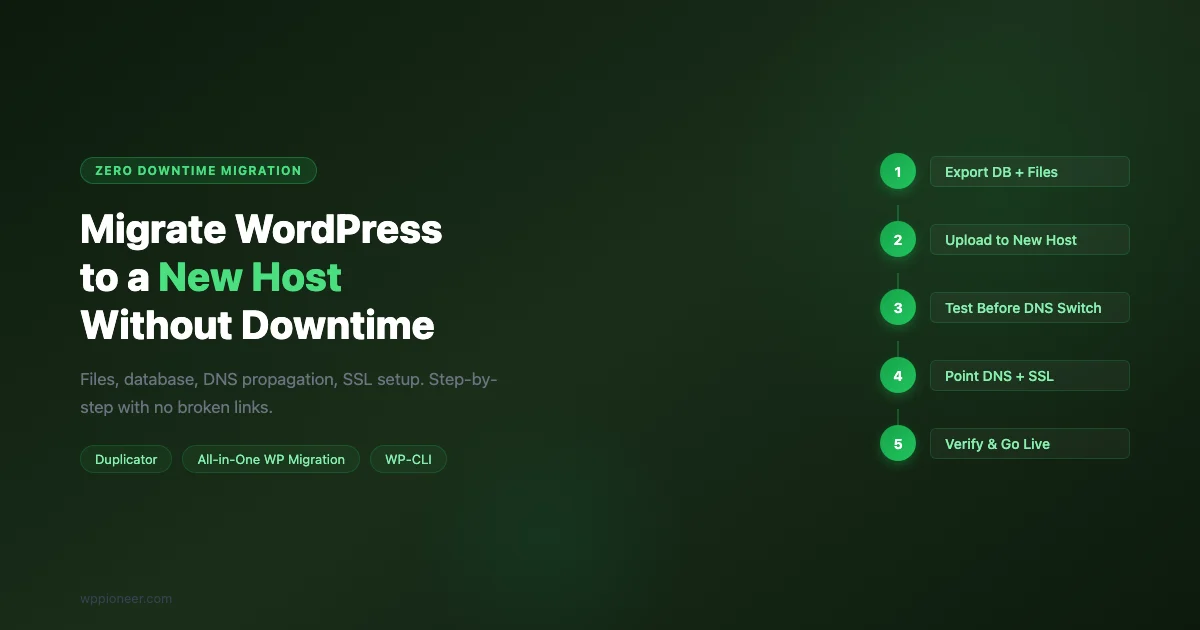
The general migration process: export your site (database and files), import on the new host in a staging environment, run DNS propagation tests using your local hosts file to confirm everything works, then update DNS records pointing to the new host. Most managed hosts can migrate your site with zero downtime if you follow their process. A typical WordPress site migration takes 2 to 4 hours, with DNS propagation taking up to 48 hours globally - though most visitors see the change within 2 hours.
One important note: always check whether your current host charges a cancellation or transfer fee, and whether any domain registration is locked to that host. These are common tactics to make leaving more friction-heavy than it needs to be.
The cheapest host is always the most expensive in the long run - downtime, slow pages, and lost conversions cost far more than the monthly price difference.
Red Flags to Avoid When Evaluating Hosts
The hosting industry has more than its share of deceptive marketing. Watch for these warning signs.
- “Unlimited” resources - There is no such thing as unlimited hosting. Every shared host has acceptable use policies that throttle sites using above-average CPU or memory. Unlimited is a marketing term, not a technical reality.
- No renewal price disclosure - If a host doesn’t clearly show their renewal price before you check out, that’s a deliberate omission. Find it in the terms of service or ask support before buying.
- Free domain that locks you in - Many hosts offer a free domain for year one, then charge above-market rates for renewal. Registering your domain separately at Namecheap or Cloudflare Registrar avoids this entirely.
- Support only by ticket - For any site where downtime costs money, live chat or phone support is important. Ticket-only support with 24-hour response windows is not acceptable for a business site.
- No money-back guarantee - Most reputable hosts offer at least a 30-day money-back guarantee. Anything less is a risk.
How to Test a Host Before Committing Long-Term
Most hosts offer money-back guarantees ranging from 30 to 45 days. Use this window seriously. After migrating or installing WordPress, run these checks before the refund window closes.
- Use GTmetrix or WebPageTest to measure Time to First Byte from multiple locations. TTFB under 300ms is good. Under 150ms is excellent.
- Run an uptime monitor via UptimeRobot (free) for the entire trial period. Any shared host will have some variation, but less than 15 minutes of downtime per month is acceptable.
- Submit a support ticket with a technical WordPress question and measure response time and answer quality. This tells you more about a host than any review site.
- Check your control panel for PHP version options, staging environment availability, and backup access. These should be immediately accessible - not gated behind support tickets.
Special Considerations for WooCommerce Sites
Running WooCommerce changes the hosting calculus significantly. Every product page visit, cart add, and checkout process generates multiple database queries and PHP executions. What handles a 10,000-visitor blog comfortably may buckle under a 3,000-visitor WooCommerce store during peak traffic.
For WooCommerce specifically, prioritize these requirements: a host that excludes checkout and cart pages from full-page caching (most managed hosts handle this automatically), Redis or Memcached object caching for database query results, and hosting staff who understand WooCommerce’s specific server requirements. Nexcess, Kinsta, and Cloudways all perform well under WooCommerce load testing.
The Decision Framework: Three Questions to Ask Yourself
After all the comparison details, it really comes down to three questions.
- What is your current monthly traffic? Match that number to the traffic tier table above to identify the right hosting category.
- What does downtime cost you? If an hour of downtime costs you nothing (hobby blog), shared hosting is fine. If it costs you revenue or client trust, shared hosting is not an option regardless of price.
- Do you want to manage a server? If yes, a VPS with CloudPanel or RunCloud gives you maximum control at a reasonable cost. If no, pay the premium for managed WordPress hosting and never think about PHP configuration again.
Frequently Asked Questions
Can I start on shared hosting and upgrade later?
Yes, and for most new sites this is the right approach. Start on shared hosting to validate your concept and build early traffic, then migrate to managed WordPress hosting once you’re consistently seeing 3,000-5,000 monthly visitors or adding e-commerce. The migration is straightforward, and most managed hosts offer free migration assistance.
Is free WordPress.com hosting an option?
WordPress.com’s free plan hosts your site on WordPress.com’s infrastructure (not a self-hosted WordPress installation). You get a subdomain (yoursite.wordpress.com), limited storage, and no plugin customization. It’s fine for testing the platform, but it’s not a real option for any business or monetized site. The moment you need a custom domain, custom plugins, or full control over your content, you need self-hosted WordPress on paid hosting.
Does my hosting choice affect my search rankings?
Directly and indirectly, yes. Google’s Core Web Vitals include metrics like TTFB and LCP that hosting quality directly affects. A slow host produces poor Core Web Vitals scores, which are a confirmed ranking factor. Beyond direct ranking effects, slow sites have higher bounce rates, lower engagement, and lower conversion rates - all signals that correlate with worse search performance over time. A good host is one of the most cost-effective SEO investments you can make.
How many WordPress sites can I run on one hosting plan?
This varies by plan. Most managed WordPress hosts sell plans by site count - a single-site plan at $25/month, a 5-site plan at $80/month, and so on. Budget shared hosts often allow unlimited sites on one account, but pool resources across all of them. For agencies or developers managing multiple client sites, WP Engine’s Agency plans or Cloudways by-server model give the best combination of site count flexibility and isolated resources.
Final Recommendation by Use Case
Use Case | Best Host | Why |
|---|---|---|
New blogger, tight budget | Hostinger Business | Best performance at lowest price |
Small business site | Cloudways (DigitalOcean 1GB) | Managed + affordable + scalable |
WooCommerce store | Kinsta or Nexcess | Optimized stack, reliable under load |
High-traffic content site | Kinsta or Rocket.net | Global CDN, fast TTFB at scale |
Agency managing many sites | WP Engine | Best developer tools and staging |
Ready to Pick Your Host?
Use this guide as your checklist. Know your traffic, know your budget, factor in your site type, and don’t let introductory pricing blind you to real renewal costs. Your hosting decision will affect every visitor’s experience of your site for years - it’s worth a few extra minutes of research to get it right.
If you’re already on WordPress and considering a switch, check out our roundup of the best WordPress caching plugins to maximize speed on any hosting plan. Before switching hosts, it also helps to understand your current traffic in Google Analytics so you can size your new plan correctly.

No comments yet