
Is your WordPress site taking forever to load? You are not alone. Slow websites frustrate visitors, hurt your search engine rankings, and can even cost you sales. The good news is that you do not need to be a developer or write a single line of code to make your site significantly faster.
In this guide, we will walk through every practical step you can take to speed up your WordPress site using only plugins, settings, and free tools. Whether you are running a blog, an online store, or a business website, these tips will help you cut your load time dramatically - often from 8-10 seconds down to under 3 seconds.
Why WordPress Site Speed Matters in 2026
Before we dive into the how-to steps, let us understand why speed is so critical. According to Google, 53% of mobile visitors leave a site that takes longer than 3 seconds to load. That means if your site takes 5 or 6 seconds, you are losing more than half your potential audience before they even see your content.
Speed also directly affects your Google rankings. Since 2021, Google has used Core Web Vitals as a ranking factor. Sites that load faster get a measurable SEO boost. And in 2026, with the latest algorithm updates, page experience signals are more important than ever.
Beyond SEO, faster sites convert better. Amazon found that every 100 milliseconds of added load time cost them 1% in sales. While your site may not be Amazon, the principle holds: faster pages mean more engagement, more signups, and more revenue.
Step 1: Install a Caching Plugin (The Biggest Single Win)
Caching is the single most effective thing you can do to speed up WordPress without touching code. When someone visits your site, WordPress normally has to build every page from scratch - pulling data from the database, running PHP code, and assembling the HTML. A caching plugin saves a ready-made copy of each page so it loads almost instantly for the next visitor.
Think of it like this: instead of cooking a meal from scratch every time someone orders, caching lets you serve a pre-made meal that is just as good but ready in seconds.
Best Free Caching Plugins for Beginners
WP Super Cache is the simplest option. It is made by Automattic (the company behind WordPress.com) and works with a single click. After installing, just go to Settings > WP Super Cache and turn on caching. That is it. For most sites, this alone can cut load times by 50% or more.
W3 Total Cache offers more control for those who want to fine-tune their setup. It includes page caching, browser caching, and database caching all in one plugin. The “Basic” setup wizard walks you through the most important settings without overwhelming you.
LiteSpeed Cache is the best choice if your hosting provider uses LiteSpeed web servers (many popular hosts like Hostinger, A2 Hosting, and Starter plans on Cloudways do). It integrates directly with the server for the fastest possible caching. It also includes image optimization and CDN features built in, making it an all-in-one solution.
Plugin | Best For | Ease of Use | Price |
|---|---|---|---|
WP Super Cache | Beginners who want simplicity | Very Easy (1-click) | Free |
W3 Total Cache | Users who want more control | Moderate | Free (Pro: $99/yr) |
LiteSpeed Cache | LiteSpeed hosting users | Easy with wizard | Free |
WP Rocket | Best premium option | Very Easy | $59/yr |
Pro Tip: Only use ONE caching plugin at a time. Running two caching plugins together will cause conflicts and can actually make your site slower or break it entirely.
What About WP Rocket?
WP Rocket is a premium caching plugin starting at $59 per year. It is worth mentioning because it is genuinely the easiest caching plugin to use - it works out of the box with zero configuration. It also includes features like lazy loading, database cleanup, and CDN integration that would otherwise require separate plugins. If you can afford it, WP Rocket is the best single investment you can make for site speed.
Step 2: Optimize Your Images (They Are Probably Your Biggest Problem)
Images typically make up 50-80% of a web page’s total size. A single unoptimized photo from your phone can be 3-5 MB, while the entire rest of your page might only be 500 KB. This means that optimizing images is often the fastest way to dramatically reduce your page load time.
Image optimization means compressing your images so they look the same to the human eye but take up much less space. Modern compression algorithms can reduce an image by 60-80% without any visible quality loss. If you want to learn more about handling images efficiently, check out our guide on using the Media Library without slowing down your site.
Top Image Optimization Plugins
ShortPixel is our top recommendation for beginners. It automatically compresses every image you upload to WordPress. The free plan gives you 100 images per month, which is enough for most small sites. It supports lossy, glossy, and lossless compression. For most sites, the “Glossy” setting is perfect - it gives excellent compression with no visible quality difference.
Imagify is made by the same team behind WP Rocket. It also compresses images automatically and includes a bulk optimization tool to compress your existing images. The free plan includes 20 MB of images per month. One standout feature is its ability to convert images to the modern WebP format, which is significantly smaller than JPEG or PNG.
Smush is a popular free option from the WPMU DEV team. The free version compresses images up to 5 MB each with no monthly limit on the number of images. It also includes lazy loading (more on that later) and a bulk compression tool. The downside is that the free version does not support WebP conversion.
- ShortPixel - Best overall, 100 free images/month, WebP support
- Imagify - Great WP Rocket integration, 20 MB free/month
- Smush - Unlimited free compression (up to 5 MB per image)
- EWWW Image Optimizer - Privacy-focused, compresses on your server
Before and After: Image Optimization in Action
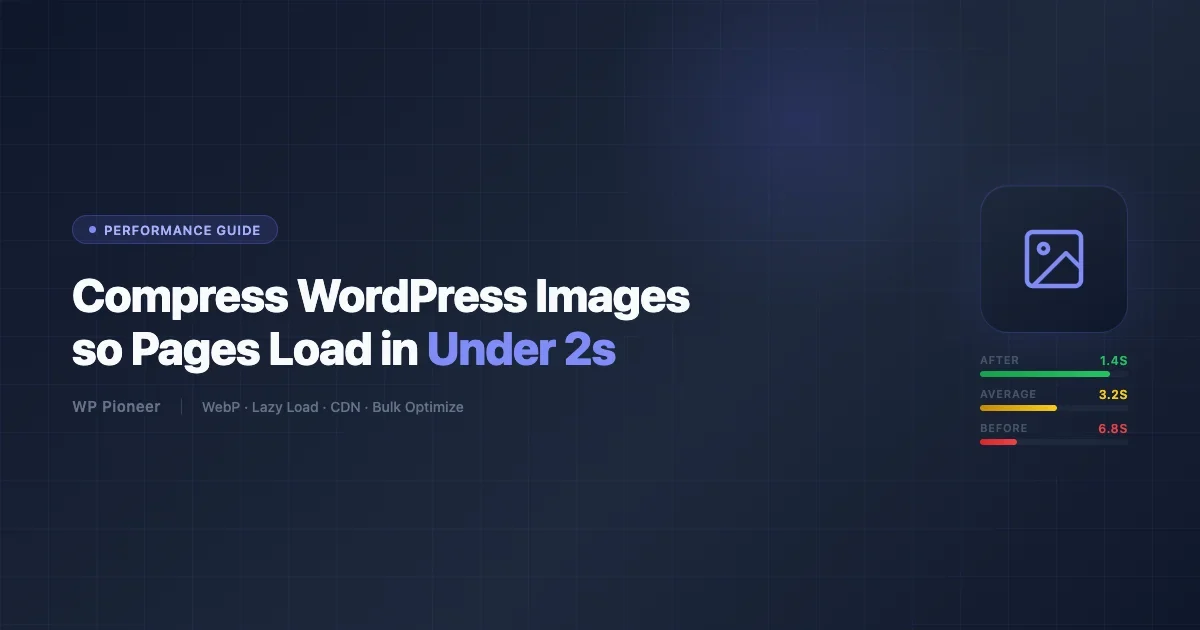
Here is a real-world example. A typical blog post with 6 images might have a total image weight of 12 MB before optimization. After running ShortPixel with Glossy compression and WebP conversion, those same 6 images come down to about 1.8 MB - an 85% reduction. On a typical broadband connection, that is the difference between a 4-second load and a 1.5-second load just from images alone.
Step 3: Enable Lazy Loading for Images and Videos
Lazy loading is a technique where images and videos only load when a visitor scrolls down to them. Instead of loading all 20 images on a page at once (even the ones at the bottom that nobody sees yet), lazy loading waits until each image is about to appear on screen before downloading it.
The great news is that WordPress has built-in lazy loading since version 5.5. If you are running any recent version of WordPress, images already have lazy loading enabled by default using the loading="lazy" attribute. However, this default implementation only covers images in your post content.
For more comprehensive lazy loading that also covers background images, iframes, and videos, you can use plugins like WP Rocket (which includes it), Smush (free version includes it), or the dedicated Lazy Load by WP Rocket plugin (free and lightweight). These extend lazy loading to cover your entire site, including sidebar widgets, footers, and embedded content like YouTube videos.
Step 4: Set Up a CDN (Content Delivery Network)
A CDN stores copies of your website on servers around the world. When someone visits your site, they get served from the server closest to them. If your hosting is in New York but your visitor is in London, a CDN means they get your site from a London server instead of waiting for data to travel across the Atlantic Ocean.
The result is noticeably faster load times for visitors who are far from your hosting server. For sites with a global audience, a CDN can reduce load times by 40-60%.
Cloudflare Free Tier: The Best Free CDN
Cloudflare offers a generous free plan that includes a global CDN, free SSL certificate, basic DDoS protection, and even some performance optimizations. It is the most popular CDN choice for WordPress sites, and setting it up does not require any coding.
Here is how to set it up in simple steps:
- Sign up for a free account at cloudflare.com
- Add your website domain
- Cloudflare will scan your DNS records automatically
- Update your domain’s nameservers to the ones Cloudflare provides (your domain registrar will have instructions for this)
- Wait 24-48 hours for the changes to propagate
- Enable “Auto Minify” for HTML, CSS, and JavaScript in the Speed settings
After setup, Cloudflare works invisibly in the background. Your visitors will not notice anything different except faster load times. Cloudflare also provides a helpful analytics dashboard where you can see how much bandwidth you are saving and how many threats have been blocked.
Other CDN options include Bunny CDN (starting at $1/month, very fast), KeyCDN (pay-as-you-go), and Jetpack Site Accelerator (free, built into the Jetpack plugin). For most beginners, Cloudflare’s free plan is more than enough.
Step 5: Clean Up Plugin Bloat
Every plugin you install adds code that WordPress has to load on every page. Some plugins add their CSS and JavaScript files to every single page of your site, even pages where they are not needed. Over time, this “plugin bloat” can significantly slow your site down.
The solution is not necessarily to use fewer plugins - it is to be intentional about which plugins you keep and to remove the ones you are not actually using.
How to Audit Your Plugins
- Go to Plugins > Installed Plugins in your WordPress dashboard
- Deactivate any plugin you are not actively using. If you installed a plugin six months ago and forgot about it, you probably do not need it. Deactivated plugins do not affect speed, but they still take up space
- Delete deactivated plugins. If you are not using them, remove them completely. You can always reinstall later if needed
- Look for overlapping functionality. Do you have two plugins that do similar things? For example, if you have both Yoast SEO and All in One SEO, you only need one. If you have a caching plugin and a separate minification plugin, many caching plugins include minification
- Check for heavy plugins. Some plugins are known to be resource-intensive. Social sharing plugins, page builders with excessive features, and analytics plugins that track everything can all be slow. Consider lighter alternatives
A good rule of thumb is to keep your active plugins under 20 if possible. But the number itself matters less than the quality - 15 well-coded, lightweight plugins will be faster than 5 poorly coded heavy ones. Plugin bloat is actually one of the most common WordPress mistakes beginners make, so do not feel bad if you have accumulated a few too many.
Plugins Known to Be Resource-Heavy
Certain categories of plugins tend to use more resources than others. Contact form plugins that load scripts on every page (consider loading them only on the contact page), heavy social sharing bars, broken link checkers that run constantly in the background, and all-in-one “Swiss army knife” plugins that include dozens of features you do not use. When possible, choose lightweight alternatives that do one thing well.
Step 6: Choose Better Hosting (Your Foundation Matters)
Your hosting provider is the foundation of your site speed. No amount of optimization can fully compensate for slow hosting. If you are on a cheap shared hosting plan where your site shares server resources with hundreds of other websites, your speed will always have a low ceiling.
You do not necessarily need to spend a lot more money to get significantly better hosting. Here is a realistic breakdown of hosting types and what to expect:
Hosting Type | Typical Speed | Monthly Cost | Best For |
|---|---|---|---|
Cheap Shared | 3-6 seconds | $3-5/month | Personal blogs with low traffic |
Quality Shared | 1.5-3 seconds | $10-25/month | Small business sites |
Managed WordPress | 0.5-1.5 seconds | $25-50/month | Growing sites that need reliability |
VPS/Cloud | 0.3-1 second | $20-80/month | High-traffic sites |
Managed WordPress hosting providers like SiteGround, Cloudways, and Kinsta are specifically optimized for WordPress. They typically include built-in caching, automatic updates, staging environments, and server-level optimizations that you cannot get from generic hosting. For most WordPress site owners who are serious about speed, managed WordPress hosting is the best balance of performance and ease of use.
If you are not ready to switch hosts, you can still get significant improvements from the other steps in this guide. Make sure you have also configured your essential WordPress settings properly, as some default settings can also affect performance. But if you have followed all these tips and your site is still slow, hosting is likely the bottleneck.
Step 7: Clean Up Your Database
Over time, your WordPress database accumulates clutter: post revisions, trashed items, expired transients, spam comments, and orphaned metadata. This clutter makes database queries slower, which in turn makes your pages load slower. A regular database cleanup can shave a few hundred milliseconds off your load time and keep your site running smoothly.
Best Database Cleanup Plugins
WP-Optimize is the most popular free database cleanup plugin. It can remove post revisions, auto-drafts, trashed posts, spam comments, and expired transients with one click. It also includes the ability to optimize database tables (similar to defragmenting a hard drive) and can be scheduled to run automatically on a weekly basis.
Advanced Database Cleaner is another solid option that goes deeper. It can find and remove orphaned tables left behind by deleted plugins, clean up scheduled tasks (cron jobs) that are no longer needed, and identify unused data that other plugins miss. The free version covers the basics; the premium version adds scheduled cleanups and multi-site support.
WP Rocket (the premium caching plugin we mentioned earlier) also includes a database cleanup feature. If you already use WP Rocket, you do not need a separate database plugin - just go to WP Rocket > Database and enable the cleanup options.
Important: Always create a backup of your database before running any cleanup tool. While these plugins are safe for normal use, having a backup means you can restore everything if something unexpected happens. Free backup plugins like UpdraftPlus make this easy.
What to Clean and How Often
- Post revisions - Clean monthly. WordPress saves every edit as a revision. A post edited 50 times has 50 revisions stored in the database
- Auto-drafts - Clean weekly. WordPress creates auto-drafts as you write. Old ones just take up space
- Trashed items - Clean weekly. Posts and comments in the trash are still in your database
- Spam comments - Clean weekly. Even marked as spam, they are stored in your database
- Expired transients - Clean monthly. Temporary data that plugins cache in the database. Once expired, it is just clutter
- Orphaned metadata - Clean monthly. Data left behind by deleted plugins or posts
Step 8: Minify and Combine CSS and JavaScript
Minification removes unnecessary characters (like spaces, comments, and line breaks) from your CSS and JavaScript files without changing how they work. Combined with concatenation (merging multiple files into fewer files), this reduces the number and size of files your browser needs to download.
Many caching plugins include minification as a feature. If you are using WP Super Cache, you can add Autoptimize (free) to handle minification. W3 Total Cache and LiteSpeed Cache both have minification built in. WP Rocket handles it automatically with no configuration needed.
If you use Autoptimize, the recommended settings for beginners are: enable “Optimize JavaScript Code,” enable “Optimize CSS Code,” and enable “Optimize HTML Code.” Leave the advanced options at their defaults unless you notice something breaks on your site. If a feature breaks, try disabling JavaScript optimization first, as it is the most common cause of conflicts.
Step 9: Use a Lightweight Theme
Your WordPress theme has a major impact on speed. Some popular themes are loaded with features, animations, sliders, and custom fonts that dramatically slow down your site - even if you are not using most of those features.
Lightweight themes that are designed for speed include GeneratePress, Astra, Kadence, and the default WordPress themes (like Twenty Twenty-Five). These themes load in under 1 second on their own and provide a fast foundation that your content and plugins build on top of.
If you love your current theme and do not want to switch, you can still improve things by disabling features you are not using. Many themes have options to turn off unused widget areas, disable Google Fonts, and remove built-in sliders or animations. Check your theme’s settings panel or customizer for these options.
Free vs. Premium: Is It Worth Paying for Speed Plugins?
You can absolutely get a fast WordPress site using only free tools. Here is an honest comparison of what free and premium options give you:
Feature | Free Option | Premium Option | Worth Upgrading? |
|---|---|---|---|
Caching | WP Super Cache, LiteSpeed Cache | WP Rocket ($59/yr) | Yes, if you want simplicity |
Image Optimization | ShortPixel (100/mo), Smush | ShortPixel ($4.99/mo) | Yes, for high-volume sites |
CDN | Cloudflare Free | Cloudflare Pro ($20/mo) | Not for most sites |
Database Cleanup | WP-Optimize | WP Rocket (included) | No, free is enough |
Minification | Autoptimize | WP Rocket (included) | No, free is enough |
The bottom line: a combination of WP Super Cache (or LiteSpeed Cache) + ShortPixel + Cloudflare + Autoptimize + WP-Optimize gives you 90% of what premium solutions offer, completely free. The main advantage of premium tools like WP Rocket is convenience - everything in one place with zero configuration.
Before and After: Real Speed Improvement Examples
To give you a realistic picture of what these changes can do, here are typical results from applying the steps in this guide:
Example 1: Personal Blog (Shared Hosting)
- Before: 7.2 seconds load time, 4.8 MB page size, 92 requests
- After caching (WP Super Cache): 3.8 seconds
- After image optimization (ShortPixel): 2.1 seconds, 1.2 MB page size
- After CDN (Cloudflare Free): 1.6 seconds
- After minification (Autoptimize): 1.3 seconds, 68 requests
- Total improvement: 7.2s down to 1.3s (82% faster)
Example 2: Small Business Site (Managed Hosting)
- Before: 4.1 seconds load time, 3.2 MB page size, 78 requests
- After caching (LiteSpeed Cache): 1.9 seconds
- After image optimization (Imagify): 1.2 seconds, 0.9 MB page size
- After plugin cleanup (removed 8 unused plugins): 0.9 seconds, 54 requests
- After database cleanup (WP-Optimize): 0.8 seconds
- Total improvement: 4.1s down to 0.8s (80% faster)
How to Test Your Site Speed
Before and after making changes, test your site speed so you can measure your improvement. Here are the best free tools:
- Google PageSpeed Insights - The gold standard. Gives you a score out of 100 plus specific recommendations from Google. It tests both mobile and desktop versions of your site
- GTmetrix - Provides detailed waterfall charts showing exactly what is loading and how long each element takes. Great for identifying your biggest bottlenecks
- Pingdom Website Speed Test - Simple, clean results. Lets you test from different locations around the world so you can see how your CDN is performing
Test your site from multiple locations and on both mobile and desktop. Mobile performance is especially important since more than 60% of web traffic now comes from mobile devices according to Statcounter data from 2025.
Your WordPress Speed Optimization Checklist
Here is your complete checklist. Work through each item in order for the best results:
- Test your current site speed with Google PageSpeed Insights (record your baseline score)
- Install ONE caching plugin (WP Super Cache, LiteSpeed Cache, or WP Rocket)
- Install an image optimization plugin (ShortPixel, Imagify, or Smush)
- Run bulk optimization on all existing images
- Verify lazy loading is enabled for images and videos
- Sign up for Cloudflare free and set up their CDN
- Audit your plugins - deactivate and delete anything you do not use
- Install WP-Optimize and run a database cleanup
- Schedule weekly automatic database cleanups
- Enable minification (via your caching plugin or Autoptimize)
- Check your theme - consider switching to a lightweight theme if yours is slow
- Disable unused theme features (sliders, animations, extra fonts)
- Create a full site backup (UpdraftPlus is free and reliable)
- Test your speed again and compare to your baseline
- Set a monthly reminder to repeat the plugin audit and database cleanup
Final Thoughts
Speeding up your WordPress site does not require technical expertise or coding knowledge. With the right combination of a caching plugin, image optimization, a CDN, and regular maintenance, you can transform a sluggish site into a fast, responsive experience that your visitors will appreciate and search engines will reward.
Start with caching and image optimization - those two changes alone will give you the biggest improvement. Then work through the rest of the checklist at your own pace. Every step you complete makes your site a little faster, a little more reliable, and a little more competitive in search results.
Remember, site speed is not a one-time project. New plugins, new content, and WordPress updates can all affect performance. Set a monthly reminder to check your site speed, clean up your database, and review your plugin list. Consistent maintenance is the real secret to keeping your WordPress site fast for the long run.
Ready to get started? Pick up one step from the checklist above and implement it today. Your visitors (and Google) will thank you.
No comments yet