
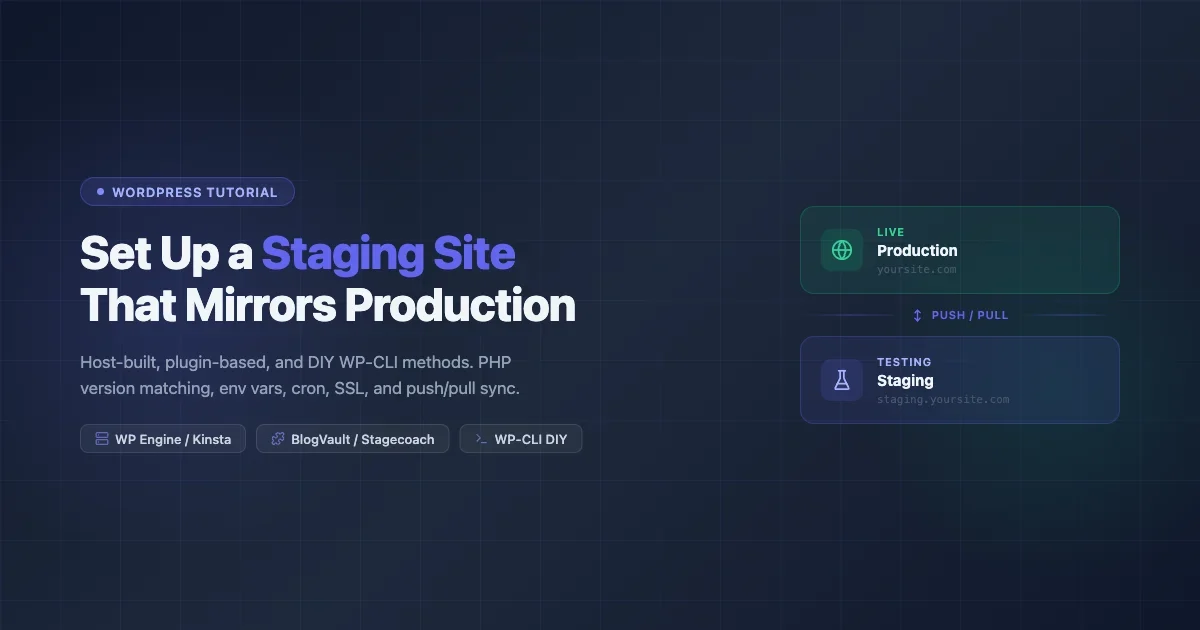
You pushed a plugin update on a Monday morning, and by noon your WooCommerce checkout was broken. Or you made a theme tweak that looked fine in the Customizer but wiped out your mobile nav on every device. If you have been running WordPress changes directly on your live site, this is not a question of if something breaks. It is a question of when. A staging site is the single most effective habit you can build as a WordPress site owner. It gives you a full copy of your site to test against before any change touches real visitors or real orders. This guide covers every way to set one up: through your hosting panel with one-click tools, with a dedicated migration plugin if your host does not offer staging, and by hand with WP-CLI for developers who want full control and zero vendor lock-in.
What a Staging Site Actually Does (And What It Does Not)
A staging site is an exact copy of your production site running on a separate URL. You make changes there, test everything, and then push those changes live. Simple in theory, but the word “exact” matters more than most people realize.
A good staging environment mirrors:
- The same PHP version your production server runs
- The same active plugins, in the same versions
- The same theme files, child theme included
- Environment variables and
wp-config.phpconstants (with credentials swapped) - WP-Cron behavior, or lack thereof if you use system cron
- A recent copy of the database, including user roles and settings
What a staging site is not:
- A live traffic mirror (it only captures a point-in-time snapshot of your database)
- A backup solution (staging and backups serve different purposes)
- Automatically kept in sync (you need to refresh or merge deliberately)
Skipping any of the mirroring checklist above is how you end up with a staging site that passes tests but still breaks production. A common trap: staging runs PHP 8.0 while production is still on 7.4, so the deprecated function you introduced quietly goes unnoticed.
Method 1: Host-Provided Staging (WP Engine, Kinsta, Cloudways)
If your host offers one-click staging, use it. These tools handle the copy, the subdomain, the SSL certificate, and often keep both environments in sync with a push/pull button. Here is what each major managed host provides and the gotchas to watch for.
WP Engine
WP Engine includes a staging environment on every plan. From your user portal, open your environment and click Add Environment, then choose Staging. WP Engine clones your database and files to a subdomain like yoursite.wpengine.com (the staging variant).
Push and pull work in both directions: you can push from staging to production, or pull fresh production content down to staging. One thing WP Engine handles automatically is SSL: the staging subdomain gets a certificate without any extra work.
Gotcha: WP Engine disables certain plugins on staging by default (caching plugins, for instance) to avoid confusion. If your test depends on cache behavior, check the plugin list on staging explicitly.
Kinsta
Kinsta’s staging is called Premium Staging Environments. Log into MyKinsta, go to your site, and click Environments then Add environment. Choose Staging as the type. Kinsta copies files and the database to an isolated environment with its own URL like staging-yoursite.kinsta.cloud.
Kinsta’s push tool lets you choose what to push: files only, database only, or both. This selective push is genuinely useful. If you changed a theme template but not the database, push files only and avoid overwriting form submissions or new orders on production.
Gotcha: Kinsta staging environments do not send emails by default (this is intentional). If you are testing WooCommerce order confirmations or subscription renewals, you need to configure a staging-safe mail trap like Mailtrap before your test means anything.
Cloudways
On Cloudways, staging is called a staging application. Go to your application panel, click Staging Management, then Create Staging. Cloudways clones your app to a new server-side application.
The push/pull interface in Cloudways is more granular than most: you can merge only specific tables or file directories. This matters when you have a large database: merging the whole thing over a minor CSS change is wasteful.
Gotcha: Cloudways staging eats into your server RAM. If you are on a small plan (2 GB RAM), running two full application clones simultaneously can cause slowdowns on both environments. Size up or stop the staging app when you are not actively using it.
Method 2: Plugin-Based Staging (WP Stagecoach, BlogVault, WP Migrate)
If your host does not offer staging, or if you want staging to be portable across hosts, plugin-based tools are the next best approach.
WP Stagecoach
WP Stagecoach creates a staging subdomain on your own server. Install the plugin, enter your FTP/SFTP credentials and database details, and it provisions a copy under something like staging.yoursite.com. The plugin handles the search-replace on URLs automatically.
When you are ready to go live, Stagecoach can merge just the changed files and database rows rather than doing a full overwrite. This diff-based merge is its main selling point over manual migration.
BlogVault
BlogVault is primarily a backup service, but its staging feature is excellent. After backing up your site, click Add Staging in the dashboard. BlogVault spins up a staging site on its own infrastructure (not on your server), which means no resource contention with your live site.
Because the staging copy lives off your server, it is also a reasonable disaster recovery option. If your server goes down, you can test your recovery copy right there in BlogVault. For sites where both uptime and testing matter, this dual function is useful.
WP Migrate (by Delicious Brains)
WP Migrate (formerly WP Migrate DB Pro) takes a different angle. You install it on both your live site and your staging site, and it handles the push/pull between them using a direct database connection. It is designed for teams who already have a staging server set up and want a reliable way to sync content.
The Media Files add-on syncs your uploads folder too, so images do not break when you migrate. If you are managing several WordPress sites with separate staging servers, this is one of the cleanest workflows available.
Method 3: DIY Staging on a Subdomain With WP-CLI
For developers or site owners comfortable in the terminal, building staging by hand gives you the most control. Here is the complete process.
Step 1: Create the Subdomain
In your hosting panel (cPanel, Plesk, or via DNS), create a subdomain like staging.yoursite.com and point it to a new document root, for example /home/youruser/staging.yoursite.com/public_html.
Step 2: Clone the Files
SSH into your server and copy the entire WordPress installation:
cp -a /home/youruser/yoursite.com/public_html/. \
  /home/youruser/staging.yoursite.com/public_html/
Step 3: Export and Import the Database
Export the live database and import it into a new database you create for staging:
# Export from production
mysqldump -u dbuser -p production_db > /tmp/production_dump.sql

# Create staging database (in MySQL)
CREATE DATABASE staging_db;
GRANT ALL PRIVILEGES ON staging_db.* TO 'staging_user'@'localhost' IDENTIFIED BY 'staging_password';

# Import into staging database
mysql -u staging_user -p staging_db < /tmp/production_dump.sql
Step 4: Update wp-config.php
Edit the staging copy of wp-config.php to point to the new database:
define('DB_NAME',     'staging_db');
define('DB_USER',     'staging_user');
define('DB_PASSWORD', 'staging_password');
define('DB_HOST',     'localhost');
Step 5: Run WP-CLI Search-Replace
This is the step most tutorials skip or get wrong. You must update every URL in the database that references your production domain. WP-CLI handles this cleanly, including serialized data:
cd /home/youruser/staging.yoursite.com/public_html

wp search-replace 'https://yoursite.com' 'https://staging.yoursite.com' \
  --all-tables \
  --precise \
  --report-changed-only
The --precise flag forces PHP-based replacement instead of SQL LIKE, which correctly handles serialized arrays where a naive string swap would corrupt the data. The --all-tables flag catches custom plugin tables that sit outside the standard wp_* set.
Step 6: Provision SSL for the Staging Subdomain
If you are on a server running Let’s Encrypt:
certbot --apache -d staging.yoursite.com
# or for Nginx:
certbot --nginx -d staging.yoursite.com
Many hosts provide a Let’s Encrypt button in the control panel that covers subdomains automatically once the subdomain DNS resolves.
Step 7: Block Staging From Search Engines
Go to Settings > Reading on your staging site and check Discourage search engines from indexing this site. This sets a noindex header so Google does not index your staging content alongside production.
For stronger enforcement, add a password to the staging directory via .htaccess:
AuthType Basic
AuthName "Staging"
AuthUserFile /home/youruser/.htpasswd
Require valid-user
Matching PHP Version Between Staging and Production
PHP version mismatch is the hidden reason staging tests pass but production breaks. Check your production PHP version in Tools > Site Health > Info > Server. Then go to your hosting panel and set the staging PHP version to match exactly.
This matters more than most people expect. A plugin that works fine on PHP 8.2 may throw deprecation notices, fatal errors, or silent behavior changes on PHP 7.4. If staging runs a newer PHP version than production, you could ship code that has never actually been tested on the environment where it will run. The reverse is also true: staging on an older PHP may hide a function or syntax that only exists in the newer version your production server uses.
On cPanel with MultiPHP, visit MultiPHP Manager, select your staging domain, and set the PHP version to the same version as production. On Cloudways, open the staging application settings and find PHP Version under Application Settings.
Beyond the PHP version number itself, check that the same PHP extensions are loaded on both environments. Extensions like imagick, intl, redis, and bcmath are common dependencies for WooCommerce, membership plugins, and caching layers. You can compare them by placing a temporary phpinfo() page on each environment, capturing the output, and running a diff.
If you are on a VPS with PHP-FPM, you can run multiple PHP versions simultaneously. Assign the correct version to the staging vhost by editing its pool configuration in /etc/php/8.1/fpm/pool.d/ (replace 8.1 with the version you need). Use php -v over SSH on both environments after the change to confirm the versions match.
Syncing Environment Variables and WP_DEBUG
Production sites often have constants defined in wp-config.php or loaded from .env files: API keys for payment gateways, CDN credentials, license keys. You need staging versions of these, not production credentials.
A clean approach is to use a staging-specific wp-config-staging.php file that overrides only what changes:
// At the top of wp-config.php on staging
if ( file_exists( dirname( __FILE__ ) . '/wp-config-staging.php' ) ) {
    require_once dirname( __FILE__ ) . '/wp-config-staging.php';
}
Always enable debug on staging and disable it on production:
// In wp-config-staging.php
define('WP_DEBUG',         true);
define('WP_DEBUG_LOG',     true);
define('WP_DEBUG_DISPLAY', false); // logs to /wp-content/debug.log, not the screen
define('SCRIPT_DEBUG',     true);  // loads unminified JS/CSS
Handling WP-Cron on Staging
WP-Cron fires on page load, not on a real system schedule. On a staging site that gets little traffic, scheduled tasks can pile up and run in a burst when you finally visit the site, which can distort test results for anything that depends on timing (emails, scheduled posts, subscription renewals).
Two options:
Option A: Disable WP-Cron on staging and use system cron. Add this to your staging wp-config.php:
define('DISABLE_WP_CRON', true);Then add a real cron entry:
*/5 * * * * php /home/youruser/staging.yoursite.com/public_html/wp-cron.php > /dev/null 2>&1Option B: Disable WP-Cron entirely on staging. If you are not testing cron-dependent features, disabling WP-Cron without a replacement keeps staging clean and fast.
Sync Strategies: Push, Pull, and Selective Merges
The hardest part of staging is not setting it up. It is keeping staging and production in sync as both evolve. Here are the three patterns and when to use each.
Push (Staging to Production)
You test a feature on staging and push it live. This is the standard flow. Push only what changed: if you updated three theme templates and a plugin, push those specific files. A full push that overwrites the entire production database can wipe form submissions, orders, and comment approvals that happened while you were working on staging.
Best practice: push files separately from the database. For most feature deployments, a file push (theme + plugin files) followed by a targeted table push (options table if you changed settings) is safer than a full sync.
Pull (Production to Staging)
When your staging environment has grown stale (say, three weeks since you last refreshed it), pull a fresh copy of the production database down before starting a new test cycle. This ensures you are testing against current content, current user data, and current plugin settings.
Automate this with a WP-CLI alias. Add to ~/.wp-cli/config.yml:
alias:
  refresh-staging:
    path: /home/youruser/staging.yoursite.com/public_html
    ssh: youruser@yourserver.com
Then you can run:
wp @refresh-staging db export /tmp/fresh-staging.sql
# import on staging, run search-replace again
Selective Database Merges
When you need to push a database change (new plugin settings, changed ACF field groups, new menu configurations) without overwriting production orders or posts, export only the specific tables that changed:
wp db export --tables=wp_options,wp_postmeta /tmp/settings-only.sqlThen import on production with a targeted import and run search-replace on just those tables to handle any staging URLs that crept in.
How to Safely Update WordPress Plugins Using Your Staging Site
Most WordPress site problems happen during updates. A staging environment becomes most valuable when you build it into your regular update workflow, not as a one-time setup you forget about until something breaks. For site owners running WooCommerce, LMS platforms, or membership plugins, an untested major update can cause data corruption that no amount of debugging will easily unravel after the fact.
A staging environment becomes most valuable when you build it into your update workflow. The process is straightforward:
- Pull a fresh database copy from production to staging
- Update the plugin on staging
- Run through your critical paths: homepage load, checkout flow, contact form, login
- Check the debug log at
wp-content/debug.logfor new errors or deprecation notices - If staging is clean, push the plugin files to production and update there
This approach is exactly what the guide on safely updating WordPress plugins without breaking your live site recommends as the core safeguard for any non-trivial update.
Backup Before You Push: Non-Negotiable
Even with staging, always take a fresh backup of production immediately before pushing any changes from staging. Staging gives you confidence that the change works, but a backup gives you a recovery path if something unexpected happens on production hardware, in a production database with real data volumes.
If you do not have an automated backup running already, the complete guide to backing up your WordPress site the right way walks through plugin-based, hosting-panel, and WP-CLI backup approaches.
A minimal pre-push backup command:
wp db export /home/youruser/backups/pre-push-$(date +%Y%m%d-%H%M).sqlRun this on production right before your staging push. It takes under a minute and has saved countless deployments from going sideways.
DNS, SSL, and Search Engine Blocking: Staging Checklist
Before you share a staging URL with a client or colleague, run through this checklist:
- SSL certificate installed: The staging subdomain must serve HTTPS. Mixed content warnings will hide real CSS and JS errors behind browser warnings.
- noindex set: Check Settings > Reading or confirm the staging robots.txt includes
Disallow: /. - Password protection active: An exposed staging site is a potential data leak. It has real user data from your production pull. Add basic auth.
- Email sending disabled or trapped: If staging sends real emails, you will confuse customers. Use WP Mail SMTP with a Mailtrap endpoint, or disable wp_mail entirely with a mu-plugin.
- Payment gateway in test mode: If WooCommerce or any payment plugin is active, switch to sandbox credentials in the staging configuration.
- CDN rewriting disabled: Your CDN may serve production assets to staging visitors. Disable the CDN plugin on staging or configure it to a staging CDN zone.
Common Mistakes That Make Staging Useless
Staging can give you false confidence if you do these things:
Testing on stale data. If your staging database is two months old, your test is not representative. Content volumes, user counts, and database bloat all affect performance. Refresh staging before any significant test cycle.
Different PHP extensions on staging. The intl extension, imagick, or redis being present on one environment and absent on the other will cause different behavior even with identical code. Run phpinfo() on both and compare loaded extensions.
Ignoring the debug log. No visible errors on the page does not mean no errors. PHP notices and warnings that appear in debug.log on staging will eventually surface as real bugs on production under load.
Pushing a full database overwrite when you only changed code. Every managed host’s “push to live” button defaults to pushing everything, including the database. Read the push options carefully and deselect the database unless you explicitly need to update settings.
Not testing mobile and logged-out states. Many staging tests happen in a logged-in Chrome window on a desktop. Test in an incognito window and on a mobile viewport too. Caching behavior, header display, and checkout flows can differ significantly between logged-in and anonymous users.
Putting It All Together: Which Method Is Right for You
Here is a quick guide to picking your approach based on your situation:
- On WP Engine, Kinsta, or Cloudways: Use the host’s built-in staging. It is the fastest setup and integrates with their support if something goes wrong during a push.
- On shared hosting without built-in staging: Use BlogVault (off-server staging with backups included) or WP Stagecoach (on-server with diff-based merge).
- Running your own VPS or dedicated server: DIY with WP-CLI gives you the most control and the lowest ongoing cost. Once the workflow is scripted, refreshing staging takes about two minutes.
- Freelancer managing multiple client sites: WP Migrate with a staging server per client, or BlogVault’s multi-site dashboard if you want a unified interface.
- Developer testing code changes only (no database changes): Local by Flywheel or DevKinsta for a completely local environment, combined with a production pull via WP Migrate for a realistic database.
Whatever method you pick, the discipline of “test on staging first” will save you more time than any other single habit in WordPress site management. One averted production outage pays for a year of staging setup effort. Start with the simplest option available for your current host. If your host offers one-click staging, use it today. If not, spend an afternoon with the WP-CLI method and automate the refresh step. The investment is small; the protection is significant.
No comments yet