
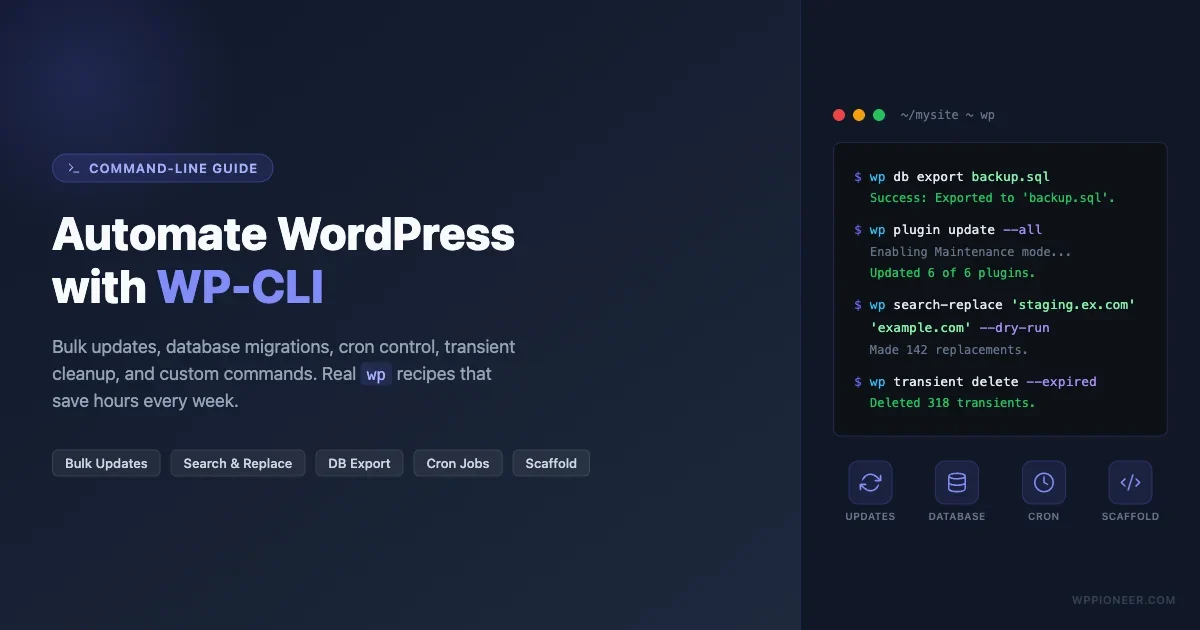
If you manage one or more WordPress sites, you already know the drill: update plugins, export the database, swap URLs after a migration, clean up expired transients, and repeat. All of it is clickable inside the dashboard, but clicking is slow, error-prone, and impossible to script. WP-CLI turns every one of those chores into a single terminal command you can run, schedule, or chain into a shell script. This guide gives you real, copy-paste wp command recipes for the tasks that eat most of your time.
What WP-CLI Actually Is (and Why It Belongs in Your Toolkit)
WP-CLI is the official command-line interface for WordPress. You install it once on a server or local machine and it connects to any WordPress install in the current directory, letting you manage posts, users, plugins, themes, options, and the database without ever touching a browser. Think of it as a remote control that speaks WordPress natively.
The project is open source, actively maintained on GitHub, and ships as a single Phar file you download with curl. Hosts like Kinsta, WP Engine, and Cloudways pre-install it. If yours does not, adding it takes under two minutes.
Installing WP-CLI and Setting Up Aliases
Download the Phar file, make it executable, and move it somewhere on your $PATH:
curl -O https://raw.githubusercontent.com/wp-cli/builds/gh-pages/phar/wp-cli.phar
chmod +x wp-cli.phar
sudo mv wp-cli.phar /usr/local/bin/wp
Verify it works:
wp --info
You should see PHP version, WP-CLI version, and paths. If you get a permission error on shared hosting, download the Phar to your home directory and call it with php ~/wp-cli.phar instead.
Shell Aliases That Save Typing
When you manage multiple sites, switching between them manually is friction. Two alias patterns fix this. Add them to ~/.bashrc or ~/.zshrc:
# Site-specific alias
alias wpdev="wp --path=/var/www/mysite/public"

# Path argument for any site
wp_site() { wp --path="$1" "${@:2}"; }
Now wpdev plugin list always targets that one site without a cd. On local tools like LocalWP, wp --path=$(pwd) from inside the site directory works automatically because WP-CLI walks up the directory tree looking for wp-config.php.
Bulk Plugin and Core Updates with Backups
Updating through the dashboard means clicking “Update” for every item, watching progress bars, and hoping nothing breaks. With WP-CLI you can back up the database, update everything, and bail out automatically if something goes wrong, all in one script.
One-Line Core and Plugin Update
# Update WordPress core
wp core update

# Update all plugins
wp plugin update --all

# Update all themes
wp theme update --all
Update Script with Pre-flight Backup
The safer pattern backs up first, then updates:
#!/bin/bash
set -e

SITE_PATH="/var/www/mysite/public"
BACKUP_DIR="/home/user/backups"
DATE=$(date +%Y-%m-%d-%H%M)

# Export database before touching anything
wp --path="$SITE_PATH" db export "$BACKUP_DIR/pre-update-$DATE.sql"

# Run updates
wp --path="$SITE_PATH" core update
wp --path="$SITE_PATH" plugin update --all
wp --path="$SITE_PATH" theme update --all

echo "Done. Backup at $BACKUP_DIR/pre-update-$DATE.sql"
The set -e flag makes the script exit immediately if any command fails, so a botched plugin update does not cascade into a broken site with no backup.
Update Only Specific Plugins
wp plugin update woocommerce contact-form-7
Skip a Plugin That Always Breaks on Update
wp plugin update --all --exclude=problematic-plugin
Search and Replace for Migrations Using - dry-run
Moving a site from http://staging.example.com to https://example.com involves URL references scattered across post content, option values, widget data, and serialized arrays. Manual SQL updates routinely corrupt serialized data. WP-CLI handles the serialization automatically. If you are doing a full domain migration, see the complete step-by-step guide on how to move a WordPress site to a new domain without losing Google rankings.
Always Preview First
wp search-replace 'http://staging.example.com' 'https://example.com' --dry-run
The --dry-run flag shows you exactly how many replacements would happen in each table without touching the database. Check the output before removing it.
Run the Real Replace
wp search-replace 'http://staging.example.com' 'https://example.com'
Target Specific Tables
On large databases, replacing every table takes time. Narrow to the tables that actually hold URLs:
wp search-replace 'http://staging.example.com' 'https://example.com' \
  wp_options wp_posts wp_postmeta
Flush Caches After Replace
wp cache flush
wp rewrite flush
Object cache still holds old URLs from before the replace. Flush it immediately or visitors will see stale redirects.
User and Role Bulk Operations
Adding or modifying dozens of users by hand in the dashboard is the kind of task WP-CLI was born to eliminate.
Create a User
wp user create jsmith john.smith@example.com --role=editor --user_pass=SecurePass123
Bulk-Create Users from a CSV
Create a file users.csv:
user_login,user_email,role
alice,alice@example.com,editor
bob,bob@example.com,author
carol,carol@example.com,subscriber
Then import with a shell loop:
tail -n +2 users.csv | while IFS=',' read login email role; do
  wp user create "$login" "$email" --role="$role"
done
Change the Role of Every Current Author
wp user list --role=author --field=ID | xargs -I {} wp user set-role {} editor
Reset a Password
wp user update jsmith --user_pass=NewSecurePass456
Delete Users and Reassign Their Content
wp user delete 42 --reassign=1
Passing --reassign=1 moves that user’s posts to the admin account (ID 1) instead of deleting them.
Database Export, Import, and Optimization
WP-CLI wraps mysqldump and mysql into commands that work with WordPress configuration automatically, no digging through wp-config.php for credentials.
Export the Database
wp db export backup.sql
Export and Compress in One Step
wp db export - | gzip > backup-$(date +%Y%m%d).sql.gz
Import a Backup
wp db import backup.sql
Optimize All Tables
WordPress databases accumulate overhead from deleted posts, revisions, and spam comments. Optimizing reclaims space:
wp db optimize
Repair Corrupted Tables
wp db repair
Check Table Sizes
wp db query "SELECT table_name, ROUND(data_length/1024/1024, 2) AS size_mb \
  FROM information_schema.tables WHERE table_schema = DATABASE() \
  ORDER BY size_mb DESC;"
WP-Cron Management
WordPress cron runs on page load, which means it only fires when someone visits the site. On low-traffic sites, scheduled tasks like backups or email queues can run hours late. WP-CLI gives you real control over the cron schedule.
List All Scheduled Events
wp cron event list
Run a Specific Event Immediately
wp cron event run wp_scheduled_delete
Run All Due Events
wp cron event run --due-now
Fix Unreliable Cron with a Real Cron Job
Disable WP-Cron in wp-config.php first:
define('DISABLE_WP_CRON', true);
Then add a system cron job (on Linux via crontab -e):
*/5 * * * * php /var/www/mysite/public/wp-cron.php
Or use WP-CLI directly from cron for cleaner output:
*/5 * * * * /usr/local/bin/wp --path=/var/www/mysite/public cron event run --due-now
Delete a Stuck Cron Event
wp cron event delete event_hook_name
Transient Cleanup
Transients are temporary key-value pairs stored in the database. Plugins use them for caching API responses, license checks, and other short-lived data. Over time they pile up and slow down every database query that touches wp_options. For a deep-dive into the full range of database bloat problems, the guide on stopping WordPress database bloat with wp_options cleanup covers autoloaded data, orphaned rows, and query optimization strategies.
Delete All Expired Transients
wp transient delete --expired
Delete Every Transient (Force-Clean)
wp transient delete --all
Use this after a plugin conflict or when troubleshooting caching issues. Most transients will be rebuilt on the next page load.
Check How Many Transients Exist
wp db query "SELECT COUNT(*) FROM wp_options WHERE option_name LIKE '_transient_%';"
If you see thousands of rows, a plugin is leaking transients. Common offenders include WooCommerce extensions that generate unique cache keys per product or session.
Schedule Weekly Transient Cleanup via Cron
0 3 * * 0 /usr/local/bin/wp --path=/var/www/mysite/public transient delete --expired
Running this at 3 AM on Sundays keeps the options table lean without any manual work.
Scaffolding Custom Commands
Once you find yourself running the same multi-step WP-CLI sequence, it is time to scaffold a custom command and reduce it to one call.
Generate a Plugin Scaffold
wp scaffold plugin my-cli-tools --plugin_name="My CLI Tools" --activate
This creates a plugin directory with the correct file structure, class skeleton, and readme.
Add a Custom WP-CLI Command to That Plugin
Open my-cli-tools.php and add:
if ( defined( 'WP_CLI' ) && WP_CLI ) {
    class My_CLI_Command {

        /**
         * Cleans transients and optimizes the database.
         *
         * ## EXAMPLES
         *   wp mytools cleanup
         *
         * @when after_wp_load
         */
        public function cleanup( $args, $assoc_args ) {
            WP_CLI::line( 'Deleting expired transients...' );
            WP_CLI::runcommand( 'transient delete --expired' );

            WP_CLI::line( 'Optimizing database tables...' );
            WP_CLI::runcommand( 'db optimize' );

            WP_CLI::success( 'Cleanup complete.' );
        }
    }

    WP_CLI::add_command( 'mytools', 'My_CLI_Command' );
}
Now running wp mytools cleanup runs both steps. Add as many methods as you need: each public method on the class becomes a subcommand.
Scaffold a Theme or CPT
# Scaffold a child theme
wp scaffold child-theme my-child --parent_theme=twentytwentyfive

# Scaffold a custom post type
wp scaffold post-type project --label="Project" --textdomain=my-plugin
Putting It All Together: A Weekly Maintenance Script
Here is a production-ready script that combines several recipes above into a weekly run. Save it to /usr/local/bin/wp-weekly-maintenance and make it executable with chmod +x.
#!/bin/bash
set -e

WP="wp --path=/var/www/mysite/public"
BACKUP_DIR="/home/user/backups"
DATE=$(date +%Y-%m-%d)
LOG="/var/log/wp-maintenance.log"

echo "=== WP Maintenance $DATE ===" >> "$LOG"

# 1. Export database backup
$WP db export "$BACKUP_DIR/weekly-$DATE.sql" && echo "DB backup saved" >> "$LOG"

# 2. Update core, plugins, themes
$WP core update >> "$LOG" 2>&1
$WP plugin update --all >> "$LOG" 2>&1
$WP theme update --all >> "$LOG" 2>&1

# 3. Clean transients
$WP transient delete --expired >> "$LOG" 2>&1

# 4. Optimize database
$WP db optimize >> "$LOG" 2>&1

# 5. Flush caches
$WP cache flush >> "$LOG" 2>&1
$WP rewrite flush >> "$LOG" 2>&1

echo "=== Done ===" >> "$LOG"
Add it to cron to run every Sunday at 2 AM:
0 2 * * 0 /usr/local/bin/wp-weekly-maintenance
Working with the WordPress Configuration File
WP-CLI can read and write constants and variables in wp-config.php without you having to open the file manually. This is especially handy when you need to toggle debug mode before a troubleshooting session and turn it off again afterward.
Enable Debug Mode
wp config set WP_DEBUG true --raw
wp config set WP_DEBUG_LOG true --raw
wp config set WP_DEBUG_DISPLAY false --raw
The --raw flag writes the value as a PHP expression rather than a string, so true becomes the boolean true in the file instead of the string 'true'.
Check the Current Value of Any Constant
wp config get WP_DEBUG
wp config get table_prefix
List Every Constant and Variable
wp config list
This prints every defined constant and variable from wp-config.php in a table, useful for auditing a site you did not set up yourself.
Add a New Constant
wp config set WP_MEMORY_LIMIT 256M
If the constant already exists it is updated. If not, it is inserted before the line that reads /* That's all, stop editing! */.
User Meta and Capabilities
Some tasks require reading or modifying user meta directly, without going through the Users screen. WP-CLI handles this cleanly.
Get a User’s Meta Value
wp user meta get 42 wp_capabilities
Grant an Extra Capability
wp user add-cap 42 manage_options
Remove a Capability
wp user remove-cap 42 manage_options
Find All Admins on the Site
wp user list --role=administrator --fields=ID,user_login,user_email
Running this on a hacked or inherited site is a quick way to spot rogue admin accounts added without your knowledge. Any account you do not recognize is worth investigating before you do anything else.
Automating WP-CLI with Shell Scripts and Aliases
Once you have a collection of useful commands, the next step is organizing them so you are not retyping them every time. There are three main approaches: shell aliases, shell functions, and full Bash scripts.
Shell Alias for a Common Sequence
alias wpmaint='wp transient delete --expired && wp db optimize && wp cache flush'
Now typing wpmaint in any site directory runs all three steps in sequence.
Shell Function for Multi-Site Work
wpu() {
  local SITE="$1"
  shift
  wp --path="/var/www/$SITE/public" "$@"
}
Call it as wpu mysite plugin update --all. The function passes everything after the site name directly to WP-CLI, so you can use any command with it.
Generate a Post-Deployment Script for CI/CD
If you deploy via Git hooks or a CI pipeline, WP-CLI belongs in your post-deploy step:
#!/bin/bash
set -e
WP="wp --path=/var/www/mysite/public"

$WP core update-db          # run any pending database upgrades
$WP cache flush             # clear stale cached data
$WP rewrite flush           # regenerate permalink rules
$WP transient delete --expired  # clean leftover transients
echo "Post-deploy tasks complete"
Running this every time you push a new version ensures the database schema and caches are always consistent with the deployed code.
Useful WP-CLI Flags to Know
Before you go, a few flags that change the behavior of almost any command:
--quiet: suppresses success messages, cleaner for cron logs--debug: shows every internal operation, useful for troubleshooting--skip-plugins: loads WordPress without any plugins, good for conflict isolation--skip-themes: same but for the active theme--allow-root: required on some Docker containers where the shell runs as root--format=json: returns output as JSON for piping into other scripts
Combining --skip-plugins --skip-themes is the fastest way to run a database command when a broken plugin is preventing normal WordPress load.
Managing WordPress Options from the Command Line
WordPress stores site-wide settings in the wp_options table. WP-CLI gives you direct read and write access, which is helpful when you need to change a URL, toggle a feature flag, or clear a stuck option without loading the admin panel.
Read an Option
wp option get siteurl
wp option get blogdescription
Update an Option
wp option update siteurl 'https://example.com'
wp option update blogname 'My New Site Name'
Delete a Stuck Plugin Option
Some plugins leave behind orphaned option rows even after deletion. Clean them like this:
wp option delete my_plugin_settings
List All Options Matching a Pattern
wp option list --search='my_plugin_*' --fields=option_name,option_value
This is useful for auditing what a specific plugin has stored and for confirming cleanup after a plugin is removed.
Post and Comment Management in Bulk
WP-CLI lets you create, update, delete, and query posts and comments at scale without writing custom PHP scripts or installing extra admin plugins.
List Posts with Filters
wp post list --post_type=page --post_status=publish --fields=ID,post_title,post_date
Delete Old Post Revisions
WordPress saves a revision every time you update a post. On busy sites this adds thousands of rows to the database. Delete them all:
wp post delete $(wp post list --post_type=revision --format=ids) --force
The subshell $(wp post list ...) returns a space-separated list of IDs that wp post delete receives as arguments. Add --force to skip the trash and permanently delete.
Delete Spam Comments
wp comment delete $(wp comment list --status=spam --format=ids) --force
Approve Pending Comments in Bulk
wp comment approve $(wp comment list --status=hold --format=ids)
Update a Custom Field Across All Posts
wp post list --post_type=post --format=ids | xargs -I {} \
  wp post meta update {} _my_custom_field "new_value"
Checking Site Health Without the Dashboard
The WordPress Site Health screen is useful, but accessing it requires a working admin login. WP-CLI gives you the same diagnostics from the terminal, which matters when the admin panel is inaccessible due to a plugin conflict or memory limit.
Run Site Health Checks
wp site-health check
This outputs a list of tests and their pass or fail status. You can pipe it into grep fail to see only the problems.
Check WordPress Version
wp core version
wp core verify-checksums
verify-checksums compares every core file against the official WordPress checksums and reports any file that has been modified. This is a fast security check that takes seconds instead of the minutes a manual file comparison would require.
List All Active Plugins
wp plugin list --status=active --fields=name,version,update
Adding --format=csv exports it in a spreadsheet-friendly format you can send to a client as a site inventory.
Multisite Operations
If you run a WordPress Multisite network, WP-CLI has a full set of network commands. You target individual sites within the network using the --url flag.
List All Sites in the Network
wp site list --fields=blog_id,url,registered,last_updated
Run a Command on Every Site in the Network
wp site list --field=url | xargs -I % wp --url=% plugin update --all
This pipes every site URL into a plugin update command. Use the same pattern for transient cleanup, cache flushes, or any other operation you want to broadcast across the entire network.
Activate a Plugin Network-Wide
wp plugin activate my-plugin --network
Create a New Site in the Network
wp site create --slug=new-subdomain --title="New Subdomain Site" --email=admin@example.com
Debugging with WP-CLI
When something breaks, WP-CLI is often the fastest tool for isolating the problem because it lets you run WordPress with various combinations of plugins and themes disabled.
Check PHP Fatal Errors Without Loading Plugins
wp --skip-plugins --skip-themes eval 'echo "WP core loads fine.";'
If this works but your normal wp call fails, the problem is in a plugin or theme. Re-add --skip-plugins and --skip-themes individually to narrow down which layer is at fault.
Test Email Sending
wp eval 'wp_mail("test@example.com", "WP-CLI Test", "Mail works.");'
If you get no email, check your SMTP configuration or the return value by catching the Boolean returned from wp_mail.
Flush Object Cache
wp cache flush
On sites using Redis or Memcached, this clears the in-memory cache immediately. On sites without a persistent cache, it has no effect but causes no harm.
Regenerate Thumbnails
wp media regenerate --yes
After switching themes or changing image size settings in functions.php, existing images need their thumbnails rebuilt. The --yes flag skips the confirmation prompt, making it scriptable.
Next Steps
WP-CLI covers nearly every WordPress operation you might do manually. The commands above are the ones that pay off fastest. Start with the update script, run it once on a staging site, and watch how much time it saves compared to clicking through the dashboard. From there, add the transient cleanup cron job, then wire up the maintenance script for your production site.
A practical starting order: get comfortable with wp plugin update --all and wp db export first, since those two commands alone protect you from the most common data loss scenarios. Once those feel natural, add the search-replace workflow to your migration checklist, then graduate to scheduling the full maintenance script via cron.
If you manage client sites, consider wrapping your most-used sequences into custom commands using the scaffold approach. A single wp clienttools deploy that handles post-deploy tasks, or wp clienttools checkup that runs site health and plugin audit checks, turns a 15-minute manual checklist into a 30-second automated one. Your clients get faster response times; you get back your afternoon.
For deeper reading, the official WP-CLI command reference lists every built-in command with all available flags. Bookmark the WP-CLI handbook for guides on writing custom commands, testing, and contributing new subcommands to the project. The GitHub repository is also where you can watch for releases, report bugs, and find community-maintained packages that extend WP-CLI with commands for popular plugins like WooCommerce, ACF, and Gravity Forms.
No comments yet