How to Move a WordPress Site to a New Domain Without Losing Google Rankings

Moving your WordPress site to a new domain is one of the most stressful technical tasks a site owner can face. Do it wrong and you can watch months of SEO work disappear in days. Do it right and your rankings survive the transition largely intact, sometimes even improving as you clean things up along the way.
This guide walks through the entire process from the pre-migration checklist to the 60-day monitoring window. Every step matters. Skip one and you risk a traffic drop that can take months to recover from.
Why Domain Migrations Are Risky for SEO
Google’s index is built on URLs. When you move from olddomain.com to newdomain.com, every single URL that Google has indexed needs to be re-evaluated. If you set up proper 301 redirects, Google knows the old URLs have permanently moved and transfers most of the ranking signal to the new URLs. If you skip the redirects or set them up incorrectly, Google treats the new domain as a completely new site with no authority.
The other risk is consistency. Any place your old domain appears — backlinks, internal links, hardcoded references in your database, sitemap entries — needs to be updated. Even small inconsistencies can confuse crawlers and slow down the transfer of ranking signals.
With that context in mind, here is the full process.
Step 1: Pre-Migration Checklist
Never start a migration without completing this checklist. Rushing into the technical steps without preparation is the fastest way to lose rankings permanently.
Back Up Everything
Before touching a single file, create a complete backup of your WordPress site. This means both the database and all site files. Use a plugin like UpdraftPlus or the backup tool built into your hosting control panel. Download the backup to your local machine — do not rely solely on cloud storage for this step.
Verify the backup works. Restore it to a staging environment if you can. A backup you have never tested is not a real backup.
Crawl Your Old Site
Use Screaming Frog SEO Spider (free up to 500 URLs) or Sitebulb to crawl your current domain. Export the full list of URLs, including:
- All indexable pages (blog posts, category pages, tags, static pages)
- All image URLs
- All external links going out from your site
- All internal links
This crawl file becomes your migration map. You will use it to verify that every important URL on the old domain has a working redirect on the new domain after the migration.
Document Your Current Rankings
Export your current position data from Google Search Console. Go to Performance, set the date range to 90 days, and download all queries with their average positions and click data. This is your baseline. You will compare against it 30 and 60 days after the migration to measure ranking impact.
Also note which pages drive the most organic traffic. These are your highest-priority URLs to protect during the migration.
Set Up the New Domain First
Register your new domain and configure hosting before you start the migration. Point your nameservers, let DNS propagate, and confirm the new domain is accessible. Do not migrate to a domain that is not yet live and functional.
Step 2: Clone Your WordPress Site to the New Domain
There are two reliable ways to clone a WordPress site: the Duplicator plugin and All-in-One WP Migration. Both handle the heavy lifting of exporting and importing your site.
Using Duplicator
Duplicator creates a self-contained package (your files as a zip and a PHP installer script) that you upload to the new server.
On the old site:
- Install and activate Duplicator from Plugins > Add New
- Go to Duplicator > Packages > Create New
- Name the package and run the build scan — fix any warnings before proceeding
- Click Build and download both the installer.php file and the .zip archive
On the new server:
- Upload installer.php and the .zip file to the root of your new domain via FTP or your host’s file manager
- Visit
newdomain.com/installer.phpin your browser - Follow the installer prompts: create a new empty database, enter the database credentials, and let the installer run
- The installer will ask you to confirm the new site URL — enter your new domain here
After the installation finishes, Duplicator automatically runs the database search-replace to update URLs from the old domain to the new domain.
Using All-in-One WP Migration
All-in-One WP Migration is simpler for smaller sites (the free version handles sites up to 512MB).
- On the old site: go to All-in-One WP Migration > Export > File and let the plugin package everything
- Download the .wpress file
- On the new site: install All-in-One WP Migration, go to Import > File, and upload the .wpress file
- The import will overwrite the new site’s database and files with the exported data
- After the import, you will need to go to Settings > Permalinks and click Save Changes (even without changing anything) to flush the rewrite rules
After importing with All-in-One WP Migration, you still need to run a manual database search-replace to update any remaining hardcoded references to the old domain.
Step 3: Database Search-Replace for the Old Domain
Even if your migration plugin handles URL updates, it is worth running a manual search-replace to catch anything it may have missed. WP-CLI makes this fast and reliable.
Connect to your new server via SSH and run:
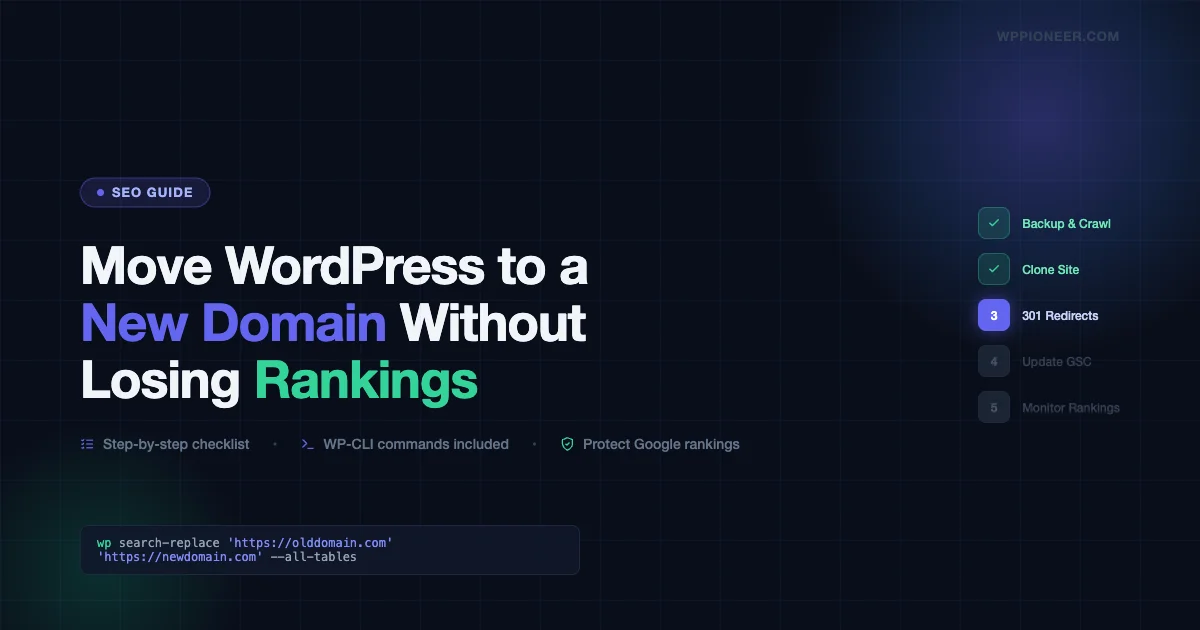
wp search-replace 'http://olddomain.com' 'https://newdomain.com' --all-tables --report-changed-cellsThen run it again with the www variant:
wp search-replace 'http://www.olddomain.com' 'https://newdomain.com' --all-tables --report-changed-cellsAnd once more for the HTTPS version of the old domain if it was already on SSL:
wp search-replace 'https://olddomain.com' 'https://newdomain.com' --all-tables --report-changed-cellsThe --report-changed-cells flag shows you exactly how many rows were updated in each table. If the count is zero for all runs, your migration plugin already handled everything. If it reports changes, those were missed references that are now fixed.
After the search-replace, clear all caches on the new site: object cache, page cache, and any CDN cache. Then browse through several pages to confirm they render correctly with no broken links pointing back to the old domain.
Step 4: Set Up 301 Redirects from the Old Domain
This is the single most important SEO step in the entire migration. Every URL on your old domain needs a 301 redirect pointing to the equivalent URL on your new domain.
A 301 redirect tells Google that the page has permanently moved. Google transfers the majority of the ranking signals (link equity, authority) from the old URL to the new URL. A 302 redirect (temporary) does not pass this signal. Make sure all your redirects are 301s.
Option A: .htaccess Redirect (Apache Servers)
If your old domain runs on an Apache server, add this to your old site’s .htaccess file to redirect all traffic to the equivalent pages on the new domain:
RewriteEngine On
RewriteRule ^(.*)$ https://newdomain.com/$1 [R=301,L]
This single rule catches every URL pattern on the old domain and redirects it to the same path on the new domain. So olddomain.com/about/ redirects to newdomain.com/about/.
Option B: Nginx Server Block
For Nginx servers, add this to the server block for the old domain:
server {
    server_name olddomain.com www.olddomain.com;
    return 301 https://newdomain.com$request_uri;
}
Option C: Redirect Plugin (Keeping Old Hosting Active)
If you want to manage redirects through WordPress, use the Redirection plugin (free). After installing on the old site, go to Redirection > Add New and create a wildcard redirect. You can also import a CSV list of URL mappings if you have specific pages moving to different paths on the new domain.
The Redirection plugin is useful when you need redirect rules for specific URLs that are changing paths (for example, if you are restructuring your site’s URL structure at the same time as changing domains).
Test Every Redirect
After setting up redirects, verify them. Use the curl command to check individual URLs:
curl -I http://olddomain.com/sample-post/The response should include HTTP/1.1 301 Moved Permanently and a Location: header pointing to the correct URL on the new domain.
For bulk checking, run your Screaming Frog crawl on the old domain again and filter for anything that is not returning a 301. Fix every non-301 response on an indexable URL.
Step 5: Update Google Search Console
Google Search Console has a built-in Change of Address tool specifically for domain migrations. Using it correctly signals to Google that your domain has moved and speeds up the re-indexing process.
Verify the New Domain First
Before using the Change of Address tool, the new domain must be verified in Google Search Console. Add the new domain as a property, verify ownership via DNS record or HTML file, and confirm the verification is successful.
Use the Change of Address Tool
- In Google Search Console, go to the old domain’s property
- Click Settings in the left sidebar
- Find Change of Address and click it
- Select your new domain property from the dropdown
- Google will check that your 301 redirects are working before confirming the change
- Submit the change
This tool sends a direct signal to Google about the domain move. It does not guarantee instant re-ranking but it does speed up the process of Google discovering and processing the redirects.
Update Bing Webmaster Tools
Bing does not have a formal Change of Address tool. Instead:
- Add the new domain as a site in Bing Webmaster Tools
- Verify ownership
- Submit the new domain’s sitemap
The 301 redirects from the old domain will handle the signal transfer for Bing as well. With the new sitemap submitted, Bing will pick up the new domain faster.
Step 6: Submit the New Sitemap and Update Internal Links
Submit the New Sitemap
If you are using an SEO plugin like Yoast or RankMath, your new domain’s sitemap is available at newdomain.com/sitemap_index.xml. In Google Search Console under the new domain property, go to Sitemaps and submit this URL.
Also submit the sitemap to Bing Webmaster Tools under the new property.
Sitemaps do not directly improve rankings, but they help Google discover and crawl your new domain’s URLs faster. This is especially helpful for large sites with hundreds or thousands of pages.
If you are handling this as part of a larger hosting move, the full guide on how to migrate your WordPress site without downtime covers server-level preparation steps worth reading before you start.
Audit Internal Links
After the database search-replace, most internal links should already point to the new domain. Run Screaming Frog on the new domain and check for any internal links that still reference the old domain. These should be rare if the search-replace ran correctly, but fix any that appear.
Also update your navigation menus manually through Appearance > Menus in WordPress, since menu items sometimes store absolute URLs that the search-replace misses depending on how your theme is coded.
Update External Profiles
While the 301 redirects will pass link equity from incoming backlinks, you should still manually update your domain wherever you control the listing:
- Google Business Profile
- Social media bio links (Twitter/X, LinkedIn, Facebook Page, Instagram)
- Email signatures
- Directory listings you manage
- Any guest posts where you can request a link update
Updated backlinks pointing directly to the new domain are stronger than redirected ones. Direct updates eliminate one hop in the redirect chain and remove any residual uncertainty for crawlers.
Step 7: Monitor Rankings for 30 to 60 Days
Domain migrations almost always cause some ranking fluctuation in the first few weeks. This is normal. Google is re-crawling and re-evaluating every page on the new domain. Expect fluctuation for 2 to 4 weeks before rankings stabilize.
What to Monitor
Google Search Console (new domain property):
- Total impressions and clicks — compare week over week
- Coverage report — watch for any spike in indexed pages that should not be indexed, or a drop in indexed pages that should be
- Crawl stats — confirm Google is crawling the new domain at a reasonable rate
- Any coverage errors, especially 404s on pages that should be live
Google Search Console (old domain property):
- Impressions should drop to near zero within 4 to 6 weeks as Google transfers ranking to the new domain
- If impressions on the old domain are not declining, it may mean your 301 redirects are not working as expected
Rank tracking tool: Use a tool like Semrush, Ahrefs, or the free Google Search Console data to track specific keyword positions before and after migration. Compare your baseline export from Step 1 with current positions.
30-Day Check
At 30 days, compare your traffic and rankings to the baseline from before the migration. A temporary dip of 10 to 20 percent is normal and expected. A dip larger than that — or one that is not recovering — signals a problem to investigate.
60-Day Check
At 60 days, rankings should be at or near their pre-migration levels. If they are still significantly lower, you need to dig into the causes.
Step 8: What to Do If Rankings Drop After Migration
A prolonged ranking drop after a domain migration almost always traces back to one of the following issues.
Redirect Chain Problems
Check whether your redirects are creating chains (A redirects to B redirects to C) rather than pointing directly from old URLs to the new equivalent. Each hop in a redirect chain dilutes link equity. Use Screaming Frog to check your redirect chains and fix any that have more than one hop.
Missing 301 Redirects
If your old domain has URLs returning 404 (page not found) instead of 301 redirecting to the new domain, those pages are losing their ranking signals. Cross-reference the URL list from your pre-migration crawl with the current redirect setup and fill any gaps.
Canonicalization Issues
Check that the new domain’s pages have canonical tags pointing to themselves (not to the old domain). If your migration left canonical tags referencing the old domain, Google may be treating the new domain’s pages as duplicates of the old domain content and choosing not to rank them.
In WordPress with Yoast, check Settings > Search Appearance to confirm the site URL is set to the new domain. In RankMath, check General Settings > Links. While you are in the SEO settings, also verify that your schema markup in WordPress is rendering on the new domain, since structured data can affect how your pages appear in search results after a migration.
Indexation Problems
In Google Search Console, go to Coverage and check for a large number of pages with status “Discovered – currently not indexed” or “Crawled – currently not indexed.” If Google is discovering your new pages but choosing not to index them, you may have thin content issues, duplicate content from the old domain still being served without redirects, or technical issues like slow server response times on the new host.
The Old Domain Is Still Accessible
One surprisingly common mistake: the old site is still live and accessible at the old domain, in addition to running on the new domain. This creates duplicate content at two separate domains. Google does not know which one to rank and may not rank either well. The old domain must redirect every URL to the new domain — it should not serve any content directly.
SSL Certificate Missing on New Domain
If the new domain is serving pages over HTTP instead of HTTPS, you may see a ranking drop, and users may see browser security warnings. Install an SSL certificate on the new domain immediately if it is not already configured. Most hosting providers offer free SSL through Let’s Encrypt, configurable through your hosting control panel.
Step 9: Common Mistakes That Kill Rankings During Migration
Here is a list of mistakes that experienced developers and site owners still make during domain migrations.
Not Running the Change of Address Tool
Some people assume that 301 redirects alone are enough and skip notifying Google Search Console. While the redirects will eventually work, the Change of Address tool speeds up the process by directly signaling the migration to Google. Always use it.
Using 302 Instead of 301 Redirects
A 302 redirect means “moved temporarily” and does not reliably transfer ranking signals. Always use 301 for a permanent domain move. Check your redirect type with curl as described in Step 4 to confirm you are getting 301 responses, not 302s.
Changing URL Structure at the Same Time
Many site owners see a domain migration as a good time to also restructure their URL slugs (for example, changing from /blog/post-title/ to /post-title/). This doubles the complexity and doubles the risk. Unless you have a specific technical reason to change your URL structure, keep it identical on the new domain. Make structural changes, if needed, as a separate project weeks or months after the domain migration is complete and rankings have stabilized.
Forgetting Image and Media URLs
Your database search-replace should update image URLs in the media library and in post content, but check. Images served from olddomain.com/wp-content/uploads/ that are now breaking because the old domain no longer serves those files will slow down your pages and create a poor user experience. Screaming Frog can flag broken image URLs if you configure it to check images during the crawl.
Not Updating Your XML Sitemap After Migration
If you had manually edited your sitemap or had a custom sitemap setup, confirm the new sitemap is only listing new domain URLs. A sitemap that references old domain URLs will confuse crawlers.
Moving Without Testing on Staging First
Run the full migration process on a staging environment before touching the live site. This lets you identify issues with the Duplicator package, the database search-replace, or the redirect setup without any live-site downtime or ranking risk. Most issues are much easier to fix before you have gone live with the new domain.
Canceling the Old Domain’s Hosting Too Soon
Keep the old domain’s hosting active and the 301 redirects running for at least 12 months after the migration. Google takes time to fully transfer all ranking signals. Backlinks from other sites will continue sending traffic and link equity through the old domain’s redirects for months. Canceling the old hosting too early cuts off this signal transfer prematurely.
Quick Checklist Summary
Use this as your migration day reference:
- Full site backup downloaded and verified
- Old site crawled with URL list exported
- GSC position data exported as baseline
- New domain live and accessible
- Site cloned to new domain with Duplicator or All-in-One WP Migration
- Database search-replace completed for all old domain variants
- All caches cleared on new domain
- New domain tested and functional
- 301 redirects active on old domain (all URLs)
- Redirects verified with curl and Screaming Frog
- New domain verified in Google Search Console
- Change of Address tool submitted in GSC
- New domain added to Bing Webmaster Tools
- New sitemap submitted in GSC and Bing WMT
- Internal links confirmed pointing to new domain
- External profiles updated with new domain URL
- 30-day ranking review scheduled
- 60-day ranking review scheduled
Wrapping Up
A WordPress domain migration does not have to mean a loss in rankings. The sites that come through migrations cleanly are the ones that followed a documented process, tested before going live, and kept the old domain’s redirects running for the long haul.
The WP-CLI search-replace command, proper 301 redirects in .htaccess or Nginx, and the Google Search Console Change of Address tool are the three technical pillars that protect your SEO during a migration. Everything else builds on top of those foundations.
If you do see a temporary dip after migration, stay calm. Check your redirects, confirm your canonical tags, and give Google 4 to 6 weeks to fully process the change. In most cases, rankings return to their baseline levels and sometimes improve once all the updated signals are processed.