How to Add Schema Markup to WordPress for Rich Search Results

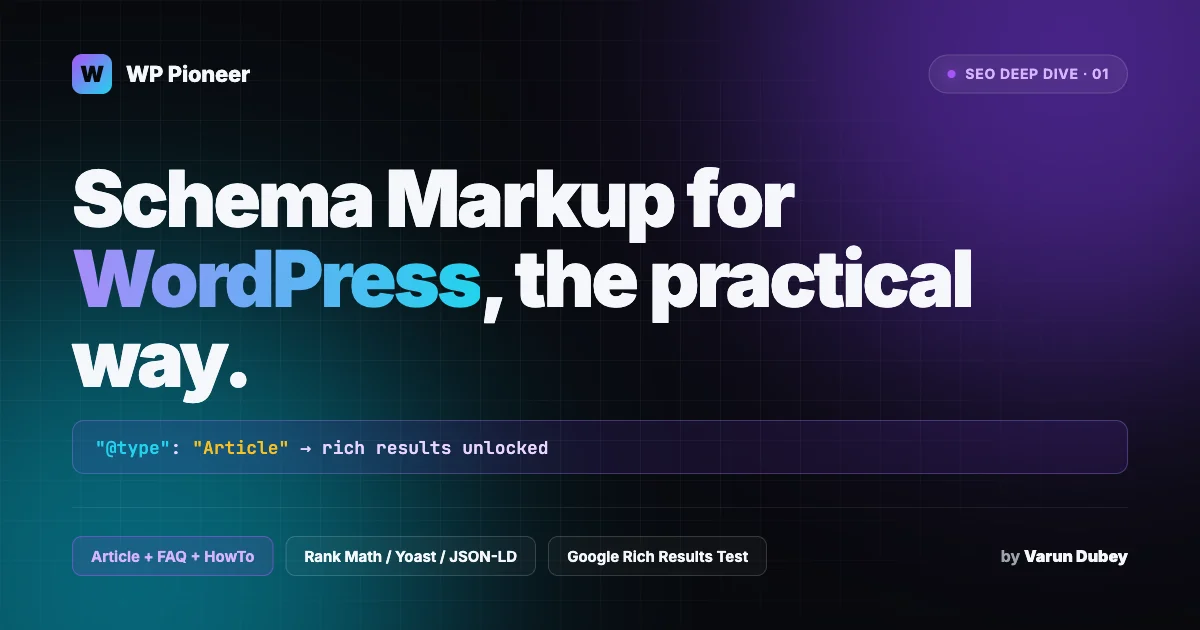
Your WordPress posts might rank on page one, but if competitors show star ratings, FAQs, cook times, and product prices directly in Google results, they steal the click. That visual real estate comes from WordPress schema markup, a bit of structured data that tells search engines exactly what your content is about. This guide walks through WordPress schema markup the practical way: which types actually matter, when a plugin wins versus manual JSON-LD, how to validate with Google Rich Results Test, and the common mistakes that silently kill your rich snippets.
What Schema Markup Is and Why It Changes Your Click Rate
Schema markup is structured data that lives inside your page source. It follows a shared vocabulary maintained at Schema.org, co-developed by Google, Bing, Yahoo, and Yandex. Search engines read that markup to understand context that plain HTML cannot express. A headline tag tells Google the words in a title. Schema tells Google that the title belongs to a recipe, written by a named author, with a cook time of 45 minutes and a 4.8-star rating from 312 reviews.
That extra context unlocks rich results. Rich results are the enhanced listings you see in Google: recipe cards with images, FAQ accordions that expand in the search results, product cards with prices, event listings with dates, how-to carousels with numbered steps. Pages that earn rich results pull a higher click-through rate, often 30 percent higher or more, because they take up more screen space and answer the visitor’s question before they even click.
On WordPress specifically, schema markup matters for a second reason: AI search. Google’s AI Overviews, Bing Copilot, and Perplexity all lean on structured data to decide which sources they summarize and cite. Pages without clean schema tend to get skipped, even when they rank well in classic blue-link results. If you care about being visible in the next generation of search, schema is no longer optional.
The Four Schema Types That Actually Matter for Most WordPress Sites
Schema.org lists hundreds of types, but most WordPress sites only need a small handful. Start with these four and resist the temptation to markup everything. Google ignores or downranks pages that stack irrelevant schema.
1. Article (and BlogPosting, NewsArticle)
Every blog post on your WordPress site should carry Article schema. It tells Google the headline, author, publication date, modified date, featured image, and publisher. Article markup does not usually produce a flashy rich result on desktop, but it powers Google News inclusion, Discover eligibility, and the author byline and timestamp shown in mobile results. If you blog regularly, this is table stakes.
2. FAQPage
FAQ schema used to guarantee a rich accordion in search results. Google trimmed that display in 2023, and FAQ rich results now show mainly for government, health, and official sources. However, FAQ schema still feeds AI Overviews heavily. If your page answers specific questions with short, direct answers, adding FAQPage markup increases the odds that Google pulls your answer into the AI summary with a citation.
3. HowTo
HowTo schema worked like a carousel with numbered steps in search. Google removed that visual treatment for most sites in 2023, keeping it active only for niches like DIY and cooking. Still, HowTo markup helps Google parse the structure of step-by-step content and feeds voice assistants like Google Assistant. For WordPress tutorials, include it where the content genuinely follows numbered steps with images.
4. Product (and Review, AggregateRating)
For WooCommerce stores, product review sites, and any page selling or comparing specific items, Product schema is the highest-value markup available. Done right, you get price, availability, review count, and star ratings shown directly in Google. Done wrong, you get flagged by Google’s product policy and the listing disappears overnight. Product schema has the strictest rules of any common type, so we cover it in detail below.
Beyond these four, specialized types like Recipe, Event, LocalBusiness, VideoObject, BreadcrumbList, and Organization all matter if your site publishes that content. Skip them if not. Adding Recipe schema to a non-recipe post is worse than adding nothing.
JSON-LD Is the Format Google Prefers
You can embed schema in three formats: Microdata (inline HTML attributes), RDFa (similar, older), and JSON-LD (a JSON block in your page). Google has recommended JSON-LD since 2015 and all modern SEO plugins default to it. You should too.
The advantage of JSON-LD is that the schema lives in a single script block, separate from your visible content. That means designers can change the layout without breaking markup, editors can update content without understanding structured data, and plugins can inject schema without polluting your theme files. Here is what a clean Article JSON-LD block looks like on a WordPress post:
<script type="application/ld+json">
{
  "@context": "https://schema.org",
  "@type": "Article",
  "headline": "How to Add Schema Markup to WordPress",
  "image": "https://example.com/wp-content/uploads/schema-hero.png",
  "author": {
    "@type": "Person",
    "name": "Varun Dubey",
    "url": "https://example.com/author/varun/"
  },
  "publisher": {
    "@type": "Organization",
    "name": "WP Pioneer",
    "logo": {
      "@type": "ImageObject",
      "url": "https://example.com/logo.png"
    }
  },
  "datePublished": "2026-04-18T09:00:00+00:00",
  "dateModified": "2026-04-18T09:00:00+00:00"
}
</script>
That 18-line block is all the Article markup you need. A plugin produces this automatically on every post, pulling the values from your WordPress post meta, author profile, and site settings.
Plugin Method: The Right Choice for 9 Out of 10 WordPress Sites
Unless you are running a custom-built stack or have a developer on retainer, use a plugin. The top three SEO plugins all ship schema by default, and they each do a slightly different job.
Rank Math (Free Tier Covers Most Sites)
Rank Math ships the widest range of schema types in its free version. Out of the box, you get Article, Product, Review, Recipe, Event, Job Posting, Service, Software Application, Video, Book, Course, Person, and more. Each post type can be assigned a default schema, and you can override per post from the Rank Math metabox. For a typical blog plus WooCommerce setup, Rank Math free handles everything.
Rank Math also validates schema inside its metabox, showing you missing required fields before you publish. That single feature saves hours compared to manually checking Google Rich Results Test after every post.
Yoast SEO (Cleanest Default Output)
Yoast takes a different approach. Rather than giving you dozens of types, it builds a tightly connected schema graph across every page: the Organization, WebSite, WebPage, Article, Author Person, and BreadcrumbList all reference each other with stable @id values. That interconnected graph is technically the cleanest implementation of schema on any WordPress plugin.
Yoast free covers Article, Person, Organization, WebSite, WebPage, and BreadcrumbList. Product, Recipe, HowTo, FAQ, and video require either Yoast Premium or the Schema block patterns inside the Gutenberg editor. If you mostly publish articles and have a WooCommerce store, Yoast free plus the WooCommerce Yoast SEO addon produces the most robust schema graph available.
All in One SEO (Best for Non-Technical Editors)
AIOSEO focuses on a visual schema generator inside the editor. You pick a type from a dropdown, fill in a form, and the plugin writes the JSON-LD. For content teams without a developer, this is the friendliest path. The tradeoff is that AIOSEO’s default schema graph is less connected than Yoast’s, and some types require the Pro version.
For a deeper side-by-side breakdown of these three plugins across schema, performance, and pricing, we have a full Yoast vs Rank Math vs AIOSEO comparison that covers real-world testing.
Schema Pro and Dedicated Schema Plugins
Schema Pro, WP SEO Structured Data Schema, and Saswp each focus exclusively on structured data. They are powerful, especially for review sites and local businesses with complex needs, but running a dedicated schema plugin alongside your main SEO plugin creates a real risk: duplicate markup. Google sees two Article blocks on one URL, flags the page as inconsistent, and often ignores both.
Rule: run one schema source. If you already use Rank Math or Yoast, turn off schema output in any secondary plugin, or disable your SEO plugin’s schema before enabling the dedicated one. Never run both at full power.
Manual JSON-LD: When Hand-Coding Makes Sense
There are three scenarios where manual JSON-LD beats a plugin:
- Performance-critical sites. Every schema plugin adds at least one database query and a few kilobytes of output per page. On a high-traffic site, trimming that overhead adds up. Writing Article and Organization schema directly into your theme’s header.php or a mu-plugin cuts the weight.
- Custom post types with custom fields. If you run a directory, a review site, or a course catalog where most data lives in ACF or Meta Box custom fields, plugins will not know which field maps to which schema property. Hand-coded JSON-LD gives you full control.
- Edge-case types. Scholarly articles, medical conditions, specialized software documentation, and uncommon event types often need schema types no plugin exposes. Writing JSON-LD by hand is the only option.
- Agencies building for clients who will never touch WordPress. A static, hand-coded schema block in the theme is one fewer plugin for the client to accidentally disable.
Here is a minimal way to inject custom JSON-LD into your WordPress head using a small functions.php snippet:
add_action( 'wp_head', function() {
    if ( ! is_singular( 'post' ) ) {
        return;
    }
    $post = get_post();
    $schema = array(
        '@context'      => 'https://schema.org',
        '@type'         => 'Article',
        'headline'      => get_the_title( $post ),
        'datePublished' => get_the_date( 'c', $post ),
        'dateModified'  => get_the_modified_date( 'c', $post ),
        'author'        => array(
            '@type' => 'Person',
            'name'  => get_the_author_meta( 'display_name', $post->post_author ),
        ),
    );
    echo '<script type="application/ld+json">' . wp_json_encode( $schema ) . '</script>';
} );
Drop that into a child theme’s functions.php or into a custom mu-plugin and you have baseline Article schema with zero plugin overhead. Expand the array to cover image, publisher, and body details as needed.
Product Schema Deserves Its Own Section
Google has tightened product schema rules every year since 2022. As of 2026, getting a product rich result requires:
- A real, buyable product on the page. Round-ups and lists use Product schema only inside individual Review items, not as the page-level type.
- Valid price, priceCurrency, and availability (InStock, OutOfStock, PreOrder).
- A real aggregateRating based on on-site reviews. Pulling ratings from a third party is a policy violation.
- Matching visible content. If the schema says 4.8 stars and the page shows 4.5, Google treats this as inconsistent and blocks the rich result.
- shippingDetails or hasMerchantReturnPolicy for any site that wants the full product card. Without these, Google downgrades display to a text-only snippet.
WooCommerce stores benefit from running the official WooCommerce integration inside Rank Math or Yoast. Both pull price, availability, SKU, and review data straight from Woo’s database into the schema block, so you never hand-maintain product data in two places.
Testing With Google Rich Results Test and Schema Validator
Never assume schema is working. Always validate. Two tools are free, official, and should be part of your publish checklist.
Google Rich Results Test
Open search.google.com/test/rich-results, paste your URL, and click Test URL. Google fetches the page, extracts all structured data, and reports which rich result types qualify, which are eligible with warnings, and which have errors.
The key sections to check:
- Detected items. Every type you expect should appear here. If Article is missing, your plugin is not firing.
- Valid items (eligible for rich results). These qualify right now. Zero errors.
- Warnings. The page still qualifies, but you are missing optional fields that improve display. Fix warnings when you can.
- Errors. These block the rich result. Fix every error before moving on.
Schema Markup Validator
At validator.schema.org, you get a broader check. Google’s Rich Results Test only flags issues that affect Google rich results. Schema Validator reports every structural issue in your markup, including types Google does not currently use for rich results but that Bing, Yandex, or AI search engines might. Run this alongside the Rich Results Test on any important page.
Search Console Enhancements Reports
Once a page is live, Google Search Console tracks schema at scale. Under Enhancements, you will see separate reports for Products, FAQs, Articles, Breadcrumbs, and every type Google detects. Each report lists valid pages, warnings, and errors across the full site. Check these weekly. A spike in errors usually means a plugin update changed behavior or a theme update broke something.
If you are new to Search Console, our WordPress SEO basics for beginners guide walks through setup and how to read each report.
Common Schema Mistakes That Kill Rich Snippets
Most schema failures are not technical. They come from misunderstanding what Google actually rewards. Here are the mistakes we see on audit after audit.
Marking Up Content That Is Not Visible
Schema must describe content visible on the page. If you put FAQ schema on a page that has no visible FAQ, Google treats it as spam. This happens constantly when editors copy schema from one post to another without updating the answers. Open Rich Results Test, read the questions and answers it detected, and confirm every one is actually shown on the published page.
Duplicate Schema From Multiple Plugins
Rank Math plus Yoast plus a schema-specific plugin means Google reads three Article blocks. It picks one, mostly at random, and ignores the rest. Audit your page source: only one Article JSON-LD block should exist. Same for Product, FAQPage, and Organization.
Fake or Self-Generated Ratings
Adding aggregateRating to your own service or product page without real, on-site reviews is the fastest way to get a manual action from Google. Ratings must come from users on the same page, through a real review widget or comment plugin. Round-up posts should use Review type for each item reviewed, not aggregateRating at the page level.
Missing Required Properties
Each schema type has required properties. Article needs headline, author, datePublished, and image. Product needs name, price, priceCurrency, and availability. Recipe needs prepTime, totalTime, and at least one ingredient. Google Rich Results Test flags missing required properties as errors. Do not publish until all required fields are filled.
Wrong Image Size or Format
Google recommends schema images at minimum 1200 pixels wide, in JPG, PNG, or WebP. Tiny thumbnails or icons fail silently: the schema validates, but no rich result appears. Always use the full-size featured image in Article and Product schema, and check the URL resolves when tested.
Breadcrumb Schema That Does Not Match the Visible Breadcrumb
If your BreadcrumbList schema says Home > Blog > Post and the actual breadcrumb on the page reads Home > Articles > Post, Google discards the schema. Match the visible labels exactly, including the casing and any separators.
Not Updating dateModified
If you edit a post, WordPress updates the modified date automatically. Good. But if your schema hardcodes datePublished and omits dateModified, Google thinks the post has never been updated and may stop refreshing its index. Always include both dates, and always reflect real edits. Faking dateModified to try to game freshness is another Google policy violation.
A 30-Minute Setup Checklist for Any WordPress Site
If you are starting from zero on an existing WordPress site, here is the shortest path to correct schema coverage:
- Install one SEO plugin (Rank Math free is the fastest path).
- Complete the setup wizard. Pay attention to the Organization or Person step and the default logo. Those power every page’s schema.
- Set default schema types per post type: Article for posts, Product for WooCommerce, WebPage for pages.
- Pick three representative URLs: a blog post, a WooCommerce product, the homepage.
- Run each through Google Rich Results Test. Fix every error before moving on.
- Submit each URL to Google through Search Console URL Inspection and request indexing.
- Open Search Console Enhancements in seven days. Review every new report that appears.
That is it. Thirty minutes of setup covers most sites for most of their needs. Revisit quarterly, or whenever Google posts a Search Central update about structured data changes.
When to Go Beyond Basics
Once Article and Organization schema are working site-wide, the high-leverage additions depend on what you publish. Run a blog that answers common questions? Add FAQPage schema to posts that have real FAQ sections at the bottom. Run tutorials? Add HowTo where content genuinely follows step-by-step. Run WooCommerce? Make sure Product schema is producing a green rich result for every top-100 product in your catalog, not just the homepage.
Specialty sites earn more from less-common types. A local business gets a bigger win from LocalBusiness plus Review schema than from any generic addition. A course platform benefits most from Course and EducationalOccupationalCredential. A podcast site should prioritize PodcastEpisode and PodcastSeries. Match the schema to what you actually publish.
Frequently Asked Questions About WordPress Schema Markup
Does WordPress add schema markup automatically?
Core WordPress does not add schema markup on its own. You need either an SEO plugin like Rank Math, Yoast, or AIOSEO, a dedicated schema plugin, or hand-coded JSON-LD in your theme. A fresh WordPress install has zero structured data out of the box.
Is WordPress schema markup worth it for small blogs?
Yes. Even a personal blog benefits from basic Article and Organization schema markup. It takes about fifteen minutes with a free plugin and increases the odds that Google News, Discover, and AI Overviews cite your posts. For a small site fighting for every click, that matters.
Can I use two SEO plugins for schema markup?
No. Running Rank Math and Yoast together, or either one with a dedicated schema plugin, produces duplicate JSON-LD blocks. Google picks one source and ignores the rest, and the inconsistency often disqualifies the page from rich results. Pick one schema provider and disable the rest. For a broader plugin choice walkthrough, see our WordPress SEO guide for beginners.
How long until rich results appear after adding schema markup?
Once your schema validates in Google Rich Results Test, Google still needs to re-crawl and re-index the page. Expect anywhere from a few days to four weeks. Request re-indexing through Search Console URL Inspection to speed this up, and check the Enhancements report weekly to see when Google starts tracking each schema type.
The Bottom Line
WordPress schema markup is not a mystery feature. It is a small JSON block that describes your content to search engines, and in 2026 it is one of the few reliable ways to stand out in Google results and AI summaries. Pick one SEO plugin, configure defaults, validate with Google Rich Results Test, and watch Search Console Enhancements for the first week.
The payoff is visible traffic, better CTR, and inclusion in AI Overviews. The cost is a half hour of setup and about ten minutes per post going forward. Skip this step, and competitors with proper schema will quietly collect the clicks your ranking earned.