How to Moderate WordPress Comments Without Checking Them Every Day

If you run a WordPress site, you already know the feeling. You log in one morning and find 47 comments waiting for review. Some are genuine questions. Some are spam. A few are borderline promotional. And now you have to decide what to do with all of them before you can get to your actual work.
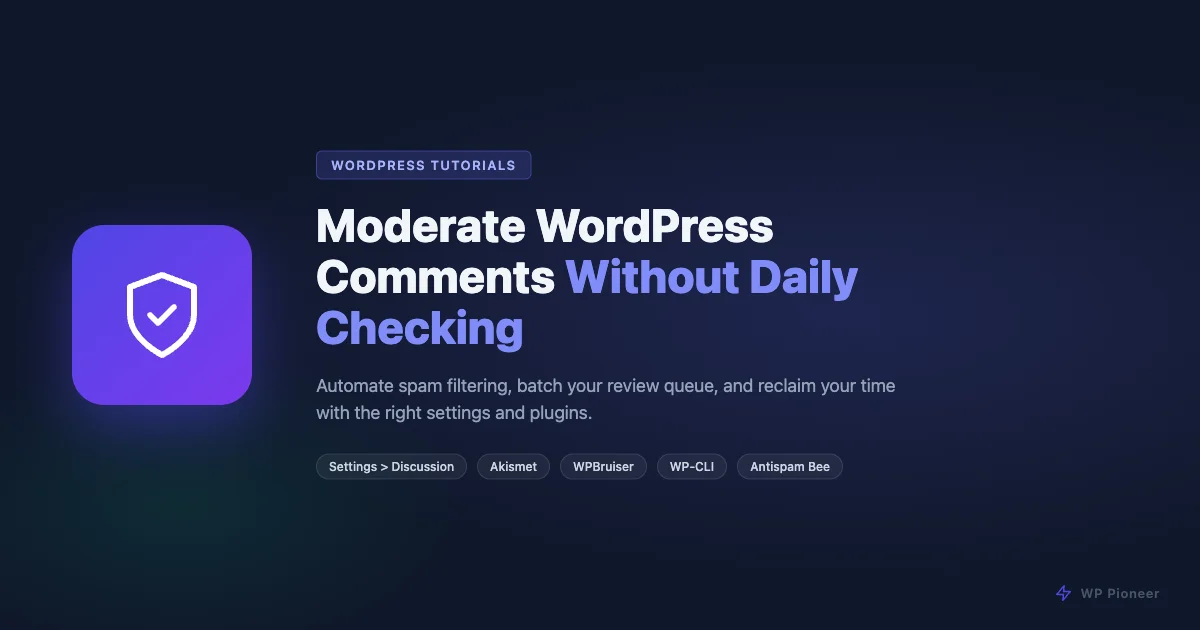
Manual, daily comment review is a time sink that most site owners can avoid entirely. With the right settings and a handful of free plugins, you can build a system that filters spam automatically, notifies you only when a human needs attention, and lets you batch-process the rest in minutes once or twice a week.
This guide walks through every layer of that system: native WordPress settings, plugin-based automation, WP-CLI for bulk operations, and a simple moderation policy you can apply consistently.
Understanding the WordPress Comment Lifecycle
Before you change any settings, it helps to know what happens to a comment from the moment someone clicks Submit until it appears (or disappears) on your site.
WordPress has four comment states: pending (held for review), approved (publicly visible), spam (filtered into a separate queue), and trash. Every new comment goes through a gate that checks it against your Discussion settings, your blocklist, and any active moderation plugins. That gate decides whether the comment goes straight to pending or gets approved automatically.
Your job is to configure that gate once so it handles 95% of cases without your involvement, then deal with the remaining 5% in a weekly batch.
WordPress Native Moderation Settings
Everything in this section lives at Settings > Discussion in your WordPress admin. Spend ten minutes here and you can eliminate most of your manual workload right away.
Hold All Comments for Moderation vs. Trust Returning Commenters
The default setting on most WordPress installs is Comment must be manually approved. That means every single comment, no matter who writes it, lands in your pending queue. This protects you from spam but creates a lot of manual review work.
A better approach is to use the Comment author must have a previously approved comment option instead. With this checked, first-time commenters go to pending, but anyone who has had a comment approved before gets through automatically. Over time, your regular readers build up a trusted status and their comments appear without any action from you.
Here is the exact path: Settings > Discussion > Before a comment appears. Uncheck Comment must be manually approved and check Comment author must have a previously approved comment.
Auto-Close Comments on Old Posts
Spam bots love old posts. A tutorial from three years ago that still ranks well in search is a magnet for comment spam because the bots know it gets traffic. You can cut that off completely by auto-closing comments after a set period.
Go to Settings > Discussion > Other comment settings and check Automatically close comments on posts older than [X] days. The default is 14 days, which is aggressive. Most site owners find 180 days (six months) or 365 days a better balance. Pick a number that matches your publishing frequency. If you post weekly, 90 days keeps the conversation active while eliminating spam on your archive.
This single setting can reduce your pending spam queue by 60% or more if you have a large archive.
Comment Moderation Keyword Threshold
Still in Settings > Discussion, look for the Comment Moderation section. There is a text box where you can enter words, URLs, email addresses, or IP addresses, one per line. Any comment containing one of these goes straight to pending, even if the author is a trusted commenter.
There is also a link count trigger above it: Hold a comment in the moderation queue if it contains [X] or more links. The default is 2. Keep it at 2 or lower. Spam comments almost always contain multiple links. Legitimate comments rarely do.
Comment Blocklist: Hard-Block Specific Terms
Below the moderation section is the Disallowed Comment Keys box (called Comment Blocklist in older versions). Comments matching anything here go straight to trash, automatically, without landing in your pending queue at all.
Good candidates for the blocklist:
- Common pharmacy or supplement spam terms (casino, viagra, loan, crypto)
- Specific domains that keep spamming you
- Disposable email domains (guerrillamail, mailinator, yopmail)
- IP addresses that repeatedly abuse your comment form
Be careful with short or common words here. Adding “free” will block a lot of legitimate comments. Stick to terms that appear almost exclusively in spam.
Email Notification Settings
At the top of Settings > Discussion, you have two notification checkboxes: Anyone posts a comment and A comment is held for moderation. Most site owners leave both checked, which means a flood of emails for every approved comment from a trusted reader.
Uncheck Anyone posts a comment. Keep A comment is held for moderation checked. Now your inbox only gets an email when something actually needs your attention: a first-time commenter or a comment that triggered a keyword hold.
Using the Comment Moderation Queue Efficiently
Even with good settings, you will still have a pending queue to process periodically. The key is batching this work instead of checking it daily.
Go to Comments in your admin. You will see the full list of pending comments. Use the Check All checkbox, then the Bulk Actions dropdown to approve, spam, or trash the entire selection. For a small to mid-size blog, a week’s worth of pending comments can be processed in under five minutes once you have a clear policy for what gets approved and what does not.
Useful filters in the comment list: use the Pending tab to see only unreviewed comments, and the Spam tab to empty the spam queue (which WordPress auto-empties after 15 days anyway). Sorting by comment author or email helps you identify patterns, like a single email address submitting 20 variations of the same promotional comment.
Anti-Spam Plugins That Do the Heavy Lifting
Native WordPress settings are a solid foundation, but anti-spam plugins take automation much further. They can analyze comment content, sender reputation, and behavioral signals before a comment ever reaches your pending queue.
Akismet Anti-Spam
Akismet is the most widely deployed comment spam filter in the WordPress ecosystem. It is built by Automattic (the same team behind WordPress.com) and comes pre-installed on most WordPress sites.
How it works: every comment submitted to your site is sent to Akismet’s cloud API, which checks it against a database of known spam patterns built from millions of WordPress sites. Spam comments are silently moved to your spam queue. Legitimate comments are passed through normally.
Setup: activate the plugin at Plugins > Installed Plugins, then go to Settings > Akismet Anti-Spam and enter your API key. Free API keys are available at akismet.com for personal and non-commercial sites. Commercial sites need a paid plan.
In the Akismet settings, enable Silently discard the worst and most pervasive spam if you want to keep your spam queue from filling up. This discards comments that are obvious, high-confidence spam without even logging them. For most sites, this is the right choice.
Antispam Bee
Antispam Bee is a free, open-source alternative to Akismet that processes everything locally without sending comment data to a third-party server. That makes it a good choice for sites with privacy requirements or for users who prefer not to rely on an external API.
It uses several local signals to detect spam: the comment’s language vs. the site’s language, presence of BBCode, honeypot fields, and a local IP blocklist. Install it from Plugins > Add New, search for “Antispam Bee”, then configure it at Settings > Antispam Bee.
Key settings to enable: Trust approved commenters (mirrors the native WordPress setting), Consider the comment time (spam bots submit comments in milliseconds; normal users take at least a few seconds), and Use regular expressions if you want pattern-based matching.
WPBruiser (formerly GoodBye Captcha)
WPBruiser takes a different approach. Instead of analyzing comment content after the fact, it blocks spam bots before they can submit anything. It does this through behavioral analysis: tracking mouse movements, timing, and form interaction patterns that distinguish bots from real users.
There is no CAPTCHA, no puzzle, no checkbox for users to interact with. The spam prevention is invisible. Install it from the WordPress plugin repository and configure it at WPBruiser > Settings. Enable the Comments Form protection module and set the sensitivity level to Medium or High depending on how aggressive you want it.
WPBruiser pairs well with Akismet: WPBruiser stops bots before they submit, Akismet catches the ones that get through anyway.
Building a Comment Moderation Policy
Automation handles spam. But you still need a human decision for borderline comments: the promotional commenter who links to their own site, the low-effort “great post!” submission, the commenter who disagrees sharply but is not abusive. A written moderation policy lets you (and any editors you delegate to) make consistent decisions without re-thinking each case from scratch.
What Gets Approved
- Comments that add information, a different perspective, or a relevant question related to the post topic
- Corrections or updates, even critical ones, if they are factually based and civil
- Personal experiences that relate to the post subject
- Comments from people who include a link to their own site in the URL field (that is what the field is for)
What Gets Deleted Without Explanation
- Comments whose body text includes a link to an unrelated commercial site
- Generic praise with no specific content: “This article is amazing! Check out my website [link]”
- Any comment that reads like a template, with the same structure appearing across multiple submissions
- Abusive or personally directed language
- Off-topic comments unrelated to the post
Handling Borderline Comments
The hardest category is the comment that seems genuine but has a promotional angle. Someone writes a thoughtful two-paragraph response to your tutorial, then adds “I wrote a similar guide on my blog at [link].” Is that spam?
One practical rule: approve the comment if the linked content is genuinely relevant to the topic and the comment body stands on its own without the link. Delete the link but keep the comment if the body is good but the link is self-promotional padding. Trash the whole thing if the body is thin and the real purpose is clearly the link.
Another category: very short comments. “Thanks, this helped!” is low-value but not harmful. A reasonable policy is to approve it if the commenter used their real name and a real email, and delete it if either looks fake.
Delegating Moderation to an Editor
If you run a multi-author site or have a team member who can help, WordPress has a built-in role that is perfect for comment moderation without giving full admin access: the Editor role.
Editors can approve, edit, mark as spam, and delete any comment on the site. They can see all pending comments. They cannot access Settings, install plugins, or manage users.
To assign the role: go to Users > All Users, find the person, and change their role to Editor. If your site has been compromised in the past, it is worth reading about how to fix a hacked WordPress site before adding new users with elevated permissions. If you want to give someone only comment moderation access without full editor permissions, you need a plugin like User Role Editor, which lets you create a custom role with only the moderate_comments and read capabilities.
Once you delegate moderation, give the person a copy of your moderation policy. Consistent decisions across moderators matter more than perfect individual decisions.
Comment Subscription Tools to Encourage Real Discussion
One reason comment sections go quiet is that readers leave a comment and never come back to see replies. Email subscriptions for comment threads change that dynamic by pulling people back into the conversation.
The Subscribe to Comments Reloaded plugin adds a checkbox to your comment form that lets people opt in to email notifications when new comments appear on the same post. This increases genuine engagement and makes your comment section feel like a real discussion rather than a one-way broadcast.
From a moderation standpoint, higher genuine engagement also means the signal-to-noise ratio improves. A post with 30 real comments is easier to moderate than one with 5 genuine comments buried under 40 spam submissions, because the context makes it easier to identify what does not belong.
WP-CLI Commands for Bulk Comment Management
If you manage multiple WordPress sites or have a large comment backlog, WP-CLI gives you command-line control over comments that is much faster than the admin interface. Here are the commands you will actually use.
View the Moderation Queue
wp comment list --status=hold --format=table --fields=comment_ID,comment_author,comment_date,comment_contentThis lists all pending comments with their IDs, authors, dates, and content. Pipe it through grep to filter by keyword if you are looking for a specific pattern.
Approve All Pending Comments from a Trusted Author
wp comment approve $(wp comment list --status=hold --comment_author_email="[email protected]" --format=ids)This approves all pending comments from a specific email address in one command. Useful when a trusted contributor submitted multiple comments that got caught in the pending queue.
Bulk Trash All Spam Comments
wp comment delete $(wp comment list --status=spam --format=ids) --forceThis permanently deletes all spam comments. Run this when your spam queue is backed up and you want to clear it without going through the admin. The --force flag bypasses the trash step and deletes directly.
Close Comments on All Posts Older Than a Specific Date
wp post list --post_status=publish --date_before="2024-01-01" --format=ids | xargs -I{} wp post update {} --comment_status=closedIf you turned on comment auto-close in Discussion settings, it only applies going forward. This command retroactively closes comments on all posts published before a given date. Adjust the date to match your policy.
Count Comments by Status
wp comment list --status=hold --format=count
wp comment list --status=spam --format=count
wp comment list --status=approve --format=count
Run these to get a quick snapshot of your comment queue state before deciding how much time to allocate for moderation.
Setting Up a Weekly Moderation Routine
With everything above in place, daily checking becomes unnecessary. Here is a routine that works for most sites publishing two to four posts per week.
Monday morning, 15 minutes:
- Open Comments > Pending. Apply your moderation policy to what is there. For most sites after setup, this will be 5-20 comments.
- Open Comments > Spam. Scan for false positives (legitimate comments that Akismet flagged). If you see any, click Not Spam. Then empty the spam queue.
- Check your email for any moderation notification you received during the week. If you already processed the pending queue, you are done.
That is the entire routine. The automation handles everything else.
Monitoring for Comment Problems Without Daily Checks
The goal is not to ignore your comment section entirely. It is to be notified about problems rather than constantly polling for them. A few lightweight setups handle this well.
Jetpack Comment Notifications
If you use Jetpack, the mobile app sends push notifications for new comments. You can approve or spam a comment directly from your phone without opening the admin at all. This is particularly useful for quickly handling first-time commenter approvals when you want to respond fast.
Digest Emails with Postman SMTP or FluentSMTP
If you run an SMTP plugin, you can configure your notification emails to come from a dedicated address that you check less frequently. Some SMTP providers support email digests that batch multiple messages into one. Pair this with the notification setting change described earlier (moderation-only emails) and your inbox stays manageable.
Advanced: Using Comment Meta and Custom Filters
For developers or site owners comfortable with functions.php or a custom plugin, WordPress provides hooks that let you build more specific auto-moderation rules.
The pre_comment_approved filter runs before WordPress saves a comment’s status. You can use it to add custom logic:
add_filter( 'pre_comment_approved', function( $approved, $commentdata ) {
    // Auto-approve comments from registered users
    if ( ! empty( $commentdata['user_id'] ) ) {
        return 1;
    }
    // Hold comments with more than one URL in the body
    $url_count = substr_count( $commentdata['comment_content'], 'http' );
    if ( $url_count > 1 ) {
        return 0;
    }
    return $approved;
}, 10, 2 );
Add this to your theme’s functions.php or to a site-specific plugin. It auto-approves comments from logged-in users (who have already been verified by WordPress) and holds any comment with more than one URL in the body, regardless of other settings.
Another useful hook is comment_form_default_fields, which lets you add honeypot fields to your comment form. A honeypot field is a hidden input that real users never fill in (because they cannot see it) but bots fill in automatically. If a submission includes data in that field, you know it came from a bot and can reject it.
Should You Disable Comments Entirely?
This is worth considering as a separate option. For some types of sites, comments add very little value relative to the maintenance burden. Portfolio sites, business landing pages, and purely informational reference sites often do not need a comment section at all.
To disable comments globally on a WordPress site, go to Settings > Discussion and uncheck Allow people to submit comments on new posts. That stops new comments on future posts. For existing posts, you need to go to Comments, select all, and use the bulk action to close discussions, or use the WP-CLI command from the earlier section to close them all at once.
If you want to disable comments only on specific post types (for example, pages but not posts), add this to functions.php:
add_action( 'init', function() {
    remove_post_type_support( 'page', 'comments' );
    remove_post_type_support( 'page', 'trackbacks' );
} );
This removes the comment support from pages without touching posts. It is the cleanest way to have comments only where you want them.
Putting It All Together: Your Moderation Stack
Here is the complete setup that takes most site owners from daily comment checking to a once-a-week 15-minute task.
Native Settings (Settings > Discussion)
- Change Before a comment appears: uncheck Must be manually approved, check Author must have a previously approved comment
- Set Automatically close comments to 180 or 365 days
- Set link hold threshold to 2
- Uncheck Email me when anyone posts a comment, keep A comment is held for moderation
- Add known spam terms to the Disallowed Comment Keys box
Plugins
- Akismet Anti-Spam (with API key configured and silent discard enabled)
- WPBruiser for bot blocking at form submission
- Subscribe to Comments Reloaded for reader re-engagement
Policy
- Written moderation policy shared with anyone who helps moderate
- Clear rules for borderline comments so decisions are consistent
Routine
- Weekly 15-minute session: pending queue + spam queue + email scan
- No daily checking required
This setup handles the realistic comment volume of a site publishing several posts per week. For high-traffic sites or sites with very active comment sections, you may want to shorten the cycle to twice weekly. But the core principle stays the same: automation handles the volume, you handle the exceptions.
Common Mistakes to Avoid
Checking comments every day out of habit. Once you have the setup above, daily checking adds no value. You will not find anything that your weekly review would miss, and the constant interruption breaks your focus. Set a calendar reminder for your weekly session and ignore the comment section the rest of the time.
Using too many anti-spam plugins at once. Akismet plus Antispam Bee plus WPBruiser plus two more similar plugins creates redundancy and slows down your comment form submission. Pick one server-side checker (Akismet or Antispam Bee) and one bot blocker (WPBruiser). That combination covers the two main attack vectors without stacking unnecessary overhead.
Never reviewing your spam queue. Akismet’s false positive rate is low, but not zero. A genuine comment from a new reader occasionally gets flagged as spam, especially if they have an unusual name or include a link. Scanning your spam tab once a week before clearing it takes 30 seconds and prevents good comments from disappearing permanently. Keep in mind that WordPress redirect hacks that send visitors to spam sites often start with the same bots that abuse comment forms, so your comment spam defenses also reduce broader security exposure.
Not updating your blocklist. Spam patterns change over time. The terms you blocked two years ago may not match what spam bots are submitting today. Review and update your Disallowed Comment Keys list every few months by looking at what types of spam are landing in your queue.
Forgetting to close comments on old imported content. If you ever migrated from another platform or imported a batch of old posts, those posts may have open comments with no auto-close behavior applied to them. Use the WP-CLI command from the earlier section to close comments on all content older than your cutoff date.
Final Thoughts
WordPress comment moderation does not have to consume your attention. The native discussion settings give you enough control to handle 80% of the work automatically. A good anti-spam plugin handles most of the rest. A clear moderation policy makes the remaining judgment calls fast and consistent.
The goal is a comment section that serves your readers without demanding constant attention from you. A weekly 15-minute review session is a reasonable investment for a well-maintained community. Daily checking usually is not.
Start with the Settings > Discussion changes since they require no plugins and take effect immediately. Add Akismet and WPBruiser next. Write your moderation policy last, once you have seen a week’s worth of actual pending comments and know what patterns you are dealing with. Build on what works for your specific audience and topic, and adjust as your site grows.