WordPress 6.9 ships with dozens of built-in blocks that cover everything from simple paragraphs to complex layout structures. Whether you are building your first post or designing a full page layout in the Site Editor, knowing what each block does and when to use it saves time and makes your content better. This complete guide covers every core block category with practical examples for each.
Every piece of content in the WordPress block editor is a block. When you write a paragraph, that is a Paragraph block. When you add a photo, that is an Image block. When you create a heading, that is a Heading block. Blocks can be combined, nested inside each other (a Columns block containing Image blocks and Paragraph blocks), and reused across your site as patterns or synced blocks.
The block inserter (the + button) is your main tool for adding blocks. You can also type a forward slash (/) at the start of a new line to search for a block by name. The toolbar above each selected block shows the most common actions. The right sidebar shows the full settings panel for the selected block.
Text blocks are the foundation of any post or page. They handle written content in all its forms.
Paragraph Block
The default block. When you start typing in a new block, you are using the Paragraph block. Settings include font size, font family, line height, letter spacing, text color, and background color. The “Drop cap” option adds a large decorative first letter to the paragraph, useful for feature articles.
When to use: All standard body text. It is the most-used block on any site.
Heading Block
Creates headings from H1 through H6. You can set the level in the toolbar or the block settings. H1 is typically reserved for the page or post title (WordPress adds this automatically). Use H2 for main sections, H3 for subsections within those sections, and H4 for finer divisions. Proper heading hierarchy matters for SEO and screen readers.
When to use: Section titles, subsection titles. Every long post should use multiple H2 and H3 headings to break up content and improve scannability.
List Block
Creates bulleted or numbered lists. You can switch between ordered (numbered) and unordered (bulleted) lists in the toolbar. Each list item can be indented to create nested lists. You can also configure the starting number for ordered lists if you want to continue a list interrupted by other content.
When to use: Any time you have 3 or more items that benefit from visual separation: features, steps, options, requirements.
Quote Block
Displays a blockquote with optional citation text. Styled differently from regular paragraphs – typically indented with a left border or different background. Supports rich text in both the quote and citation fields.
When to use: Quotations from experts, studies, or sources that you want to visually distinguish from your own writing.
Code Block
Displays text in a monospace font on a contrasting background, indicating it is code. Does not apply any syntax highlighting by default. The block preserves whitespace and prevents automatic formatting (smart quotes, etc.).
When to use: Short code samples in developer-focused content. For longer code blocks, GitHub Gist embeds are often a better choice since they support syntax highlighting and line numbers.
Classic Block
A legacy block that contains the old TinyMCE editor. Useful if you are importing content from older posts or need to use features that are not yet available in native blocks. Avoid using it for new content where possible.
When to use: Legacy content migration. Rarely needed for new content.
Preformatted Block
Displays text preserving all whitespace, line breaks, and spaces exactly as entered. Uses a monospace font. Similar to Code but without the code-specific styling.
When to use: ASCII art, poetry with specific spacing, or any text where whitespace is meaningful.
Pullquote Block
A large, styled excerpt meant to draw readers into the article. More prominent than a Quote block – typically displayed in a larger font size with distinctive borders or backgrounds, often centered on the page.
When to use: Key insights or statistics you want to highlight in the middle of a long article. Useful in magazine-style layouts.
Verse Block
Preserves white space and line breaks like Preformatted, but uses the paragraph font rather than monospace. Intended for poetry and prose that relies on specific line breaks.
When to use: Poetry, song lyrics, any text where line breaks are part of the meaning.
Details Block
Creates a collapsible disclosure widget with a summary label and hidden content. Click the summary to reveal or hide the content. Useful for FAQ sections, additional information that does not need to be visible by default, or supplementary content.
When to use: FAQ sections, terms and conditions, supplementary explanations, any content a user might want to read optionally.
Footnotes Block
Automatically collects footnotes added to any text block in the editor. When you add a footnote via the toolbar, the Footnotes block displays them in order at the bottom of the post. Footnote numbers in the content are linked to their entries in this block.
When to use: Academic-style posts, fact-heavy articles, journalism that requires source attribution inline.
Media blocks handle images, video, audio, and combinations of media with text.
Image Block
The standard way to insert an image. Supports images from your Media Library, by URL, or by direct upload. Settings include alt text, title, caption, link destination, size, and alignment. You can also apply image filters (duotone) from the block settings panel.
When to use: Any standalone image in your content: product photos, screenshots, illustrations, diagrams.
Gallery Block
Displays multiple images in a grid layout. You can set the number of columns, toggle fixed-height cropping, and link gallery images to their attachment pages or media files. Individual images in the gallery can each have their own captions.
When to use: Product photo sets, event photography, portfolios, any collection of related images.
Audio Block
Embeds an audio player using an audio file from your Media Library or by URL. Supports MP3, OGG, and WAV formats. Includes standard player controls: play, pause, volume, playback speed.
When to use: Podcast episodes, music, voice recordings, audio interviews.
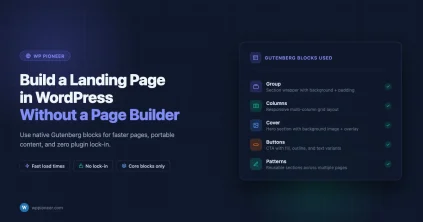
Cover Block
Displays an image or video as a background with overlaid text or other blocks. The image is fixed in the background while the content block sits on top. You can set the overlay color and opacity to make the text readable against any background image.
When to use: Section headers with visual backgrounds, hero banners in page layouts, feature introductions with an image-as-background aesthetic.
File Block
Creates a download link for any file in your Media Library. Displays the file name, a download button, and optionally a PDF preview (when the file is a PDF). Useful for offering downloadable resources directly in your content.
When to use: Resource downloads – PDF guides, spreadsheet templates, zip files, any file you want readers to download directly from your post.
Media and Text Block
Places an image or video side by side with a block of text. You can choose whether the media is on the left or right, set the media width, and stack them vertically on mobile. Accepts most block types in the text column, not just paragraphs.
When to use: Feature descriptions, product highlights, team member profiles, any content where you want an image and text to read together as a unit.
Video Block
Embeds a video file from your Media Library or by URL. Unlike the Embed block (which handles YouTube, Vimeo, etc.), the Video block plays files hosted on your own server. Supports MP4, WebM, and OGV formats. Includes poster image, autoplay, loop, and muted options.
When to use: Self-hosted video content when you specifically do not want to use a third-party service like YouTube.
Design blocks handle layout, visual structure, and how content is arranged on the page.
Buttons Block
Creates one or more button links. Each button is a Button block contained within the Buttons block. You can add multiple buttons side by side, set their colors and sizes, add borders, and choose between filled and outlined styles. Each button links to a URL with configurable link behavior (open in new tab, set rel attributes).
When to use: Call-to-action links, download buttons, navigation to key pages, any link that should stand out visually more than a text link.
Columns Block
Divides content into multiple vertical columns. You can choose from preset column layouts (50/50, 33/33/33, 25/75, etc.) or set custom widths. Each column can contain any combination of blocks. Columns stack vertically on mobile screens.
When to use: Feature comparison layouts, side-by-side content, multi-column service or product showcases, any time you want content arranged horizontally.
Group Block
A container that groups multiple blocks together so you can apply shared styling (background color, padding, borders) to all of them at once. Used extensively in page building to create sections with distinct visual backgrounds.
When to use: Call-out boxes with colored backgrounds, styled content sections, any time you need to apply visual properties to a collection of blocks as a unit.
Row Block
Arranges blocks horizontally in a single row with flexible justification options (left, center, right, space between). Unlike Columns, Row does not divide content into predetermined columns – blocks just flow horizontally and can wrap or not based on settings.
When to use: Inline block arrangements, icon plus text layouts, logo grids, navigation-like arrangements of small blocks.
Stack Block
The vertical counterpart to Row. Arranges blocks in a vertical stack with alignment and spacing controls. Useful when you need fine-grained vertical spacing between blocks without using spacers.
When to use: Vertically arranged content where spacing between items needs to be controlled separately from the general block gap.
Separator Block
Inserts a horizontal rule (divider line) between sections. Comes in three style variations: default (centered thin line), wide (full width line), and dots. You can change the color to match your design.
When to use: Visual breaks between sections in long posts, dividers between different topic areas.
Spacer Block
Adds empty vertical space. You set the exact pixel height. Useful when you need more space between blocks than the default block gap provides.
When to use: Fine-tuning vertical spacing when the default gap between blocks is not enough. Use sparingly – consistent spacing is usually better handled through theme settings and block spacing controls.
Widget blocks provide dynamic or functional content – not just static text and images.
Shortcode Block
Lets you insert shortcodes from plugins that have not yet been converted to blocks. Renders the shortcode output in your content. Useful for legacy plugin compatibility.
When to use: Older plugins that use shortcodes, contact forms from plugins that still use shortcodes, any plugin-generated content that is not yet block-based.
Archives Block
Displays a list or dropdown of your posts organized by date (month/year). Can be displayed as a flat list or a hierarchical dropdown select. Useful in sidebars or as a dedicated archives page element.
When to use: Blog sidebar archives, dedicated archives page, any place where date-based navigation to older posts is useful.
Calendar Block
Shows a monthly calendar with links to days that have published posts. Each date with a post becomes a link. This is a classic WordPress widget that is now available as a block.
When to use: News sites, blogs with daily content, event-heavy sites where date-based browsing makes sense.
Categories Block
Displays a list of your post categories with post counts. Can be displayed as a list or dropdown. Optional “Only show top level categories” toggle useful for sites with deep category hierarchies.
When to use: Sidebar navigation, category landing page elements, anywhere you want to direct readers to topically organized content.
Custom HTML Block
Lets you insert raw HTML code that WordPress renders as-is without any block conversion. Whatever HTML you enter appears in the frontend output. Useful for third-party embed codes and custom HTML structures that blocks do not handle.
When to use: Third-party widget embed codes, custom HTML snippets, JavaScript embeds from external services (with caution).
Latest Comments Block
Shows the most recent comments across your site. You can set how many to display and whether to show comment author, date, and excerpt. Good for encouraging engagement by surfacing active discussions.
When to use: Sidebars and homepages to show community activity.
Latest Posts Block
Displays a list of your most recent posts. Options include post count, display as list or grid, whether to show featured image, post date, author, excerpt, and categories. You can filter by category to show posts from a specific section of your site.
When to use: Homepages, sidebars, related posts sections, category-specific content widgets.
Page List Block
Shows a list of all your WordPress pages. Useful in footer navigation or as a sitemap-style page listing. Automatically updates when you add or remove pages.
When to use: Footer page lists, simple site navigation, page-based sitemaps.
RSS Block
Displays items from any RSS feed URL. You can set the number of items, whether to show excerpts, author, and date. Useful for aggregating content from external sources or displaying your posts in a secondary location.
When to use: News aggregation pages, displaying posts from a sister site, pulling in podcast feed items.
Search Block
Adds a search form to any page or template. You can configure the button label, placeholder text, and overall width. In the Site Editor, this is a common addition to headers and sidebars.
When to use: Headers, sidebars, dedicated search pages, any location where readers might want to search your content.
Social Icons Block
Displays a row of social media icons with links to your profiles. Supports dozens of platforms including Twitter/X, LinkedIn, Instagram, YouTube, GitHub, Pinterest, and more. You can set icon size, spacing, and color scheme.
When to use: Headers, footers, author bios, contact pages – anywhere you want to link to your social media profiles.
Tag Cloud Block
Displays your site’s post tags as a visual cloud where more-used tags appear larger. Old-fashioned but still used on some blogs for discoverability and SEO purposes.
When to use: Sidebars on tag-heavy blogs. Less common in modern designs but still functional.
Theme blocks are only available in the Site Editor when using a block theme. They display dynamic site data and are used to build templates rather than individual post content.
Navigation Block
The primary block for building site navigation menus. Supports top-level links, dropdown submenus, mobile hamburger menus, and full styling control. You can build and name multiple navigation menus and assign them to different template parts. For a complete walkthrough of how to use this block, see the guide on building navigation menus with the Site Editor.
When to use: Site header, footer links, sidebar navigation, any template part that needs a menu.
Site Logo Block
Displays your site’s logo image (set under Appearance > Customize > Site Identity or in the Site Editor’s Styles). You can set the logo width and whether clicking the logo links to the homepage.
When to use: Site header template parts.
Site Tagline Block
Displays your site’s tagline from Settings > General. Updates automatically when you change the tagline in settings.
When to use: Headers, landing page hero areas where the tagline adds context to the logo.
Site Title Block
Displays your site’s title from Settings > General as a text element. Can be linked to the homepage. Like the tagline, it updates automatically when the site title changes.
When to use: Headers when you want text-based branding instead of a logo image, or alongside the logo.
Query Loop Block
One of the most powerful theme blocks. Queries your posts database and displays posts in a customizable loop. You can filter by category, tag, post type, author, and number of posts. The inner blocks (Post Title, Post Featured Image, Post Excerpt, Post Date, etc.) define how each post in the loop is displayed.
When to use: Building archive pages, blog index pages, category pages, custom landing pages that pull in specific posts.
Post Content Block
In single post templates, this block marks where the post’s content is rendered. Required in single post and page templates for the content to appear.
Post Title Block
Displays the current post or page title. Used inside Query Loop blocks to show each post’s title, and in single post templates to display the post’s title.
Post Featured Image Block
Displays the post’s featured image. Configurable for size, aspect ratio, link destination, and overlay effects. Used in archive loops and single post templates.
Post Excerpt Block
Displays the post excerpt (either the manual excerpt or an auto-generated one). You can set the number of words for auto-generated excerpts. Used in archive and search result templates.
Post Date Block
Displays the post’s published date (or modified date) in a configurable format. You can adjust the date format to match your region and preferences.
Post Author Block
Displays the post author’s name, avatar, and optional biography. Configurable to show or hide avatar, name, and bio. Used in single post templates and author archive pages.
Post Comments Block
Renders the complete comment form and comment list for the current post. Required in single post templates for comments to work. Includes sub-blocks for the comment list, comment form, comment navigation, and comments title.
Term Description Block
In taxonomy archive templates, displays the description of the current term (category or tag). Used when building custom category and tag archive page templates in the Site Editor.
Archive Title Block
Displays the title of the current archive page (e.g., “Category: WordPress Guides” on a category archive). Automatically uses the right title for date archives, category archives, tag archives, and author archives.
Embed blocks let you include content from external platforms directly in your posts and pages. WordPress automatically converts supported URLs pasted into the editor into embeds, but you can also add them manually as blocks.
Embed Block (Generic)
The base embed block accepts a URL and attempts to embed the content from that URL. Works with any oEmbed-compatible service not listed as its own specific block.
YouTube Embed
Embeds a YouTube video by URL. The video plays in an iframe within your content. Supports YouTube videos, playlists, and channel pages. Privacy-enhanced mode (nocookie domain) is available.
Twitter/X Embed
Embeds a tweet by URL. Renders the full tweet card with user info, text, images, and engagement stats as they appeared when embedded. Note: Twitter/X’s embedding terms and functionality have changed significantly since the platform rebrand.
Vimeo Embed
Embeds a Vimeo video. Similar to the YouTube embed but for the Vimeo platform, which some creators prefer for privacy and quality control reasons.
Spotify Embed
Embeds a Spotify track, album, playlist, or podcast episode as an interactive player. Listeners can play the content without leaving your site.
SoundCloud Embed
Embeds SoundCloud audio tracks or playlists with the SoundCloud player interface.
GitHub Gist Embed
Embeds a GitHub Gist as a formatted code snippet with syntax highlighting. This is the recommended way to display code in blog posts since it handles syntax highlighting, line numbers, and proper formatting better than the native Code block.
When to use: Any code example in a developer-focused blog post.
| You Want To… | Use This Block |
|---|---|
| Write body text | Paragraph |
| Add a section title | Heading (H2 or H3) |
| Create a bulleted list | List |
| Add a comparison table | Table |
| Insert an image | Image |
| Show multiple images | Gallery |
| Add a download link | File |
| Add a YouTube video | YouTube Embed |
| Create a call-to-action button | Buttons |
| Make a two-column layout | Columns |
| Add a colored background section | Group |
| Add site navigation | Navigation (Site Editor) |
| Display recent posts | Latest Posts or Query Loop |
| Add a collapsible FAQ item | Details |
| Embed a code snippet | GitHub Gist (via Embed) |
| Add social media links | Social Icons |
| Create a hero banner | Cover |
- Use keyboard shortcuts. Ctrl+Alt+T (or Cmd+Option+T on Mac) opens the block inserter. Slash (/) in an empty block lets you search for a block by name. Ctrl+Shift+Alt+M toggles between Visual and Code editor.
- Use the List View. The List View panel (accessible from the toolbar at the top of the editor) shows all blocks in your post in a tree structure. It makes selecting deeply nested blocks much easier.
- Convert between block types. Many blocks can be converted to related types. Click a block, then click the block type icon in the toolbar to see conversion options. A List block can become a Group. A Heading can be converted to a Paragraph.
- Save blocks as patterns. If you create a combination of blocks you want to reuse (like a styled call-out box or a specific Column layout), you can save it as a pattern and insert it on other posts with one click.
- Drag to reorder. The six-dot handle on the left of any selected block lets you drag it to a new position. On touch devices, use the up/down arrows in the block toolbar.
- Lock blocks in templates. In the Site Editor, you can lock blocks so content editors cannot delete or move them accidentally. Right-click a block or use the three-dot menu to access lock settings.
WordPress 6.9 gives you a comprehensive set of blocks that can handle virtually any content type without needing page builder plugins or custom code. Text, media, layout, dynamic content, embeds – all covered by built-in blocks that are actively improved with each WordPress release.
The key to working well with blocks is knowing what is available. The next time you need to add something to your post or page, instead of reaching for a plugin, check if there is a native block that already does what you need. Chances are, there is.
For building full page layouts and site templates, pair your understanding of content blocks with the Site Editor’s theme blocks. The Query Loop, Navigation, and Post-related blocks are where the real power of Full Site Editing becomes visible – they let you build dynamic templates that automatically display the right content for every page, archive, and post type on your site.
Next step: Open any WordPress post or page in the editor and try the slash (/) command. Type the name of a block you have not used before and experiment with it. The best way to understand what a block does is to add it and explore its settings panel – most blocks have more options than are immediately visible. If you are just getting started with WordPress, our beginner WordPress guide covers the basics before you dive into block-level details.
Full Site Editing Navigation Block WordPress 6.9 WordPress Blocks Guide
Last modified: March 11, 2026