
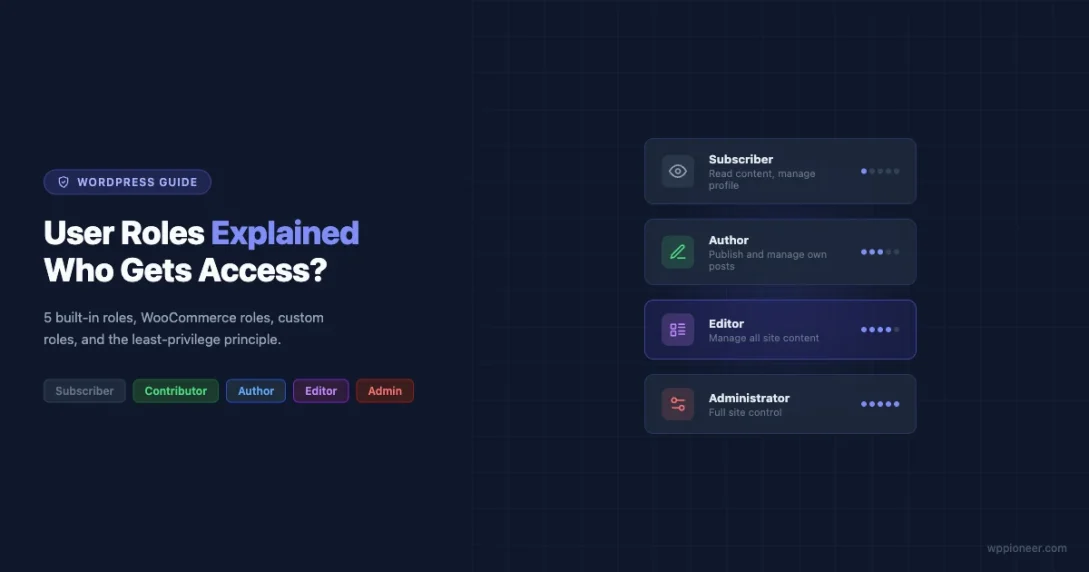
If you’ve ever handed someone access to your WordPress site and then worried about what they might accidentally break, you’re not alone. User roles are one of the most practical security tools WordPress gives you right out of the box, yet they often get ignored until something goes wrong.
This guide walks through every default WordPress role, what each one can and cannot do, how WooCommerce extends the system, and how to build custom roles when the defaults don’t quite fit your situation.
The Five Default WordPress User Roles
WordPress ships with five built-in roles. Each one is a named collection of capabilities. When you assign a role to a user, that user inherits every capability that role holds. Here’s what each role actually means in practice.
Subscriber
The Subscriber role is the most limited role on a standard WordPress site. A subscriber can log in, read content, and manage their own profile. That’s essentially it.
Capabilities a Subscriber has:
read– Can read posts and pagesedit_user– Can edit their own profile only
A Subscriber cannot create posts, upload files, access the dashboard beyond their profile page, or see any site administration screens.
Who should be a Subscriber? Members of a paid-content site, readers who need to comment on restricted posts, or anyone who just needs a login to access gated content. If you’re running a membership site with WordPress using WooCommerce Memberships or a plugin like MemberPress, subscribers are often the default role for paying customers before the membership plugin kicks in with its own logic.
Contributor
A Contributor can write and manage their own posts, but they cannot publish those posts. Everything they submit goes to Pending status and waits for an Editor or Administrator to review and publish it.
Capabilities a Contributor has:
readedit_posts– Can write and edit their own draft postsdelete_posts– Can delete their own unpublished postsedit_published_postsis NOT included – they cannot edit a post once published
Contributors also cannot upload images. This is a common stumbling block. If you assign someone the Contributor role and they ask why they can’t add images to their posts, that’s why. They need to use images already in the Media Library or you’ll need to upgrade them to Author.
Who should be a Contributor? Guest writers submitting one-off articles, students in an educational context, or anyone whose content you want to review before it goes live. The forced review step is the real value here.
Author
Authors can write, edit, publish, and delete their own posts. They also get access to the Media Library and can upload files. The key restriction is that they only control their own content; they have no power over posts written by other users.
Capabilities an Author has:
readedit_postsedit_published_posts– Can edit posts after publishingdelete_postsdelete_published_postspublish_posts– Can publish without approvalupload_files– Can upload images and media
Who should be an Author? Regular staff writers, freelance bloggers who you trust to self-publish, or any content creator who produces ongoing work for your site. For a company blog with multiple writers who each own their content, Author is usually the right fit.
Editor
The Editor role is a big step up. Editors can manage all posts and pages on the site, not just their own. They can publish, edit, and delete content from any user, manage categories and tags, and moderate comments.
Capabilities an Editor has (in addition to Author capabilities):
edit_others_posts– Can edit posts by any useredit_others_pagesdelete_others_postsdelete_others_pagespublish_pages– Can publish pagesedit_pagesedit_published_pagesmanage_categoriesmanage_linksmoderate_commentsunfiltered_html– Can post raw HTML (important for security)
What Editors cannot do: they cannot access Appearance, Plugins, Settings, Tools, or Users. They are purely a content role. They can’t install plugins, change the theme, or add new users to the site.
Who should be an Editor? A content manager who oversees all writers, a managing editor at a publication, or a client who needs full control over content but should not touch site settings. If you’ve built a site for a client and want them to manage everything editorial without being able to break things, Editor is usually safer than Administrator.
Administrator
An Administrator has access to everything on a single-site WordPress installation. Every capability is available: installing plugins, changing themes, editing users, modifying settings, editing files, running updates, and more.
Key Administrator capabilities include:
manage_options– Access to all Settings screensinstall_plugins,activate_plugins,update_plugins,delete_pluginsinstall_themes,switch_themes,update_themesmanage_categories,edit_theme_optionscreate_users,edit_users,delete_users,promote_usersupdate_core– Can run WordPress core updatesedit_files– Access to the built-in theme/plugin file editor
The principle here is simple: only people who genuinely need to manage the technical side of the site should be Administrators. Every extra Administrator account is an additional attack surface.
Who should be an Administrator? The site owner, the developer who built the site, and anyone who needs to manage hosting-level WordPress settings. Not your content team. Not your client’s cousin who asked for an account once. Not test accounts you forgot to remove.
Super Admin in WordPress Multisite
If you’re running WordPress Multisite (a network of sites under one WordPress install), there’s a sixth role above Administrator: Super Admin.
In a Multisite network, each site has its own Administrators, but those Administrators are limited to their own site. They can’t access the Network Admin dashboard, manage other sites, or control network-wide settings.
A Super Admin, by contrast, can:
- Access the Network Admin panel
- Create and delete sites in the network
- Install plugins and themes at the network level
- Manage all users across all sites
- Control which plugins individual site admins can activate
You set up Multisite by adding define('WP_ALLOW_MULTISITE', true); to wp-config.php and going through the Network Setup screen. If you haven’t set up Multisite yet, the WordPress Multisite setup guide walks through every step. The Super Admin role is assigned via grant_super_admin($user_id) and revoked with revoke_super_admin($user_id).
Super Admin applies only in Multisite. On a standard single-site WordPress install, the concept doesn’t exist.
WooCommerce Roles: Shop Manager and Customer
When you install WooCommerce, it adds two new roles to your site.
Shop Manager
The Shop Manager role is designed for someone who runs day-to-day store operations without needing full site admin access. A Shop Manager can:
- Manage products, product categories, and attributes
- Process and manage orders
- View and manage customers
- Access WooCommerce reports and analytics
- Manage coupons
- Access WooCommerce settings
Shop Managers also inherit the Editor role capabilities for content. What they cannot do is manage plugins, change the theme, or access general WordPress settings outside of WooCommerce.
Who should be a Shop Manager? A store manager or operations person who processes orders and updates products but shouldn’t touch WordPress settings. This is exactly the use case WooCommerce built the role for.
Customer
The Customer role is assigned automatically when someone creates an account during checkout. Customers can view their order history, manage their account details, and download digital products they’ve purchased. Outside of their account area, they have no special site capabilities.
Customers are essentially Subscribers with order history access. Many small stores never need to think about this role explicitly; WooCommerce manages the assignment automatically.
Creating Custom Roles
The five default roles don’t cover every situation. You might want a Social Media Manager who can only manage posts of a specific post type, or a Support Agent who can view orders but not edit them. That’s where custom roles come in.
With the Members Plugin
Members (by MemberPress) is the most popular free plugin for role management. It gives you a visual interface for creating roles and assigning capabilities without touching code.
To create a custom role in Members:
- Go to Members in your WordPress admin menu
- Click Add New Role
- Give the role a name and a display label
- Use the capabilities checkboxes to assign exactly what this role can do
- Save
Members groups capabilities by category (posts, pages, users, media, etc.), making it easy to build a role with exactly the right scope. It also lets you assign multiple roles to a single user, which the native WordPress UI doesn’t support.
With User Role Editor
User Role Editor by Vladimir Garagulya is another solid option. It works similarly to Members but presents all capabilities in a flat list with checkboxes. It’s particularly good for quickly cloning an existing role and adjusting a few capabilities.
To clone and modify a role:
- Go to Users > User Role Editor
- Select an existing role from the dropdown
- Click Add Role to create a copy under a new name
- Adjust the capability checkboxes
- Save
Programmatically with add_role()
For developers, WordPress provides the add_role() function. You only need to call this once; roles are stored in the database, so you typically run this on plugin or theme activation.
add_role(
    'content_reviewer',
    'Content Reviewer',
    array(
        'read'              => true,
        'edit_posts'        => true,
        'edit_others_posts' => true,
        'publish_posts'     => false,
        'delete_posts'      => false,
    )
);
The first argument is the role slug (used internally), the second is the display name shown in the admin UI, and the third is an array of capabilities. Set a capability to true to grant it, false to explicitly deny it.
To remove a custom role you’ve created:
remove_role('content_reviewer');Call this on plugin deactivation to clean up the database.
To add a capability to an existing role programmatically:
$role = get_role('editor');
$role->add_cap('manage_woocommerce');
And to check whether the current logged-in user has a specific capability in your template or plugin code:
if (current_user_can('edit_posts')) {
    // Show edit button
}
Always use current_user_can() for capability checks rather than checking role names directly. A user might have the capability through a different role or through a direct capability grant, and role-name checks would miss those cases.
The Principle of Least Privilege
The principle of least privilege is straightforward: give every user exactly the access they need to do their job, and nothing more.
On WordPress, this means:
- Your content writers don’t need Administrator access. Author or Editor will do.
- A freelancer writing a single post doesn’t need a permanent Author account. Create it, use it, then either delete it or downgrade to Subscriber.
- If a client asks to “just check something” in the admin, don’t hand them the admin password. Create them a limited account.
- Test accounts you created while building the site should be deleted before launch.
Why does this matter? Every Administrator account is a potential entry point. If an admin’s email is compromised, an attacker can request a password reset and gain full control of your site. The fewer Administrator accounts, the smaller your attack surface.
A common real-world mistake: a developer builds a WordPress site, creates an admin account for the client, and forgets that they also left their own admin account active with a weak password. Months later, that forgotten account gets brute-forced.
Restricting Content by User Role
Sometimes you don’t just want to restrict what users can do in the admin; you want to restrict what content they can see on the front end. WordPress gives you a few options.
Password-Protected Posts and Pages
WordPress has built-in password protection for individual posts and pages. Set a post’s visibility to Password Protected and enter a password. Anyone who visits the post sees a password prompt. This is simple but not role-based; anyone with the password can see the content.
Private Posts and Pages
Set a post’s visibility to Private, and only logged-in users with the read_private_posts capability can see it. In practice, that means Editors and Administrators by default. This is useful for internal notes or editorial content you don’t want published.
Using Members Plugin for Role-Based Access
For real role-based content restriction, the Members plugin (or a dedicated membership plugin like MemberPress or Restrict Content Pro) is the way to go. Members lets you add a meta box to any post or page that lets you specify which roles can view that content.
You can restrict a page so only subscribers (paid members) can see it, while everyone else sees a message prompting them to register. This is the core of most membership site setups.
Managing Roles in the WordPress Admin
You don’t need a plugin just to view and change user roles. WordPress gives you basic management tools right in the admin dashboard.
The Users Screen
Go to Users > All Users to see every account on your site. The table shows each user’s username, name, email, role, and post count. You can filter by role using the links at the top of the table (All, Administrator, Editor, Author, Contributor, Subscriber).
Quick Edit
To change a single user’s role, hover over their row and click the Edit link under their name. In the edit screen, find the Role dropdown and change it. Or, for a faster route: check the checkbox next to one or more users, use the Change role to dropdown at the top of the table, and click Change to bulk-update roles.
The Role Filter Links
The role filter links at the top of Users > All Users are useful for auditing. Click Administrator to see every admin on your site. This is the quickest way to answer the question: who has admin access right now?
Auditing Your Admin Accounts
At least once a year, it’s worth doing a quick audit of your Administrator accounts. The goal is to confirm that every admin is someone who still needs that level of access.
Steps to audit:
- Go to Users > All Users and click the Administrator filter
- List every admin account by name and email
- For each account, ask: Does this person still work with this site? Do they genuinely need admin access, or would Editor work for them?
- Delete accounts that are no longer needed. Downgrade accounts that don’t need admin access.
- Check the email address on each account. Admins with personal Gmail/Yahoo accounts instead of company emails are higher risk for account takeover.
You can also run this check programmatically with WP-CLI:
wp user list --role=administrator --fields=ID,user_login,user_emailThis gives you a quick list of every admin account, useful for larger sites or sites you’re managing remotely.
Security Implications of Improper Role Assignment
Getting roles wrong creates real security problems. These issues overlap with broader WordPress security hardening practices worth reviewing separately. Here are the most role-specific ones:
Too Many Admins
Every Administrator can install plugins and themes, which means every Administrator can introduce malware if their account gets compromised. On many sites, the admin count creeps up over time as developers, contractors, and team members get added and never removed.
The unfiltered_html Capability
The Editor role includes unfiltered_html, which lets a user post raw JavaScript and other arbitrary HTML. This is intentional for Editors (they often need to embed things), but it means a compromised Editor account could inject malicious scripts into posts. On multisite, even Administrators don’t get unfiltered_html by default; only Super Admins do.
User Enumeration
WordPress exposes author archive URLs by default (e.g., /author/username/). Any admin username is therefore publicly visible to anyone who knows to look. If your admin user is named “admin”, attackers already know the username. Keep admin accounts with different usernames and consider using a plugin to disable author archives if you’re concerned about enumeration.
Forgotten or Test Accounts
Accounts created during development and left in place are a common issue. Weak passwords on old accounts are often how sites get compromised. Before a site goes live, audit your user list and delete anything that shouldn’t be there.
Practical Role Assignment Scenarios
Let’s put this together with some real scenarios.
Scenario 1: Freelance Content Agency Managing Your Blog
You’ve hired a content agency that provides three writers and one editor. The agency editor reviews all posts before they go live.
- The three writers get the Author role. They can write and publish their own posts independently.
- The agency editor gets the Editor role. They can review, edit, and publish posts from any of the writers.
- Nobody at the agency needs Administrator access.
Scenario 2: Client Who Wants to Update Their Own Content
You’ve built a site for a client. They want to update their About page, add blog posts, and change their services. They should not be able to break the site by installing random plugins.
- Give the client the Editor role. They can manage all content, pages, categories, and comments.
- If they ask why they can’t access Plugins or Appearance, explain that you handle technical changes as part of the maintenance agreement.
Scenario 3: WooCommerce Store with Multiple Staff Members
You run an online store. You have a warehouse team member who processes orders and a marketing person who manages products and runs promotions.
- Both get the Shop Manager role. They can handle orders, products, and coupons without touching site settings.
- Only you, as the store owner, keep Administrator access.
Scenario 4: Guest Author Submission
Someone emails asking to contribute a guest post. You don’t know them and this is a one-time submission.
- Create an account with the Contributor role. They can write and submit but cannot publish.
- Once their post is published, downgrade their account to Subscriber or delete it entirely.
Scenario 5: Internal Team Wiki or Private Resource Section
You want to create a section of your site with internal resources that only logged-in team members can access.
- Assign team members the Subscriber role.
- Use the Members plugin or a private page setting to restrict the resource section to logged-in users only.
Developer Reference: Key Functions and Hooks
For developers building plugins or themes that interact with roles, here’s a quick reference.
Core Functions
// Check a capability for the current user
current_user_can('capability_name');

// Check a capability for a specific user
user_can($user_id, 'capability_name');

// Get a role object
$role = get_role('editor');

// Add a capability to a role
$role->add_cap('my_custom_capability');

// Remove a capability from a role
$role->remove_cap('my_custom_capability');

// Create a new role
add_role('role_slug', 'Display Name', array('read' => true));

// Remove a role
remove_role('role_slug');

// Get all roles
$wp_roles = wp_roles();
$all_roles = $wp_roles->roles; // Array of role data

// Get a user's roles
$user = get_userdata($user_id);
$user_roles = $user->roles; // Array of role slugs

// Add an extra role to a user (without removing existing)
$user->add_role('editor');

// Remove a role from a user
$user->remove_role('author');

// Set a user's role (replaces current role)
$user->set_role('editor');
Key Filter Hooks
// Modify user capabilities dynamically
add_filter('user_has_cap', function($allcaps, $caps, $args, $user) {
    // Add capability based on custom logic
    if ($user->user_email === '[email protected]') {
        $allcaps['publish_posts'] = true;
    }
    return $allcaps;
}, 10, 4);

// Filter available roles
add_filter('editable_roles', function($roles) {
    // Remove administrator from the list non-admins can assign
    if (!current_user_can('manage_options')) {
        unset($roles['administrator']);
    }
    return $roles;
});
The editable_roles filter is particularly useful when you want to prevent an Editor from promoting another user to Administrator, which would be a privilege escalation vulnerability.
Quick Summary: Who Gets What Role
| Role | Best For | Key Restriction |
|---|---|---|
| Subscriber | Members, readers, gated content access | No admin access at all |
| Contributor | Guest writers, one-time submissions | Cannot publish or upload media |
| Author | Regular writers, freelance bloggers | Own content only |
| Editor | Content managers, clients managing content | No plugin/theme/settings access |
| Administrator | Site owner, developer | None (keep accounts minimal) |
| Shop Manager | WooCommerce store staff | WooCommerce scope only |
| Customer | WooCommerce buyers | Account area only |
Final Thoughts
WordPress user roles are one of those areas that seem simple on the surface but have real depth once you start building out a team or a membership site. The default five roles cover most common situations. WooCommerce fills in the e-commerce gap. Custom roles with Members or User Role Editor handle the edge cases.
The habit to build is this: before you create any new user account, ask what that person actually needs to do on the site. Start with the most limited role that lets them do their job. If they need more, you can always promote them later. Taking access away after the fact is harder than starting with the right level from the beginning.
And if you haven’t done a user audit recently, now is a good time. Open Users > All Users, filter by Administrator, and make sure every account on that list still belongs there.
Essential WordPress settings WooCommerce Roles WordPress Permissions WordPress User Roles WP Access Control
Last modified: April 29, 2026
















Beginner’s Guide • How-To Guides • Site Maintenance Basics
April 29, 2026 • Views: 0
How to Moderate WordPress Comments Without Checking Them Every Day