
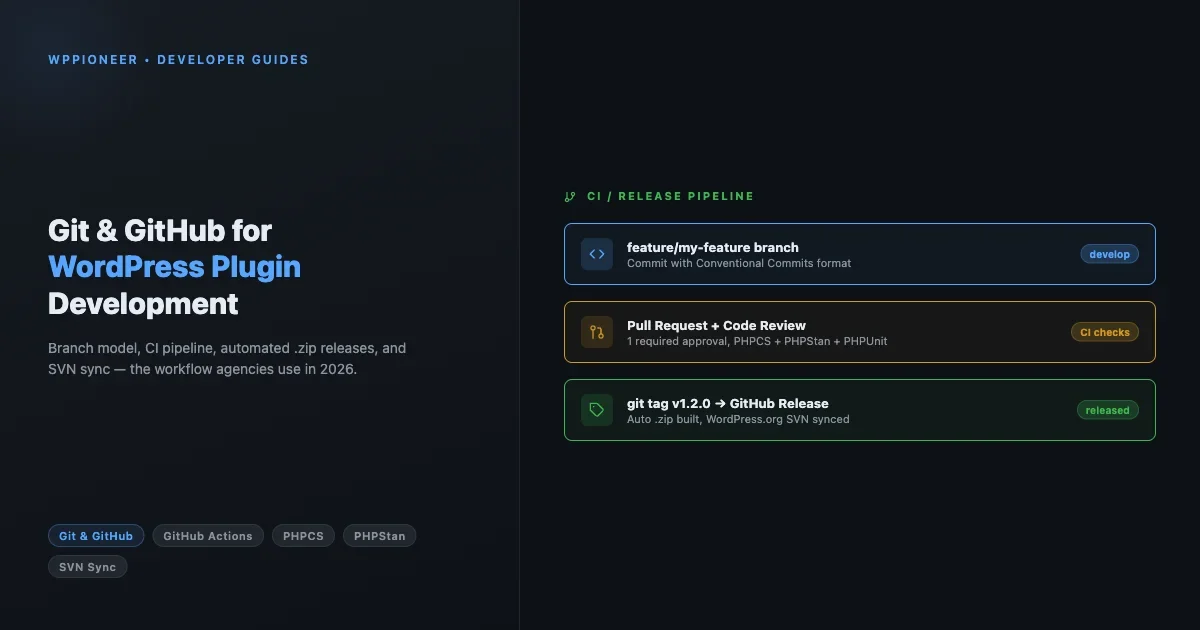
If you are building WordPress plugins without version control, you are one bad update away from losing hours of work. Git and GitHub are not just for software engineers at big tech firms. They are the backbone of every serious plugin shop, from solo freelancers to 20-person agencies. This guide walks you through the exact workflow teams use in 2026: how to structure your repo, what to put in your .gitignore, how to branch and review code, how to automate quality checks with GitHub Actions, and how to ship a .zip release and sync to WordPress.org SVN without touching FTP.
Why Plugin Developers Need Git From Day One
Most people start building WordPress plugins with an FTP client. They edit files directly on the server, copy them locally when something breaks, and hope for the best. This works for very small projects. It falls apart fast when you have a client deadline, a team member, or a bug that appeared three versions ago.
Git gives you a complete history of every change. You can see exactly what was edited, when, and by whom. You can roll back to any point in that history. You can work on a new feature without touching the production code. And with GitHub in the mix, your entire team works from the same source of truth.
The agencies building plugins professionally do not debate whether to use Git. They debate which branching model to follow, how strict their PR review process should be, and which quality checks to automate. Those are the questions this guide answers.
Setting Up Your Plugin Repository Structure
Before you write a single line of PHP, set up your repository correctly. A clean structure prevents problems later.
Your plugin directory should follow the standard WordPress layout:
my-plugin/
├── my-plugin.php          (main plugin file with header)
├── readme.txt             (WordPress.org readme)
├── CHANGELOG.md
├── composer.json
├── package.json
├── .gitignore
├── .github/
│   └── workflows/
│       ├── ci.yml
│       └── release.yml
├── src/
│   ├── Admin/
│   ├── Frontend/
│   └── Core/
├── templates/
├── assets/
│   ├── src/
│   │   ├── js/
│   │   └── css/
│   └── dist/           (compiled, gitignored or committed per team choice)
├── languages/
└── tests/
    ├── Unit/
    └── Integration/
The src/ directory holds your PHP classes. The assets/src/ directory holds raw JavaScript and CSS that gets compiled. The .github/workflows/ directory is where your automated pipelines live.
Writing Your .gitignore File for WordPress Plugins
A bad .gitignore is one of the most common mistakes in plugin repositories. You end up committing vendor folders, compiled assets, or environment files that have no business being in version control.
Here is a solid baseline .gitignore for a WordPress plugin:
# Dependencies
vendor/
node_modules/

# Compiled assets (if you prefer not to commit dist files)
assets/dist/

# Build artifacts
*.zip
*.tar.gz

# Environment and secrets
.env
.env.local
wp-config.php

# IDE and OS files
.DS_Store
Thumbs.db
.idea/
.vscode/
*.swp
*.swo

# Test coverage
coverage/
.phpunit.cache/

# PHP CS cache
.php-cs-fixer.cache
.phpcs.cache

# Composer lock conflicts (teams usually commit this, freelancers sometimes don't)
# composer.lock

# WordPress test suite (if installed locally)
/tmp/wordpress/
/tmp/wordpress-tests-lib/
One decision teams make differently: whether to commit assets/dist/. If you commit compiled assets, WordPress.org SVN sync is simpler because the files are ready to deploy. If you do not commit them, your CI pipeline must build them before creating a release. Both approaches work. Pick one and document it in your README.
Semantic Version Tagging That Actually Makes Sense
Semantic versioning (semver) is the standard for communicating what changed in a release. The format is MAJOR.MINOR.PATCH.
- PATCH (1.0.0 → 1.0.1): Bug fixes that do not change how the plugin works from the outside.
- MINOR (1.0.0 → 1.1.0): New features that are backward-compatible. Existing installs do not break.
- MAJOR (1.0.0 → 2.0.0): Breaking changes. Something that worked before may not work the same way.
For WordPress plugins, there is a practical addition: the version number in your plugin header, your readme.txt, and any PLUGIN_VERSION constant must all match the Git tag. Out-of-sync versions cause update failures and confuse users.
A pre-release for testing gets a tag like 1.2.0-beta.1. A release candidate is 1.2.0-rc.1. These never go to WordPress.org but are useful for client testing.
To create a release tag in Git:
git tag -a v1.2.0 -m "Release version 1.2.0"
git push origin v1.2.0
The -a flag creates an annotated tag (recommended over lightweight tags for releases). The message explains what the tag is for. Once pushed, your GitHub Actions release workflow can trigger on that tag.
The Branch Model Agencies Actually Use
There are several branching models (Gitflow, GitHub Flow, trunk-based). After working with dozens of plugin teams, the one that fits WordPress plugin development best is a simplified Gitflow:
- main: Always production-ready. Only merged into from
develop(for releases) or hotfix branches. - develop: The integration branch. Feature branches merge here first.
- feature/description: Short-lived branches for individual features. Example:
feature/add-custom-post-type. - fix/description: Bug fix branches. Example:
fix/rest-api-nonce-check. - hotfix/description: Emergency fixes that go directly to
mainwhen a critical bug is in production.
The daily workflow looks like this:
# Start a new feature
git checkout develop
git pull origin develop
git checkout -b feature/settings-page

# Work, commit frequently
git add -p                          # stage selectively
git commit -m "feat: add settings section for API keys"

# Push and open a PR
git push origin feature/settings-page
# → open PR from feature/settings-page into develop on GitHub
Keep feature branches short-lived. A branch that lives for two weeks accumulates merge conflicts and becomes painful to review. Aim for one to three days per feature branch. If a feature is large, break it into smaller vertical slices and merge each one independently.
When to Merge to Main
The develop branch accumulates features until you are ready for a release. At that point:
- Create a release branch:
git checkout -b release/1.2.0 develop - Bump version numbers in all files (plugin header, readme.txt, CHANGELOG.md, package.json if present).
- Open a PR from
release/1.2.0intomain. - After merge, tag the release on
main. - Merge
mainback intodevelopso it stays in sync.
Writing Good Commit Messages
Commit messages are documentation. A year from now, you will search your Git history trying to understand why a specific change was made. Vague messages like “fix stuff” or “update code” are useless.
Use the Conventional Commits format:
type(scope): short description in present tense

Optional body explaining WHY the change was made.

Closes #123
Common types:
feat: a new featurefix: a bug fixrefactor: code change that is neither a feature nor a bug fixtest: adding or updating testsdocs: documentation onlychore: build process, dependency updates
Example messages that actually help:
feat(settings): add option to disable automatic updates per post type
fix(rest-api): validate nonce before processing payment webhook
test(unit): add coverage for permission callback edge cases
chore: bump PHPCS to 3.8 and update rule set
Pull Requests and Code Review That Do Not Slow Teams Down
Pull requests are not bureaucracy. They are the mechanism that catches bugs before they reach users. But they can become bottlenecks if the team has no review norms.
Set expectations before the first PR lands:
- PR size: Aim for under 400 lines changed. Large PRs do not get reviewed well. They get rubber-stamped.
- PR description: Every PR should explain what changed, why, and how to test it. Link to the issue or spec.
- Review turnaround: Set a team norm. Many agencies use a 24-hour turnaround for non-blocking reviews and a same-day turnaround for blocking bugs.
- Approval requirement: Require at least one approval before merge. On critical plugins, require two.
A minimal but useful PR template (save as .github/pull_request_template.md):
## What changed
Brief description of the change.

## Why
Link to issue or explain the motivation.

## How to test
Step-by-step testing instructions.

## Checklist
- [ ] PHPCS passes
- [ ] PHPUnit tests updated/added
- [ ] readme.txt updated if user-facing
- [ ] Tested on WordPress 6.x
When reviewing a PR, focus on logic and correctness first, style second. If your CI already runs PHPCS automatically, do not leave comments about code style (the linter handles it). Save your review time for logic errors, security issues, and missing edge cases.
GitHub Actions for PHPCS, PHPStan, and PHPUnit
Automated quality checks catch problems without requiring a human to remember to run them. Every PR and push to develop or main should trigger at least three checks: code style (PHPCS), static analysis (PHPStan), and unit tests (PHPUnit).
Here is a complete .github/workflows/ci.yml that runs all three:
name: CI

on:
  push:
    branches: [ main, develop ]
  pull_request:
    branches: [ main, develop ]

jobs:
  phpcs:
    name: Code Style (PHPCS)
    runs-on: ubuntu-latest
    steps:
      - uses: actions/checkout@v4
      - uses: shivammathur/setup-php@v2
        with:
          php-version: '8.2'
          tools: composer, cs2pr
      - run: composer install --no-progress --prefer-dist
      - run: vendor/bin/phpcs --report=checkstyle | cs2pr

  phpstan:
    name: Static Analysis (PHPStan)
    runs-on: ubuntu-latest
    steps:
      - uses: actions/checkout@v4
      - uses: shivammathur/setup-php@v2
        with:
          php-version: '8.2'
          tools: composer
      - run: composer install --no-progress --prefer-dist
      - run: vendor/bin/phpstan analyse --no-progress

  phpunit:
    name: Unit Tests (PHPUnit)
    runs-on: ubuntu-latest
    strategy:
      matrix:
        php: [ '7.4', '8.0', '8.2' ]
        wordpress: [ '6.4', '6.5', '6.7' ]
    services:
      mysql:
        image: mysql:8.0
        env:
          MYSQL_ROOT_PASSWORD: root
          MYSQL_DATABASE: wordpress_test
        options: --health-cmd="mysqladmin ping" --health-interval=10s
    steps:
      - uses: actions/checkout@v4
      - uses: shivammathur/setup-php@v2
        with:
          php-version: ${{ matrix.php }}
          tools: composer
      - run: composer install --no-progress --prefer-dist
      - name: Install WordPress test suite
        run: |
          bash bin/install-wp-tests.sh wordpress_test root root 127.0.0.1 ${{ matrix.wordpress }}
      - run: vendor/bin/phpunit
The matrix strategy tests across multiple PHP and WordPress versions in parallel. This gives you confidence that your plugin does not break on PHP 7.4 when you write code on PHP 8.2.
Your composer.json needs the dev dependencies:
{
  "require-dev": {
    "squizlabs/php_codesniffer": "^3.8",
    "wp-coding-standards/wpcs": "^3.0",
    "phpstan/phpstan": "^1.10",
    "szepeviktor/phpstan-wordpress": "^1.3",
    "phpunit/phpunit": "^10.0",
    "yoast/phpunit-polyfills": "^2.0"
  },
  "scripts": {
    "cs": "phpcs",
    "cs:fix": "phpcbf",
    "stan": "phpstan analyse",
    "test": "phpunit"
  }
}
Automatic .zip Release on Tag Push
When you push a version tag, GitHub Actions can automatically build a clean distribution .zip and attach it to a GitHub Release. This means no manual packaging, no forgetting to exclude dev files, and no “I built this locally” inconsistency.
Save this as .github/workflows/release.yml:
name: Release

on:
  push:
    tags:
      - 'v*.*.*'

jobs:
  build:
    name: Build and Release
    runs-on: ubuntu-latest
    steps:
      - uses: actions/checkout@v4

      - uses: shivammathur/setup-php@v2
        with:
          php-version: '8.2'
          tools: composer

      - name: Install production dependencies
        run: composer install --no-dev --no-progress --prefer-dist --optimize-autoloader

      - name: Set version from tag
        run: echo "VERSION=${GITHUB_REF#refs/tags/v}" >> $GITHUB_ENV

      - name: Build distribution zip
        run: |
          mkdir -p dist/my-plugin
          rsync -r --exclude-from=.distignore . dist/my-plugin/
          cd dist && zip -r my-plugin-${{ env.VERSION }}.zip my-plugin/
          echo "ZIP_PATH=dist/my-plugin-${{ env.VERSION }}.zip" >> $GITHUB_ENV

      - name: Create GitHub Release
        uses: softprops/action-gh-release@v2
        with:
          files: ${{ env.ZIP_PATH }}
          generate_release_notes: true
        env:
          GITHUB_TOKEN: ${{ secrets.GITHUB_TOKEN }}
The key is the .distignore file, which lists everything to exclude from the distribution package:
.git
.github
.gitignore
.distignore
node_modules
vendor
tests
bin
assets/src
composer.json
composer.lock
package.json
package-lock.json
phpcs.xml
phpstan.neon
*.md
.env
The result: every tag push creates a GitHub Release with a clean plugin .zip attached. Clients, testers, and the WordPress.org review team all get the same artifact.
WordPress.org SVN Sync From GitHub
WordPress.org uses SVN for its plugin repository. Most developers find SVN painful to work with directly. The good news is that you do not have to. You can keep your entire workflow in Git and sync to SVN automatically on release.
The 10up WordPress Plugin Deploy action handles this. Add it to your release workflow:
  deploy-to-wporg:
    name: Deploy to WordPress.org
    runs-on: ubuntu-latest
    needs: build
    if: startsWith(github.ref, 'refs/tags/')
    steps:
      - uses: actions/checkout@v4

      - name: WordPress Plugin Deploy
        uses: 10up/action-wordpress-plugin-deploy@stable
        env:
          SVN_PASSWORD: ${{ secrets.SVN_PASSWORD }}
          SVN_USERNAME: ${{ secrets.SVN_USERNAME }}
          SLUG: your-plugin-slug
Before this works, you need to:
- Add your WordPress.org SVN credentials to your GitHub repository as secrets:
SVN_USERNAMEandSVN_PASSWORD. Go to Settings > Secrets and variables > Actions. - Set the
SLUGvariable to match your WordPress.org plugin slug exactly. - Make sure your
readme.txtis in the repo root (the action reads it to determine the stable tag). - Update the
Stable tag:in readme.txt before tagging.
The action handles the SVN checkout, copies your plugin files, and commits the new version. It also handles the trunk/ and tags/ directories in SVN automatically.
Protecting Your Main Branch
Branch protection rules stop accidental direct pushes to main. They also enforce that CI passes before any merge happens. Set this up once and it pays back endlessly.
In GitHub, go to your repository > Settings > Branches > Add rule for main:
- Check “Require a pull request before merging”
- Check “Require approvals” (set to 1 minimum)
- Check “Require status checks to pass before merging”: add your CI jobs (phpcs, phpstan, phpunit)
- Check “Require branches to be up to date before merging”
- Check “Do not allow bypassing the above settings” (optional but good for teams)
With these rules in place, no code can reach main without passing every quality check and getting human review. This is how agencies prevent weekend emergency rollbacks from shipping bugs in a hurry.
Linking Plugin Updates to Version Control
One habit that separates organized plugin shops from chaotic ones: every plugin update pushed to production should map to a specific Git tag. Never ship an update built from uncommitted local files.
The checklist before every release:
- All changes are committed to
developand merged tomain. - Version numbers match in: plugin header, readme.txt, CHANGELOG.md, and any
PLUGIN_VERSIONconstant. - The tag is pushed and GitHub Actions finished successfully.
- The release .zip is attached to the GitHub Release.
- If going to WordPress.org, the SVN sync action completed without errors.
When something breaks in production, this discipline means you can pin down exactly what version caused the problem, compare it with the previous tag, and ship a fix that is traceable. You can read more about how to handle the update testing side in our guide on safely updating WordPress plugins without breaking your live site.
Developer Permissions and Repository Access
As your team grows, control who can do what in your GitHub repository. GitHub offers four roles: Read, Triage, Write, and Maintain/Admin.
- Contractors and reviewers: Read access. They can see code and review PRs but cannot push.
- Junior developers: Write access. They can push to feature branches, open PRs, but branch protection blocks direct pushes to main.
- Senior developers: Maintain access. They can manage issues, labels, and milestones.
- Project lead: Admin. Can change repository settings and branch protection rules.
For a deeper look at how access control works across WordPress itself, our article on WordPress user roles and who should have access to what covers the same principles applied to the WordPress dashboard.
Use GitHub Teams to manage access at the organization level rather than on each individual repository. Add the team to the repo once, and adding/removing developers from the team automatically updates their access to all repos the team touches.
Local Development With Git Hooks
Git hooks run scripts automatically at key points in your workflow. Two hooks are worth setting up for WordPress plugin development:
pre-commit: Runs before each commit. Use it to run PHPCS on staged files so you never commit code with coding standard violations.
#!/bin/sh
# .git/hooks/pre-commit
STAGED_PHP=$(git diff --cached --name-only --diff-filter=ACMR | grep "\.php$")

if [ -n "$STAGED_PHP" ]; then
    vendor/bin/phpcs $STAGED_PHP
    if [ $? -ne 0 ]; then
        echo "PHPCS errors found. Fix them before committing."
        exit 1
    fi
fi
commit-msg: Validates your commit message format before the commit lands.
#!/bin/sh
# .git/hooks/commit-msg
COMMIT_MSG=$(cat "$1")
PATTERN="^(feat|fix|refactor|test|docs|chore)(\(.+\))?: .+"

if ! echo "$COMMIT_MSG" | grep -qE "$PATTERN"; then
    echo "Commit message format: type(scope): description"
    echo "Example: feat(settings): add API key field"
    exit 1
fi
Store these hooks in a bin/hooks/ directory in your repo and add a setup script that symlinks them into .git/hooks/. Alternatively, use the Husky package if your project already has a Node.js build step.
Handling Hotfixes Without Breaking Your Release Flow
Sometimes a critical bug lands in production and you need to ship a fix today, not after the next planned release cycle. Hotfixes require a slightly different path through your branch model.
The hotfix process:
- Branch off
main, notdevelop:git checkout -b hotfix/null-pointer-on-activation main - Fix only the bug. Do not add unrelated changes to a hotfix branch.
- Bump the PATCH version number (1.2.1 instead of 1.2.0).
- Open a PR from the hotfix branch directly into
main. CI still runs. At least one reviewer still approves. - After merge to
main, tag the release:git tag -a v1.2.1 -m "Hotfix: null pointer on activation" - Merge
mainback intodevelopso the fix is also in the next regular release.
The common mistake is bypassing review under time pressure. A 10-minute PR review on a hotfix is still worth it. Hotfixes pushed directly to production without review are how single-line fixes introduce new bugs.
Another thing to watch: if you are mid-sprint with several feature branches open when a hotfix lands, each feature branch developer should rebase onto the updated develop branch after the hotfix merges. This keeps everyone working from the same base and prevents the hotfix from reappearing as a conflict later.
Managing the CHANGELOG and readme.txt Across Releases
Your CHANGELOG.md and WordPress.org readme.txt serve different audiences but both need to be updated on every release.
CHANGELOG.md is for developers and technical users who want to know exactly what changed and why. It should list every change by type (Added, Changed, Fixed, Removed, Security). The Keep a Changelog format is widely followed and easy to read.
Your readme.txt == Changelog section is what WordPress.org users see when they click “View version details” before updating. Keep this one user-facing. Instead of “refactor: extract PaymentGateway class from OrderController”, write “Improved reliability of payment processing for orders with multiple items”.
A pre-release checklist for version bumps:
# Files to update on every release
grep -r "Version:" my-plugin.php         # Plugin header
grep -r "Stable tag:" readme.txt         # WordPress.org stable tag
grep -r "define.*PLUGIN_VERSION" my-plugin.php  # Version constant
grep -r '"version"' package.json          # JS build version if used
Some teams automate version bumps with a shell script or a Composer script that updates all files in one command. This eliminates the “I forgot to update the constant” problem that causes update failures.
The Stable tag in your readme.txt is especially important. WordPress.org uses it to determine which version to serve to users who click “Update”. If your Stable tag says 1.1.0 and your SVN tags directory has 1.2.0, users will not get the update. The tag in readme.txt, the Git tag, and the SVN tag should always be in sync after a release.
Quick Reference: The Workflow in Daily Practice
After a few weeks with this setup, the daily workflow becomes muscle memory:
- Start work:
git checkout develop && git pull && git checkout -b feature/my-feature - Work in small commits: Stage selectively with
git add -p, commit with a conventional message - Push and open PR:
git push origin feature/my-feature, then open PR intodevelop - CI runs automatically: PHPCS, PHPStan, and PHPUnit run on every push
- Review and merge: At least one approval required before merge
- Release cycle: Merge
developtomain, bump versions, push tag - Automated packaging: GitHub Actions builds .zip and deploys to WordPress.org
The up-front investment in this setup is a few hours. The time it saves per year, in prevented bugs, faster debugging, and smoother team coordination, runs to days. If you have ever spent a Friday afternoon trying to figure out which file change broke a client’s site, you already know why this matters.
If your site is already running plugins that get updated regularly, the same discipline applies on the consumer side. Our guide on what to do when a WordPress update breaks your site covers the recovery playbook from the site owner’s perspective, which is a useful complement to the developer workflow described here. For teams that want to hand off the build entirely, Wbcom Designs provides WordPress plugin development services with this kind of Git, CI, and testing infrastructure included by default.
No comments yet