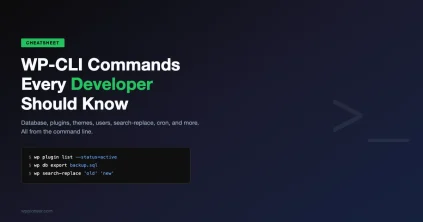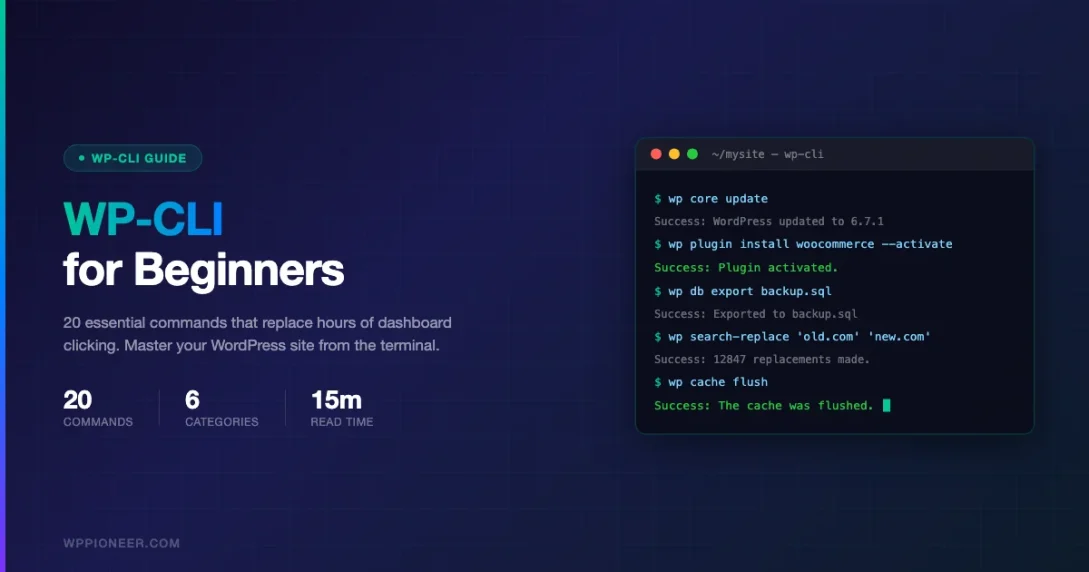
Every WordPress developer reaches a breaking point with the dashboard. Updating 30 plugins one click at a time, resetting passwords through a slow admin panel, running a search-replace before a site migration – these tasks eat up hours that could go toward building things. WP-CLI changes that entirely. It is a command-line tool for WordPress that lets you manage every part of your site from a terminal, in seconds. This guide covers 20 WP-CLI commands that every developer should know, organized by category with real syntax, practical flags, and actual use cases.
What Is WP-CLI and Why Should You Use It
WP-CLI stands for WordPress Command Line Interface. It is an open-source tool that wraps the WordPress API in a set of shell commands. Instead of clicking through menus, you type commands that run directly against your WordPress installation.
The benefits are real and measurable. A task like activating 10 plugins through wp-admin takes around 3 minutes of clicking. The same task with WP-CLI takes about 5 seconds. On a server without a GUI, WP-CLI is often the only practical way to manage WordPress at all.
| Task | Dashboard Time | WP-CLI Time |
|---|---|---|
| Update all plugins | 5-10 minutes | ~10 seconds |
| Create 10 test users | 20+ minutes | ~5 seconds |
| Migrate a database | 30+ minutes with phpMyAdmin | ~2 minutes |
| Reset a user password | 2-3 minutes | ~5 seconds |
| Flush all caches | Multiple plugin dashboards | 1 command |
WP-CLI works on any server running PHP 5.6 or later. Most managed WordPress hosts – WP Engine, Cloudways, Kinsta, SiteGround – include it by default. For local development, tools like LocalWP and DevKinsta also bundle it in.
Installing WP-CLI
If WP-CLI is not already available on your host, the installation is straightforward. Download the Phar file, make it executable, and move it to your path. Most hosting control panels also offer a one-click install under SSH Tools or Developer Tools. Run wp cli version to confirm it is working after setup.
Core Commands: Keep WordPress Updated and Verified
Core commands let you manage the WordPress software itself – checking versions, downloading updates, and verifying that your files have not been tampered with. These are the commands you run first on any new or suspicious install.
Command 1: wp core update
Updates WordPress core to the latest stable version. On a production site, pair this with a database backup first. You can also target a specific version with the --version flag, which is useful for rolling back after a bad update or testing compatibility with a specific release.
This single command replaces the entire update flow in wp-admin: checking for updates, clicking Update Now, waiting for the progress bar, and confirming success.
Command 2: wp core verify-checksums
Verifies the integrity of every core WordPress file against the official checksums from WordPress.org. If any file has been modified – by a plugin, a hack, or an accidental edit – this command flags it immediately. It is a fast first step in any security audit and takes under 10 seconds to run. For a broader view of keeping your site protected, see our beginner guide to WordPress site security.
Running verify-checksums after every core update takes 10 seconds and can catch a compromised file before it causes real damage.
Plugin Commands: Install, Activate, and Manage Without Clicking
Plugin management is where WP-CLI saves the most time in day-to-day work. Whether you are setting up a new site from scratch, auditing an existing installation, or doing a mass update across multiple sites, these commands handle the full lifecycle of every plugin.
Command 3: wp plugin list
Lists all installed plugins with their name, status, version, and whether an update is available. The --status=active filter is useful for auditing what is actually running on a site. You can also output the list as JSON or CSV for use in scripts or reports.
Command 4: wp plugin install
Installs a plugin from WordPress.org by slug, or from a ZIP file or direct URL. Adding the --activate flag installs and activates in one step. This is the fastest way to set up a fresh WordPress install – you can chain multiple installs in a shell script and have a full set of plugins ready in under a minute. If you are unsure which plugins to start with, our list of must-have WordPress plugins for new sites covers the essentials.
Command 5: wp plugin activate
Activates one or more plugins by slug. You can also pass --all to activate every installed plugin at once – useful when restoring a site or testing a full environment. Combining this with wp plugin deactivate --all gives you a fast way to do plugin conflict testing without touching the dashboard.
User Commands: Create, Manage, and Clean Up Accounts
User management through the dashboard is slow and repetitive. Creating multiple test accounts, resetting passwords, or auditing who has admin access on a live site are all faster with WP-CLI. These commands work on both single-site and multisite installations.
Command 6: wp user create
Creates a new WordPress user with a specified login name, email, role, and password. The role parameter accepts any valid WordPress role: subscriber, contributor, author, editor, administrator. On multisite, you can also specify which sites the user should have access to. This command is essential for setting up development environments where you need multiple test accounts across different permission levels.
Command 7: wp user list
Lists all users with configurable output fields. The most useful audit is checking for unexpected administrator accounts – something that should be part of any security review. Filtering by --role=administrator and reviewing the list regularly is a simple security hygiene practice that many sites skip.
Quick Tip: Audit Admin Accounts
Run wp user list --role=administrator --fields=ID,user_login,user_email,user_registered on any site you have just taken over. Unexpected admin accounts are a common sign of a compromised or poorly managed WordPress install.
Database Commands: Export, Import, and Search-Replace
Database operations are where WP-CLI shows its biggest advantage over GUI tools like phpMyAdmin. Exporting a large database through a web interface often times out or produces corrupt files. WP-CLI connects directly to MySQL using the credentials in wp-config.php, which means no browser timeouts and no memory limits from PHP.
Command 8: wp db export
Exports the entire database to a SQL file. Running this with a timestamp in the filename – using shell date substitution – gives you a clean backup naming convention. You can also export specific tables, which is useful for migrating content without carrying over plugin settings or transient data that would just get reset anyway.
Command 9: wp db import
Imports a SQL file into the database. This replaces the equivalent phpMyAdmin upload, which fails on files larger than a few MB depending on server settings. WP-CLI has no such limit. For very large databases on slow connections, importing through an SSH session is far more reliable than any browser-based tool.
Command 10: wp search-replace
This is the most important database command for site migrations. It searches every table for a string and replaces it with another, and – critically – it handles PHP serialized data correctly. Serialized data stores string lengths, so a naive find-and-replace with SQL breaks it when the URL length changes. WP-CLI deserializes the data, performs the replacement, and re-serializes it correctly.
Always run with --dry-run first to preview how many replacements will be made. A typical migration from staging to production might touch 50,000 rows across wp_posts, wp_postmeta, and wp_options.
Content Commands: Manage Posts Without the Editor
WP-CLI gives you full CRUD access to posts, pages, and custom post types. This is particularly useful for bulk operations that would be impractical through the dashboard – generating test content, cleaning up orphaned posts, or changing the status of hundreds of drafts at once.
Command 11: wp post list
Lists posts with full control over which fields appear in the output. You can filter by post type, status, author, date range, and custom taxonomy terms. The JSON output format is useful for passing post IDs to other commands in a script. For example: get all draft posts older than 6 months and delete them in a single pipeline.
Command 12: wp post create
Creates a new post with any combination of fields. You can pipe in post content from a file using --post_content=<"$(cat article.html)" or set it directly as a parameter. The wp post generate sub-command creates placeholder posts in bulk, which is useful for load testing or developing pagination on a site with minimal real content.
Command 13: wp post delete
Deletes a post by ID. By default it sends the post to the trash – add --force to permanently delete. When cleaning up test content or old imports, you can combine this with wp post list to get IDs and delete them in sequence. Be careful with --force on production – there is no undo.
Options Commands: Read and Write Site Settings Directly
WordPress stores almost every site setting in the wp_options table. WP-CLI gives you direct read and write access to that table without SQL. This is useful for checking settings on a live server, fixing broken configurations, or scripting environment-specific setup steps.
Command 14: wp option get
Retrieves any WordPress option by name. The most commonly read options are siteurl, home, blogname, and active_plugins. Reading active_plugins is a quick way to see exactly what plugins are running, especially on a site where you cannot access wp-admin. The output is the raw PHP-serialized value, which WP-CLI decodes automatically for display.
Command 15: wp option update
Updates any option value. This is useful after a database import when the site URL is still pointing to the old environment. Updating siteurl and home with wp option update is faster and safer than editing SQL directly, and it respects the option’s existing data type. Combined with wp search-replace, this gives you a complete URL migration workflow.
Cache Commands: Flush Stale Data and Fix Permalink Issues
Cache problems are one of the most common sources of confusing WordPress behavior – settings that appear to save but do not take effect, pages that show old content, or features that refuse to activate. These commands clear the different layers of cache that WordPress uses internally.
Command 16: wp cache flush
Flushes the WordPress object cache. If your site uses Redis or Memcached as a persistent object cache backend, this clears that cache entirely. On sites without a persistent cache, it clears the in-memory cache for the current request. Run this after importing a database or changing core settings to make sure the site is reading fresh data. Persistent object cache is one part of a broader performance story – our complete WordPress performance optimization guide covers caching, database tuning, and more.
Command 17: wp transient delete –all
Deletes all WordPress transients from the database. Transients are time-limited cached data stored in wp_options – remote API responses, expensive query results, and plugin-generated data that should refresh periodically. Over time, stale transients accumulate and can cause plugins to use outdated data. The --all flag removes every transient regardless of expiry; use --expired to only remove ones past their TTL.
Maintenance Commands: Rewrites, Cron, and Permalinks
WordPress relies on a set of internal systems – rewrite rules, scheduled cron events, and configuration caches – that can drift out of sync after migrations, plugin changes, or server moves. These commands reset and inspect those systems without requiring a full wp-admin login.
Command 18: wp rewrite flush
Regenerates the WordPress rewrite rules and flushes the .htaccess-based permalink cache. This fixes the classic post-migration problem where all URLs return 404 even though the posts exist in the database. It is the equivalent of going to Settings – Permalinks and clicking Save Changes, but without needing wp-admin access. Run this after every database import and after registering any custom post types or taxonomies.
Command 19: wp cron event list
Lists all scheduled WP-Cron events with their next run time and recurrence interval. This is invaluable for debugging performance issues caused by misfiring cron jobs – a common problem on high-traffic sites where cron runs on every page load rather than through a real system cron. You can also run any event immediately with wp cron event run, which is useful for testing scheduled tasks without waiting for the next scheduled execution.
Info and Meta: Know Your Environment
Before running any commands on an unfamiliar server, it helps to understand the environment you are working in. These commands surface version information, PHP configuration, and WP-CLI’s own status quickly.
Command 20: wp cli version
Returns the current WP-CLI version. Always worth running first on a server where you did not install WP-CLI yourself – an outdated version may be missing commands you expect or have known bugs. The companion command wp cli info gives a full environment summary: WP-CLI version, PHP version, MySQL version, OS, and current WordPress version. This output is the first thing to share when asking for help with a WP-CLI issue.
Common Real-World Workflows Using These Commands
The real power of WP-CLI comes from combining commands. Here are four workflows that developers run regularly, each built from the commands covered in this guide.
Site Migration Workflow
- Export the database from the source site:
wp db export - Transfer the SQL file to the destination server via SCP or SFTP
- Import on the new server:
wp db import backup.sql - Replace the old domain:
wp search-replace 'https://old.com' 'https://new.com' - Flush rewrites:
wp rewrite flush - Clear cache:
wp cache flush - Verify core files:
wp core verify-checksums
New Site Setup Workflow
- Install WordPress core:
wp core installwith title, admin credentials, and URL - Install required plugins:
wp plugin install woocommerce contact-form-7 --activate - Create team user accounts:
wp user createfor each team member with appropriate roles - Set site options:
wp option update blogdescription "Site tagline here" - Flush rewrites:
wp rewrite flush
Security Audit Workflow
- Check core file integrity:
wp core verify-checksums - List admin users:
wp user list --role=administrator - Check WordPress version:
wp core version - Check plugin versions and available updates:
wp plugin list - Look for inactive plugins that should be removed:
wp plugin list --status=inactive
Performance Troubleshooting Workflow
- Check for excessive cron events:
wp cron event list - Delete expired transients:
wp transient delete --expired - Flush object cache:
wp cache flush - Optimize database tables:
wp db optimize - Flush rewrite rules:
wp rewrite flush
Tips for Using WP-CLI Safely on Production
WP-CLI commands run with the same permissions as your WordPress installation. That means there is no confirmation prompt for destructive operations like wp post delete --force or wp db import. A few practices protect you from mistakes.
- Always back up the database first – Run
wp db exportbefore any migration, bulk delete, or search-replace operation. - Use –dry-run for search-replace – Preview the number of replacements before committing to them. A number much higher than expected is a signal to check your query.
- Use –path when needed – If you are running WP-CLI from outside the WordPress root directory, specify the path with
--path=/var/www/htmlto make sure it targets the right installation. - Check wp cli info first on new servers – Knowing the PHP and MySQL versions before running commands helps you avoid compatibility surprises.
- Create an alias for common flags – If you always work on the same site remotely, set up a WP-CLI alias in
~/.wp-cli/config.ymlso you do not have to repeat--pathand--urlon every command.
Quick Reference: All 20 Commands at a Glance
| # | Command | What It Does | Category |
|---|---|---|---|
| 1 | wp core update | Update WordPress core to latest or specific version | Core |
| 2 | wp core verify-checksums | Verify core files against official checksums | Core |
| 3 | wp plugin list | List all plugins with status and version | Plugins |
| 4 | wp plugin install | Install a plugin by slug, ZIP, or URL | Plugins |
| 5 | wp plugin activate | Activate one or all plugins | Plugins |
| 6 | wp user create | Create a new user with role and password | Users |
| 7 | wp user list | List all users with configurable fields | Users |
| 8 | wp db export | Export full or partial database to SQL | Database |
| 9 | wp db import | Import a SQL file into the database | Database |
| 10 | wp search-replace | Find and replace with serialized data support | Database |
| 11 | wp post list | List posts with filters and field control | Content |
| 12 | wp post create | Create a new post programmatically | Content |
| 13 | wp post delete | Delete a post (trash or permanent) | Content |
| 14 | wp option get | Read any WordPress option value | Options |
| 15 | wp option update | Write or update any WordPress option | Options |
| 16 | wp cache flush | Flush the object cache (Redis/Memcached/internal) | Cache |
| 17 | wp transient delete --all | Remove all transients from the database | Cache |
| 18 | wp rewrite flush | Regenerate rewrite rules and fix permalink 404s | Maintenance |
| 19 | wp cron event list | List all scheduled cron events and times | Maintenance |
| 20 | wp cli version | Check WP-CLI version and environment info | Info |
Where to Go From Here
These 20 commands cover the operations that come up most often in real WordPress development work. But WP-CLI has commands for almost everything – theme management, multisite networks, Gutenberg block parsing, package management for WP-CLI itself, and community packages for tools like WooCommerce and Advanced Custom Fields.
The official WP-CLI documentation at make.wordpress.org/cli is the most complete reference. Every command listed here has additional sub-commands, flags, and examples documented there. The wp help command also works interactively – run wp help plugin install to see every available flag for a specific command without leaving the terminal.
Once these commands become muscle memory, the next step is scripting. A simple bash script that runs your most common setup steps – installing plugins, creating users, setting options, flushing caches – can turn a 30-minute site setup into a 60-second automated process.
Start Saving Time With WP-CLI Today
WP-CLI turns repetitive WordPress admin work into fast, repeatable commands. Whether you are managing one site or fifty, the 20 commands in this guide will cut hours from your workflow every week. Bookmark this page and keep the quick reference table handy as you build your command-line muscle memory.
Beginner WordPress Tips WordPress Command Line WordPress developer tools WP-CLI wp-cli commands
Last modified: March 31, 2026