
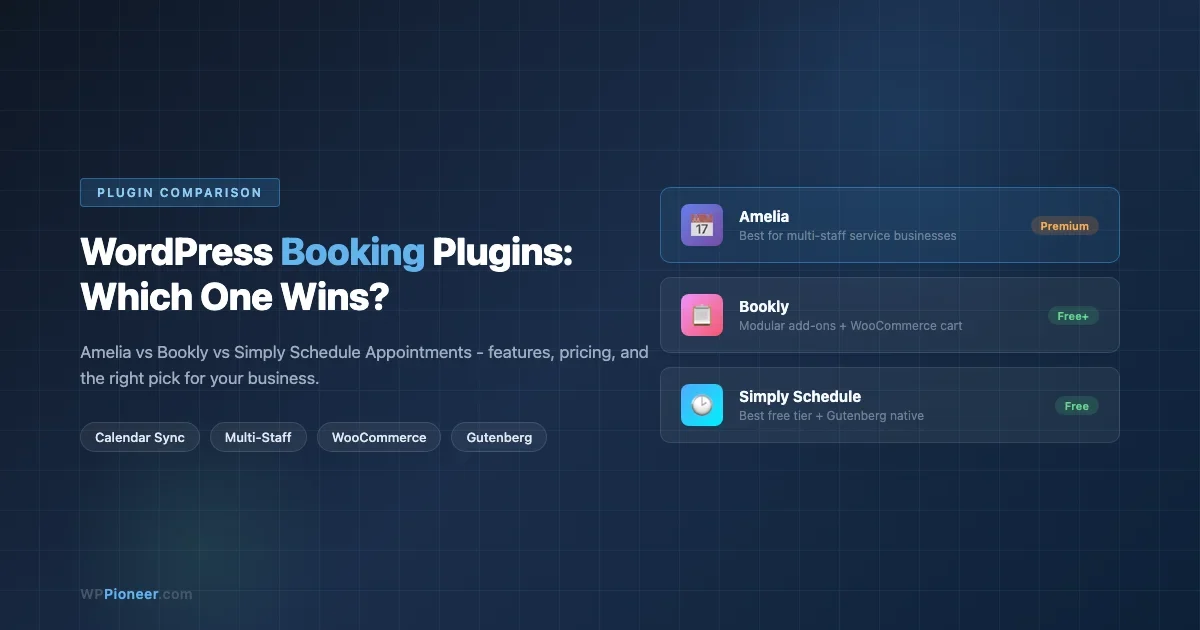
What to Look for in a WordPress Booking Plugin
Before you install anything, it is worth getting clear on what a booking plugin actually needs to do for your specific business. A yoga studio, a law firm, and a multi-location hair salon all use “appointment booking” but they have almost nothing in common when it comes to requirements.
Here are the criteria that separate genuinely useful booking plugins from ones that will frustrate you six months in:
- Calendar UX for clients: If the booking flow is clunky on mobile, you will lose appointments. Test the front-end experience before committing.
- Google Calendar and Outlook sync: Staff need their availability reflected in real time. One-way export is not enough - you need two-way sync so blocks added in Google Calendar actually block the booking form.
- Payment integration: Whether you charge at booking (deposit or full payment) or invoice later changes which plugins work for you. WooCommerce integration matters if you are already running a shop. For a deep look at WooCommerce payment options, see our WooCommerce Payment Gateways comparison.
- Staff and location management: A plugin that only supports a single service provider will not scale past a solo operator.
- Buffer times and padding: Can you add 15 minutes between appointments for setup and cleanup? This is a dealbreaker for service businesses.
- Reminder emails and SMS: Automated reminders cut no-shows dramatically. Check whether this is built in or requires an add-on.
- Gutenberg compatibility: If you build your site in the block editor, the booking form should slot in cleanly without shortcode workarounds.
- Free tier ceiling: Some plugins gate basic features behind paid plans aggressively. Know what you actually get for free before building your workflow around it.
With those criteria in mind, let us look at the three strongest contenders in the WordPress booking space right now.
Amelia: Best for Service Businesses That Want a Polished Experience
Amelia is a premium booking plugin built by TMS (the team behind several popular WordPress plugins). It positions itself firmly at the “serious business” end of the market, and the feature depth backs that up.
Calendar UX and Front-End Experience
Amelia’s booking form is the first thing most evaluators notice. It is genuinely modern - a step-by-step wizard that guides clients through selecting a service, choosing a staff member or location, picking a date and time, and completing payment. The mobile experience holds up well, which is not a given in this category.
The admin-side calendar view is equally strong. You get a monthly or weekly overview that shows appointments across all staff, colour-coded by service. Filtering by employee or location works cleanly. For businesses managing multiple service providers, this clarity is significant.
Google Calendar Sync
Amelia supports two-way Google Calendar sync out of the box on paid plans. Each staff member can connect their own Google Calendar. When a client books an appointment, it creates an event in the relevant staff member’s calendar. Equally important: when a staff member marks themselves as busy in Google Calendar, those slots are blocked in the booking form automatically.
This bidirectional sync is one of the features that most clearly separates Amelia from lighter-weight booking tools.
Staff, Services, and Locations
Amelia handles multi-staff setups well. You can define services with their own duration, buffer time, capacity (for group bookings), and price. Staff members can be assigned to specific services and locations, with individual working hours and days off. This covers the typical multi-location salon or clinic scenario without requiring workarounds.
Group appointments and events are also supported - Amelia has a separate “Events” module for things like workshops or classes, where multiple people book into the same time slot. This dual capability (one-to-one appointments plus multi-attendee events) is a genuine differentiator.
Payments
Amelia integrates with Stripe, PayPal, Mollie, and Square for at-booking payments. You can set a deposit amount or require full payment. WooCommerce integration is available as well, which matters if you need tax handling or existing WooCommerce payment methods.
Reminders and Notifications
Email and SMS notifications are built in. You can set up automated reminders at configurable intervals before the appointment. SMS requires a Twilio account, but the integration is native and the setup is straightforward.
Pricing
Amelia is a paid plugin with no meaningful free tier on WordPress.org. Paid plans start in the low tens of dollars per month (billed annually), with higher tiers unlocking features like WhatsApp notifications and more Google Calendar connections. There is a free “Lite” version available, but it limits you to a single employee and a single service - it is effectively a demo.
Best For
Amelia fits best for: beauty salons, medical and dental clinics, fitness studios, spas, and any service business with multiple staff members and a need for polished client-facing design.
Bookly: Best for Flexibility Through Add-Ons
Bookly has been around longer than most of its competitors. It started as a straightforward booking plugin and has grown into a platform supported by a large library of paid add-ons. This add-on model is both its strength and its most common criticism.
Core Feature Set
The base Bookly plugin (free on WordPress.org) gives you a working booking form with one staff member, one service, and basic email notifications. It is genuinely functional for a solo operator who just needs clients to book a single service type. The front-end form is clean and mobile-friendly.
The paid pro version unlocks multiple staff members, custom fields on the booking form, and the ability to charge for services.
The Add-On Ecosystem
Bookly’s real power - and its real cost - lives in its add-ons. There are add-ons for: group bookings, service extras (upsells at booking time), waiting lists, Google Calendar sync, Outlook Calendar sync, deposit payments, booking reminders via SMS, cart functionality (booking multiple services in one checkout), recurring appointments, and more.
Each add-on is priced separately. This means a business that needs several of these features can end up with a total spend that rivals or exceeds a premium all-in-one plugin like Amelia. The tradeoff is modularity: you only pay for what you actually use.
WooCommerce Payments
Bookly’s WooCommerce Cart add-on is worth highlighting. It turns the booking checkout into a proper WooCommerce cart flow, which means you get access to every WooCommerce payment gateway (including Stripe, PayPal, Authorize.net, and region-specific gateways), WooCommerce coupons, order history, and WooCommerce tax settings. For businesses already on WooCommerce, this is a compelling integration.
Google Calendar Sync
Two-way Google Calendar sync requires the Google Calendar add-on, which is sold separately. Once installed, the sync behaviour is similar to Amelia: staff connect their own calendars, bookings flow in both directions.
Customisation
Bookly gives you significant control over the booking form’s appearance. You can customise colours, step labels, and field layout. The form uses a step-by-step wizard format similar to Amelia. Custom fields (text inputs, dropdowns, checkboxes) can be added to collect additional information at booking time - useful for intake forms or service-specific questions.
Pricing
The base free plugin covers solo-operator use cases. The pro version is a one-time or annual purchase in the low-to-mid tens of dollars range. Add-ons are priced individually, most falling in the ten-to-thirty dollar range each. A business needing the full feature set should budget accordingly and list out which add-ons they actually need before purchase.
Best For
Bookly fits best for: businesses with a clearly defined feature list that does not require every available add-on, solo operators who want to start free and upgrade gradually, and businesses already on WooCommerce who want tight checkout integration.
Simply Schedule Appointments: Best Free Tier and Gutenberg Integration
Simply Schedule Appointments (SSA) takes a different approach. Where Amelia competes on polish and Bookly competes on add-on modularity, SSA competes on accessibility - specifically, being genuinely useful on its free tier and being built to work naturally inside the WordPress block editor.
Free Tier That Actually Works
SSA’s free version on WordPress.org is the most capable free offering in this category. You get unlimited appointment types, unlimited bookings, basic Google Calendar sync, email notifications, and a functioning booking form - all without paying anything. For a freelancer, consultant, or small service provider who just needs clients to book calls or consultations, the free tier covers the workflow completely.
This is a meaningful point of difference. Both Amelia and Bookly free tiers are essentially limited demos. SSA’s free tier is a usable product.
Gutenberg Block Integration
SSA was built with Gutenberg as a first-class surface. Adding a booking form to a page or post means inserting a native block - no shortcode required, no wrapper div, no CSS conflicts with the theme. The block renders correctly in the editor preview, which matters for visual page building. If you are evaluating page builders alongside your booking tool, our comparison of WordPress page builders covers the major options.
The booking widget itself is clean and responsive. It defaults to a calendar picker followed by a time slot selector and a form for contact details. The design is less elaborate than Amelia’s multi-step wizard, but it loads faster and integrates more naturally into standard WordPress page layouts.
Google Calendar Sync
Basic Google Calendar sync is included on the free tier. The Business edition adds two-way sync, meaning blocks in Google Calendar are reflected in available booking slots. The free tier sync is one-way (bookings create events in Google Calendar) - adequate for many use cases, but not the full bidirectional sync that busy schedules require.
Availability and Scheduling Rules
SSA handles availability windows, minimum scheduling notice (so clients cannot book an appointment in the next 30 minutes), booking windows (how far in advance clients can book), and buffer times between appointments. These controls are available on the free tier, which again sets SSA apart from its competitors.
Paid Plans
SSA’s paid editions (Plus and Business) add features like: Zoom and Google Meet automatic link generation, SMS reminders, payment collection via Stripe, team scheduling, customer rescheduling and cancellation links, and the full two-way Google Calendar sync. Pricing starts in the low tens of dollars per year, making it competitive with Amelia and Bookly pro on a per-feature basis.
Best For
SSA fits best for: consultants, coaches, freelancers, and small businesses who want a no-cost starting point; Gutenberg-first site builders; anyone who finds Amelia over-engineered for a simple one-person booking workflow.
Head-to-Head Comparison
Feature | Amelia | Bookly | Simply Schedule Appointments |
|---|---|---|---|
Free tier | Very limited (1 staff, 1 service) | Limited (1 staff, basic) | Strong (unlimited bookings, basic sync) |
Google Calendar sync | Two-way (paid) | Two-way (add-on) | One-way free / Two-way paid |
Multi-staff support | Yes (paid) | Yes (paid) | Yes (Business tier) |
WooCommerce payments | Yes (built-in) | Yes (Cart add-on) | Stripe only |
Group bookings / Events | Yes (Events module) | Yes (add-on) | Limited |
Gutenberg block | Shortcode + widget | Shortcode + widget | Native block |
SMS reminders | Built-in (Twilio) | Add-on | Paid tier |
Zoom / Meet integration | Paid tier | Add-on | Paid tier (Plus+) |
Starting cost | Paid (low tens of dollars/month) | Free base + add-ons | Free tier available |
Best fit | Multi-staff service businesses | Modular / WooCommerce shops | Solo operators, Gutenberg sites |
Which Plugin Fits Which Business
The comparison table above gives you the feature read, but let us map these plugins to real business scenarios.
Salon, Spa, or Clinic With Multiple Staff
Amelia is the strongest fit here. The multi-staff calendar view, per-employee working hours, service assignment, and polished booking wizard are all built for exactly this scenario. The events module also covers occasional group services like workshops without needing a separate solution.
WooCommerce Store Adding Service Bookings
If you are already running WooCommerce and want bookings to flow through your existing checkout, Bookly with the WooCommerce Cart add-on is the most natural fit. Your customers stay in a familiar checkout experience, and you get access to all your existing WooCommerce payment gateways and order management.
Consultant or Freelancer Booking Client Calls
Simply Schedule Appointments free tier handles this perfectly. Unlimited appointment types, Google Calendar one-way sync, and a Gutenberg-native form mean you can set this up in an afternoon without opening your wallet. If you later need Zoom link automation or SMS reminders, the paid upgrade path is straightforward.
Small Business Testing the Waters
Start with SSA free. It is the only option in this category where “free” is not code for “limited demo.” If you find yourself needing multi-staff management or WooCommerce integration, you can migrate to Bookly or Amelia with your requirements clearly defined - which saves you from expensive guesswork.
High-Volume Appointment Business (Medical, Legal, Fitness)
Amelia again. The combination of two-way calendar sync, SMS reminders, deposit payments, buffer time management, and a professional-grade admin interface make it the most capable option for businesses where appointments are the core product.
Setup Walkthrough: Simply Schedule Appointments (Free Tier)
Since SSA is the strongest starting point for most new users - and the free tier is genuinely production-ready - here is a complete setup walkthrough.
Step 1: Install and Activate
In your WordPress dashboard, go to Plugins - Add New and search for “Simply Schedule Appointments.” Install and activate the plugin. You will see a new “Appointments” menu item in the left sidebar. For guidance on how to safely install and update plugins in general, see our guide on safely updating WordPress plugins without breaking your live site.
Step 2: Create Your First Appointment Type
Go to Appointments - Appointment Types and click “New Appointment Type.” Give it a name (for example, “30-Minute Consultation”), set the duration, and set the capacity (1 for one-on-one bookings). Under Availability, set your working hours and the minimum scheduling notice. If you need 24 hours notice before any booking, set “Min booking time ahead” to 24 hours.
Step 3: Connect Google Calendar
Go to Appointments - Settings - Integrations and click “Connect Google Calendar.” You will be taken through an OAuth flow in a new window. Once connected, select which calendar should receive new booking events. This creates events in your Google Calendar when clients book - keeping your schedule visible across all devices.
Step 4: Add the Booking Form to a Page
Create a new page or edit an existing one. In the block editor, click the + button to add a new block and search for “Appointment.” Insert the SSA Booking block and select your appointment type from the dropdown. The booking calendar renders directly in the editor preview. Publish or update the page.
Step 5: Customise Confirmation Emails
Go to Appointments - Settings - Notifications. The free tier includes a booking confirmation email to the client and an admin notification. Edit the email templates to add your business name, any relevant prep instructions, and a cancellation contact method. Save your changes.
Step 6: Test the Flow
Visit your booking page as a guest and walk through the entire booking process. Check that the confirmation email arrives, that the event appears in your Google Calendar, and that the appointment shows in the Appointments dashboard. Test on mobile - confirm the calendar and time picker are usable at phone screen width.
That is a complete working booking setup in under an hour, at no cost.
Technical Considerations Before You Choose
A few practical points that often come up after installation:
- PHP version: All three plugins require PHP 7.4 or higher. Verify your host’s PHP version before installing.
- Caching conflicts: Booking forms rely on real-time availability data. Exclude booking pages from full-page caching in your caching plugin, or enable cache-exclusion rules for those URLs.
- Conflict testing: If you run a security plugin (like Wordfence) or a CDN with aggressive caching, test the booking form end-to-end on staging before launching. AJAX-heavy forms sometimes hit firewall rules unexpectedly.
- GDPR: Booking plugins collect personal data (names, emails, phone numbers). Review each plugin’s documentation for data deletion tools and privacy policy language you should add to your site’s privacy page.
Frequently Asked Questions
Can I use a WordPress booking plugin without WooCommerce?
Yes. All three plugins can operate independently of WooCommerce. Amelia and SSA have their own payment processing via Stripe and PayPal. Bookly’s core plugin handles free bookings without WooCommerce, and its own payment module handles paid bookings - the WooCommerce Cart add-on is an option, not a requirement.
Does Amelia work with Elementor and other page builders?
Yes. Amelia provides shortcodes and dedicated widgets for Elementor and Divi. The booking form can be embedded on any page regardless of how it was built. The native block editor (Gutenberg) integration is less seamless than SSA’s, but fully functional via the Amelia block or shortcode.
Is Simply Schedule Appointments suitable for a business with 5 staff members?
On the free tier, no - multi-staff scheduling is a paid feature. The Business edition of SSA supports team scheduling with individual availability calendars. For a five-person team, compare SSA Business pricing against Amelia’s entry tier to see which gives better value for your feature needs.
Can clients reschedule or cancel their own appointments?
All three plugins support client-initiated rescheduling and cancellation via links in the confirmation email, on at least their paid tiers. SSA free tier does not include self-service rescheduling - clients would need to contact you directly. Amelia and Bookly paid versions include configurable cancellation windows (for example, no cancellations within 24 hours of the appointment).
How do I prevent double-bookings when using Google Calendar?
Two-way Google Calendar sync is the key. With one-way sync, a manually added event in Google Calendar does not block the corresponding slot in your booking form - only the booking plugin’s own calendar is consulted for availability. With two-way sync (available on paid tiers of all three plugins), external calendar blocks are reflected in the booking form’s availability check. If you have a high-traffic calendar, two-way sync is worth the paid upgrade specifically to prevent this issue.
Which plugin has the best mobile booking experience?
Amelia consistently gets high marks for its mobile booking UI. The step-by-step wizard is designed for touchscreens and the layout holds up well at narrow widths. SSA’s booking form is also mobile-responsive and arguably loads faster due to its lighter front-end. Bookly’s form is functional on mobile but the default styling can feel dated on smaller screens without custom CSS.
Are there booking plugins built specifically for WHMCS or other hosting panels?
That is outside the scope of WordPress booking plugins. The three plugins covered here are WordPress-native solutions. They are not designed to integrate with hosting control panels or billing systems like WHMCS.
The Bottom Line
For most WordPress site owners, the decision comes down to business scale and budget. Start with Simply Schedule Appointments free if you are a solo operator or small team testing a booking workflow - it is the only option where “free” means a genuinely usable product. Graduate to Amelia when you need multi-staff management, a polished client-facing design, and built-in SMS reminders. Choose Bookly if you are already on WooCommerce and want your bookings to route through your existing checkout, or if you want to build up your feature set incrementally through add-ons.
All three are well-maintained plugins with active support communities. The differences are in the details of your specific workflow - use the comparison table and business-scenario guidance above to match the plugin to your actual requirements before you install.



No comments yet