
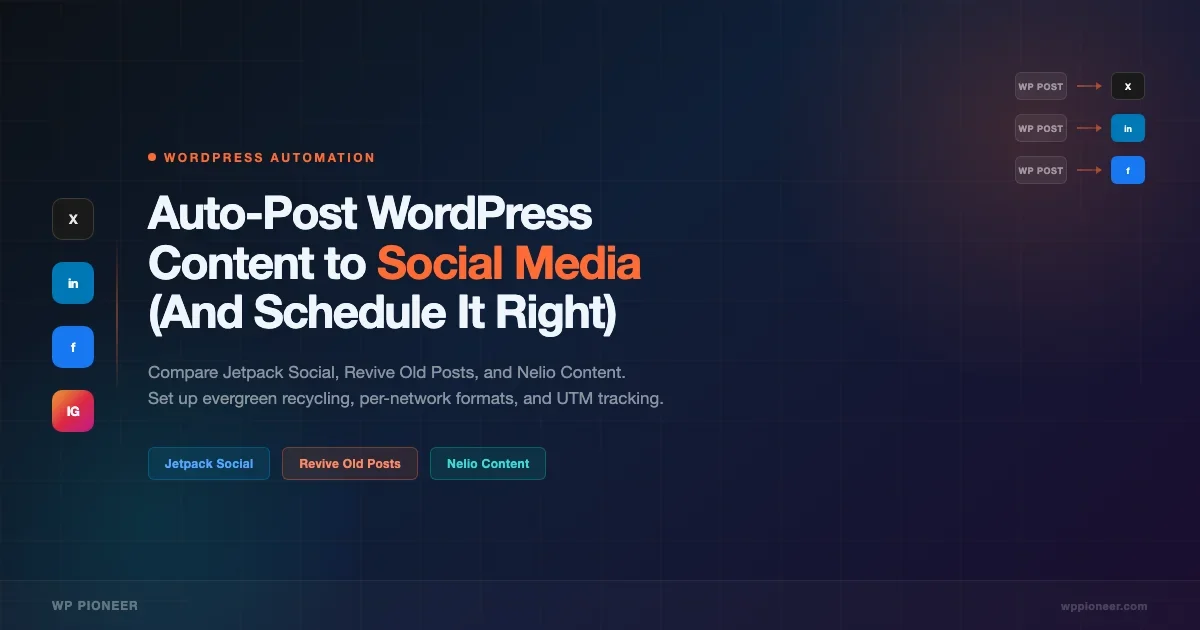
Every time you publish a new post, the same ritual kicks in: open Twitter, type something quick, post. Open LinkedIn, write a slightly different caption, post. Facebook next. Repeat tomorrow when the post gets no traction because nobody saw it. If this sounds familiar, you are doing social media the hard way. There are plugins that connect WordPress directly to your social accounts and fire posts the moment you publish. There are also tools that keep your older content circulating for months after you wrote it. This guide covers how all of it works, which plugin to pick for your situation, and how to set up scheduling rules so the automation actually helps you rather than spamming your audience.
Why Manual Social Posting Does Not Scale
A consistent social presence is one of the most underrated drivers of blog traffic, yet it is also one of the first things that slips when you get busy writing. The core problem is that social posting is repetitive, low-value work when done by hand, but it carries real cost if you skip it. A post that never gets shared rarely earns backlinks. It rarely surfaces in Google Discover. It certainly does not benefit from the algorithmic boost that comes when fresh engagement signals appear within the first hour of publish.
Manual posting has a few specific failure modes worth naming:
- The same post never gets shared twice. You publish, you share once, and that is the total lifetime promotion for a piece you spent four hours writing. Most people see a post once in their feed, so a single share means most of your audience misses it entirely.
- Older content disappears. Posts from six months ago still answer real questions and still rank in search. But you never promote them because they feel stale to you, even though they are brand new to someone finding your site for the first time.
- Consistency breaks during busy periods. The months when you are shipping product or writing a lot are exactly the months when your social posting drops to zero. That is backwards: those are the months when you have the most new content to promote.
- Per-network formatting is tedious. A Twitter post needs different framing than a LinkedIn post. Getting this right manually, across three or four networks, for every article, is genuinely time-consuming work.
Automation solves the repeat-share problem and the older-content problem. It does not write good captions for you (though some plugins try), but it removes the friction that causes you to skip posting altogether. Pair it with a solid SEO foundation, and your content works across both organic search and social simultaneously. The Google Search Console setup guide for WordPress is a good starting point if you want to see exactly which posts are worth promoting socially based on their search performance data.
The Three Plugins That Do This Well: Jetpack Social vs Revive Old Posts vs Nelio Content
There are a dozen plugins in this space, but three of them cover the main use cases cleanly. Here is how they compare at a high level before getting into setup details.
Feature | Jetpack Social | Revive Old Posts | Nelio Content |
|---|---|---|---|
Auto-share on publish | Yes | Yes (Pro) | Yes |
Evergreen content recycling | No | Yes (core feature) | Yes (Pro) |
Visual editorial calendar | No | No | Yes (core feature) |
Custom post format per network | Basic (per network toggle) | Yes (templates) | Yes (full editor per network) |
Supported networks | X, Facebook, LinkedIn, Tumblr, Mastodon | X, Facebook, LinkedIn, Pinterest, Tumblr | X, Facebook, LinkedIn, Pinterest, Instagram |
Free tier useful? | Limited (30 shares/month) | Yes, basic recycling | Yes, core calendar |
Best for | Simple publish-and-share | Traffic from older posts | Team content workflow |
Approximate cost (Pro) | From ~$10/month | From ~$75/year | From ~$9/month |
Note on pricing: all three tools adjust their plans regularly. Check current pricing on each plugin’s own site before committing. The ballpark figures above are for relative comparison only.
Jetpack Social: Best for Simple Publish-to-Share
If your only need is to have a post automatically announced on X and LinkedIn the moment you hit publish, Jetpack Social is the path of least resistance. It is part of the Jetpack suite, which most WordPress sites have running already for its CDN and security features. Adding auto-share is a matter of toggling it on in the Jetpack dashboard.
The trade-off is that Jetpack Social does not recycle old content. Once a post is shared once, Jetpack Social considers its job done. If your publishing cadence is steady and you just want new posts announced automatically, that is fine. If you want a slow-build traffic strategy from your archive, you will need one of the other options.
Revive Old Posts: Best for Evergreen Content Recycling
Revive Old Posts (also sold as Revive Social) was built specifically to keep older content circulating. It pulls posts from your archive on a schedule you control and pushes them to your social accounts. You set the minimum post age, the posting interval, which categories are included or excluded, and how many times a post can be shared before it gets retired from the queue.
This is the right tool when your archive has depth. If you have written 50 or 100 posts, most of which are still accurate and useful, Revive Old Posts will ensure they keep getting eyeballs. The free version handles the basic recycling loop. The Pro version adds custom share messages, image sharing, posting of new content on publish, and support for additional networks.
Nelio Content: Best for Teams and Editorial Workflows
Nelio Content is a full editorial calendar that also handles social scheduling. It sits in your WordPress admin and gives you a visual drag-and-drop timeline of what is published, what is in draft, and what social posts are queued for each piece of content. Each article can have multiple social messages attached to it, staggered across different times and networks.
For a solo writer who just wants automation, Nelio Content is more tool than necessary. For a site where two or three people coordinate content, or where a single piece of content needs several social posts spread across a week, the calendar view is genuinely useful. It also handles evergreen queues in the Pro version, so if you outgrow Revive Old Posts it can replace it entirely.
Connecting Your Social Accounts and Setting the Initial Rules
The connection process is similar across all three plugins. Each one will ask you to authorize your social accounts through OAuth. You click a button, get redirected to the social platform, approve the connection, and come back to WordPress. The plugin stores an access token and uses it to post on your behalf.
A few things to get right during initial setup:
Use a Dedicated App Where Possible
Some platforms (X in particular) require you to create a developer app and connect through that app’s credentials rather than just logging in. This is a one-time setup step. The practical reason to do it properly is that platform-level rate limits apply to apps, not accounts. If you connect five WordPress sites through the same OAuth token rather than separate apps, all five sites share the same posting quota. That gets messy fast.
Set the Minimum Post Age for Recycling
For evergreen recycling in Revive Old Posts or Nelio, you want posts to have some age before they start cycling. A post from yesterday does not need to be queued alongside posts from a year ago. Setting a minimum age of 30 days gives you a clean separation between your “new publish” announcements and your evergreen queue. Set a maximum age too: posts older than three or four years may have outdated information, and you probably do not want them surfacing automatically without review.
Exclude Categories That Should Not Auto-Post
Most sites have at least one category that should never be auto-shared: changelog posts, internal announcements, placeholder drafts that got published by accident, or seasonal content that is now out of date. All three plugins let you exclude categories and tags from the auto-share queue. Set these exclusions during initial setup rather than discovering the problem when something embarrassing goes out.
Set Posting Intervals to Avoid Flooding
If you have a large archive and start Revive Old Posts with no interval minimum, it will post everything in rapid succession. That looks like spam and gets your account flagged. A sensible default is one post per 24 hours for X, and one per 48 hours for LinkedIn (LinkedIn’s algorithm penalizes high-frequency posting harder than X does). You can tighten these later once you see how your audience responds.
Scheduling Evergreen Content Recycling
Evergreen content recycling is the highest-value automation most WordPress site owners are not using. The concept is simple: you have articles that were good when you wrote them and are still good today. There is no reason those articles should only get one day of social promotion before dropping off the map permanently.
Here is how to think about building an evergreen queue that actually drives traffic rather than noise:
Identify Your Best Posts First
Not every post deserves to be in the recycling queue. Start with your top 20 posts by organic traffic (pull this from Google Analytics or Google Search Console). These are the posts that people are already finding valuable via search. They are also the posts most likely to earn clicks when shared socially, because the topic has demonstrated demand. Tag these posts with a specific tag like “evergreen” and configure your recycling plugin to pull only from that tag. This gives you a curated queue rather than a random shuffle of everything you have ever written.
Set a Cycle Length That Matches Your Audience
If you have 20 evergreen posts and post once per day to X, your audience will see the same post again every 20 days. Whether that is too frequent or perfectly fine depends on your audience size and engagement. For audiences under a few thousand followers, a 20-day cycle probably goes unnoticed: most people miss most posts. For large audiences with highly engaged followers, a longer cycle of 30 to 45 days is safer. Watch your engagement metrics for the first few weeks and adjust.
Use Different Messages on Each Cycle
Revive Old Posts and Nelio Content both support custom share templates, where you can define multiple message formats for the same post. On the first cycle, share the title as-is. On the second cycle, pull a key stat or insight from the post. On the third cycle, ask a question that the post answers. This variety makes your feed look like thoughtful curation rather than a bot running on a loop. It also gives each re-share a better chance of landing with a different segment of your audience.
Customising Post Format Per Network
X, LinkedIn, and Facebook have fundamentally different content norms. Treating them identically is one of the most common automation mistakes. Here is what each platform actually responds to:
X (Twitter)
X rewards short, opinionated takes. A share that leads with the article title performs worse than a share that leads with a single punchy observation from the article and follows up with a link. If the article has a specific number in it (7 steps, 3 mistakes, 40% faster), lead with that number. X’s character limit forces brevity, which is actually a feature: it makes you extract the single most shareable claim from each post rather than defaulting to the headline.
Hashtags on X: two or three focused hashtags (for example, #WordPress #SEO) are fine. More than four reads as spam in 2026.
LinkedIn rewards context and professional framing. A share that explains why the article matters to someone’s work performs much better than a bare title-and-link. The sweet spot is a three-to-five sentence opener that names the problem the article solves, followed by a line break and the link. LinkedIn also gives extra reach to posts that stay on-platform for the first few hours, so some practitioners post the article text natively and add the link in the first comment. That is a valid tactic if you have the engagement to support it, but it adds manual work that partially defeats the purpose of automation.
Hashtags on LinkedIn: three to five professional hashtags are standard. #WordPress #ContentMarketing #DigitalMarketing.
Facebook pages have seen significant organic reach decline over recent years. If you run a Facebook Group rather than or in addition to a Page, group posts still reach members with decent consistency. For Pages, the practical reality is that organic reach is modest, so the bar for whether it is worth maintaining an automated Facebook posting workflow is lower than it used to be. If you have an audience there, keep sharing. If you are building from zero, X and LinkedIn will deliver a better return on the setup effort.
For Facebook specifically: image-heavy posts with shorter captions tend to perform better than long text posts with links. Make sure your featured image has proper Open Graph tags set so the link preview renders correctly when it gets shared. Your SEO plugin handles this automatically when you fill in the social preview fields. If you are still deciding between Yoast, Rank Math, and AIOSEO for that job, the detailed Yoast vs Rank Math vs AIOSEO comparison covers exactly how each one handles social meta.
Configuring Per-Network Templates in Revive Old Posts
In Revive Old Posts Pro, navigate to the “Share Messages” section and create separate message templates for each network. Variables like {post_title}, {post_url}, and {excerpt} let you pull content from the post dynamically. A practical setup:
- X template: {custom_field_hook} - {post_url} #WordPress
- LinkedIn template: New on the blog: {post_title}. {short_excerpt} Read the full guide: {post_url}
- Facebook template: {post_title} - {excerpt} {post_url}
The {custom_field_hook} variable in the X template is a Revive Old Posts feature that lets you store a short “social hook” as a custom field directly on the post. When you write an article, you fill in that field with a one-liner designed for Twitter. If you do not fill it in, the plugin falls back to the post title. This gives you the option of custom hooks on your best posts without requiring them on every post.
Analytics: Which Posts Are Actually Driving Social Clicks
Setting up auto-posting is the first step. Finding out whether it is working is the second, and most site owners skip it. Here is a straightforward approach to measuring what the automation is doing for you.
UTM Parameters in Share URLs
The most useful thing you can do is add UTM parameters to the links your plugins share. UTM parameters are short tags appended to URLs that tell Google Analytics where traffic came from. A URL with UTM parameters looks like this:
https://yoursite.com/your-post/?utm_source=twitter&utm_medium=social&utm_campaign=evergreen
Revive Old Posts Pro supports UTM parameters natively in its sharing settings. You define the values once, and the plugin appends them to every shared URL. In Google Analytics (GA4), you can then filter your traffic by source/medium and see exactly which social channels and which specific posts are driving visitors back to your site.
Jetpack Social and Nelio Content also support UTM parameters, either natively or through the URL configuration options. Set these up before you start sharing so all your historical data is clean from day one.
The Metrics Worth Watching
Within GA4, create a simple report filtering for sessions where session_source = twitter (or linkedin, facebook). Look at three things:
- Sessions from social by post: Which posts are actually sending visitors back to your site? If the top-performing posts in search are not the top performers in social, that tells you something about the mismatch between your SEO audience and your social audience.
- Engagement rate from social traffic: Social traffic often has lower engagement rates than organic search traffic because the intent is different. But if your social traffic has engagement rates below 20%, the audience you are reaching is poorly matched to your content.
- Assisted conversions: If you have conversion events set up (email signups, affiliate clicks, purchases), look at social media’s role in multi-touch paths. Social rarely closes the deal on the first visit, but it often introduces the site to someone who converts later through direct traffic or search.
Reviewing the Queue Monthly
Once a month, spend 15 minutes reviewing which posts are in your evergreen rotation and how they are performing. Remove posts that consistently get zero clicks despite getting shared. Add posts that have been gaining organic traction recently but are not yet in the queue. Update share messages on your best performers to test new hooks. This monthly maintenance is how the automation gets smarter over time rather than just running the same loop indefinitely.
Frequently Asked Questions
Can I auto-post to Instagram from WordPress?
Direct auto-posting to Instagram requires an Instagram Business or Creator account connected to a Facebook Page. Nelio Content supports Instagram scheduling in its Pro version. Revive Old Posts has added Instagram support more recently. The connection is made through the Facebook Graph API rather than a direct Instagram OAuth flow. If Instagram is a priority network for you, verify that the specific plugin version you are installing lists Instagram as a supported integration before purchasing.
Will auto-posting get my social accounts flagged or suspended?
It will not, provided you stay within platform rate limits. The plugins above are well-established and use official API connections. The situations that cause account flags are: posting the same content too rapidly (fixed by setting intervals), using automation services that scrape rather than use official APIs, and buying followers or engagement (unrelated to these plugins). As long as you post at human-plausible frequencies and your content is genuine, automated posting is indistinguishable from manual posting as far as platform moderation is concerned.
Does Jetpack Social work with Jetpack’s free plan?
Jetpack Social is a separate module from Jetpack’s core security and performance features. The free tier of Jetpack Social offers a limited number of shares per month. For unlimited sharing plus additional features like custom messaging and image selection, a paid Jetpack Social subscription is required. If you already pay for a Jetpack plan, check whether Social is included at your tier before buying it separately.
How do I stop auto-posting for a specific article?
All three plugins add a meta box or panel to the WordPress post editor where you can control sharing for that specific post. In Jetpack Social, there is a toggle in the pre-publish sidebar. In Revive Old Posts, you can exclude individual posts from sharing by adding a specific tag or by using the “exclude this post” checkbox in the post editor (Pro version). In Nelio Content, you simply do not add any social messages to that post’s timeline. The exclusion controls are per-post, so you can turn off sharing for news items, personal posts, or any content that should not circulate on social without disrupting the rest of your queue.
What happens to scheduled posts if the plugin is deactivated?
Any posts queued for future sharing through Revive Old Posts or Nelio Content will not be sent if the plugin is deactivated before the scheduled time. The queue lives in the plugin’s own database tables. Reactivating the plugin restores the queue. For Jetpack Social, shares for newly published posts are handled at publish time; there is no persistent queue to lose.
Should I use a social scheduling tool like Buffer instead of a WordPress plugin?
Buffer, Later, and Hootsuite are legitimate alternatives, and they support more networks than WordPress plugins typically do. The trade-off is that they are separate services with their own dashboards, separate billing, and no native integration with your WordPress content. A WordPress plugin that reads your post content directly and pulls in your featured image and excerpt saves several manual steps per post. If you are managing social for multiple platforms outside WordPress anyway (for a business with separate social accounts unrelated to the blog), a standalone tool makes sense. If WordPress is your primary publishing hub, staying in the WordPress ecosystem is the simpler workflow.
How do I get better SEO metadata for my social previews?
Social previews pull from Open Graph meta tags that your SEO plugin sets. The title, description, and image that appear when someone shares your post on Facebook or LinkedIn come directly from those tags. If your previews look wrong, the fix is almost always in your SEO plugin’s social settings for that specific post, not in the social sharing plugin. Setting a dedicated Open Graph image per post (different from your featured image if needed) gives you more control over how your content appears across platforms. The WordPress performance and SEO guide covers Open Graph setup alongside Core Web Vitals so you can handle both in one pass.
The automation setup described here takes about two hours the first time. After that, it runs without intervention, and your archive keeps working for you rather than sitting idle. Start with whichever plugin matches your current situation: Jetpack Social if you just want new posts announced, Revive Old Posts if you have an archive worth promoting, Nelio Content if you are coordinating with a team. Get the UTM parameters right from day one, check your GA4 data once a month, and refine the queue as you learn which posts your social audience actually clicks on.
No comments yet