Your WordPress permalink structure is one of the first settings you should change after installing WordPress. Permalinks control what your page and post URLs look like, and the default setting is not ideal for search engines or visitors. A clean, readable URL helps Google understand your content and makes it easier for people to click your links in search results.
In this beginner-friendly guide, you will learn what WordPress permalinks are, how to choose the right structure, and how to avoid common mistakes that can break your links or hurt your rankings.
What Are WordPress Permalinks?
A permalink is the permanent URL for any page, post, or piece of content on your WordPress site. When someone visits your blog post, the URL in their browser bar is the permalink.
WordPress gives you full control over how these URLs are structured. The default format looks something like this:
Your permalink structure is one of those decisions that is easy to get right at the start and painful to fix later. Taking five minutes to set it up properly when you launch your site saves you from redirect headaches down the road.
https://yoursite.com/?p=123That tells you nothing about what the page contains. Compare it with a clean permalink:
https://yoursite.com/wordpress-permalinks-seo/The second version is descriptive, readable, and includes keywords. Both search engines and humans prefer this format.
Why Permalinks Matter for SEO
Search engines use URLs as one of many signals to understand page content. A well-structured permalink provides three SEO advantages:
- Keyword visibility: Including your target keyword in the URL tells Google what the page is about before it even reads the content.
- Click-through rates: People are more likely to click a URL they can read and understand in search results.
- Link sharing: When someone copies and pastes your URL, a clean permalink communicates the topic immediately.
Google has confirmed that words in URLs are a lightweight ranking factor. While permalinks alone will not push you to page one, they contribute to the overall SEO picture alongside your content, title, and meta description.
How to Change Your Permalink Structure in WordPress
Changing your permalink structure takes less than a minute. Here is the step-by-step process:
- Log in to your WordPress admin dashboard.
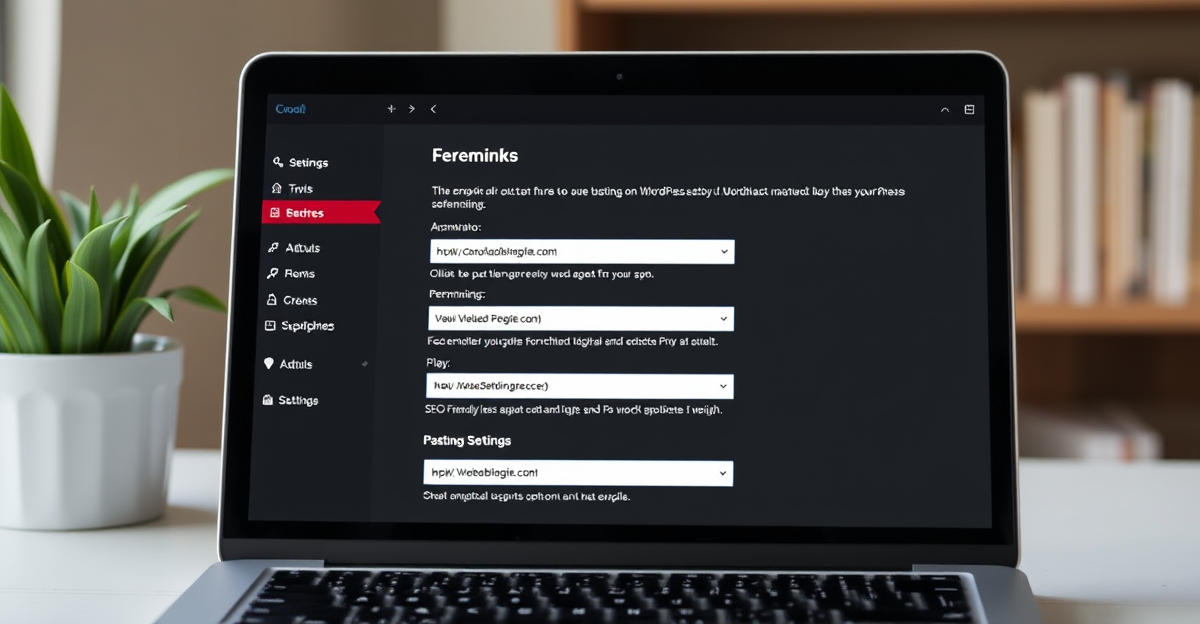
- Go to Settings > Permalinks in the left sidebar.
- Select Post name as your permalink structure.
- Click Save Changes.
That is it. WordPress will now use your post title as the URL slug for every new post and page you create.
The Six Permalink Options Explained
WordPress offers six built-in permalink structures. Here is what each one looks like and when you might use it:
| Structure | Example URL | Best For |
|---|---|---|
| Plain | yoursite.com/?p=123 | Never recommended |
| Day and Name | yoursite.com/2026/02/19/my-post/ | News sites with daily content |
| Month and Name | yoursite.com/2026/02/my-post/ | News or magazine sites |
| Numeric | yoursite.com/archives/123 | Never recommended |
| Post Name | yoursite.com/my-post/ | Most websites (recommended) |
| Custom | yoursite.com/blog/my-post/ | Sites needing a specific prefix |
For the vast majority of WordPress sites, Post Name is the best choice. It creates the shortest, cleanest URLs with your keywords right after the domain name.
How to Write Good URL Slugs
Even with the right permalink structure, you still need to optimize each individual URL slug. WordPress automatically generates a slug from your post title, but it often includes unnecessary words.
Best Practices for URL Slugs
- Keep it short: Aim for 3 to 5 words. Remove filler words like “a”, “the”, “and”, “of”, “in”, and “to”.
- Include your focus keyword: If your target keyword is “wordpress permalinks”, your slug should contain those words.
- Use hyphens, not underscores: Google treats hyphens as word separators. Use
wordpress-permalinks, notwordpress_permalinks. - Use lowercase only: WordPress does this by default, but double-check if you are editing slugs manually.
- Avoid dates in slugs: Unless your content is time-specific news, dates make URLs longer without adding value.
- Do not change slugs after publishing: Changing a published URL breaks existing links and bookmarks unless you set up a redirect.
Slug Examples: Good vs Bad
| Post Title | Bad Slug | Good Slug |
|---|---|---|
| How to Install WordPress on Bluehost | /how-to-install-wordpress-on-bluehost-step-by-step-guide/ | /install-wordpress-bluehost/ |
| 10 Best SEO Plugins for WordPress in 2026 | /10-best-seo-plugins-for-wordpress-in-2026/ | /best-seo-plugins-wordpress/ |
| What Is a WordPress Theme and How Does It Work | /what-is-a-wordpress-theme-and-how-does-it-work/ | /wordpress-theme-explained/ |
How to Edit a Permalink for an Individual Post
WordPress lets you customize the slug for any post or page before you publish it:
- Open the post in the block editor.
- Click the Post panel on the right sidebar.
- Find the URL section (also called “Permalink” or “Slug”).
- Click to edit and type your optimized slug.
- Publish or update the post.
You can also edit the slug from the Quick Edit option on the Posts list page without opening the full editor.
Category and Tag Permalinks
By default, WordPress adds /category/ and /tag/ as prefixes to your category and tag archive URLs:
yoursite.com/category/wordpress-tutorials/
yoursite.com/tag/seo-tips/
You can change these prefixes in Settings > Permalinks under the “Optional” section at the bottom of the page. Some site owners remove the /category/ prefix entirely using SEO plugins like Yoast SEO or RankMath to shorten URLs.
For most beginners, the default category and tag base settings work fine. Focus on getting your post permalinks right first.
What to Do If You Need to Change an Existing Permalink
Changing a URL on a published post is risky. Anyone who bookmarked the old URL, linked to it from another site, or found it in Google will get a 404 error. Here is how to handle it safely:
- Set up a 301 redirect from the old URL to the new one. This tells search engines and browsers that the page has permanently moved.
- Use a redirect plugin like Redirection (free) or the built-in redirect manager in RankMath or Yoast SEO Premium.
- Test the redirect by visiting the old URL in your browser. It should automatically take you to the new URL.
- Update internal links that still point to the old URL.
If you recently launched your site and have very few posts, changing permalinks is low risk. If your site has been live for months with indexed content, avoid changing URLs unless absolutely necessary.
Common Permalink Mistakes to Avoid
- Keeping the default plain structure: The
?p=123format provides zero SEO value and looks unprofessional. - Including dates when not needed: Dates in URLs make your content look outdated even if you update the post regularly.
- Using stop words: Slugs like
/how-to-set-up-your-first-wordpress-blog-post/are unnecessarily long. - Changing permalinks on an established site without redirects: This is the fastest way to lose traffic and rankings.
- Using uppercase letters or special characters: Stick to lowercase letters, numbers, and hyphens.
Permalinks and WordPress Hosting
For permalinks to work properly, your web server needs to support URL rewriting. Most WordPress hosting providers have this enabled by default. If you see 404 errors after changing your permalink structure, try these fixes:
- Go to Settings > Permalinks and click Save Changes again (this regenerates the .htaccess file).
- Contact your hosting provider and ask them to enable
mod_rewrite(Apache) or check your Nginx configuration. - Make sure your
.htaccessfile in the WordPress root directory is writable.
If you set up your WordPress using a one-click installer from your host, URL rewriting should already be working. This is rarely an issue on modern hosting platforms.
Frequently Asked Questions
What is the best permalink structure for WordPress SEO?
The Post Name structure (/%postname%/) is the best option for most WordPress sites. It creates short, keyword-rich URLs without unnecessary dates or numbers.
Can I change my permalink structure after publishing posts?
Yes, but you must set up 301 redirects from the old URLs to the new ones. Without redirects, all your existing links will break and you will lose any SEO value those pages built up.
Do permalinks directly affect Google rankings?
Words in URLs are a minor ranking factor according to Google. Permalinks alone will not determine your ranking, but clean, keyword-rich URLs contribute to better click-through rates and help search engines understand your content.
Should I include the year in my permalink?
Only if your content is genuinely time-sensitive, like news articles or event coverage. For evergreen content like tutorials or guides, skip the date to keep URLs shorter and avoid making content look outdated.
How long should a URL slug be?
Aim for 3 to 5 words (roughly 50 to 75 characters). Shorter slugs are easier to read, share, and remember. Remove filler words and focus on your target keyword.
If you are just getting started with WordPress, make sure you also review the essential WordPress settings you should configure first. And if you are still choosing a platform, check out our WordPress vs Wix vs Squarespace comparison to see why WordPress gives you the most control over your URLs and SEO.
Beginner WordPress Tips SEO Friendly URLs WordPress Permalinks WordPress SEO Basics WordPress settings
Last modified: February 20, 2026