
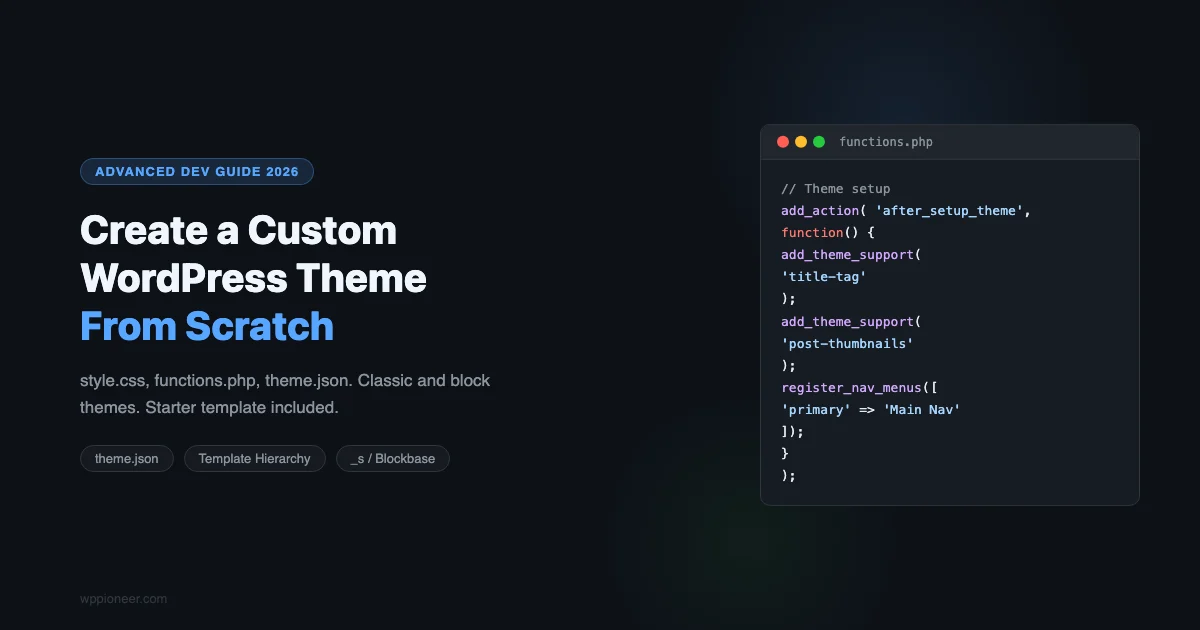
Building a WordPress theme from scratch teaches you more about how WordPress works than any amount of plugin configuration. You learn the template hierarchy, how WordPress loads styles and scripts, how blocks and classic themes differ, and what every function in functions.php actually does.
This guide covers both paths: classic PHP themes (still the right choice for many projects) and the newer block theme approach using theme.json. We’ll build a minimal starter theme you can take in any direction, and we’ll explain every file along the way.
Classic Theme vs. Block Theme: Which Should You Build?
Factor | Classic Theme | Block Theme |
|---|---|---|
Template engine | PHP files | HTML block templates |
Styling | CSS + PHP template parts | theme.json + CSS |
Customization | Customizer, widgets, PHP | Full Site Editor (FSE) |
Learning curve | PHP required | Blocks + JSON required |
WP version | All versions | WordPress 5.9+ |
Best for | Custom client sites, complex layouts | User-editable sites, simpler structures |
For this guide, we’ll build a classic theme structure since it teaches the underlying WordPress template system. We’ll also include a starter theme.json so you understand how block themes extend from the same foundation.
The Minimum Required Files
WordPress requires exactly two files to recognize a directory as a theme:
style.css- Contains the theme header comment and your CSSindex.php- The fallback template for all content types
A production-ready classic theme typically has:
style.css- Theme registration + stylesfunctions.php- Theme setup, asset enqueuing, feature registrationindex.php- Main fallback templateheader.php- HTML head, site header, navigationfooter.php- Site footer, closing HTML tagssingle.php- Individual post templatepage.php- Page templatearchive.php- Category, tag, date archivessidebar.php- Sidebar widget areascreenshot.png- Theme preview in admin (1200x900px)
Building the Starter Theme Files
All three core files (style.css, functions.php, and theme.json) are in the GitHub Gist below:
The Theme Name and Template fields in the header comment are what WordPress reads. Everything else (Description, Author, etc.) appears in the admin theme browser.
The functions.php file shown here covers the four setup actions every theme needs: after_setup_theme for feature registration, wp_enqueue_scripts for assets, and widgets_init for sidebar registration.
The theme.json Starter
Even classic themes can benefit from a theme.json file. It enables Gutenberg editor styles, color palettes, and typography presets in the block editor:
Understanding the Template Hierarchy
WordPress decides which template file to load based on the URL being requested. The hierarchy works from most-specific to least-specific:
URL Type | Template Search Order |
|---|---|
Single post | single-{post-type}-{slug}.php > single-{post-type}.php > single.php > singular.php > index.php |
Page | Custom Template > page-{slug}.php > page-{id}.php > page.php > singular.php > index.php |
Category | category-{slug}.php > category-{id}.php > category.php > archive.php > index.php |
Home/Blog | home.php > index.php |
Front page | front-page.php > home.php > index.php |
404 | 404.php > index.php |
WordPress always lands on index.php if no more specific template exists. This means your theme works with just index.php, but creating specific templates lets you design different page types independently.
Writing index.php and header.php
Your index.php brings together the WordPress Loop, header, footer, and sidebar. Here’s the minimal structure:
And the matching header.php structure:
The wp_head() call is mandatory: it’s where WordPress and plugins inject CSS, JavaScript, and meta tags. Never skip it. Same for wp_footer() at the bottom of footer.php.
single.php and page.php: The Content Templates
While index.php handles archives and fallback scenarios, single.php handles individual posts and page.php handles static pages. Both follow the same Loop pattern but with different UI details:
Note comments_template() at the bottom of the Loop. This loads the comments form and comments list when the post has comments enabled. Without this call, comments won’t appear even if enabled in the post settings.
Theme Options: Starter Options in 2026
You don’t have to start entirely from scratch. Established starters save you the boilerplate and let you focus on the design:
- _s (Underscores) - Generate a custom boilerplate at underscores.me. Classic theme, well-maintained, used by millions of professional themes.
- Blockbase - Automattic’s block theme starter. Minimal, theme.json first, good for FSE projects.
- Create Block Theme - A WordPress plugin that lets you export your current block theme customizations as a new theme. Useful for generating a theme from live Site Editor changes.
- WP Skeleton - A lightweight option for developers who want minimal scaffolding without opinionated CSS frameworks.
Making Your Theme Block-Editor-Ready
Even if you’re building a classic theme, your users will create content in the block editor. Several theme features improve the editing experience:
- Editor stylesheets: Call
add_editor_style( 'editor-style.css' )in functions.php and create a matching CSS file. This applies your theme’s typography and colors inside the editor. - Wide and full-width blocks: Add
add_theme_support( 'align-wide' )to enable the “Wide width” and “Full width” alignment options in the block toolbar. - Color palette: Define colors in theme.json under
settings.color.palette. They’ll appear as the custom palette in the block editor’s color picker. - Block patterns: Register reusable block layouts with
register_block_pattern(). These appear in the block inserter under “Patterns” and let users insert pre-designed sections.
Responsive Design in Your Custom Theme
Every CSS layout rule in your theme needs a mobile counterpart. The two-column layout that looks great at 1280px breaks at 390px without breakpoints. Start with a mobile-first approach: write the base CSS for small screens, then add @media (min-width: 768px) rules for wider layouts.
At minimum, your theme needs breakpoints at 480px (phones), 768px (tablets), and 1024px (laptops). These can be CSS custom properties for consistency:
Test your theme’s navigation on mobile specifically. The primary navigation menu often needs a hamburger menu for small screens, which requires either JavaScript or a pure CSS toggle approach.
Accessibility Basics Every Theme Must Include
A theme submitted to the WordPress theme directory must meet accessibility standards. Even for private themes, accessibility is a quality baseline worth maintaining:
- Skip navigation link: The first focusable element on every page should be a “Skip to main content” link that jumps to the main landmark. Users navigating by keyboard need this to skip repetitive navigation on every page.
- Semantic HTML: Use
<header>,<nav>,<main>,<aside>, and<footer>landmarks. Screen readers use these to navigate the page structure. - Focus styles: Never remove
:focusoutline styles without replacing them with something visible. Keyboard users need to see which element is focused. - Color contrast: Text must meet WCAG 2.1 AA contrast ratios: 4.5:1 for normal text, 3:1 for large text. Test with a tool like the WebAIM Contrast Checker before finalizing your color scheme.
Deploying Your Theme
For client sites, a reliable deployment workflow prevents the “works on my machine” problem:
- Git repository: Initialize a git repo in your theme directory from day one. Commit frequently. Host on GitHub or GitLab.
- Staging environment: Use a staging environment (most managed hosts include one) to test theme updates before pushing to production.
- Theme versioning: Update the Version number in style.css with each release. This clears browser caches for CSS/JS assets automatically (WordPress appends
?ver=X.Xto enqueued assets). - Child theme for customizations: If you’re building a parent theme that clients will install, provide a child theme template for their customizations. This keeps updates clean.
A theme built on solid fundamentals requires minimal debugging when WordPress updates. The function names, hooks, and template hierarchy have been stable for over a decade.
Next Steps
With a working starter theme in place, the next steps depend on your goals. For a client site, build out the remaining template files (single.php, page.php, archive.php, 404.php) with your design. For an FSE project, explore how template parts and theme.json work together to build a design system that editors can control visually.
Once your theme is deployed, set up a child theme for any customizations that need to survive parent theme updates. The template hierarchy knowledge you’ve built here applies directly to understanding how child theme overrides work.
Building the 404 and Search Templates
A custom 404 page and search results template are often neglected in starter themes but matter for user experience. The 404 page is seen by visitors who follow broken links - a useful 404 keeps them on your site rather than bouncing.
Create a 404.php file with a clear message, a search form, and links to your most important pages:
The get_search_form() call outputs WordPress’s default search form, which you can override by creating a searchform.php template in your theme directory.
Loading Custom Fonts Correctly
Typography is one of the most impactful visual choices in a custom theme. Loading fonts efficiently matters for performance - Google Fonts can add 200-400ms to page load on slow connections.
For self-hosted fonts (the faster, GDPR-compliant approach), download the font files from Google Fonts’ download option or use the google-webfonts-helper tool at gwfh.mranftl.com. Then load them in style.css:
Place the fonts/ directory inside your theme folder alongside style.css. The font-display: swap declaration shows text immediately using a system font while the custom font downloads, which prevents invisible text (FOIT) during load.
Adding Custom Post Types to Your Theme
Classic themes can register custom post types in functions.php, but the general rule is: if the content type should persist if the theme is deactivated, register it in a plugin, not the theme. Portfolio items, team members, or testimonials are typically better as plugin-registered CPTs because they contain real site data that shouldn’t disappear with a theme switch.
That said, post types that are purely cosmetic (like “featured sliders” that only appear in this theme’s layout) make sense in functions.php. Register them with register_post_type() inside the init action, using the 'show_in_rest' => true argument to expose them in the block editor.
Theme Security Basics
A custom theme introduces code that WordPress itself doesn’t audit. Two security fundamentals apply to every theme: escape all output and sanitize all input. Use esc_html() for plain text, esc_url() for URLs, esc_attr() for HTML attribute values, and wp_kses_post() for trusted HTML content. For theme options saved to the database, sanitize before saving with sanitize_text_field() or the appropriate sanitization function for the data type. These two habits prevent the most common vulnerabilities in custom themes. Run your theme through the Theme Check plugin before deploying to a production site.
Once your classic theme is working, the natural next step is learning the block theme system. Our guide on how to understand WordPress theme.json and global styles explains design tokens, fluid typography, and spacing presets that the Site Editor reads directly.
No comments yet