
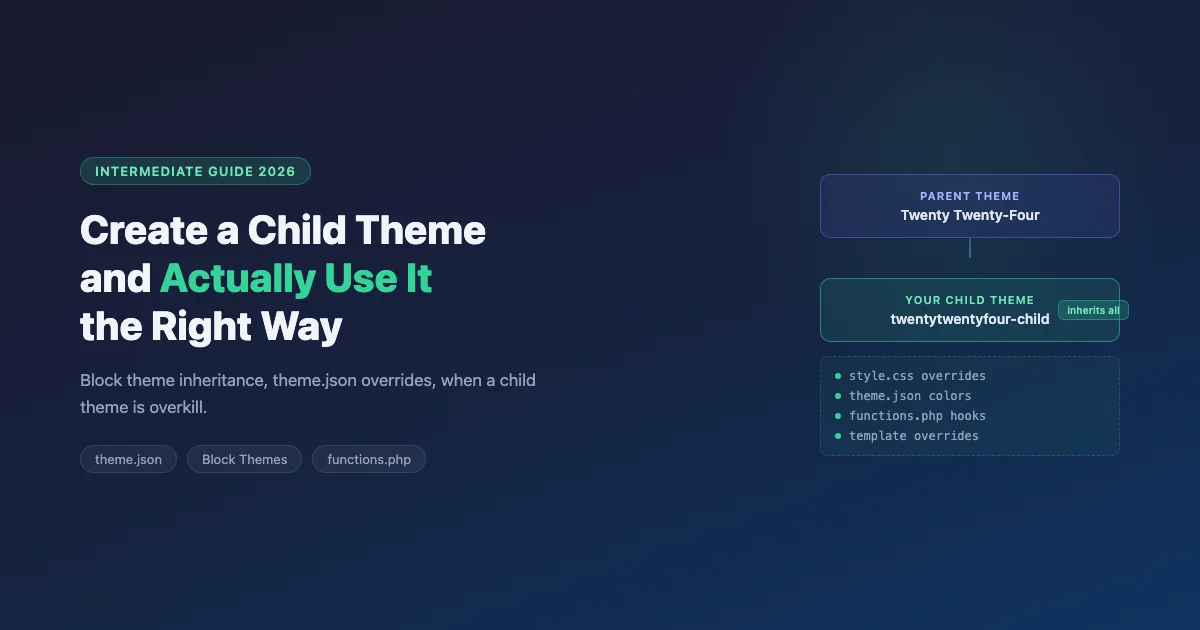
A child theme is WordPress’s built-in mechanism for customizing a theme without touching the parent theme’s files. Every time a parent theme updates, your customizations stay intact. Without a child theme, every update wipes your changes.
But child themes are often misused. Developers sometimes put all their code in functions.php when the changes should live in a template override. Or they create a child theme to add a single line of CSS that could be handled by the Customizer’s Additional CSS field. This guide explains when to use a child theme, how to set one up correctly for both classic and block themes, and what belongs where.
When a Child Theme Is Overkill
Before creating a child theme, check whether your needs can be met with a lighter approach:
Need | Better Approach | Child Theme Needed? |
|---|---|---|
Minor CSS tweaks (colors, font sizes) | Customizer Additional CSS | No |
Custom colors/fonts across site | Global Styles (FSE) or Customizer | No |
Add a single PHP hook | Custom plugin (mu-plugin) | No, usually |
Override a specific template | Child theme template override | Yes |
Significant CSS changes | Child theme style.css | Yes |
Override parent functions.php hooks | Child theme functions.php | Yes |
Deploy client-specific modifications | Child theme (full separation) | Yes |
Adding a hook or two? Consider a site-specific plugin or an mu-plugin instead. These survive theme changes entirely, which is a stronger guarantee than a child theme.
Creating a Classic Theme Child Theme
A classic theme child theme needs at minimum two files in a new directory: style.css and functions.php.
style.css: The Required Header
The style.css header comment tells WordPress which theme is the parent via the Template field:
The Template value must exactly match the parent theme’s directory name, which is visible in the URL when you browse to the theme folder (wp-content/themes/twentytwentyfour). Get this wrong and WordPress shows a “Stylesheet is missing” error.
functions.php: Loading Parent Styles Correctly
The most common mistake in classic child themes is how the parent stylesheet is loaded. Many tutorials tell you to use @import in style.css. Don’t. The correct approach is to enqueue both stylesheets via functions.php:
The dependency array [ 'parent-style' ] ensures the child stylesheet loads after the parent, so your overrides cascade correctly. The @import approach is slower (an additional HTTP request) and doesn’t support the dependency chain.
Template Overrides: The Core Power of Child Themes
When WordPress loads a template file, it checks the child theme directory first, then falls back to the parent theme. To override any parent template, create a file with the same name in your child theme directory.
Example: Override the Single Post Template
If the parent theme’s single post layout (single.php) doesn’t suit your needs, copy it from the parent to the child theme’s root, modify it, and save. WordPress will use your version instead. The parent theme’s single.php stays untouched and continues to update normally.
The same principle applies to any template file: archive.php, 404.php, search.php, page.php. Copy the parent’s version as a starting point, modify it in the child, and WordPress will prefer the child’s copy going forward.
Template Part Overrides
Many themes use get_template_part() to include sub-templates (e.g., template-parts/content.php). These follow the same override rule: place a matching file at the same relative path in your child theme and WordPress uses it.
- Parent:
wp-content/themes/twentytwentyfour/template-parts/content.php - Your override:
wp-content/themes/twentytwentyfour-child/template-parts/content.php
What You Cannot Override via Template Files
Template overrides only work for files loaded via WordPress’s template hierarchy and get_template_part(). Files that are require()-ed or include()-ed with an absolute path inside the parent theme are not overridable via child theme template files. If the parent theme hardcodes a path like require get_template_directory() . '/includes/helpers.php', you cannot override that file from the child theme. You’d need to use hooks inside the file, or modify the parent’s include mechanism.
Block Theme Child Themes in 2026
Block themes work fundamentally differently. They don’t use PHP template files in the same way. Instead, block themes use HTML template files and theme.json for design tokens. Child themes for block themes inherit settings from the parent’s theme.json automatically.
Minimal Block Theme Child: Just theme.json
For a block theme child, you don’t need a functions.php at all if your only goal is visual customization. A child theme.json that overrides specific values is enough:
WordPress deep-merges the child theme.json with the parent’s. Settings you don’t specify in the child are inherited. This means you can override just the accent color and leave everything else (font sizes, spacing, templates) exactly as the parent defined them.
Block Template Overrides
Block themes store templates as HTML files in a templates/ directory. To override a parent block template, create a file with the same name in your child’s templates/ directory.
Example: override the parent’s single post template:
- Parent:
wp-content/themes/twentytwentyfour/templates/single.html - Your override:
wp-content/themes/twentytwentyfour-child/templates/single.html
You can also create block templates via the Full Site Editor (Appearance > Editor > Templates) and export them as theme files using the Create Block Theme plugin.
Block Theme Child: Full Required File List
A complete block theme child requires these files:
style.css– Header comment withTemplate: parent-theme-slugtheme.json– Design token overrides (colors, fonts, spacing)templates/– HTML template overrides (optional)parts/– HTML template part overrides (optional)patterns/– Additional block patterns (optional)
No functions.php required for a visual-only child theme. If you need PHP customizations (custom post types, shortcodes, hooks), add functions.php. It loads after the parent’s functions.php automatically.
What Goes in Child functions.php vs. a Plugin
This question comes up on every WordPress forum. Here’s a practical heuristic:
- Child functions.php: Functionality that is specific to the theme’s design or layout. Custom post types that only make sense with this theme. Layout-related hooks. Template-specific shortcodes.
- Site plugin (or mu-plugin): Business logic, e-commerce functionality, SMTP configuration, custom post types that should survive a theme change, API integrations, anything you’d want to keep if you switched themes.
Why Functionality Plugins Beat Child functions.php
If you ever switch the parent theme (say, from Twenty Twenty-Four to a commercial theme), your child theme becomes invalid. The Template field in style.css won’t match the new parent’s directory name, and your customizations won’t load. Any functionality in the old child’s functions.php disappears entirely.
Code in a regular plugin or mu-plugin is completely independent of the active theme. A feature you built as a plugin today works the same if you switch themes next year. For anything beyond layout-specific adjustments, use a plugin.
If removing the theme should also remove the functionality, put it in the child theme. If it should survive a theme change, put it in a plugin.
Common Child Theme Mistakes
- Wrong Template field: Must match the parent directory name exactly, case-sensitively.
TwentyTwentyFourwill not matchtwentytwentyfour. - Forgetting to enqueue parent styles: Classic theme child without parent style enqueue = unstyled page.
- Overriding everything: If you’re overriding 20 templates from the parent, consider whether you should just build your own theme instead.
- Editing child theme files in-browser: The Appearance > Theme Editor is unreliable for saving changes. Use an SFTP client or WP-CLI instead.
- No version control: The most expensive mistake. Initialize a git repo in your child theme directory from day one.
The “Parent style.css doesn’t load” Problem
When a classic child theme shows an unstyled page, the cause is almost always one of three things: the parent styles aren’t enqueued in functions.php, the enqueue handle doesn’t match what the parent registered, or the functions.php has a PHP error that prevents it from loading. Check the browser’s network tab to see which CSS files are loading. If the parent’s style.css is absent from the network tab, the issue is in enqueuing, not cascade order.
Using Child Themes for Safe Updates
The child theme pattern exists specifically to enable parent theme updates. When a parent theme releases a security fix or compatibility update, you apply it freely knowing your child theme’s customizations are untouched.
Test parent theme updates on a staging environment before applying to production. Even with a child theme, parent updates can change the HTML structure of a template you’re targeting with CSS selectors, breaking your visual customizations. The child theme protects your files; it doesn’t protect against HTML structure changes in the parent.
Staging Environment for Child Theme Testing
Most managed WordPress hosts (WP Engine, Kinsta, Cloudways) include a one-click staging environment. Before updating the parent theme on production:
- Clone your production site to staging
- Update the parent theme on staging
- Test every page type: home, post, page, category archive, search results
- Test all forms, navigation, and interactive elements
- Fix any CSS selector breaks in the child theme
- Apply the parent update to production only after staging passes
This process takes 20 minutes and prevents the situation where a parent theme update breaks your production site in front of real visitors.
Summary: Child Theme Setup in 3 Steps
- Create a new directory in
wp-content/themes/namedparent-theme-name-child. - Add style.css with the correct header comment (Template field must match parent directory name).
- Add functions.php to enqueue both parent and child stylesheets (classic themes) or add theme.json to override design tokens (block themes).
Activate via Appearance > Themes. Your child theme loads on top of the parent, and you’re ready to add overrides.
For complex projects, combine this with version control from day one. A child theme without git is one accidental file delete away from lost work.
Automating Child Theme Creation with WP-CLI
WP-CLI makes child theme creation faster on servers where you have SSH access. The wp scaffold child-theme command generates the required files automatically:
This creates the child theme directory, generates style.css with the correct header, and creates a functions.php with the parent stylesheet enqueue. The --activate flag activates it immediately. For block themes, it also creates a basic theme.json.
Managing Child Theme Updates in a Team
When a child theme is shared across a development team or delivered to a client, version control and deployment workflow become important. A few practices that save time:
- Semantic versioning in style.css: Increment the Version field in style.css on every meaningful change. WordPress appends this as a query string to enqueued assets, so version increments clear browser caches automatically.
- Deployment via git hooks: A post-receive hook on the server can pull from a git repository on every push. This gives you one-command deployment to staging or production without manual FTP.
- Environment-specific config: If your child theme includes PHP that connects to external APIs or has environment-specific settings (API keys, staging vs. production flags), use wp-config.php constants rather than hardcoding values in theme files. Constants survive theme updates and keep sensitive data out of the repository.
Classic vs. Block Theme Child: Decision Guide
The right child theme structure depends on the parent theme type. Here’s how to identify which approach applies:
Situation | Child Theme Approach |
|---|---|
Parent is a classic PHP theme (uses Customizer, widgets) | style.css + functions.php with enqueue |
Parent is a block theme (uses Full Site Editor, templates/*.html) | style.css + theme.json + templates/ overrides |
Parent is a “hybrid” theme (classic with some FSE features) | style.css + functions.php + selective theme.json settings |
Just overriding colors/fonts on a block theme | style.css + minimal theme.json (2-3 settings) |
Most commercial themes sold on ThemeForest and similar marketplaces are still classic PHP themes. Most themes published on wordpress.org after 2023 are block themes or hybrids. Check Appearance > Editor in your WordPress admin: if the Full Site Editor opens, it’s a block theme.
Testing Child Theme Updates With WP-CLI
Before updating a parent theme on production, use WP-CLI to check compatibility on a staging environment. The wp theme update parent-theme-slug --dry-run command shows what version would be installed without applying it, giving you time to test on staging first. After staging validation, run wp theme update parent-theme-slug on production during low-traffic hours. WP-CLI updates are faster than wp-admin updates and can be scripted into a deployment workflow.
The workflow is straightforward: scaffold, test, deploy. A child theme created this way is ready for version control from the first commit.
If you are still choosing between parent themes, our guide on how to install a WordPress theme without breaking your site covers compatibility checks, staging previews, and what to look at in a theme’s changelog before installing it. For teams that need a custom parent theme or a fully built child theme for a client project, Wbcom Designs offers WordPress theme development services.
No comments yet