
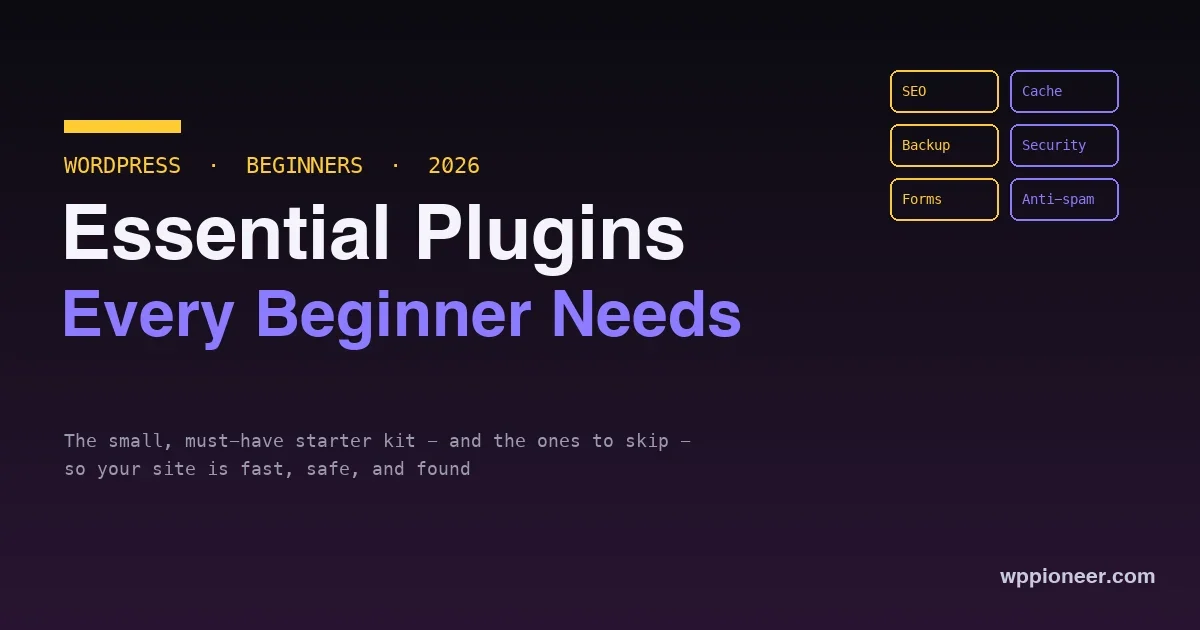
One of the first things every new WordPress user does is go looking for plugins, and the internet immediately overwhelms them with lists of fifty must-have plugins for everything imaginable. That is exactly the wrong way to start. Plugins are how you add features to WordPress, and the right few make your site faster, safer, and easier to find, but too many slow your site down, create conflicts, and add clutter you will never use. The secret that experienced users know is that a good WordPress site runs on a small, deliberate set of plugins, not a big pile of them. This guide covers the handful of plugin types every beginner genuinely needs, the leading options in each, and, just as important, what to skip.
If you have just built your first site, this is the plugin starter kit to set it up right without the bloat. If you are still setting up, our guide to starting a WordPress blog covers the steps before this one.
The golden rule: fewer plugins, chosen well
Before any list, absorb the principle that saves beginners the most trouble: install only what you need, and prefer one good plugin over three overlapping ones. Every plugin you add is code that runs on your site, so more plugins mean a slower site, more potential conflicts, and a bigger surface for security issues, and most of the plugins on those giant lists solve problems you do not have. The goal is not to collect plugins; it is to add a specific capability your site is missing. A lean site with six well-chosen plugins outperforms and outlasts one running thirty, so start small, add a plugin only when you hit a real need, and remove any you stop using. With that mindset, here are the categories that genuinely matter.
The beginner starter kit at a glance
| Plugin type | What it does | How many you need |
|---|---|---|
| SEO | Helps your content get found on Google | One |
| Caching | Makes your site faster | One |
| Backup | Saves copies so you can restore | One |
| Security | Protects against common attacks | One |
| Contact form | Lets visitors reach you | One |
| Anti-spam | Filters junk comments | One |
That is the whole essential list: six jobs, one plugin each. Notice the right column, one of each, because doubling up within a category is where beginners add bloat and conflicts. Set up these six well and your site is fast, safe, found, and reachable, which is everything a new site actually needs.
1. An SEO plugin
If you want your content found on Google, an SEO plugin is the first thing to install. It helps you set the title and description that appear in search results, guides you on optimizing each post, generates the sitemap search engines use to find your pages, and handles the technical SEO basics automatically. The leading options, the well-known all-in-one SEO plugins, are free for what a beginner needs and beginner-friendly, walking you through each post with clear prompts. You only need one, since they overlap heavily, so pick a single SEO plugin and let it handle the search-optimization side of your site.
2. A caching plugin for speed
A caching plugin is one of the biggest speed improvements a beginner can make, and speed matters for both visitors and rankings. Caching stores a ready-made version of your pages so WordPress does not rebuild them from scratch on every visit, which makes your site noticeably faster. Several good caching plugins exist, some free and some paid, and many hosts include caching or recommend a specific plugin. Install one, turn on its recommended settings, and your site gets faster with little effort. For the fuller picture on speed beyond caching, our guide to speeding up WordPress without code walks through the rest.
3. A backup plugin
A backup plugin is the insurance you hope never to need and will be very glad to have. It saves copies of your site, your content, settings, and files, so that if something goes wrong, a bad update, a mistake, a hack, you can restore your site instead of losing it. Good backup plugins let you schedule automatic backups and store them somewhere safe off your server, like a cloud service. Set one up early, before anything goes wrong, and configure automatic backups so you are always protected. It is the single plugin most likely to save you from a genuine disaster, and beginners who skip it are the ones who learn its value the hard way.
4. A security plugin
WordPress is a popular target simply because it is popular, so a basic security plugin is worth having from the start. It adds protections like a firewall, login protection against repeated password guessing, and monitoring that alerts you to problems, closing the common ways sites get attacked. A single reputable security plugin covers the essentials for a beginner without you needing to understand the technical details. Install one, follow its setup, and keep it and everything else updated, since most security problems come from out-of-date software rather than a lack of plugins. One good security plugin plus regular updates handles the majority of the risk.
5. A contact form plugin
Almost every site needs a way for visitors to get in touch, and WordPress does not include a contact form by default, so a form plugin fills the gap. It lets you build a contact form, and later other forms you might need, without any code, and places it on a page with a simple block or shortcode. The popular form plugins have free versions that are more than enough for a standard contact form, and they are genuinely easy for a beginner to set up. Add one, create a simple contact form, and put it on your Contact page so readers and potential customers can reach you.
6. An anti-spam plugin
The moment your site is live, spam comments start arriving, and an anti-spam plugin keeps them from burying your real comments and cluttering your site. It automatically filters out the junk, so you are not manually deleting spam every day. This is a small, set-and-forget addition that saves a surprising amount of ongoing annoyance, especially once your site gets any traffic. If you allow comments at all, an anti-spam plugin is worth installing early so the problem never takes hold.
Setting them up in the right order
A little order makes the setup smoother and safer. Install and configure your backup plugin first, so you are protected before you change anything else, and take an initial backup right away. Add your security plugin next so protections are in place early. Then set up caching and confirm your site still loads correctly, since caching occasionally needs a setting adjusted to play nicely with a theme. Add the SEO plugin and run its setup wizard, which walks you through the basics. Finally add the contact form and anti-spam plugins, which are quick and low-risk. Install them one at a time, not all at once, and check that your site loads and looks right after each, because if something breaks you will know exactly which plugin caused it. This measured approach turns setup into a calm, controlled process rather than a pile of simultaneous changes you cannot untangle if one misbehaves.
What you probably do not need yet
Just as important as what to install is what to skip, because beginners often add plugins for problems they do not have. You likely do not need a page builder if your theme and the block editor already do what you want, and page builders add weight. You do not need a social media auto-poster, a related-posts plugin, a slider, or a dozen widgets on day one, these are nice-to-haves you can add later if a real need appears. And you do not need multiple plugins that do the same job, one SEO plugin, not two, one caching plugin, not three. Every one of these adds load and complexity for little benefit early on. Resist the urge to install a plugin for every idea; add them deliberately, one at a time, when your site genuinely needs the feature.
How to choose a good plugin
Within each category there are many options, so knowing how to judge a plugin keeps you from picking a poor one. Look at a few signals in the plugin directory before installing. Check that it is actively maintained, a plugin updated recently is being cared for, while one untouched for a long time may be abandoned and risky. Read the reviews and the number of active installations, since a plugin trusted by many sites and rated well is a safer bet than an obscure one. Confirm it states compatibility with your version of WordPress. And prefer well-known plugins in each category for your first site, because the popular options are popular for good reasons, support, documentation, and reliability, which matter a lot when you are learning. You do not need to research exhaustively; a quick check that a plugin is maintained, well-reviewed, widely used, and compatible rules out the ones most likely to cause trouble, and for the essential categories the leading names are easy to find and safe to start with.
Plugin mistakes beginners make
A few predictable errors cause most plugin trouble. Avoid these and you sidestep the common headaches.
- Installing too many at once. Adding a dozen plugins in one sitting means if something breaks, you cannot tell which caused it. Add one at a time and test.
- Two plugins for the same job. Two SEO plugins or two caching plugins conflict and slow the site. One per category, always.
- Chasing every list of must-haves. Those lists optimize for length, not your needs. Install for a real problem, not because a list said so.
- Leaving unused plugins installed. Deactivated plugins still add clutter and a small security surface. Delete what you do not use.
- Never updating them. Outdated plugins are the leading cause of security problems. Keep them current, ideally with automatic updates for the ones you trust.
None of these are hard to avoid, and steering clear of them keeps your site lean and stable while other beginners fight plugin conflicts and slowdowns.
Frequently asked questions
How many plugins is too many?
There is no magic number, but the honest answer is that quality and necessity matter more than count. A site running a dozen well-built, needed plugins can be perfectly fast, while one running thirty overlapping or poorly-built ones will struggle. The right question is not how many but whether each plugin is well-made and genuinely needed. Keep the set as small as your site’s actual features require, and remove anything you no longer use.
Do plugins slow down my site?
They can, especially poorly-built ones or too many at once, because each adds code that runs on your site. But a caching plugin speeds you up, and a few good, necessary plugins have a negligible cost. The problem is not plugins in general; it is unnecessary or badly-built ones. Choose reputable, well-reviewed plugins, install only what you need, and the performance impact stays small.
Are free plugins good enough, or do I need paid ones?
For a beginner, free versions of the leading plugins in each category are genuinely enough to start. Paid tiers add advanced features you can grow into, but you do not need them to run a fast, safe, well-optimized site. Start with the free versions, and only upgrade when you hit a specific limit that a paid feature solves, rather than paying up front for capabilities you may never use.
How do I install a plugin?
From your WordPress dashboard, go to the Plugins section, choose Add New, search for the plugin by name, install it, and activate it, all without leaving your admin. Most plugins then guide you through a short setup. Install one at a time and check your site still works after each, so if anything conflicts you know which plugin caused it. It is a simple, few-click process with no technical skill required.
Should I delete plugins I am not using?
Yes. Deactivated plugins still sit on your site, and unused ones add clutter and a small security surface even when inactive, so remove any you have stopped using rather than leaving them installed. Keeping your plugin list to what you actually use makes your site leaner, easier to maintain, and a little safer. A periodic tidy-up of unused plugins is good housekeeping.
Do I need a page builder plugin as a beginner?
Usually not. Modern WordPress themes plus the built-in block editor let you create good-looking pages without a separate page builder, and builders add weight and complexity. If your theme does what you need, skip the builder. Consider one only later if you hit a specific design requirement the block editor genuinely cannot meet, rather than installing it by default.
Will these plugins work with any theme?
The essential plugin types here are broadly compatible and work with virtually any well-built theme, since they handle site-wide functions like SEO, caching, and backups rather than design. Occasionally a caching plugin needs a small setting adjusted for a particular theme, which is why testing after install matters, but conflicts are uncommon with reputable plugins and mainstream themes. Choose well-reviewed plugins and you will rarely have an issue.
What is the difference between deactivating and deleting a plugin?
Deactivating turns a plugin off but leaves its files on your site, so it stops working but still takes up space and can still carry a small security surface. Deleting removes it entirely. Deactivate when you are temporarily troubleshooting or might re-enable it soon; delete when you are sure you no longer need it, so your site stays lean. For plugins you have stopped using for good, deleting is the tidier, safer choice.
Does my host already provide some of these features?
Often, yes, and it is worth checking before you install. Many hosts include caching at the server level, run backups for you, and add a layer of security, which can mean you need fewer plugins for those jobs. If your host already handles caching or backups well, you may not need a separate plugin for it, so review what your hosting includes and fill only the genuine gaps. That is the leanest possible setup, letting the host cover what it does and adding plugins only for the rest.
The bottom line
The best WordPress plugin strategy for a beginner is restraint: install the few types that genuinely matter, an SEO plugin to get found, a caching plugin for speed, a backup plugin for safety, a security plugin for protection, a contact form so people can reach you, and an anti-spam plugin to keep comments clean, and skip the rest until you have a real need. One good plugin per job beats several overlapping ones, and a lean site is faster, safer, and easier to maintain than a bloated one. Set up this small starter kit, keep everything updated, make sure your site is mobile-friendly, and you have a solid foundation, without the plugin overload that slows so many beginner sites down. Add more only when your site actually asks for it, one deliberate plugin at a time.
No comments yet