Customizing a WordPress theme is one of the first things most site owners want to do. You tweak a color here, adjust a template there, maybe add a custom function — and everything looks exactly the way you want it. Then the parent theme pushes an update, and every single change you made vanishes without a trace.
This is the exact problem that child themes solve. A WordPress child theme lets you modify any aspect of your parent theme — its styles, templates, and functionality — without ever touching the parent theme’s files directly. When the parent theme updates, your customizations remain intact because they live in a completely separate directory.
In this wordpress child theme tutorial, we will walk through the entire process from start to finish. You will learn what a child theme actually is under the hood, when you should (and should not) use one, how to set up the required files correctly, how to override templates, and how to avoid the most common mistakes that trip up even experienced developers. By the end, you will have a production-ready child theme and the knowledge to extend any WordPress theme safely.
What Is a WordPress Child Theme?
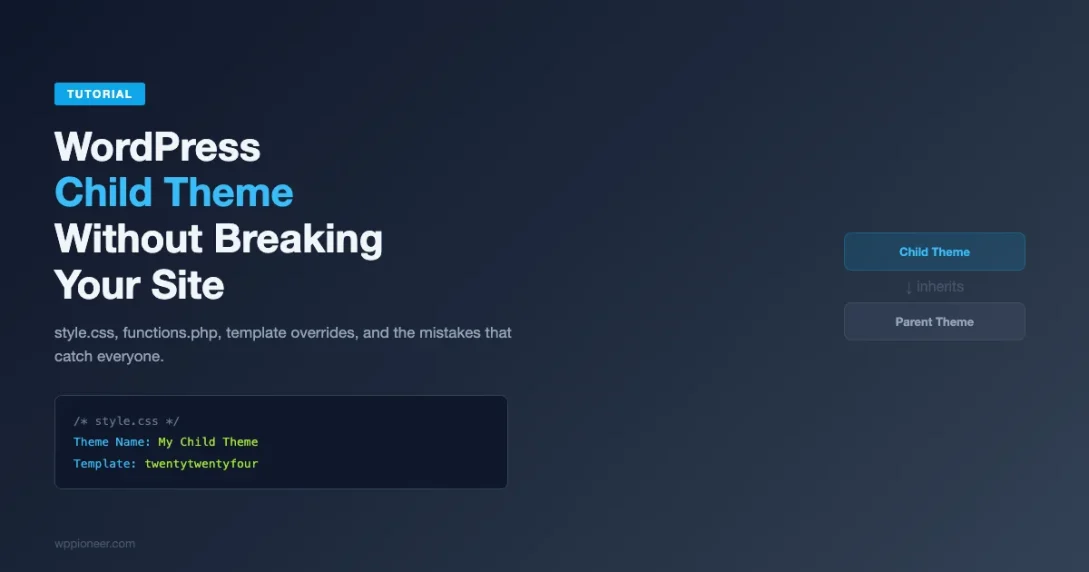
A child theme is a WordPress theme that inherits its functionality, styling, and templates from another theme, which is called the parent theme. The child theme does not need to contain all the files that the parent theme has. Instead, it only contains the files you want to modify or add.
WordPress uses a template hierarchy to determine which file to load for any given page request. When a child theme is active, WordPress checks the child theme’s directory first for the requested template file. If that file exists in the child theme, WordPress uses it. If it does not exist, WordPress falls back to the parent theme’s version of that file.
This inheritance mechanism is what makes child themes so powerful. You can override a single template file — say, single.php — while letting the parent theme handle everything else. You get full control over the parts you care about and automatic updates for everything else.
The Parent-Child Relationship
Every child theme must have exactly one parent theme. The parent theme must be installed on your WordPress site (it does not need to be activated — only the child theme is activated). WordPress identifies the parent-child relationship through a specific header field in the child theme’s style.css file, which we will set up shortly.
It is worth noting that child themes can only go one level deep. You cannot create a “grandchild” theme — a child theme of a child theme. If you need that level of abstraction, you are better served by a custom plugin or a more modular theme architecture.
When to Use a Child Theme (And When Not To)
Child themes are not a universal solution. Understanding when they are the right tool — and when a different approach is better — will save you time and prevent architectural headaches down the road.
Use a Child Theme When:
You want to modify an existing theme’s appearance or behavior. If you are using a third-party theme from the WordPress repository, a commercial theme marketplace, or a theme developed by someone else, a child theme is the safest way to apply customizations. Your changes survive parent theme updates, and you maintain a clean separation between the original code and your modifications.
You want to override specific template files. Need a different layout for single posts? Want to restructure the header? A child theme lets you copy the specific template file from the parent theme, modify it, and have WordPress use your version automatically.
You are learning theme development. Child themes provide a low-risk way to experiment with template files, hooks, and WordPress theme functions. You always have the parent theme as a working fallback.
You need to add functionality that is tightly coupled to the theme’s presentation. If the functionality you are adding is specifically about how the theme displays content — custom template tags, modified loop structures, theme-specific widgets — a child theme is appropriate. For a deeper dive into choosing the right base theme, see our guide on how to choose and install a WordPress theme without breaking your site.
Do Not Use a Child Theme When:
You are the original theme author. If you are building a theme from scratch, you do not need a child theme. Just build your theme directly. Child themes exist to safely modify someone else’s work.
Your changes are entirely functional, not presentational. If you are adding custom post types, taxonomies, shortcodes, REST API endpoints, or other functionality that is not directly tied to how the theme renders content, use a plugin instead. This ensures your functionality persists even if you switch themes entirely. We cover this in more detail in our custom post types WordPress guide.
You only need minor CSS tweaks. If all you want is to change a few colors or font sizes, the WordPress Customizer’s “Additional CSS” panel might be sufficient. A child theme is overkill for three lines of CSS.
The parent theme is abandoned or you control it. If the parent theme is no longer maintained and will never receive updates, the primary benefit of a child theme (surviving updates) is moot. Similarly, if you have full control over the parent theme’s repository, you can make changes directly.
Setting Up Your Child Theme: The Required Files
A WordPress child theme requires a minimum of two files: style.css and functions.php. Technically, only style.css is strictly required by WordPress to recognize the child theme, but you will almost always need functions.php to properly enqueue the parent theme’s styles.
Step 1: Create the Child Theme Directory
Navigate to your WordPress installation’s wp-content/themes/ directory and create a new folder for your child theme. The naming convention is to append -child to the parent theme’s directory name.
For example, if your parent theme is Twenty Twenty-Four (directory name twentytwentyfour), create a directory called twentytwentyfour-child.
wp-content/
  themes/
    twentytwentyfour/         (parent theme)
    twentytwentyfour-child/   (your child theme)
      style.css
      functions.php
Step 2: Create the style.css File
The style.css file must contain a specific comment header that WordPress reads to identify the theme. This is the most critical part of setting up a child theme — get the header wrong, and WordPress either will not recognize your child theme or will not link it to the parent.
Here is the complete style.css header format:
/*
 Theme Name:   Twenty Twenty-Four Child
 Theme URI:    https://example.com/twentytwentyfour-child/
 Description:  A child theme for Twenty Twenty-Four with custom modifications.
 Author:       Your Name
 Author URI:   https://example.com
 Template:     twentytwentyfour
 Version:      1.0.0
 License:      GNU General Public License v2 or later
 License URI:  https://www.gnu.org/licenses/gpl-2.0.html
 Tags:         light, dark, two-columns, right-sidebar, responsive-layout
 Text Domain:  twentytwentyfour-child
*/

/* Your custom styles go below this line */
Let us break down each header field:
Theme Name (required): The name displayed in the WordPress admin under Appearance > Themes. It can be anything you want, but including “Child” makes it easy to identify.
Template (required): This is the single most important field. It must exactly match the directory name of the parent theme — not the parent theme’s display name, but the actual folder name in wp-content/themes/. This is case-sensitive. If your parent theme lives in wp-content/themes/twentytwentyfour/, the Template value must be twentytwentyfour.
Theme URI, Description, Author, Author URI (optional): Metadata fields that appear in the WordPress admin. Not functionally required, but good practice to include.
Version (optional but recommended): Helps with cache busting and tracking your changes over time.
Text Domain (optional but recommended): Used for internationalization. Should match your child theme’s directory name.
Step 3: Create the functions.php File
The functions.php file in a child theme works differently from other template files. While template files in the child theme replace the parent theme’s version, the child theme’s functions.php is loaded in addition to the parent theme’s functions.php. Specifically, the child theme’s functions.php is loaded first, before the parent theme’s, which means you can override pluggable functions defined in the parent theme.
The primary purpose of your child theme’s functions.php is to enqueue the parent theme’s stylesheet. Here is the correct way to do it:
<?php
/**
 * Twenty Twenty-Four Child Theme functions and definitions.
 *
 * @package TwentyTwentyFourChild
 */

/**
 * Enqueue parent and child theme styles.
 *
 * @return void
 */
function twentytwentyfour_child_enqueue_styles() {
    // Enqueue the parent theme stylesheet.
    wp_enqueue_style(
        'twentytwentyfour-style',
        get_parent_theme_file_uri( 'style.css' ),
        array(),
        wp_get_theme( 'twentytwentyfour' )->get( 'Version' )
    );

    // Enqueue the child theme stylesheet.
    wp_enqueue_style(
        'twentytwentyfour-child-style',
        get_stylesheet_uri(),
        array( 'twentytwentyfour-style' ),
        wp_get_theme()->get( 'Version' )
    );
}
add_action( 'wp_enqueue_scripts', 'twentytwentyfour_child_enqueue_styles' );
Let us examine each part of this function in detail:
wp_enqueue_style() for the parent: The first call loads the parent theme’s style.css. We use get_parent_theme_file_uri() to get the correct URL to the parent theme’s directory. The version parameter pulls the parent theme’s version number dynamically, which ensures proper cache busting when the parent theme updates.
wp_enqueue_style() for the child: The second call loads the child theme’s style.css using get_stylesheet_uri(). The third parameter — the dependency array — includes the parent style’s handle ('twentytwentyfour-style'). This tells WordPress to load the parent’s stylesheet before the child’s, ensuring your custom styles can properly override the parent’s styles through CSS specificity.
add_action( 'wp_enqueue_scripts'... ): Hooks our function into WordPress’s script and style loading process. This is the proper way to add CSS and JavaScript in WordPress.
Handling Parent Themes That Already Enqueue Their Own Styles
Many modern themes already enqueue their own stylesheet from within their functions.php. In that case, you might end up loading the parent stylesheet twice — once from the parent’s own enqueue call and once from yours. To avoid this, you can check what handle the parent theme uses and only enqueue the child style:
<?php
/**
 * Enqueue child theme styles only.
 *
 * Use this approach when the parent theme already enqueues its own stylesheet.
 * Check the parent theme's functions.php to find the handle it uses.
 *
 * @return void
 */
function twentytwentyfour_child_enqueue_styles() {
    wp_enqueue_style(
        'twentytwentyfour-child-style',
        get_stylesheet_uri(),
        array( 'twentytwentyfour-style' ), // Use the parent's actual handle here.
        wp_get_theme()->get( 'Version' )
    );
}
add_action( 'wp_enqueue_scripts', 'twentytwentyfour_child_enqueue_styles' );
To find the parent theme’s style handle, open the parent theme’s functions.php and search for wp_enqueue_style. The first parameter in that call is the handle you need to use as the dependency for your child theme’s stylesheet.
Step 4: Activate the Child Theme
With both files in place, go to your WordPress admin panel, navigate to Appearance > Themes, and you should see your child theme listed. Click “Activate” to switch to it. Your site should look identical to how it looked with the parent theme, because the child theme inherits everything from the parent. If something looks wrong at this point, the most likely issue is with the style enqueuing — check the next section on common mistakes.
Common Mistakes and How to Avoid Them
Child themes are straightforward in concept but have a few sharp edges that catch developers regularly. Here are the most common pitfalls and their solutions.
Mistake 1: Wrong Template Header Value
The single most common child theme error is a mismatch in the Template field. Remember: this field must match the parent theme’s directory name, not its display name.
/* WRONG - Using the theme's display name */
Template: Twenty Twenty-Four

/* WRONG - Using incorrect casing */
Template: TwentyTwentyFour

/* CORRECT - Using the exact directory name */
Template: twentytwentyfour
If you get this wrong, WordPress will either show a white screen, throw a “The parent theme is missing” error, or simply not recognize your child theme at all. To verify the correct value, check the folder name inside wp-content/themes/ — that exact string is what goes in the Template field.
Mistake 2: Not Enqueuing the Parent Stylesheet
In older tutorials, you might see advice to use @import in the child theme’s style.css to load the parent styles:
/* DO NOT DO THIS - Outdated method */
@import url("../twentytwentyfour/style.css");
While this technically works, it is strongly discouraged for performance reasons. The @import directive creates a blocking request that prevents parallel downloading of stylesheets. Using wp_enqueue_style() in functions.php is the correct modern approach, as recommended by the official WordPress developer documentation on child themes.
Mistake 3: Editing the Parent Theme Directly
This bears repeating because it is the reason child themes exist: never edit the parent theme’s files directly. Any changes you make to files inside the parent theme’s directory will be overwritten the next time the parent theme updates. Always copy the file to your child theme’s directory and edit it there.
Mistake 4: Forgetting the Opening PHP Tag
Your child theme’s functions.php must start with <?php. It should not include a closing ?> tag at the end of the file. The closing tag is intentionally omitted to prevent accidental whitespace after it, which can cause “headers already sent” errors.
<?php
// Your child theme functions go here.
// Do NOT add a closing ?> tag at the end of this file.
Mistake 5: Duplicating the Parent’s Enqueue Calls
If you enqueue the parent stylesheet in your child’s functions.php but the parent theme also enqueues it, the stylesheet loads twice. This does not usually break anything visually, but it does add unnecessary HTTP requests and slow down page load times. Always check the parent theme’s functions.php before writing your own enqueue logic.
Mistake 6: Not Testing After Parent Theme Updates
While child themes protect your customizations from being overwritten, they do not guarantee compatibility with parent theme updates. If the parent theme restructures its HTML, changes CSS class names, removes a hook you were using, or modifies a template’s structure, your child theme’s overrides might break or produce unexpected results. Always test your site after updating the parent theme.
Overriding Templates in Your Child Theme
One of the most powerful features of child themes is the ability to override any template file from the parent theme. The process is simple: copy the file from the parent theme’s directory into your child theme’s directory (maintaining the same relative path), then modify it as needed.
Basic Template Override
To override the single post template, copy single.php from the parent theme to your child theme:
# From your WordPress root directory:
cp wp-content/themes/twentytwentyfour/single.php wp-content/themes/twentytwentyfour-child/single.php
Now open the copied file in your child theme and make your modifications. WordPress will automatically use your child theme’s single.php instead of the parent’s.
Overriding Templates in Subdirectories
Many themes organize their templates into subdirectories. If the parent theme has a template at template-parts/content/content-single.php, you need to create the same directory structure in your child theme:
twentytwentyfour-child/
  style.css
  functions.php
  template-parts/
    content/
      content-single.php
The directory structure must match exactly. If the parent theme loads this template using get_template_part( 'template-parts/content/content', 'single' ), WordPress will check your child theme first for that path and use your version if it exists.
Overriding the Header and Footer
The header.php and footer.php files are among the most commonly overridden templates. Copy them to your child theme and modify as needed:
<?php
/**
 * Custom header template for the child theme.
 *
 * This file overrides the parent theme's header.php.
 *
 * @package TwentyTwentyFourChild
 */
?>
<!DOCTYPE html>
<html <?php language_attributes(); ?>>
<head>
    <meta charset="<?php bloginfo( 'charset' ); ?>">
    <meta name="viewport" content="width=device-width, initial-scale=1">
    <?php wp_head(); ?>
</head>
<body <?php body_class(); ?>>
<?php wp_body_open(); ?>

<header id="masthead" class="site-header">
    <div class="site-branding">
        <?php
        if ( has_custom_logo() ) {
            the_custom_logo();
        } else {
            ?>
            <h1 class="site-title">
                <a href="<?php echo esc_url( home_url( '/' ) ); ?>">
                    <?php bloginfo( 'name' ); ?>
                </a>
            </h1>
            <?php
            $description = get_bloginfo( 'description', 'display' );
            if ( $description || is_customize_preview() ) {
                ?>
                <p class="site-description"><?php echo $description; ?></p>
                <?php
            }
        }
        ?>
    </div>

    <nav id="site-navigation" class="main-navigation">
        <?php
        wp_nav_menu(
            array(
                'theme_location' => 'primary',
                'menu_id'        => 'primary-menu',
                'container'      => false,
            )
        );
        ?>
    </nav>
</header>
Creating New Templates That Do Not Exist in the Parent
You are not limited to overriding existing templates. You can create entirely new template files in your child theme. For example, you could create a custom page template:
<?php
/**
 * Template Name: Full Width No Sidebar
 * Template Post Type: page
 *
 * A custom page template that displays content at full width
 * without any sidebar.
 *
 * @package TwentyTwentyFourChild
 */

get_header();
?>

<main id="primary" class="site-main full-width-content">
    <?php
    while ( have_posts() ) {
        the_post();
        ?>
        <article id="post-<?php the_ID(); ?>" <?php post_class(); ?>>
            <header class="entry-header">
                <?php the_title( '<h1 class="entry-title">', '</h1>' ); ?>
            </header>

            <div class="entry-content">
                <?php
                the_content();
                wp_link_pages(
                    array(
                        'before' => '<div class="page-links">',
                        'after'  => '</div>',
                    )
                );
                ?>
            </div>
        </article>
        <?php
    }
    ?>
</main>

<?php
get_footer();
This template will appear in the Page Attributes metabox in the WordPress editor, allowing content editors to select it for any page.
Adding Custom Styles to Your Child Theme
Any CSS you add to your child theme’s style.css (below the header comment) will be loaded after the parent theme’s styles, giving your rules higher priority in the CSS cascade when specificity is equal.
Example: Overriding Typography and Colors
/*
 Theme Name:   Twenty Twenty-Four Child
 Template:     twentytwentyfour
 Version:      1.0.0
*/

/* Override the body font family */
body {
    font-family: 'Inter', -apple-system, BlinkMacSystemFont, 'Segoe UI', Roboto, sans-serif;
    font-size: 17px;
    line-height: 1.7;
    color: #2d3748;
}

/* Override heading styles */
h1, h2, h3, h4, h5, h6 {
    font-family: 'Merriweather', Georgia, 'Times New Roman', serif;
    font-weight: 700;
    color: #1a202c;
}

h1 { font-size: 2.5rem; }
h2 { font-size: 2rem; }
h3 { font-size: 1.5rem; }

/* Override link colors */
a {
    color: #3182ce;
    text-decoration: underline;
    text-decoration-thickness: 1px;
    text-underline-offset: 2px;
    transition: color 0.2s ease;
}

a:hover,
a:focus {
    color: #2c5282;
}

/* Custom button styles */
.wp-block-button__link {
    background-color: #3182ce;
    border-radius: 6px;
    padding: 12px 28px;
    font-weight: 600;
    text-transform: none;
    letter-spacing: 0;
}

.wp-block-button__link:hover {
    background-color: #2c5282;
}
Using CSS Custom Properties (Variables)
If the parent theme uses CSS custom properties (and most modern themes do), you can override them at the root level to make sweeping changes with minimal code:
:root {
    --wp--preset--color--primary: #3182ce;
    --wp--preset--color--secondary: #718096;
    --wp--preset--color--background: #ffffff;
    --wp--preset--color--foreground: #2d3748;
    --wp--preset--font-size--normal: 17px;
    --wp--preset--font-size--large: 1.5rem;
}
This is particularly effective with block themes that rely heavily on the theme.json configuration system. Overriding CSS custom properties lets you change the entire color scheme or typography scale without touching individual selectors.
Adding Custom Functionality via functions.php
Beyond style enqueuing, your child theme’s functions.php can add any functionality you need. Here are several common patterns.
Registering Additional Widget Areas
/**
 * Register additional widget areas for the child theme.
 *
 * @return void
 */
function twentytwentyfour_child_widgets_init() {
    register_sidebar(
        array(
            'name'          => __( 'Footer Widget Area', 'twentytwentyfour-child' ),
            'id'            => 'footer-widget-area',
            'description'   => __( 'Widgets displayed in the footer region.', 'twentytwentyfour-child' ),
            'before_widget' => '<div id="%1$s" class="widget %2$s">',
            'after_widget'  => '</div>',
            'before_title'  => '<h3 class="widget-title">',
            'after_title'   => '</h3>',
        )
    );
}
add_action( 'widgets_init', 'twentytwentyfour_child_widgets_init' );
Adding a Custom Navigation Menu Location
/**
 * Register an additional navigation menu location.
 *
 * @return void
 */
function twentytwentyfour_child_register_menus() {
    register_nav_menus(
        array(
            'footer-menu' => __( 'Footer Navigation', 'twentytwentyfour-child' ),
        )
    );
}
add_action( 'after_setup_theme', 'twentytwentyfour_child_register_menus' );
Adding Theme Support for Additional Features
/**
 * Add additional theme support in the child theme.
 *
 * @return void
 */
function twentytwentyfour_child_setup() {
    // Add support for wide and full-width alignments.
    add_theme_support( 'align-wide' );

    // Add support for responsive embeds.
    add_theme_support( 'responsive-embeds' );

    // Add a custom image size.
    add_image_size( 'child-theme-featured', 1200, 600, true );

    // Add editor styles so the block editor matches the front end.
    add_editor_style( 'editor-style.css' );
}
add_action( 'after_setup_theme', 'twentytwentyfour_child_setup' );
Overriding a Parent Theme’s Function (Pluggable Functions)
Some parent themes define functions wrapped in function_exists() checks. These are called pluggable functions, and they are specifically designed to be overridden by child themes:
// In the PARENT theme's functions.php:
if ( ! function_exists( 'twentytwentyfour_posted_on' ) ) {
    function twentytwentyfour_posted_on() {
        // Parent theme's implementation.
        echo '<span class="posted-on">Posted on ' . get_the_date() . '</span>';
    }
}

// In the CHILD theme's functions.php:
// Because the child's functions.php loads first, this definition
// takes precedence over the parent's.
function twentytwentyfour_posted_on() {
    // Your custom implementation.
    echo '<span class="posted-on">Published ' . get_the_date( 'F j, Y' ) . ' by ' . get_the_author() . '</span>';
}
Since the child theme’s functions.php loads before the parent’s, the function is already defined by the time the parent theme’s function_exists() check runs, so the parent skips its own definition.
Removing a Parent Theme Action or Filter
If the parent theme hooks a function that you want to remove entirely, you can use remove_action() or remove_filter(). The tricky part is timing — you need to remove the hook after the parent theme has added it:
/**
 * Remove the parent theme's breadcrumb output.
 *
 * @return void
 */
function twentytwentyfour_child_remove_parent_hooks() {
    // Remove the parent theme's breadcrumb function.
    // The priority (10) must match the priority used when the parent added it.
    remove_action( 'twentytwentyfour_before_content', 'twentytwentyfour_breadcrumbs', 10 );
}
add_action( 'after_setup_theme', 'twentytwentyfour_child_remove_parent_hooks' );
The after_setup_theme hook fires after both the child and parent functions.php files have loaded, making it the ideal place to remove parent theme hooks.
Enqueueing Additional Scripts and Styles
/**
 * Enqueue additional scripts and styles for the child theme.
 *
 * @return void
 */
function twentytwentyfour_child_enqueue_assets() {
    // Enqueue a custom JavaScript file.
    wp_enqueue_script(
        'twentytwentyfour-child-custom',
        get_stylesheet_directory_uri() . '/js/custom.js',
        array( 'jquery' ),
        wp_get_theme()->get( 'Version' ),
        true // Load in footer.
    );

    // Enqueue a Google Font.
    wp_enqueue_style(
        'twentytwentyfour-child-fonts',
        'https://fonts.googleapis.com/css2?family=Inter:wght@400;500;600;700&family=Merriweather:wght@400;700&display=swap',
        array(),
        null
    );
}
add_action( 'wp_enqueue_scripts', 'twentytwentyfour_child_enqueue_assets' );
Note the use of get_stylesheet_directory_uri() to reference files in the child theme’s directory. This is different from get_template_directory_uri(), which points to the parent theme’s directory. Understanding this distinction is critical when working with child themes. For more details, refer to the WordPress developer reference for get_stylesheet_directory_uri().
Customizer Settings Inheritance
When you activate a child theme, WordPress treats it as a different theme from the parent, even though they share a visual relationship. This means:
Customizer settings are per-theme. Any changes you made in the Customizer while the parent theme was active (site title, colors, header image, menus, widgets) will not automatically carry over to the child theme. You will need to reconfigure these settings after activating the child theme.
Menus and widget assignments are tied to theme. If you had menus assigned to specific locations or widgets placed in sidebars, these assignments are stored on a per-theme basis. You will need to reassign them after switching to the child theme.
How to preserve Customizer settings: Before activating your child theme, you can export your current Customizer settings using the WordPress Settings API or a plugin like Customizer Export/Import. After activating the child theme, import the settings back.
Alternatively, if you want to programmatically set default Customizer values in your child theme:
/**
 * Set default Customizer values for the child theme.
 *
 * @param WP_Customize_Manager $wp_customize Theme Customizer object.
 * @return void
 */
function twentytwentyfour_child_customize_defaults( $wp_customize ) {
    // Set a default header background color.
    $wp_customize->get_setting( 'header_background_color' )->default = '#1a202c';

    // Set a default accent color.
    $wp_customize->get_setting( 'accent_color' )->default = '#3182ce';
}
add_action( 'customize_register', 'twentytwentyfour_child_customize_defaults', 20 );
The priority of 20 ensures this runs after the parent theme has registered its Customizer settings.
Working with theme.json in Block Theme Child Themes
If your parent theme is a block theme (also called a Full Site Editing theme), child themes work slightly differently. Block themes use theme.json for configuration instead of (or in addition to) PHP files.
Overriding theme.json
You can create a theme.json file in your child theme to override specific settings from the parent. WordPress will merge the child’s theme.json with the parent’s, with the child’s values taking precedence:
{
    "$schema": "https://schemas.wp.org/trunk/theme.json",
    "version": 3,
    "settings": {
        "color": {
            "palette": [
                {
                    "slug": "primary",
                    "color": "#3182ce",
                    "name": "Primary"
                },
                {
                    "slug": "secondary",
                    "color": "#718096",
                    "name": "Secondary"
                },
                {
                    "slug": "background",
                    "color": "#ffffff",
                    "name": "Background"
                },
                {
                    "slug": "foreground",
                    "color": "#2d3748",
                    "name": "Foreground"
                }
            ]
        },
        "typography": {
            "fontFamilies": [
                {
                    "fontFamily": "Inter, -apple-system, BlinkMacSystemFont, sans-serif",
                    "slug": "body-font",
                    "name": "Body Font"
                },
                {
                    "fontFamily": "Merriweather, Georgia, serif",
                    "slug": "heading-font",
                    "name": "Heading Font"
                }
            ]
        }
    },
    "styles": {
        "typography": {
            "fontFamily": "var(--wp--preset--font-family--body-font)",
            "fontSize": "17px",
            "lineHeight": "1.7"
        },
        "elements": {
            "heading": {
                "typography": {
                    "fontFamily": "var(--wp--preset--font-family--heading-font)",
                    "fontWeight": "700"
                }
            },
            "link": {
                "color": {
                    "text": "var(--wp--preset--color--primary)"
                }
            }
        }
    }
}
The key thing to understand is that theme.json merging works differently from template overrides. Templates are fully replaced — the child’s version completely replaces the parent’s. But theme.json is deep-merged — only the specific values you define in the child override the parent’s values. Everything else is inherited.
Overriding Block Templates and Template Parts
In block themes, templates are HTML files stored in the templates/ directory and template parts are stored in parts/. To override these, create the same directory structure in your child theme:
twentytwentyfour-child/
  style.css
  functions.php
  theme.json
  templates/
    single.html       (overrides parent's templates/single.html)
    page-about.html    (new custom template)
  parts/
    header.html        (overrides parent's parts/header.html)
Block theme templates use block markup. Here is an example of a custom single.html template:
<!-- wp:template-part {"slug":"header","area":"header"} /-->

<!-- wp:group {"tagName":"main","layout":{"type":"constrained","contentSize":"720px"}} -->
<main class="wp-block-group">

    <!-- wp:post-title {"level":1} /-->

    <!-- wp:group {"layout":{"type":"flex","flexWrap":"nowrap"}} -->
    <div class="wp-block-group">
        <!-- wp:post-date /-->
        <!-- wp:post-author {"showAvatar":false} /-->
        <!-- wp:post-terms {"term":"category"} /-->
    </div>
    <!-- /wp:group -->

    <!-- wp:post-featured-image {"sizeSlug":"large"} /-->

    <!-- wp:post-content {"layout":{"type":"constrained"}} /-->

    <!-- wp:post-terms {"term":"post_tag","prefix":"Tags: "} /-->

    <!-- wp:comments /-->

</main>
<!-- /wp:group -->

<!-- wp:template-part {"slug":"footer","area":"footer"} /-->
Child Theme vs. Custom Plugin: Making the Right Choice
The decision between creating a child theme and creating a custom plugin is one of the most important architectural choices in WordPress development. The general rule is straightforward: if the functionality is about how content looks, it belongs in a theme (or child theme). If the functionality is about what the site does, it belongs in a plugin.
Put It in a Child Theme If:
- You are overriding template files to change the HTML structure of pages
- You are modifying the visual design through CSS
- You are adding or removing navigation menus, widget areas, or theme-specific features
- You are registering custom image sizes used specifically by the theme’s templates
- You are modifying the block editor’s appearance to match the front-end design
- You are overriding the parent theme’s
theme.jsonconfiguration
Put It in a Plugin If:
- You are registering custom post types or taxonomies
- You are adding shortcodes or custom Gutenberg blocks
- You are creating custom REST API endpoints
- You are adding functionality that should persist if the theme changes (contact forms, SEO metadata, analytics tracking, custom fields)
- You are integrating with third-party services or APIs
- You are modifying WordPress core behavior (login redirects, user role capabilities, email handling)
The Litmus Test
Ask yourself: “If I switch to a completely different theme next month, should this functionality still be there?” If the answer is yes, it belongs in a plugin. If the answer is no (because it is specifically about how this particular theme renders content), it belongs in a child theme.
There is a gray area, of course. Some features — like custom excerpt lengths or modified comment forms — could arguably go in either place. In those cases, consider where the functionality is most logically maintained and where other developers would expect to find it.
Advanced Child Theme Techniques
Once you have the basics down, there are several advanced techniques that can make your child theme more robust and maintainable.
Conditionally Loading Styles
You might want to load specific stylesheets only on certain pages:
/**
 * Conditionally enqueue page-specific styles.
 *
 * @return void
 */
function twentytwentyfour_child_conditional_styles() {
    if ( is_page_template( 'templates/full-width.php' ) ) {
        wp_enqueue_style(
            'twentytwentyfour-child-fullwidth',
            get_stylesheet_directory_uri() . '/css/full-width.css',
            array( 'twentytwentyfour-child-style' ),
            wp_get_theme()->get( 'Version' )
        );
    }

    if ( is_singular( 'post' ) ) {
        wp_enqueue_style(
            'twentytwentyfour-child-single-post',
            get_stylesheet_directory_uri() . '/css/single-post.css',
            array( 'twentytwentyfour-child-style' ),
            wp_get_theme()->get( 'Version' )
        );
    }
}
add_action( 'wp_enqueue_scripts', 'twentytwentyfour_child_conditional_styles' );
Using the get_template_part() Function
When creating modular templates in your child theme, use get_template_part() to include reusable template fragments:
// In your child theme's single.php:
get_template_part( 'template-parts/content', 'single' );

// WordPress will look for:
// 1. yourchildtheme/template-parts/content-single.php
// 2. parenttheme/template-parts/content-single.php
This automatic fallback behavior means you can override specific template parts without overriding the entire parent template that includes them.
Adding a Screenshot
Add a screenshot.png file to your child theme’s root directory. This image appears as the theme preview in the WordPress admin. The recommended size is 1200 by 900 pixels. This is a small detail, but it makes your child theme look professional and is instantly identifiable in the Themes panel.
Organizing a Large Child Theme
As your child theme grows, you might want to organize it into a more structured directory layout:
twentytwentyfour-child/
  style.css
  functions.php
  theme.json
  screenshot.png
  css/
    full-width.css
    single-post.css
    woocommerce.css
  js/
    custom.js
    navigation.js
  inc/
    customizer.php
    template-tags.php
    widget-areas.php
  template-parts/
    content/
      content-single.php
      content-page.php
    header/
      site-branding.php
      site-navigation.php
  templates/
    full-width.php
    landing-page.php
Keep your functions.php clean by splitting functionality into separate files and including them:
<?php
/**
 * Twenty Twenty-Four Child Theme functions and definitions.
 *
 * @package TwentyTwentyFourChild
 */

// Enqueue styles and scripts.
require get_stylesheet_directory() . '/inc/enqueue.php';

// Custom template tags.
require get_stylesheet_directory() . '/inc/template-tags.php';

// Customizer additions.
require get_stylesheet_directory() . '/inc/customizer.php';

// Widget areas.
require get_stylesheet_directory() . '/inc/widget-areas.php';
Note the use of get_stylesheet_directory() (without “uri”) to get the server file path, as opposed to get_stylesheet_directory_uri() which returns the URL. Use the file path version for require and include statements, and the URI version for wp_enqueue_* functions.
Debugging Child Theme Issues
When your child theme does not work as expected, here is a systematic approach to diagnosing the problem.
Enable WP_DEBUG
In your wp-config.php, enable debugging to see any PHP errors or warnings:
define( 'WP_DEBUG', true );
define( 'WP_DEBUG_LOG', true );
define( 'WP_DEBUG_DISPLAY', false ); // Log errors but do not display them on screen.
Check wp-content/debug.log for any errors related to your child theme.
Verify the Template Hierarchy
If a template override is not working, verify that WordPress is loading the file you expect. You can add a temporary comment at the top of your child theme’s template to confirm:
<!-- Loaded from child theme -->Then view the page source in your browser to check if the comment appears. If it does not, your template file might be in the wrong location, named incorrectly, or the parent theme might be loading templates in a non-standard way.
Check Style Loading Order
Use your browser’s developer tools (F12) to inspect the <head> section and verify that stylesheets are loading in the correct order: parent styles first, then child styles. If the child theme’s styles are loading before the parent’s, your CSS overrides will not work because the parent’s rules will take precedence.
Common Error: “The parent theme is missing”
This error means WordPress cannot find the parent theme specified in your child theme’s Template header. Check the following:
- The parent theme is installed in
wp-content/themes/ - The
Templatevalue in your child theme’sstyle.cssexactly matches the parent theme’s directory name (case-sensitive) - The parent theme’s directory has not been renamed or moved
Common Error: Styles Not Loading
If the site appears unstyled after activating the child theme:
- Verify your
functions.phpstarts with<?php - Check that the
wp_enqueue_style()calls use the correct handles and paths - Clear any caching (browser cache, WordPress caching plugins, server-level cache)
- Use the browser’s Network tab to see if the stylesheets are returning 404 errors
A Complete Child Theme Example
To tie everything together, here is a complete, minimal child theme that you can use as a starting point for any project. This example assumes a parent theme called “flavor” but you can adapt it to any parent.
style.css
/*
 Theme Name:   Flavor Child
 Description:  Custom child theme for Flavor with modified typography and layout.
 Author:       Your Name
 Template:     flavor
 Version:      1.0.0
 Text Domain:  flavor-child
*/

/* Custom typography */
body {
    font-family: 'Inter', -apple-system, BlinkMacSystemFont, sans-serif;
    font-size: 17px;
    line-height: 1.7;
}

/* Wider content area */
.site-main {
    max-width: 800px;
    margin: 0 auto;
    padding: 2rem 1rem;
}

/* Custom blockquote styling */
blockquote {
    border-left: 4px solid #3182ce;
    margin: 2rem 0;
    padding: 1rem 1.5rem;
    background-color: #ebf8ff;
    font-style: italic;
}

blockquote p:last-child {
    margin-bottom: 0;
}

/* Code block styling */
pre {
    background-color: #1a202c;
    color: #e2e8f0;
    padding: 1.5rem;
    border-radius: 8px;
    overflow-x: auto;
    font-size: 0.9rem;
    line-height: 1.6;
}

code {
    background-color: #edf2f7;
    padding: 0.15rem 0.4rem;
    border-radius: 3px;
    font-size: 0.9em;
}
functions.php
<?php
/**
* Flavor Child Theme functions and definitions.
*
* @package FlavorChild
*/
/**
* Enqueue parent and child theme styles.
*
* @return void
*/
function flavor_child_enqueue_styles() {
$parent_handle = 'flavor-style';
wp_enqueue_style(
$parent_handle,
get_parent_theme_file_uri( 'style.css' ),
array(),
wp_get_theme( 'flavor' )->get( 'Version' )
);
wp_enqueue_style(
'flavor-child-style',
get_stylesheet_uri(),
array( $parent_handle ),
wp_get_theme()->get( 'Version' )
);
}
add_action( 'wp_enqueue_scripts', 'flavor_child_enqueue_styles' );
/**
* Add child theme setup.
*
* @return void
*/
function flavor_child_setup() {
add_theme_support( 'align-wide' );
add_theme_support( 'responsive-embeds' );
add_image_size( 'flavor-child-hero', 1400, 700, true );
}
add_action( 'after_setup_theme', 'flavor_child_setup' );
/**
* Register a custom footer widget area.
*
* @return void
*/
function flavor_child_widgets_init() {
register_sidebar(
array(
'name' => __( 'Footer Widgets', 'flavor-child' ),
'id' => 'footer-widgets',
'description' => __( 'Add widgets to the footer area.', 'flavor-child' ),
'before_widget' => '<div id="%1$s" class="widget %2$s">',
'after_widget' => '</div>',
'before_title' => '<h3 class="widget-title">',
'after_title' => '</h3>',
)
);
}
add_action( 'widgets_init', 'flavor_child_widgets_init' );
/**
* Modify the excerpt length.
*
* @param int $length Default excerpt length.
* @return int Modified excerpt length.
*/
function flavor_child_excerpt_length( $length ) {
return 30;
}
add_filter( 'excerpt_length', 'flavor_child_excerpt_length' );
/**
* Customize the excerpt "read more" text.
*
* @param string $more Default "read more" text.
* @return string Modified "read more" text.
*/
function flavor_child_excerpt_more( $more ) {
return '… <a class="read-more-link" href="' . esc_url( get_permalink() ) . '">' . __( 'Continue reading', 'flavor-child' ) . '</a>';
}
add_filter( 'excerpt_more', 'flavor_child_excerpt_more' );Maintaining Your Child Theme Long-Term
A child theme is not a “set it and forget it” solution. Here are best practices for long-term maintenance:
Version control your child theme. Use Git to track changes to your child theme. This gives you a history of every modification and the ability to roll back if something breaks. Even a simple local Git repository is better than nothing.
Document your overrides. Add comments to your files explaining why you made specific changes. Six months from now, you (or another developer) will thank you for that context.
Test parent theme updates in staging. Before updating the parent theme on your production site, test the update in a staging environment. This lets you catch any compatibility issues before they affect your live site.
Keep overrides minimal. The more files you override from the parent theme, the more potential points of failure you have when the parent theme updates. Override only what you need to, and use hooks and filters whenever possible instead of full template overrides.
Monitor the parent theme’s changelog. Subscribe to the parent theme’s changelog or release notes. If they announce a major restructuring, you will want to plan time to test and update your child theme accordingly.
Use hooks over template overrides when possible. If the parent theme provides action hooks and filter hooks in its templates, use those to inject or modify content rather than copying and modifying entire template files. Hooks are less likely to break when the parent theme updates because they represent a stable interface, while the internal structure of template files is more likely to change.
Summary
Creating a WordPress child theme is a fundamental skill for anyone who customizes WordPress sites. It provides a clean, update-safe way to modify any aspect of a parent theme — from CSS tweaks to complete template overrides — while maintaining a clear separation between the original code and your customizations.
The process itself is straightforward. Create a directory, add a style.css with the correct header (paying special attention to the Template field), set up functions.php with proper style enqueuing, and activate. From there, you can override templates by copying them to your child theme, add custom styles and scripts, register new widget areas and menus, and extend the theme’s functionality in any way you need.
The most important things to remember are: always use wp_enqueue_style() instead of @import, always verify the Template header matches the parent theme’s directory name exactly, always test after parent theme updates, and always consider whether your modification belongs in a child theme or a plugin.
With a properly built child theme, you can customize any WordPress theme with confidence, knowing that your work will not be erased the next time an update comes through.
Last modified: April 2, 2026