
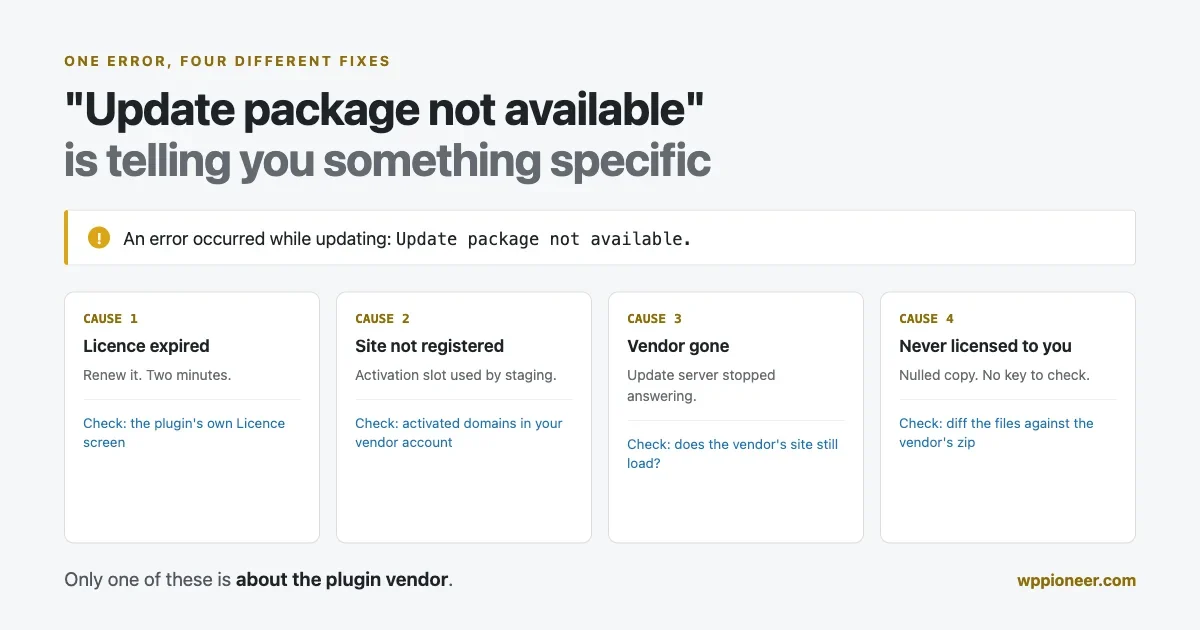
You click update on a premium plugin and WordPress answers with one line: Update package not available. No explanation, no link, nothing to act on.
That message has four completely different causes, and they need four different fixes. One of them is a lapsed licence you can renew in two minutes. Another means the plugin on your site was never licensed to you at all, which is a much longer conversation, and often one you are having about a site somebody else built.
This guide covers all four, then the part nobody writes down: how to check whether the plugins and themes already on your site are genuine, and what to do when the answer is no.
What the error actually means
WordPress shows a few closely related messages here, and the wording matters:
- Update package not available. WordPress knows a newer version exists, asked where to download it, and got nothing usable back.
- Download failed. Not Found. It got a URL and that URL returned a 404.
- The package could not be installed. No valid plugins were found. A file downloaded, but it was not a plugin. This is very often an HTML error page saved as a .zip.
- An error occurred while updating [Plugin]: Update package not available. The same first case, named.
The common thread is that free plugins from the WordPress.org directory rarely produce these. WordPress.org hands out the download URL itself and it just works. Premium plugins do not go through that route: the plugin tells WordPress where to fetch its own update, usually from the vendor’s server, and that request has to be authorised.
So when a premium update fails, what failed is almost always the authorisation, not the download.
Cause 1: the licence expired
The most common and least alarming cause. Annual licences lapse, cards expire, and the renewal email went to an address nobody reads any more.
Look for a Licence, Licences or Account screen under the plugin’s own menu. Most premium plugins show the status there, and an expired licence usually still says “Active” in a way that is easy to misread, because the plugin is still running. It is the updates that stop, not the features.
Worth knowing: an expired licence does not break your site today. It stops you receiving security fixes, which is a problem that arrives later and without warning. If you are going to leave one lapsed deliberately, write down which plugin it is, because in a year nobody will remember.
Cause 2: the licence is fine, the site is not registered
Most premium licences are tied to a number of sites. If yours covers one site and you have used it on a staging copy, a local install and the live site, the live site may be the one that lost the slot.
This is the cause that most often looks mysterious, because the licence genuinely is valid and genuinely is paid for. Check the vendor’s account area for a list of activated domains, and deactivate the ones you no longer use. Two details catch people out: www.example.com and example.com can register as separate activations, and so can http and https versions of the same domain.
Cause 3: the vendor’s update server changed or went away
Plugins get sold, rebranded, or abandoned. When that happens the update endpoint the plugin was built to call can stop answering, and the plugin has no way to tell you that. It keeps asking, keeps getting nothing, and keeps showing you the same one-line error.
The test is quick. Search for the plugin’s name plus “changelog” and see whether a newer version exists at all, then check whether the vendor’s own site is still live. A plugin whose vendor has disappeared is not a support problem. It is a plugin you now have to replace, and the sooner you accept that the better, because it will not receive another security fix.
Our guide to safely updating plugins without breaking your live site covers how to swap one out on a running site without taking it down.
Cause 4: the plugin was never licensed to this site
This is the one people rarely say out loud.
A nulled plugin is a premium plugin whose licence check has been removed or bypassed so it runs without being paid for. They are widely distributed, sometimes on sites that look entirely respectable, and they install exactly like the real thing.
What they cannot do is update. There is no licence for the vendor to validate, so the update request comes back empty, and you get “Update package not available” forever. That error is often the first honest signal a site owner ever gets that something on their site was not obtained legitimately.
This matters most for people who did not install it. If you bought a site, inherited one from a previous developer, or took over maintenance from an agency, the plugins on it are decisions somebody else made and you are the one now living with them.
One caveat before you start deleting things. A plugin that cannot update is not automatically a plugin that was stolen. Vendors move servers, change licensing systems, and occasionally ship a broken update check of their own. Open a support ticket with the vendor before you conclude anything, because “our update server moved and the old version cannot follow” is a real answer you will sometimes get, and it takes one email to find out.
How to check whether a plugin is genuine
Four checks, in order of effort.
1. Compare it against the official version
For anything from the WordPress.org directory this is free and definitive. Deactivate nothing, change nothing, and simply reinstall the plugin from the directory over the top. If the files on your site differ from the official ones, that reinstall replaces them, and anything injected is gone.
For premium plugins you need the vendor’s copy. Download it from your account, unzip it locally, and compare the main plugin file’s header against the one on your site. A modified header, a version number that does not exist in the vendor’s changelog, or a plugin URI pointing at a site that is not the vendor’s are all strong signals.
2. Read the main plugin file’s first thirty lines
Every plugin starts with a header block naming the plugin, its version, its author and its URI. Nulled copies frequently have this edited, because the person distributing it wanted credit or wanted to hide the origin.
What you are looking for: an author or URI you do not recognise, a version that does not match anything in the vendor’s changelog, or a line of code sitting above the header comment. Nothing legitimate needs to run before the header.
3. Look for code that does not belong
You do not need to read the whole plugin. You need to look for a small number of patterns that are rare in legitimate code and common in tampered code: long base64 strings, eval(), obfuscated variable names, and requests to a domain that has nothing to do with the plugin’s purpose.
If you have SSH, this finds most of it:
grep -rn --include="*.php" -E "eval\(|base64_decode\(|gzinflate\(" wp-content/plugins/ | head -40Read the results rather than reacting to the count. Some legitimate plugins use base64_decode for perfectly ordinary reasons, like decoding an image or a stored setting. What is not ordinary is eval() applied to a decoded string, which is the shape of code that exists to be unreadable.
4. Watch where it phones home
A legitimate premium plugin calls its vendor’s domain for licence checks and updates, and that is it. A tampered one may also call somewhere else.
Your access log will not show this, because these are outgoing requests, not incoming ones. A plugin that logs outbound HTTP calls will, and it is worth installing one temporarily on a site you are unsure about. Anything calling a domain unrelated to a plugin you have installed deserves an explanation.
Themes fail differently, and quieter
Everything above applies to themes too, with one difference that makes them worse: a theme rarely announces that its update failed. A plugin puts a notice on the plugins screen. A theme often just sits at the version it was installed at, and nobody notices for a year.
Check Appearance, Themes and look at what is actually installed rather than what is active. Most sites carry two or three themes nobody has used since launch, and an inactive theme is still code on your server that can still be reached.
The verification is the same shape. For a theme from the WordPress.org directory, reinstalling from the directory replaces every file. For a premium theme, download the vendor’s copy and compare style.css, which carries the theme’s header block with its name, version, author and URI. That header is the first thing edited on a nulled theme, for the same reason as with plugins.
Two theme-specific things worth checking. A child theme is meant to be modified, so differences there are expected and not a signal on their own. And functions.php in either the parent or child theme is the single most common place for injected code to sit on a compromised site, because it runs on every page load and most people never open it.
If a site has a premium theme nobody can produce a licence for, that is the same finding as a premium plugin nobody can produce a licence for. It is just less visible, and it usually has more of your site’s surface area than any single plugin does.
Check the update URL the plugin is actually calling
One more check, for when the header looks clean but something still feels off.
A premium plugin has to tell WordPress where its updates live, and that means the URL is in the code. Search the plugin folder for it:
grep -rn --include="*.php" -oE "https?://[a-zA-Z0-9.-]+" wp-content/plugins/the-plugin/ \
  | awk -F'//' '{print $2}' | sort | uniq -c | sort -rn | head
You should see the vendor’s own domain, probably api or updates on a subdomain, plus the usual harmless ones like schema.org or w3.org from markup. What you should not see is a domain with no relationship to the plugin or its vendor appearing in code that handles updates or licensing.
This is also how you catch the subtler version of the problem, where a nulled plugin does not remove the licence check but repoints it at a server that always answers yes. The header is untouched, the code looks normal, and the only tell is a hostname you do not recognise.
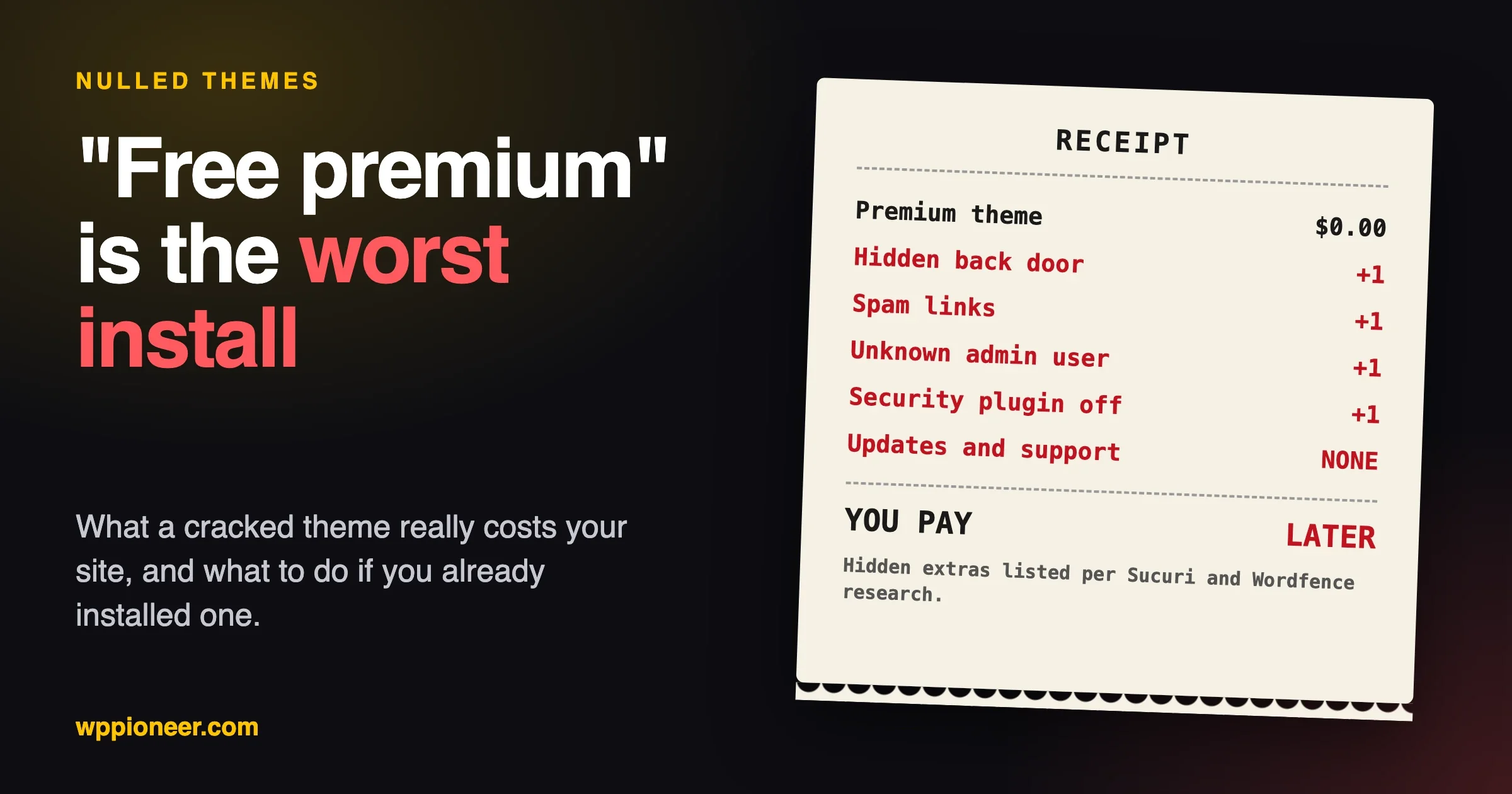
What a nulled plugin actually costs
The honest version, because “it might have malware” is too vague to act on.
You do not get security updates. This is the certain cost, not the possible one. When a vulnerability is disclosed in that plugin, every attacker learns about it and you do not, and the fix that would protect you is behind the licence check that was removed.
The modification is unreviewed by definition. Somebody edited the code to remove a licence check. You are trusting that this is all they edited, on the word of a person distributing software they do not own.
The payload does not have to be in a file. This is the part that surprises people. Code can be stored in a database row and executed at runtime, which means a clean-looking file tree proves less than you would think. It is the same blind spot we wrote about in code that never shows up in your deploy, arriving from a different direction.
The cleanup costs more than the licence. Every time. A compromised site means an audit, a restore, credential rotation and a period of not trusting your own install, against a licence that was usually a double-digit annual figure.
GPL clubs are not the same thing as nulled, and the difference matters
This confuses a lot of people, and getting it wrong in either direction is expensive.
WordPress plugins and themes are licensed under the GPL. That licence explicitly allows anyone who has a copy to redistribute it. So sites that resell premium plugins cheaply, often called GPL clubs, are not necessarily doing anything illegal, and saying otherwise is simply wrong.
What a vendor sells is not really the code. It is the licence key, which buys you updates and support. Redistribution is permitted; access to the vendor’s update server is not, because that is a service rather than software.
So a plugin from a GPL club is typically an unmodified, genuine copy that will never update, because you have no key. A nulled plugin is a copy somebody has edited to bypass the licence check, and that edit is the part you cannot verify. The first is a maintenance problem. The second is a trust problem.
In practice the checks above tell you which you have. An unmodified copy matches the vendor’s files byte for byte and simply cannot authenticate. A nulled copy has a licence routine that has been cut out or rewritten, which is visible the moment you diff it against the vendor’s zip.
Neither gets you security updates, which is why neither is a good place for a site you care about to end up. But if you are auditing an inherited site, knowing which one you are looking at changes what you do next: one needs a licence bought, the other needs the plugin replaced and the site checked.
Auditing a site you inherited
If you have just taken over a site, do this once and write the results down.
List what is installed and what it claims to be:
wp plugin list --fields=name,status,version,updateAsk WordPress.org which of them it recognises. Anything the directory knows is easy to verify. What remains is your premium list, and that is the list that needs a licence each:
wp plugin list --field=name | while read p; do
  curl -s -o /dev/null -w "%{http_code} $p\n" \
    "https://api.wordpress.org/plugins/info/1.0/$p.json"
done
A 200 means the directory has it. A 404 means it is premium, custom, or renamed, and each of those needs an answer you can give out loud.
Then ask the question that matters: for every premium plugin, who holds the licence? If the answer is “the previous developer” or “nobody knows”, you have found the real finding, and it is a commercial problem rather than a technical one.
Pair this with our monthly security audit checklist and with reading your access log, which shows you whether anything has already been probing the plugins you just listed.
When you genuinely cannot tell
Sometimes there is no vendor copy to compare against, because nobody knows which vendor it came from. The plugin has a generic name, no URI, and does not exist in the directory.
Clone the site to staging and delete it there. If nothing breaks, you have your answer and the plugin was dead weight. If something does break, you now know exactly what depends on it, which is the information you needed before deciding whether to pay for it or replace it. Either outcome is worth the twenty minutes, and neither touches production.
If you think a site is already compromised
Finding a nulled plugin is not proof of a breach, and it is not nothing either. Work in this order.
Do not delete it first. Removing the plugin removes your evidence and does not remove anything it left behind. Note the version, the file dates and where you got it.
Then work through how to tell if your WordPress site was hacked before assuming either way, and if the answer turns out to be yes, the malware cleanup checklist covers the recovery properly, including the database and scheduled-task hiding places a file scan misses.
The replacement itself is the easy part. Buy the licence, or pick a different plugin, install the clean copy over the top, and re-test the feature it provides.
The price conversation, honestly
Almost nobody nulls a plugin for fun. They do it because a site needs eight premium plugins, each one is an annual renewal, and the whole stack costs more than the site earns.
That is a real problem and it deserves a real answer rather than a lecture. Two things help.
Most sites need fewer premium plugins than they have. Go through the list and ask what each one earns or saves. Plugins installed for a feature that was never launched are common, and every one you remove is a renewal you stop paying and an attack surface you stop maintaining.
Some categories have genuinely capable free options. Not trial versions with the useful parts removed, but plugins that do the whole job. If you need a community or membership area, BuddyNext covers profiles, spaces, messaging and moderation for free. If you need to run courses, Learnomy covers courses, quizzes, certificates and enrolment for free. We build both, so treat that as a disclosure rather than a neutral recommendation, but the free tiers are real and you can check them before spending anything.
Between those two, a plugin stack that felt unaffordable often turns out to be three licences rather than eight.
What to do this week
- List your premium plugins and find each licence. Not “we have one somewhere”, the actual account it lives in.
- Renew or remove anything lapsed. A plugin you will not pay for is a plugin you should not run.
- Check the ones that will not update. Run the four checks above before assuming it is the vendor’s fault.
- Write the list down somewhere the next person will find it. Most nulled plugins on inherited sites were not installed maliciously. They were installed by somebody in a hurry who then left.
“Update package not available” is a bad error message for a genuinely useful signal. It is WordPress telling you that something about the arrangement between your site and that plugin’s vendor has broken. Usually that is a card that expired. Sometimes it is a plugin that was never yours. Either way it is worth ten minutes to find out which.
No comments yet