
You updated something. Maybe you clicked the button, maybe WordPress did it overnight without asking. Now the site shows a short grey message that says there has been a critical error, and the login page shows the same thing, so you cannot get in to undo whatever caused it.
This is one of the few WordPress problems that feels much worse than it is. Nothing has been deleted. Your posts, pages, images, orders and members are all exactly where they were. One piece of code is throwing an error early enough to stop the page from finishing, and until that piece of code is out of the way, every page including the dashboard hits the same wall.
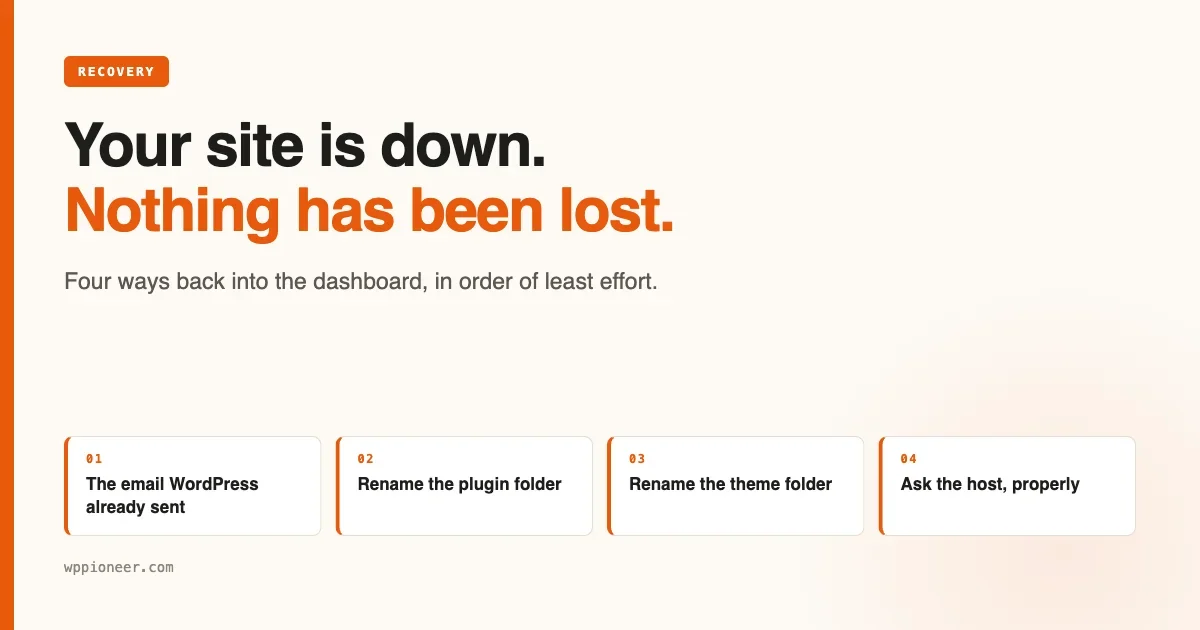
The job is to get back into the dashboard. There are four ways in, and they are listed here in order of how little they ask of you. Work down the list and stop at the first one that works.
Before anything else: three things not to do
Most of the damage done during an outage like this happens in the first twenty minutes, and it is done by the site owner rather than by the error.
- Do not reinstall WordPress. WordPress itself is almost certainly fine. Reinstalling replaces the files that were not the problem and leaves the ones that were.
- Do not restore a backup yet. A restore is a real option, but it is the last one, not the first. Restoring rolls your content back to whenever the backup was taken, so any orders, comments, form entries or posts since then are gone. Try to get in first.
- Do not delete anything. Not the plugins folder, not
wp-content, not a file that looks suspicious. Renaming is reversible. Deleting is not, and you may need to look at that file later to find out what happened.
One more, gently: this is not a hack. A hacked site behaves very differently, usually by working perfectly while doing something you did not ask for. A site that stops dead immediately after an update is a compatibility problem, and it is boring, which is good news.
Read the screen you actually got
“The site is broken” covers five different situations with five different fixes. Thirty seconds spent identifying which one you have will save you an hour of applying the wrong remedy. Look at what the page actually says.
“Briefly unavailable for scheduled maintenance. Check back in a minute.”
This one is different from the others and it is the happiest outcome, so check for it first. It is not an error at all. When WordPress starts an update it writes a small file called .maintenance into the main folder of your site, shows this message to everybody while the files are being swapped, and deletes the file when it finishes. If the update fails partway through, or the connection drops, that file gets left behind and the message stays up.
Here is the part most advice on this leaves out: WordPress clears this by itself after ten minutes. The file contains a timestamp, and core treats maintenance mode as finished once that timestamp is more than ten minutes old, whether or not anyone deleted anything.
So the first move is to wait ten minutes and reload. This is not a stalling tactic. Deleting the file while an update is genuinely still running is how you end up with a plugin whose files are half old and half new, which is a considerably worse problem than the one you started with.
If it is still there after ten minutes, then the file is stale and safe to remove. Using your host’s file manager, look in the main folder of your site, the one containing wp-config.php and the wp-content folder. Delete the file named .maintenance. Files beginning with a dot are hidden by default in most file managers, so you may need to switch on “show hidden files” in the settings before you can see it.
After the site comes back, check whatever was updating. A failed update often needs running again.
“There has been a critical error on this website”
This is a PHP fatal error, caught by WordPress and turned into a polite page. It is the main subject of this article and the rest of it applies. If the message continues with a line about checking your admin email for instructions, that is WordPress telling you the recovery email described below has been sent.
A completely blank white page
Same underlying cause as the previous one, but the error arrived so early that WordPress had not yet loaded the part that produces the friendly message. Treat it identically. The remedies from way 2 onwards work exactly the same, and turning on the debug log is more valuable here because you have been told nothing at all.
“HTTP ERROR 500” or a page from your host
Your web server responded before WordPress got involved, so it may not be WordPress at all. A corrupted .htaccess file and a PHP version change are both common causes. The debug log will be empty in this case, because WordPress never ran to write it. This is the situation where contacting your host early is genuinely the fastest route, since the answer is in the server error log rather than anywhere you can reach.
“Allowed memory size of X bytes exhausted”
A different problem wearing the same clothes. Nothing is broken as such, the site simply ran out of the memory allotted to it, usually while doing something heavy such as an import or an image resize. Raising the limit is a hosting setting rather than a WordPress one, so this is a support ticket, and it is a reasonable request that most hosts action quickly.
Be a little suspicious if it started right after an update, though. A plugin that suddenly needs four times the memory it needed last week has usually developed a loop rather than an appetite, and raising the limit buys time rather than fixing it.
Way in 1: the email WordPress already sent you
Since version 5.2, WordPress notices its own fatal errors and emails a special login link when one happens. The subject line reads:
[Your Site Name] Your Site is Experiencing a Technical Issue
That email contains a link into what WordPress calls recovery mode. Clicking it logs you into the dashboard with the broken plugin or theme switched off, so you can deactivate it properly, or update it, or delete it, without fighting the error the whole time.
Search your inbox for “Technical Issue” and check the spam folder, because these emails are automated and often get filtered.
Which inbox it went to, which is where people get stuck
This is the detail that wastes the most time, so it is worth being precise. The email does not go to your user account’s email address. It goes to the site administration email set in Settings > General, which is a separate field that many sites have never changed since the day they were built.
On sites built by an agency or a freelancer, that address is very often theirs rather than yours. On sites moved between hosts it is sometimes an address that no longer exists. If you cannot find the email, this is usually why, and it is not something you can fix from outside the dashboard. Move to way 2.
Two limits worth knowing
- WordPress sends one of these emails per day, not one per error. Reloading the broken page fifty times does not produce fifty emails. If the first one did not arrive, waiting for a second one is not a plan.
- The link expires after a day. If you find the email a week later, the link in it will no longer work. The expiry and the sending limit are the same interval by design.
If the email arrived and the link worked, you are in. Skip to the section on finding the culprit.
Way in 2: rename the plugin folder
If there is no email, the next route is to make WordPress stop loading the plugin that is failing. WordPress loads a plugin by looking for its folder. Rename the folder and WordPress cannot find it, so it quietly marks the plugin as deactivated and carries on.
You need file access to your site for this. Almost every host gives you one of these, and you already have it even if you have never used it:
- A File Manager in your hosting control panel. cPanel, Plesk, SiteGround Site Tools, Hostinger hPanel and most others all have one. This is the easiest option and needs no software.
- SFTP or FTP, using a free program such as FileZilla or Cyberduck and the credentials in your hosting account.
Once you are looking at your site’s files, navigate to:
wp-content/plugins/You will see one folder per installed plugin. If you know which plugin updated just before the site broke, rename only that folder. Add -off to the end of the name, so some-plugin becomes some-plugin-off. Then load your site again.
If the site comes back, you have found it. If it does not, rename that folder back to its original name and try the next candidate.
If you have no idea which plugin it is
Rename the entire plugins folder instead:
wp-content/plugins -> wp-content/plugins-offThat switches off every plugin at once. The site will look wrong, features will be missing and the layout may fall apart. That is expected and temporary. What matters is whether you can now reach /wp-admin.
Once you are logged in, rename the folder back to plugins. Every plugin will now show as deactivated in the dashboard, and you can turn them back on one at a time, loading the front page after each one, until the site breaks again. The one you just activated is the problem.
This is slow if you have thirty plugins, so use a shortcut: activate them in halves. Turn on the first fifteen. If the site is fine, the problem is in the other fifteen. Split whichever half is broken and repeat. Five rounds finds one plugin out of thirty instead of thirty rounds.
Way in 3: when it is the theme, not a plugin
If turning off every plugin changes nothing, the theme is the next suspect. The mechanism is the same. Rename your active theme’s folder inside:
wp-content/themes/When WordPress cannot find the active theme, it falls back to whichever default theme is installed, the ones named after years such as Twenty Twenty-Four. This only works if a default theme is still present, so before renaming, check that there is at least one other theme folder sitting there. If your site only has the one theme, download a default theme from WordPress.org and upload its folder first.
Your site will look completely different on the fallback theme. Nothing has been lost. Content and theme are separate, and switching back restores the appearance exactly.
One thing to be careful about here: if your theme was customised directly rather than through a child theme, renaming the folder is still safe, but be sure you rename rather than delete. A customised parent theme folder can contain work that exists nowhere else.
Way in 4: ask the host
There is no prize for solving this alone. If you cannot find file access, or the file manager is confusing, or you have tried the above and the site is still down, open a support ticket. Managed WordPress hosts deal with this exact situation constantly.
A ticket that gets a fast, useful reply contains four things:
- The site address.
- What you were doing when it broke, in one sentence. “A plugin updated automatically last night” is enough.
- The exact wording of what you see on the site.
- What you have already tried. This is the one people leave out, and it is the one that stops the reply being a list of things you already did.
Also ask them one question while you have their attention: “where does this site write its PHP error log, and can you send me the last twenty lines?” That answer is the subject of the next section, and getting it from support is much faster than hunting for it.
Finding out what actually happened
Once you are back in, there is a real temptation to move on with your day. Ten more minutes here is worth it, because the error message names the file that failed, and the file names the plugin.
The grey “critical error” page deliberately shows visitors nothing useful. The detail goes into a log file instead. To make WordPress write one, open wp-config.php in the root of your site, and find the line that says:
define( 'WP_DEBUG', false );Replace that single line with these three:
define( 'WP_DEBUG', true );
define( 'WP_DEBUG_LOG', true );
define( 'WP_DEBUG_DISPLAY', false );
The third line matters as much as the first two. It keeps the errors out of the page your visitors see and sends them only to the log, which is the safe way to do this on a live site.
Now reproduce the error once, then look at:
wp-content/debug.logRead the last few lines. You are looking for the word “Fatal” or “Uncaught”, and then a file path. That path will contain a plugin folder name, and that name is your answer.
Turn debugging back off when you are done. Set WP_DEBUG back to false and delete debug.log. A log left running grows without limit, and on a busy site it can quietly fill your disk over a few weeks.
What to do with the answer
Send it to the plugin’s authors. Copy the whole error line, say what changed just before it appeared, and include your PHP version and WordPress version, both of which are on the Tools > Site Health > Info screen.
This is not a formality. A specific report with a file path and a line number usually gets a fix in days. A report that says “your plugin broke my site” gets a request for more information, and the loop takes a week longer than it needed to.
Check the plugin’s support forum or issue tracker first, though. If a release broke one site it almost certainly broke others, and there may already be a thread, a fix in progress, or a working version number to roll back to.
Should you switch automatic updates off now?
This is the natural conclusion after a morning like that, and it is the wrong one. It is worth explaining why rather than just asserting it.
Plugin updates are how security fixes reach your site. When a vulnerability is found in a widely used plugin, automated scanning for unpatched sites begins within days, and it does not care how small your site is or whether anyone reads it. A site that does not update is not a site that avoids trouble. It is a site that stays vulnerable for however long it takes somebody to notice.
Compare the two failure modes honestly. An update that breaks your site announces itself immediately and is fixable in an afternoon, as this article demonstrates. A missed security update produces no symptoms at all until the day it produces very large ones. Trading the loud, recoverable problem for the silent, permanent one is a bad deal.
There are two adjustments that are worth making instead, and neither requires giving up the security.
- Let core update itself, and take plugin updates yourself once a week. WordPress core updates are the safest of the lot and the most security-critical. Plugin updates are where the breakage lives, so those are the ones worth doing at a time of your choosing rather than at three in the morning.
- Pick a time when you can look at the site afterwards. Tuesday morning, not Friday evening. The cost of a broken update is almost entirely how long it stays broken before anybody notices.
If you run a store or anything where downtime costs money directly, a staging site is the real answer: a copy of your site where updates go first. Most managed hosts include one, and most site owners who have one have never used it. Update there, click through the three pages that matter most, then repeat on the live site.
The twenty minutes that make next time easier
Everything in this section is free, takes one sitting, and is impossible to do during an outage. That last part is the whole point.
- Fix the admin email. Go to Settings > General and make sure the site administration email is an address you actually read. Send yourself a test through Tools > Site Health if you are not certain the site can send mail at all. This single field decides whether way 1 above exists for you.
- Log into your file manager once, today. Find
wp-content/pluginsand look at it. That is all. You now know the route, and you found it while nothing was on fire. - Write down where things are. Hosting login, the control panel address, SFTP details, where the backups live. One note, somewhere you can reach from your phone. Not on the site.
- Confirm a backup exists and that you know how to restore it. A backup you have never restored is a belief, not a backup. Most hosts have a one-click restore, and the time to find that button is not the day you need it.
- Check there is a default theme installed. One extra theme folder sitting unused is what makes way 3 possible.
The same idea applies to the email question more broadly. A site that cannot send mail has a lot of quiet failures beyond this one, including password resets and order confirmations, and it is worth checking properly. We covered how to test that in how to know if your WordPress emails are actually arriving.
Whose fault was it
Usually nobody’s, in the sense that would be satisfying. A plugin makes an assumption that is true on every site the developers tested and false on yours, because you have a combination of plugins nobody else has. That is not carelessness so much as arithmetic: there is no way to test against every combination of forty thousand plugins.
Which is worth knowing mainly because it changes what you do about it. If breakage is occasional and structural rather than a sign of a bad plugin, then the useful investment is in recovery being quick rather than in choosing perfect software. Knowing where your file manager is beats reading another comparison article.
That said, some plugins break more often than others, and that is a fair thing to weigh when you are choosing. Update frequency, how quickly the support forum gets answered and how long the plugin has been maintained all say something. That is part of a bigger question we went through in what breaks at month seven, which is about what to ask before you commit rather than after.
Summary
- Nothing is lost. One piece of code is failing early, which stops every page including the dashboard.
- Do not reinstall, do not restore a backup yet, and rename rather than delete.
- Read the exact message first. “Briefly unavailable for scheduled maintenance” is a stale
.maintenancefile, and WordPress clears it by itself after ten minutes. Wait before deleting it. - Check your inbox for “Your Site is Experiencing a Technical Issue”. It goes to the address in Settings > General, not your user account, and WordPress sends one per day with a link that expires in a day.
- No email: use your host’s file manager or SFTP to rename the failing plugin’s folder, or the whole
wp-content/pluginsfolder, then log in and reactivate in halves. - If no plugin is responsible, rename the active theme’s folder so WordPress falls back to a default theme. Make sure one is installed first.
- Turn on
WP_DEBUG,WP_DEBUG_LOGandWP_DEBUG_DISPLAYset to false, reproduce once, readwp-content/debug.log, then switch it back off. - Report the exact error to the plugin authors with your PHP and WordPress versions from Tools > Site Health > Info.
- Do not disable updates. Move plugin updates to a weekly slot you choose, and use staging if downtime costs money.
- Today, while nothing is broken: fix the admin email, open your file manager once, write down where everything is, and confirm you know how to restore a backup.

No comments yet