
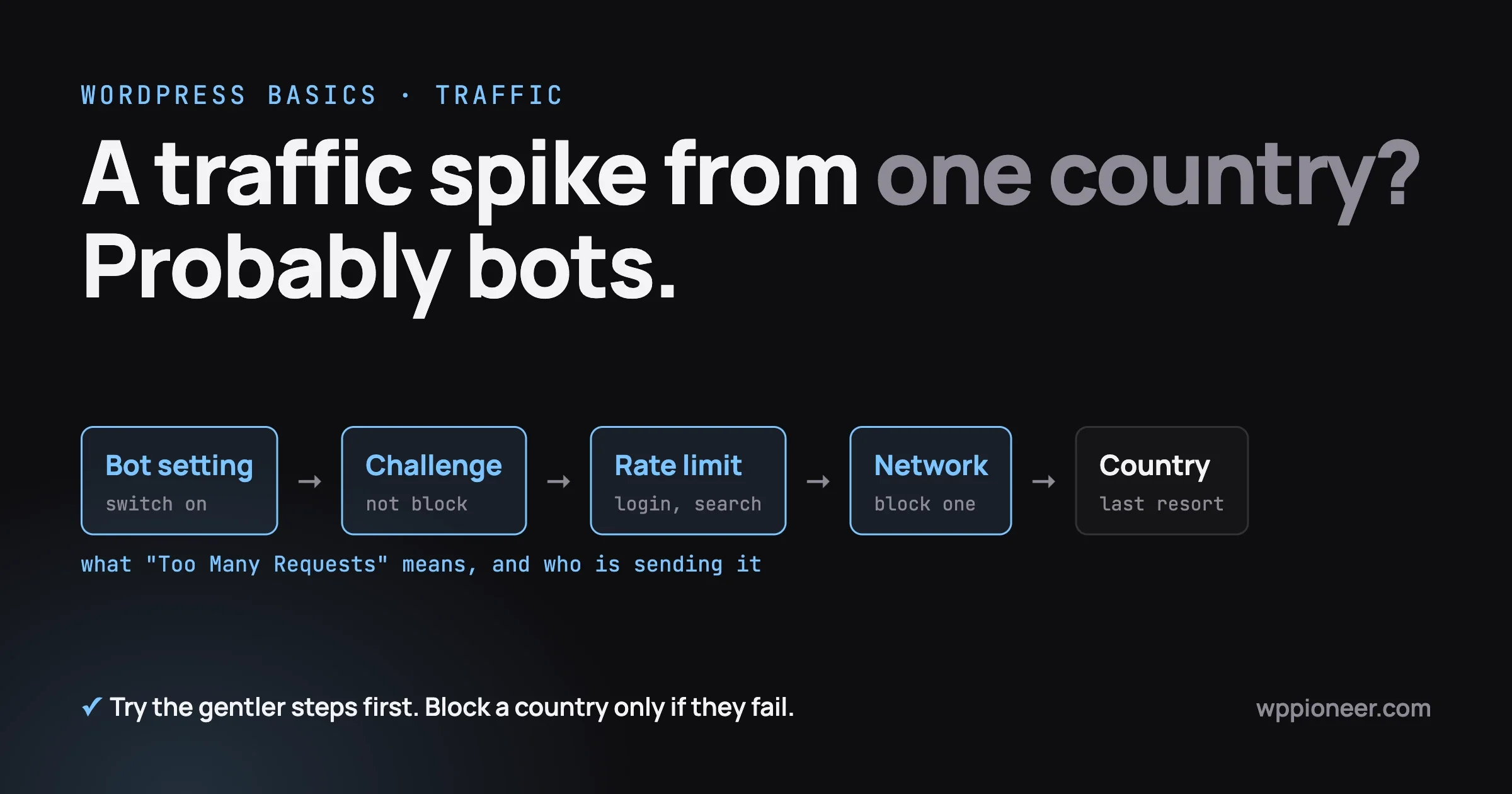
A sudden wave of visits from one country is almost always automated traffic (software programs, called bots), not people. Blocking the whole country is rarely the best first move. Try three gentler steps first: turn on the bot setting in your protection layer, show suspicious visitors a challenge instead of a block, and slow down the pages that bots hammer. A country block is reasonable only in a few cases, and this guide lists them. This guide does not say who is behind any traffic, and it names no country, because the steps are the same for every country.
If the jump worries you, or a visitor sent a screenshot saying “Too Many Requests”, take a breath. Neither means your site was hacked. Both are common and can be checked in an afternoon.
In this guide
- How to tell bots from people, in plain steps
- Where to look: analytics, your host’s stats and the access log
- What “Too Many Requests” means and who is sending it
- Why blocking a whole country can hurt you
- Five gentler options, in order
- When a country block is the right call, and how to make it easy to undo
- When to stop and ask your host, with the exact question to send
- A one-page decision table
- Questions people ask
Is a sudden wave of visits from one country real people?
Usually not. A small business site that serves its own region does not suddenly gain thousands of readers from a country it has never served. More often the visits come from programs that read pages automatically: search engines, collectors of text for AI products, or scanners looking for weak sites. Analytics shows them all as “visits” under a country.
One honest limit: the country shown is only where the connection appears to come from. It does not say who is sending it or why, so this guide never guesses. It helps you decide what to do, which is the part you control. Nothing here is legal or professional security advice.
How can you tell bots from people?
Real people behave like people. They read a page for a while, click on a second page, perhaps buy or send a message, and then leave. Bots behave like machines. Use the five checks below. One sign alone proves nothing. Three or more together are a strong hint.
- Many pages in a few seconds. A person cannot open fifty pages in a minute. A bot can open hundreds.
- No time on the page. Visits that last zero seconds, over and over, usually come from software that fetches a page and leaves.
- Odd hours. A wave in the middle of your customers’ night is a hint, not proof.
- The same few pages, again and again. Bots often hit your search page, your login page, your cart or your newest posts, over and over.
- No sales, no enquiries. Real interest produces some orders, form messages or sign-ups. If a large jump in visits brings none of those, the extra visitors were probably not shoppers or readers.
Write down what you see (date, pages, numbers). Your host will ask for exactly that.
Where do you look to see the traffic?
Three places, from easiest to most detailed. Use all three if you can, because they tell different parts of the story.
1. Your analytics, by country
Most analytics tools, including Google Analytics 4, have a report that splits visitors by country. The menu names change from time to time, so look for a section about users or demographics and then a “country” or “location” view. Compare the last seven days with the seven before. Note the country, the visits and the average visit length. Google states that Analytics automatically excludes traffic from known bots and spiders, and that you cannot turn this off or see how much was excluded (Google Analytics Help, known bot-traffic exclusion). Bots not on that list still appear.
2. Your host’s visitor or bandwidth stats
Most hosting control panels show how much bandwidth (data sent from your site) and how many requests your site used each day. Look for a day with a sharp rise. This view comes from the server, so it counts visitors that analytics may miss.
3. The access log
An access log is a plain text file kept by your web server. It adds one line for every request made to your site, with the visitor’s address, the time, the page asked for and the name the visitor gave itself. We explain where to find yours and how to read it in What Your WordPress Access Log Shows That Analytics Hides, so this guide does not repeat that. The short version for today: ask your host where the log is, download a day’s file, and count which addresses and which pages appear most.
If you or your host can open a terminal, these standard commands count the busiest visitor addresses and the most common visitor names. The example assumes the common log layout, where the address is the first item on each line.
# The 10 addresses that made the most requests
awk '{print $1}' access.log | sort | uniq -c | sort -rn | head -10

# The 10 most common visitor names (user agents)
awk -F'"' '{print $6}' access.log | sort | uniq -c | sort -rn | head -10

# How many requests were for your site search page
grep -c 'GET /?s=' access.log
If one address or visitor name makes up most of the file, you have found your wave. Copy the top lines to your notes.
Why analytics and the server log disagree
The two often show different numbers, and that is normal. Analytics tools count visitors using a small piece of code that runs on your page, in a visitor’s browser (Google Analytics Help, how Analytics collects data). A bot that only downloads page text may never run that code, while the server log records every request. So a big jump in the host’s chart with a flat analytics report points at automated traffic.
What does “Too Many Requests” mean, and who is sending it?
“Too Many Requests” is the plain-English name for the error code 429. The Mozilla developer documentation says it “indicates the client has sent too many requests in a given amount of time”, and calls the practice of asking the sender to slow down “rate limiting” (MDN, 429 Too Many Requests). In short, some part of your setup decided one visitor was asking for too much, too fast, and told it to wait.
The same page says the message may include a Retry-After header, a note saying how long to wait before trying again (MDN, Retry-After).
For comparison, a 403 Forbidden means the server understood the request but refused it (MDN, 403), and a 503 Service Unavailable means the server is not ready to handle the request, often from maintenance or overload (MDN, 503). So 429 means slow down, 403 means not allowed, and 503 means not ready.
Who is sending the 429?
A 429 can come from any layer between the visitor and your site. Ask these questions in order:
- Your protection layer. If you use a service that sits in front of your site, such as Cloudflare, its rate limiting rules can send one. Cloudflare’s own documentation says its block action returns a 403 in most security features and a 429 for rate limiting rules (Cloudflare, rule actions).
- Your security plugin. Many WordPress security plugins have a setting that limits login attempts or requests per minute. Look at the plugin’s firewall or rate limit settings and its blocked-visitor log.
- Your host. Some hosts limit requests per visitor or per account to protect shared servers. The error page or the host’s support team can say whether they sent it.
The error page is the quickest clue. A page with a protection service’s logo points to that service; a plain white page points to the host or a plugin. Screenshot it with the date and time.
What to do when real visitors see it
- Ask the visitor to wait a few minutes. A 429 is a pause, not a ban.
- Check the rate limit setting you found above. If it counts too aggressively (for example, a limit of five requests in ten seconds on your whole site), raise it or limit only the pages that need it, such as search and login.
- If a known good visitor is stuck, find their address in your protection tool’s log and add an allow rule for it, or ask your host to do so.
To prevent it, limit only the pages bots hammer, not the whole site (see the gentler options below).
Why can blocking a whole country hurt you?
A country block feels decisive, but the cost often shows later, in four ways.
- Real customers and readers get shut out. People travel. They also use phone networks, work networks and privacy services (VPNs) whose connection appears to come from somewhere else. A customer on holiday who cannot reach your checkout will not write to ask why.
- Search engine and other automated visitors you want. Google says that “most, but not all, Google crawls originate from the US” (Google Search Central, managing multi-regional sites). That means a country block can touch Google’s visits depending on the country, and Google also crawls from other places. Beyond search engines, other tools that visit your site (uptime checkers that tell you when your site is down, payment services, backup tools) connect from servers in various places. Check each tool’s own documentation for where it connects from before you block.
- Mistakes are costly. Google says that when its crawler gets a 4xx error (other than 429), it removes previously indexed pages and crawls less often, and that URLs persistently returning a server error are removed from the index (Google Search Central, HTTP status codes). A rule that wrongly blocks a search crawler for days can cost rankings.
- Bots simply move. A blocked program can usually return from another address at almost no cost. This is our reasoning, not a statistic, and it is why rules that look at behaviour beat rules that look at place alone.
What are the gentler options, in order?
Work down this list. After each step, wait a day, then check your host’s stats or log again, and stop when the wave is under control. The steps use Cloudflare’s documentation as the example of a widely used protection layer. Cloudflare moves its menus from time to time, so the names on your screen may differ a little from the ones below. Other hosts and plugins offer similar ideas.
Step 1: Turn on the protection layer’s bot setting
Cloudflare has a free setting called Bot Fight Mode. Its documentation says it “identifies traffic matching patterns of known bots” and issues challenges that make the requesting client do heavy calculations (Cloudflare, Bot Fight Mode on the Free plan). To turn it on, open Security Settings in the Cloudflare dashboard, filter by Bot traffic, choose Bot Fight Mode and switch it on. Two cautions from the same page: you cannot skip it with your own custom rules, and it can challenge legitimate programs such as an app or an API your site uses. If you run a mobile app or a service that calls your site, read that page first.
Without Cloudflare, look in your host or security plugin for “bot protection” or “block bad bots”.
Step 2: Challenge instead of block
A block shuts the door. A challenge asks the visitor to prove they are not a program and lets real people through. Cloudflare’s “Managed Challenge” picks between a non-interactive page and a simple interactive step to keep the work small for real people (Cloudflare, rule actions). It is the best first answer to “one country, a lot of traffic”, because a traveller can still get in while simple bots usually cannot.
On Cloudflare you create a custom rule. The documentation says custom rules match traffic using an expression, and that the Free plan allows 5 rules and every action except Log (Cloudflare, custom rules). The country field is called ip.src.country, and Cloudflare describes it as the two-letter country code in ISO 3166-1 Alpha 2 format (Cloudflare, ip.src.country). In plain words, the rule reads “when the visitor’s country code equals the one in your notes, show a Managed Challenge”. Name it clearly, such as “Challenge wave from one country, 8 Oct”.
Step 3: Rate limit the pages bots hammer
Rate limiting means “no visitor may ask for these pages more than a set number of times in a set time”. Cloudflare’s documentation says rate limiting rules define limits for requests that match an expression and an action when the limit is reached (Cloudflare, rate limiting rules). On the Free plan, the same page lists these limits: one rule, a counting period of 10 seconds, a mitigation timeout of 10 seconds, counting by IP address only, and only the Path and Verified Bot fields in the rule expression. That is still useful for a single busy page. Plans change, so read that page on the day you act.
Choose the pages your log shows bots hit most. Common ones are:
- The site search page (for example, addresses that start with
/?s=) - The login page,
/wp-login.php - The cart or checkout pages, if you sell online
Pick a limit no real person would reach: nobody searches ten times in ten seconds. Set the action to a short block or challenge. Security plugins and many hosts offer similar “limit requests” settings.
Step 4: Block by network when one hosting company is the source
Every connection comes from a network with a number called an ASN (autonomous system number). Cloudflare describes the field ip.src.asnum as the number for the network associated with the client address (Cloudflare, ip.src.asnum). Many bots run from rented data-centre servers. If your log shows most of the wave comes from one hosting company’s network, a rule matching only that network removes the wave without touching ordinary home and phone visitors in the same country. A public “IP address lookup” service shows the network behind an address.
A rule can also match the visitor name (http.user_agent, the header that identifies the client’s browser and operating system, per Cloudflare), but a visitor can type any name, so treat it as a hint. Cloudflare also advises using custom rules rather than its older IP Access rules for blocking by address or country (Cloudflare, IP access rules).
Step 5: Ask named AI crawlers not to crawl
Some of the wave may come from companies that gather text for AI products. Several publish a crawler name and a way to opt out. Why you might or might not want AI tools reading your site is covered in AI Search Is Answering Your Customers: What To Do About It, so this section only shows the how.
The tool for asking is a small text file called robots.txt at the top of your site. Google says it must sit at the root of the site host, for example https://example.com/robots.txt, and groups rules by crawler name (Google Search Central, create a robots.txt file).
Here is what two AI companies say about their own crawlers:
- OpenAI lists OAI-SearchBot (used to surface sites in ChatGPT search), GPTBot (used for its AI models, and a disallow means content should not be used for training), and ChatGPT-User (used for certain user actions, where it says robots.txt rules may not apply). It adds that changes can take about 24 hours to take effect for search (OpenAI, crawlers overview).
- Anthropic lists ClaudeBot (collects web content for its models), Claude-User and Claude-SearchBot, and shows how to opt out with a robots.txt entry. It also says that blocking by address may not work reliably, because it stops the crawler from reading your robots.txt file at all (Anthropic, crawler help article).
A short example that asks two named crawlers to stay away:
User-agent: GPTBot
Disallow: /

User-agent: ClaudeBot
Disallow: /
If you want the full list of AI crawlers and the more technical ways to keep them out, our sister site has a longer guide: How to Block AI Crawlers from Scraping Your WordPress Site.
This format (a User-agent line, then a Disallow line) is the one Anthropic shows for ClaudeBot and Google documents. Add one block per crawler. If you also block these companies’ search crawlers, you may drop out of the answers their tools give, so decide that on purpose.
Now the honest limit. robots.txt is a request, not a lock. The official standard, RFC 9309, says “these rules are not a form of access authorization”, and warns that listing paths in the file makes them publicly discoverable (RFC 9309, Robots Exclusion Protocol). Google says the same in plainer words: the instructions “cannot enforce crawler behavior to your site; it’s up to the crawler to obey them”, and reputable crawlers follow them while others might not (Google Search Central, robots.txt introduction). So named crawlers from companies that publish their rules can be asked, and a fake crawler that uses a borrowed name will simply ignore the request. For those, use steps 1 to 4.
Cloudflare’s AI Crawl Control is available on all plans, shows which AI services access your content, and lets you allow or block individual crawlers (Cloudflare, AI Crawl Control). AI bot policies sit under Security Settings, then Configure AI bot policies (Cloudflare, block AI bots).
Is the visitor really Googlebot?
Before you block a visitor that says it is a search engine, check. Google says the user agent header Googlebot uses “is often spoofed” by other crawlers (Google Search Central, Googlebot) and gives two ways to verify: a reverse DNS lookup on the address (the name should end in googlebot.com, google.com or googleusercontent.com) followed by a forward lookup that points back to the same address, or matching the address against Google’s published lists (Google Search Central, verifying Googlebot). With the host command:
host 66.249.66.1
host crawl-66-249-66-1.googlebot.com
The first command should return a name ending in googlebot.com. The second should return the same address. If the name does not match, it is not Google, whatever it calls itself.
When is blocking a whole country the right call?
A country block is a reasonable choice when all of the following are true:
- You serve only a few places and have a written reason (for example, you only ship locally).
- Your logs and analytics show those visits bring no orders, messages or sign-ups over more than a few days.
- The gentler steps above either did not work or cost too much time to keep up.
- You have checked that no tool you depend on (payments, uptime checks, backups, a mobile app) connects from that country.
This is not legal advice. If a law or contract forces you to restrict where you serve customers, ask a professional.
How to block in a way you can undo
- Start with a challenge, not a block. Use the Managed Challenge action first. Watch for a day. Switch to block only if bots still get through.
- Use a rule you can switch off. In Cloudflare, a custom rule can be turned off or deleted without touching the rest. Do not edit your server files by hand for this. A single rule on the dashboard is easier to undo.
- Name the rule with the date and the reason. For example, “Challenge one country, started 8 Oct, review 15 Oct”.
- Write a note. Record the date, the country code, the numbers before the rule (daily visits, host bandwidth), and why. Keep it where whoever manages the site can find it.
- Review after seven days. Check the log and host stats. Did the wave stop? Did real enquiries or sales change? Did anyone complain?
- Remove it when it stops being useful. If the wave has gone, switch the rule off and see whether it returns.
When should you stop and ask your host?
Stop and ask your host if any of the following is true:
- Your site is slow or offline, or your hosting account was throttled for using too many resources.
- The wave started at the same time as other strange events, such as new admin users or changed files. In that case, read WordPress Site Keeps Getting Hacked? The Hidden Reason Why and ask your host to scan the site.
Copy this message, fill in the brackets, and send it through your host’s support system:
Hello,

Since [date], our site [yourdomain.com] has had a large jump in
requests that look automated. Please check the last [7] days:

1. Which IP addresses, networks and user agents made the most requests?
2. Is anything on your side limiting or blocking requests, and are
   your servers sending any 429 or 403 errors?
3. Is this traffic using up our bandwidth or CPU allowance?
4. Can you rate limit or challenge the busiest pages ([search, login,
   cart]) at server level?
5. Is any of it from verified search engine crawlers?

We have a note with the dates, pages and numbers. Thank you.
One-page decision table
What you see | Likely meaning | First step | Avoid |
|---|---|---|---|
Big jump in visits from one country, zero-second visits, no sales | Automated traffic | Turn on the bot setting, then add a challenge rule for that country | Blocking the whole country on day one |
Same few pages (search, login, cart) hit again and again | Bots hammering one feature | Rate limit those pages only | Rate limiting the whole site |
Most requests come from addresses of one hosting company | Rented server running a bot | Rule that matches that network (ASN) | Blocking the country that network sits in |
Named AI crawler in the log | A company reading pages for AI products | Add a robots.txt entry for that name, or use AI crawler controls | Expecting robots.txt to stop fake crawlers |
Real visitor sees “Too Many Requests” | A rate limit is too strict or shared | Wait, then raise the limit for those pages or allow the address | Switching off all protection |
Questions people ask
Should you block all traffic from one country?
Not as a first step. Try the bot setting, a challenge and rate limits first. A country block is reasonable when you serve only certain regions, the visits bring nothing, and the gentler steps did not work. Make the rule easy to switch off and review it after a week.
Are these visits AI scrapers?
Possibly, but the number alone cannot say. Check the visitor names in your log against the AI companies’ published crawler names, and ask in robots.txt. Programs using a false name will ignore it, so use rate limits and challenges for those.
Will blocking visitors hurt my Google rankings?
It can, if you block the wrong thing. Google says most, but not all, of its crawls come from the US, and persistent errors lead to pages being dropped. Verify any visitor claiming to be Googlebot before you act.
Why does my site show “Too Many Requests”?
Your host, a security plugin or a protection service thinks one visitor sent too many requests in a short time. Wait a few minutes. If it keeps happening to real people, loosen the limit or allow their address.
Does robots.txt stop bad bots?
No. It is a request that honest crawlers follow. The official standard says its rules are not a form of access authorization. It cannot stop a program that chooses to ignore it.
If the numbers still do not add up, or you would like someone to read your logs and set up the rules, contact us and tell us what you are seeing.
No comments yet