You cleaned the site. The redirects stopped, the scanner went green, and you changed the admin password. A week later the spam links are back, or a visitor tells you they got sent to a fake prize page again. If your WordPress site keeps getting hacked after every cleanup, you are almost never dealing with a new attack. You are dealing with the same infection that never fully left.
This guide explains why malware comes back, where it hides so that a normal cleanup misses it, and the cleanup order that actually makes it stay gone. It is written for site owners and freelancers who have already tried once. If you are not yet sure your site was compromised at all, start with how to tell if your WordPress site was hacked, then come back here.
Why Your WordPress Site Keeps Getting Hacked After Cleanup
Most people clean a hacked site the same way: run a security scanner, delete the files it flags, reset the admin password, and move on. That works against simple malware. It fails against anything written by someone who expected you to do exactly those three things.
Modern WordPress malware is built around one goal: survive the most common cleanup steps. It keeps more than one copy of itself, hides in places the dashboard does not show, and plants a way back in before you ever notice it. Delete one piece and another piece quietly rebuilds it.
A real example makes this concrete. On 22 September 2026 the Wordfence Threat Intelligence team published an analysis of a malware sample their incident response team found during a site cleanup in June. In their words, the persistence mechanisms "are designed to defeat the most common cleanup steps a site owner would take." We will use that sample throughout this article, because almost every trick it uses shows up in other infections too. You can read the full Wordfence analysis here.
There are really only three reasons an infection comes back:
- A hidden copy survived. The malware stored a backup of itself somewhere you did not clean, usually the database, and restored itself.
- The attacker still has a key. A hidden admin account, a stolen password, or a leaked secret lets them walk straight back in.
- The original door is still open. The outdated plugin, weak password, or neighbouring site that let them in the first time is still there.
A cleanup that sticks has to deal with all three. If your WordPress site keeps getting hacked, one of them is almost always still in place. The next sections show where each one hides.
The 7 Places Reinfection Hides
1. The must-use plugins folder
WordPress has a special folder, wp-content/mu-plugins, for "must-use" plugins. Anything in it loads automatically on every page request. It cannot be switched off from the normal Plugins screen, and many site owners do not even know the folder exists. That combination makes it one of the favourite hiding spots for persistent malware.
The Wordfence sample installed itself there, disguised as an automated health check and reporting tool with a believable author name and a link to a code repository. It then went further and hooked WordPress filters to remove itself from the Must-Use plugins list, the standard Plugins page, update notices and the Site Health screen. So even an admin who knew to look under Plugins, Must-Use would see nothing.
The sample also showed up under more than 4,000 different file names across Wordfence's detections, including names that sound like core WordPress files: advanced-cache.php, db.php and a theme's functions.php. The plugin name and author changed between copies too. That means you cannot hunt for one "bad" file name. You have to look at every file in mu-plugins and ask whether you know what it is and who put it there.
What to do: open wp-content/mu-plugins over SFTP or your host's file manager, not through the dashboard. Every file there should belong to something you recognise, such as your host's own tooling or a plugin you installed on purpose. A heavily scrambled file from an author you have never heard of is a strong warning sign.
2. A copy of the malware inside the database
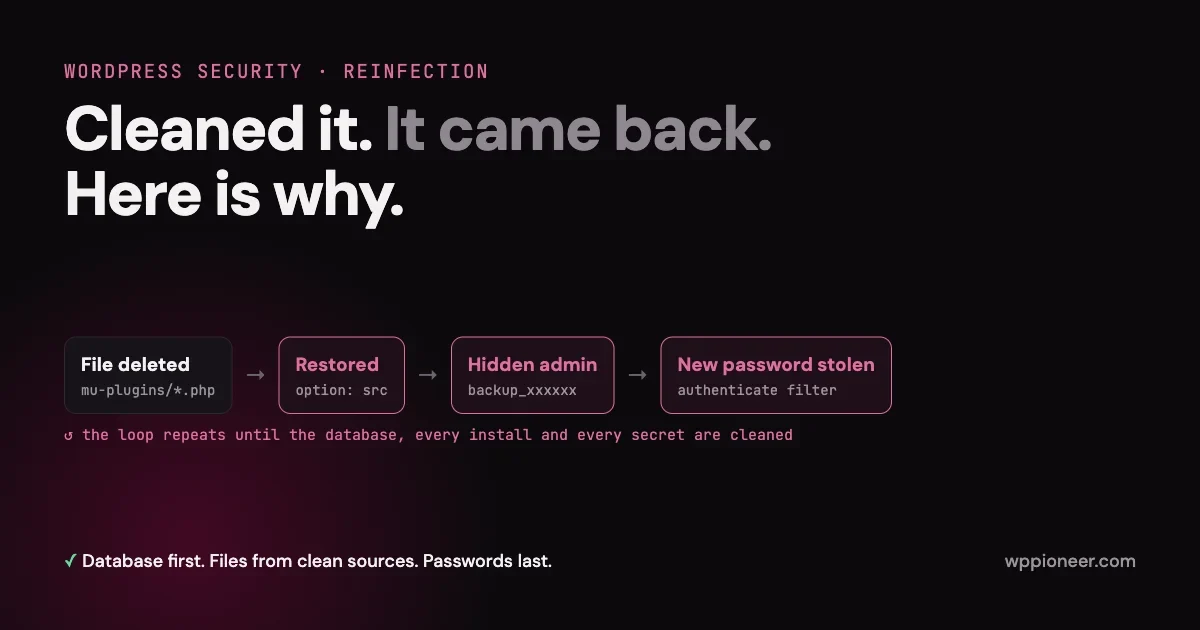
This is the trick that makes "I deleted the file and it came back" possible. The malware saves its own source code in the WordPress database, in the wp_options table. Then it checks, early on every request, whether its file is still on disk.
In the Wordfence sample, that check runs once an hour, throttled by a transient named sc_recover_check. If the file is missing, or smaller than 5,000 bytes because someone emptied it, the malware reads its saved copy from an option called src and writes the file back. It then backdates the file's modification time so it looks old, and sets the permissions to read-only. From the outside it looks like a file that has always been there.
This is why deleting the file alone is useless against this kind of infection. Within an hour it is back, and it now looks older than your cleanup.
What to do: check the database, not just the files. Look in wp_options for option names that no plugin of yours would use. For this family, Wordfence lists four: src (the malware's code), bu and bp (a username and password), and ic (passwords captured at login). Other families use other names, so treat any large option full of encoded PHP as suspicious.
3. Hidden administrator accounts
An admin account is the simplest way back in, so almost every serious infection creates one. The Wordfence sample built usernames from one of four prefixes plus six random characters:
admin_xxxxxxadm_xxxxxxadministrator_xxxxxxbackup_xxxxxx
If an admin account it had created earlier already existed, it reset that account's password instead, so the total number of users stayed the same.
Then it hid the account. It changed the query WordPress runs before showing the Users page, removed the account from REST API user lists, and even subtracted one from the "All" and "Administrator" counts at the top of the Users screen, so the numbers still add up. You can stare at the Users page for an hour and see a clean list with totals that match.
What to do: check the wp_users table directly, with phpMyAdmin or WP-CLI. The dashboard, and any tool that goes through WordPress's user queries, can be lied to. We show the exact commands further down.
4. Passwords stolen at login
Here is the one that catches careful people. You find the hidden admin, delete it, change your own password, and the attacker still gets back in. How?
The Wordfence sample hooks WordPress's authenticate filter, which runs on every login. When an administrator logs in, WordPress hands that filter the plaintext password, and the malware stores it in the ic option. If you logged in while the site was infected, including to clean it, the attacker has your current password.
That is why changing passwords is step six of the cleanup below, not step one. A password you set on an infected site is a password you handed to the attacker.
The same malware also searched wp-config.php, any .env file and .git/config for payment and cloud keys (Stripe, Braintree, Authorize.Net and AWS), and read the settings WooCommerce stores for payment gateways. If you run a shop, those keys have to be treated as leaked too.
5. Scheduled tasks
WordPress has its own task scheduler, WP-Cron, which plugins use to run jobs on a timer. Malware can register its own schedules and jobs there, so it wakes up on a timetable to re-download itself or check in with its operator.
Wordfence notes that this family uses its own custom schedules with unfamiliar names, and gives one example, jf_7xc5bj9trbgji. You will not see these on any dashboard screen by default. You need WP-CLI or a cron viewer plugin to list them.
6. Other sites on the same hosting account
If you host several WordPress sites on one account, this is the most common reason cleanup "fails". You clean site A. Site B, on the same account, is still infected, and it writes the malware straight back into site A.
The Wordfence sample does exactly this. At most once every three days it searches common web server folders (such as /home, /var/www and /var/www/html) for other WordPress installs, and copies itself into their mu-plugins folder, or into plugins if that fails. In their words, "on a shared hosting environment where multiple sites share the same server, a single infection can spread silently across all of them."
What to do: clean every WordPress install on the account at the same time, including old staging copies, a forgotten test site in a subfolder, and anything you set up years ago and never deleted. A cleanup that covers one site out of four is really a pause, not a fix.
7. The door they came in through
Even a perfect cleanup does not help if the way in is still open. The usual entry points are:
- A plugin or theme with a known vulnerability that has not been updated.
- An abandoned plugin that no longer gets security fixes at all.
- A reused or weak password on a WordPress, hosting, SFTP or database account.
- A neighbouring site on the same account (see the previous section).
If you never find the entry point, assume it is one of these and close all of them. Keeping WordPress itself current matters here too. Security releases get attacked within days of being published, as we covered in the security release many sites missed.
Why "Delete the File and Change the Password" Makes It Worse
Put those seven pieces together and you can see why the usual cleanup order backfires:
- You delete the flagged file. Within the hour the malware restores it from its database copy, backdated and read-only.
- You change your admin password, while logged in to the infected site. The login filter captures the new password.
- You check the Users page. The hidden admin is filtered out and the counts are adjusted to match.
- You clean one site. Another install on the same account copies the malware back within three days.
Each step feels like progress. None of them removes the infection, which is exactly how a WordPress site keeps getting hacked by the same attacker week after week. This is also why a clean scan result is not proof on its own. In the comments under Wordfence's analysis, a site owner reported that a site with this infection in September was only flagged as a medium threat by the scanner, and Wordfence replied that it may be one of the newer variants they have been seeing. Scanners work from known patterns. Malware that changes its file names, metadata and code between copies will sometimes get past them.
The Cleanup Order That Actually Sticks
The order matters more than any single tool. Work through these steps in sequence, and do not skip ahead to passwords.
Step 1: Take a snapshot, then stop the bleeding
Before you change anything, take a full backup of files and database, even though it is infected. You may need it to trace how the attacker got in, and it protects you if a cleanup step goes wrong. Label it clearly as infected so nobody restores it by mistake.
If the site is actively redirecting visitors or showing spam, put it into maintenance mode at the server level, or ask your host to restrict it, while you work.
Step 2: List every WordPress install on the account
Log in to your hosting control panel or file manager and write down every folder that contains a wp-config.php file. Include staging sites, subfolder installs and old copies. Every one of them is in scope for this cleanup, and every one needs the same treatment.
Step 3: Check the database first
Because the database can hold a copy of the malware, clean it before the files. Otherwise the files come straight back.
If you have WP-CLI on your server, these commands show you what the dashboard hides. Run them from the site's root folder.
List every administrator straight from the database, bypassing WordPress's user queries (which the malware can filter). Replace wp_ with your table prefix if it is different:
wp db query "SELECT u.ID, u.user_login, u.user_email, u.user_registered
FROM wp_users u
JOIN wp_usermeta m ON m.user_id = u.ID
WHERE m.meta_key = 'wp_capabilities' AND m.meta_value LIKE '%administrator%'
ORDER BY u.user_registered DESC;"
Compare that list with the people who should really have admin access. Any account you do not recognise, especially one matching the admin_, adm_, administrator_ or backup_ pattern, needs investigating. Note its ID and creation date, because the date often points to when the attack started.
Look for the option names this family is known to use:
wp db query "SELECT option_name, LENGTH(option_value) AS size
FROM wp_options
WHERE option_name IN ('src', 'bu', 'bp', 'ic');"
Then look more widely for unusually large options, which is where a hidden copy of code tends to live:
wp db query "SELECT option_name, LENGTH(option_value) AS size
FROM wp_options
ORDER BY size DESC
LIMIT 25;"
Large options are often completely legitimate (page builders and caching plugins store a lot), so do not delete anything just because it is big. Open the suspicious ones and look for encoded PHP, long strings of random characters, or option names that do not belong to any plugin you use.
List the scheduled task schedules and events, and look for names you do not recognise:
wp cron schedule list
wp cron event list
If you do not have WP-CLI, phpMyAdmin in your hosting panel can run the same SQL queries. Ask your host if you are not sure how to open it.
Step 4: Replace files from clean sources, do not repair them
Hunting through infected files line by line is slow and easy to get wrong. Replacing them is faster and more reliable.
First, let WordPress tell you which core and plugin files have been changed. These commands compare your files with the official checksums from WordPress.org:
wp core verify-checksums
wp plugin verify-checksums --all
Then replace, rather than edit:
- WordPress core: reinstall a fresh copy of the same version with
wp core download --force --skip-content. This replaces core files without touchingwp-content. - Plugins and themes: delete each one and install a fresh copy from WordPress.org or the vendor. Premium plugins should come from your account on the vendor's site, never from a backup of the infected site.
- Must-use plugins and drop-ins: go through
mu-plugins,advanced-cache.php,db.phpandobject-cache.phpby hand. Keep only what you can identify. - Uploads: the uploads folder should contain images and documents, not PHP. Search it for PHP files:
find wp-content/uploads -name "*.php". Anything that turns up there deserves a close look.
Only after the files are clean should you delete the hidden admin accounts, the malicious options and the rogue cron entries you found in step 3. Doing it in this order stops the malware from restoring one piece from another while you work.
Remember that this family sets restored files to read-only. If a file refuses to delete, check its permissions rather than assuming the deletion worked.
Step 5: Clean every other install the same day
Repeat steps 3 and 4 on every install from your step 2 list. If you cannot clean an old test site properly, delete it entirely. An abandoned copy of WordPress is one of the easiest ways for an infection to survive.
Step 6: Now rotate every secret
Only now, with the malware gone, change passwords and keys. If you do it earlier, the login filter can capture the new ones. Rotate:
- Every WordPress administrator password, and ideally every user with editor access or above.
- The WordPress salts in
wp-config.php, which logs everyone out and invalidates stolen login cookies. WP-CLI can do this in one line:wp config shuffle-salts. - The database password (update it in
wp-config.phpat the same time). - Your hosting control panel, SFTP and SSH passwords.
- Any API or payment keys stored in
wp-config.php,.envor plugin settings, such as Stripe, PayPal, AWS or email service keys. If the site takes payments, contact your payment provider as well.
Turn on two-factor authentication for every admin account while you are at it. A stolen password is far less useful to an attacker when it is not enough on its own.
Step 7: Close the entry point
Update everything that is out of date, and remove any plugin or theme that is abandoned, unused, or only installed "just in case". Fewer plugins means fewer doors. If you found the specific plugin that was exploited, check whether a fixed version exists before you reinstall it, and replace it if it does not.
Step 8: Watch closely for two weeks
Reinfection usually shows itself within days, so the first two weeks after a cleanup are when to watch. Rerun the database checks from step 3 a few times. Check mu-plugins again. Look at your security plugin's log for new admin accounts, file changes and failed logins. If you are not sure what that log should show, see what your WordPress security plugin actually does and how to monitor it. If the same option names or the same kind of admin account reappear, something was missed, and it is time to bring in help.
For a structured version of what to keep checking afterwards, our 20-point monthly security audit checklist works well as a routine once the site is clean.
How to Keep It From Happening Again
Once the site is clean, a few habits remove most of the ways an attacker gets a foothold in the first place:
- Update promptly, especially security releases. Most infections come in through a known hole with a fix already available.
- Keep the plugin list short. Every plugin is code that can have a vulnerability. Delete what you do not use rather than just deactivating it.
- Separate sites. Where you can, put important sites on their own hosting account or container, so one infected site cannot write into another.
- Use unique passwords and two-factor authentication for WordPress, hosting and SFTP.
- Harden the basics. Disabling the built-in file editor and setting sensible file permissions will not stop every attack, but it removes easy wins. Our 17-step hardening checklist walks through them.
- Know what your security plugin covers. Free tiers of some security plugins receive new malware signatures later than paid tiers. For the family in this article, free Wordfence users got the signature 30 days after paying customers. We explain what that delay means in your security plugin is protecting you a month late.
- Keep off-site backups you have actually tested. A clean backup from before the infection is often the fastest recovery of all, as long as you still close the entry point and rotate secrets afterwards.
When to Get Professional Help
You can handle a lot of this yourself, especially with the steps above. It is time to call in a professional if any of these are true:
- The site has been reinfected twice or more after your own cleanups.
- The site takes payments or stores customer data. Leaked payment keys and customer records bring obligations beyond the website itself.
- You host several sites on one account and cannot clean them all at the same time.
- You find signs of malware you do not understand, such as scrambled code, unknown database options or admin accounts you cannot delete.
A good cleanup service does more than delete files. It finds how the attacker got in, checks the database and every install on the account, and tells you which secrets to rotate. If you want the full hands-on walkthrough of a standard cleanup first, see how to fix a WordPress site that has been hacked.
Frequently Asked Questions
Why does my WordPress site keep getting hacked even after I remove the malware?
Because part of the infection survived. The most common reasons are a copy of the malware stored in the database that restores the file, a hidden admin account, passwords captured while you were logged in, another infected site on the same hosting account, or the original vulnerability still being open. Clean the database and every install before you change passwords, then close the entry point.
How do I remove malware from the WordPress database?
Back up the database first. Then look in wp_options for unfamiliar options containing encoded PHP, check wp_users directly for administrator accounts you do not recognise, and list WP-Cron events for unknown tasks. Replace infected files from clean sources before you delete those database entries, so the malware cannot restore one from the other.
Is a clean security scan enough to know the site is safe?
No. Scanners match known patterns, and malware that changes its file names and code between copies can be missed, especially by a new variant. Treat a clean scan as one signal, and back it up with the manual database and file checks in this guide.
Should I just restore a backup instead of cleaning?
Restoring a backup from before the infection is often the quickest route, but it is not a complete fix on its own. The vulnerability that let the attacker in is still in that backup, and any passwords or keys stolen since are still valid. Restore, then update everything, check every other site on the account, and rotate all secrets.
Why do I need to change passwords last?
Some malware captures passwords at the moment you log in. If you change your password while the site is still infected, the attacker simply records the new one. Remove the malware first, then rotate every password and key.
The Short Version
Malware that keeps coming back is not bad luck. It is malware doing what it was built to do: keep a spare copy, keep a way in, and hide from the places you look. Stop cleaning the symptom and clean the whole system in the right order. Check the database and every install first, replace files from clean sources, then rotate every secret and close the door that let it in. Do that once, properly, and "it came back again" stops being part of your week.
No comments yet