
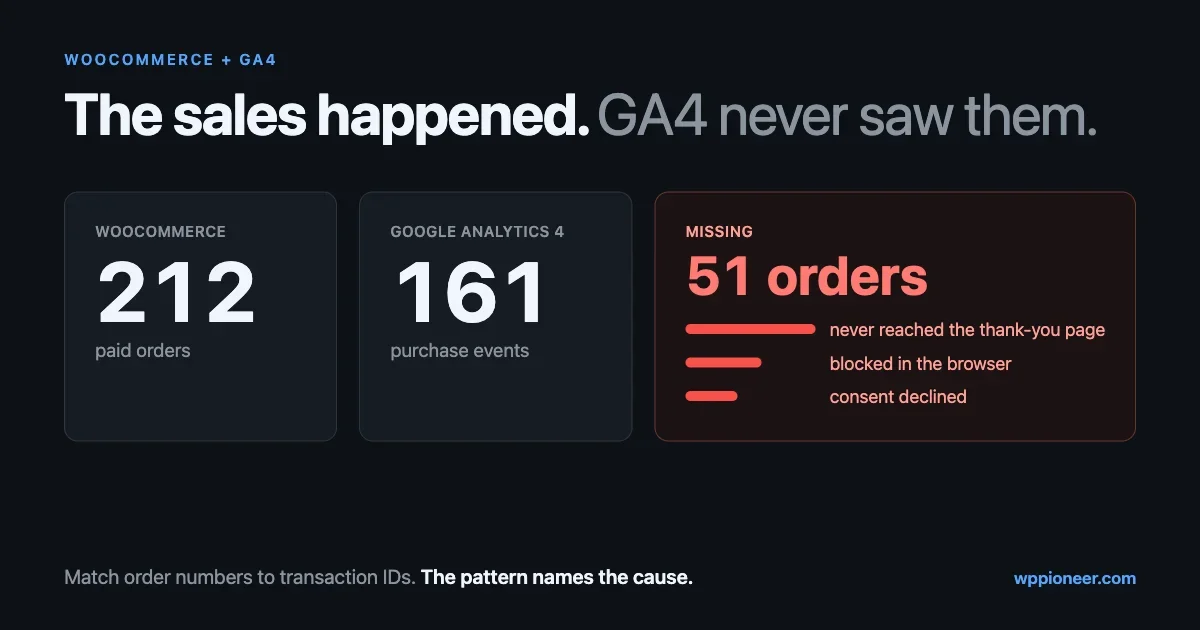
WooCommerce says you took 212 orders last month. Google Analytics says 161 purchases. Nobody refunded 51 orders, and nobody made them up. The money is in your bank account. It just never reached the report you use to decide which ads to keep, which pages to improve and which products to push.
A small gap between the two numbers is normal and will never fully close. A gap of a quarter of your sales is not normal. It means GA4 is quietly wrong about which channels make you money, and every decision built on that report inherits the error.
This guide walks through how to measure the gap properly, the seven reasons purchases go missing (or show up in the wrong place), how to tell which one is hitting your store, and what you can realistically fix. It assumes you already have GA4 connected. If you do not, start with how to add Google Analytics to WordPress and come back.
First, stop comparing the wrong numbers
Before hunting for a bug, make sure the two reports are counting the same thing. Half of the “missing sales” questions in support forums are really these four mismatches.
Order status
WooCommerce counts an order the moment it exists. That includes pending payment, on hold (bank transfer or cheque waiting for money) and failed orders, depending on which screen you are reading. GA4 only knows about purchases where a purchase event was sent. For a fair comparison, count only orders in processing and completed status.
Time zone
Your store has a time zone in Settings > General. Your GA4 property has its own in Admin > Property details. If one is set to London and the other to Los Angeles, a day in one report is a different eight hours in the other. Over a month this washes out. Over a single day it can look like a disaster. Match them before you compare anything shorter than a week.
Processing delay
GA4 is not instant. Google’s own data freshness documentation says realtime data typically appears within minutes, intraday data in 2 to 6 hours, daily data in about 12 hours for standard properties, and that “data processing can take 24-48 hours. During that time, data in your reports may change.” Never compare yesterday. Compare a closed week that ended at least two days ago.
Revenue versus orders
Revenue figures differ for reasons that have nothing to do with tracking: shipping, tax and discounts can be included in one total and excluded from the other. Count orders first. Once order counts line up, revenue differences are a configuration question, not a missing-data question.
Build a reconciliation sheet (20 minutes, once)
The fastest way to find out why purchases are missing is to find out which purchases are missing. A total tells you there is a problem. A list of order numbers tells you what the problem is.
Step 1: Export your orders
In WooCommerce, go to Analytics > Orders, pick a closed week, filter to processing and completed, and use the Download button to get a CSV. You want the order number, date, status, total and, most importantly, the payment method.
If you are comfortable with WP-CLI, this gives you the same list plus one extra column that turns out to matter a lot (explained in cause 2 below):
wp eval '
$orders = wc_get_orders( array(
    "limit"        => -1,
    "status"       => array( "processing", "completed" ),
    "date_created" => "2026-09-01...2026-09-07",
) );
foreach ( $orders as $o ) {
    echo $o->get_id(), "\t",
         $o->get_payment_method(), "\t",
         $o->get_total(), "\t",
         ( $o->get_meta( "_ga_tracked" ) ? "rendered" : "never" ), "\n";
}'
This uses wc_get_orders(), so it works whether your store uses the older posts storage or High-Performance Order Storage.
Step 2: Export GA4 purchases with their transaction IDs
In GA4, open Explore and start a Free form exploration. Add the dimension Transaction ID and the metric Ecommerce purchases. Set the same date range. Drag Transaction ID into rows and export.
If your tracking is set up correctly, the transaction ID is the WooCommerce order number. If this column is full of “(not set)”, stop here: your tag is not sending a transaction ID at all, and that is the first thing to fix.
Step 3: Match them
Put both lists in one spreadsheet and mark every WooCommerce order that has no matching transaction ID in GA4. Then sort the missing ones by payment method, by date and by order total. The pattern that appears is almost always one of the causes below.
Pattern in the missing orders | Most likely cause |
|---|---|
Nearly all use one payment method | Cause 1: buyer never returned to the thank-you page |
Spread across methods, order meta says “rendered” | Cause 2 or 3: blocked by the browser or by consent |
Some transaction IDs appear twice, or totals are higher in GA4 | Cause 4: more than one tag on the page |
Counts match but revenue is credited to paypal.com | Cause 5: payment domain stealing attribution |
Missing orders cluster after a cache or theme change | Cause 6: cached or rebuilt checkout pages |
GA4 catches up a day or two later | Cause 7: you compared too early |
Cause 1: The buyer paid somewhere else and never came back
The purchase event in almost every WooCommerce tracking setup fires on the order received page, the one that says “Thank you. Your order has been received.” That page is the only place in the flow where the browser knows the order number, the items and the total.
If the customer never loads that page, the event never fires. The order still exists and the money still arrives, because payment gateways confirm payment to your server directly in the background. The browser is simply not part of that conversation.
The official Google Analytics for WooCommerce plugin says this in its own settings screen. Next to the purchase tracking checkbox, the description reads: “This requires a payment gateway that redirects to the thank you/order received page after payment. Orders paid with gateways which do not do this will not be tracked.”
Common ways a customer skips the thank-you page:
- They pay on the gateway’s own domain (a hosted payment page) and close the tab on the gateway’s own “payment successful” screen instead of clicking back.
- A bank’s card verification step opens in a different window or app, and the customer finishes there.
- They pay with a buy-now-pay-later provider on their phone, in the provider’s app, after starting on a laptop.
- The gateway’s return URL is misconfigured and sends them to your home page instead of the order received page.
How to confirm it: if your reconciliation sheet shows the missing orders are mostly one payment method, place a real low-value test order with that method and watch where you land after paying. If you do not land on “Order received”, you have found it.
What to do: first check the gateway plugin’s settings for an automatic return or redirect option and turn it on. Many hosted gateways have one and ship with it off. If the gateway cannot return customers reliably, the only complete fix is server-side tracking, covered later in this guide.
Cause 2: WooCommerce marked it tracked, but Google never received it
This one surprises people, and it explains why reloading the thank-you page never “fixes” a missing purchase.
Look at how the official plugin (version 2.4.2 at the time of writing) handles the thank-you page. On the woocommerce_thankyou hook, it checks the order for a meta field called _ga_tracked. If the field is not set and the order key in the URL is valid, it saves _ga_tracked = 1 on the order, then adds the order data to the page so the browser can send the purchase event.
Notice the order of operations. The order is marked as tracked on the server, while the page is being built. The event is sent by the browser, after the page arrives. Anything that stops the browser from sending it happens after WooCommerce has already recorded success:
- An ad blocker or privacy extension blocks the Google tag.
- The browser’s own tracking protection blocks the request.
- The customer closes the tab the instant the page starts loading.
- A JavaScript error from another plugin stops scripts running further down the page.
In all of these, the order says “tracked” and GA4 has nothing. The design is deliberate: marking the order first means a customer who refreshes the thank-you page, or opens it again from their confirmation email, does not create a second purchase. Preventing duplicates is the right default. The trade-off is that a lost event is never retried.
How to confirm it: this is what the extra column in the WP-CLI command is for. Orders that say rendered but are missing from GA4 reached the thank-you page and were lost in the browser. Orders that say never did not reach it at all, which points back to cause 1.
What to do: you cannot make every browser run your tags, and you should not try to trick ad blockers. Check the browser console on your thank-you page for JavaScript errors, because those you can fix. Then accept that some share of browser-side events will always be lost, and use a server-side record for the numbers that have to be exact.
Cause 3: Consent said no, and consent is working as designed
If you sell to Europe or the UK, a real share of your customers will decline analytics cookies. Consent Mode is how Google tags respect that choice, and the official WooCommerce plugin sets it up for you.
In the plugin source, the default consent state sets analytics_storage, ad_storage, ad_user_data and ad_personalization to denied for a list of 32 regions: the EU countries, Iceland, Liechtenstein, Norway, the UK and Switzerland. Visitors from those regions are treated as not consenting until your consent banner says otherwise. It connects to banners through the WP Consent API, and version 2.4.2 added an explicit denied state for visitors who have not made a choice yet on sites that require opt-in.
When analytics storage is denied, a purchase is not recorded the normal way. Google can use behavioral modeling to estimate what those visitors did, but only above a threshold. According to Google’s consent mode modeling documentation, the property must collect “at least 1,000 events per day with analytics_storage=’denied’ for at least 7 days” and have “at least 1,000 daily users sending events with analytics_storage=’granted’ for at least 7 of the previous 28 days.” It also requires the advanced implementation, where Google tags load before the consent dialog appears.
Read those numbers against your own store. A shop with a few hundred visitors a day will never qualify. For most small and mid-size WooCommerce stores, a declined consent is simply a purchase GA4 does not count, and nothing fills the gap.
How to confirm it: if you sell mainly to the EU or UK and your missing share is steady from week to week regardless of payment method, consent is the most likely explanation. Compare the gap on orders with European billing addresses against the rest.
What to do: nothing that bypasses the visitor’s choice. That is not a tracking bug, it is the law working. Make sure your banner is set up properly (our guide to cookie consent and privacy plugins covers the options) and that it talks to the WP Consent API so the Google tag receives the visitor’s actual decision instead of a stale default. The plugin also exposes a woocommerce_ga_gtag_consent_modes filter for changing the default consent values. Use it to match your legal setup, not to switch consent off.
Cause 4: Two tags, two opinions
This is the cause that produces numbers that are too high as often as too low. It happens when a store has collected tracking code from several places over the years:
- The Google Analytics for WooCommerce plugin
- A Google Tag Manager container that also has a GA4 tag
- Google Site Kit connected to the same property
- A
gtagsnippet pasted into the theme header by a previous developer - A marketing plugin or page builder with its own “add your GA ID” field
WooCommerce’s own documentation for the extension warns that “multiple tracking code instances on the same page can cause issues.” Two instances can each send a purchase event, or send conflicting consent states, or one can break the other.
GA4 does try to protect you from duplicate purchases. Google’s help article on minimizing duplicate key events with transaction IDs says “Google Analytics deduplicates purchase events with the same transaction ID,” that this “only works for data collected through web streams, not app streams,” and that the same transaction ID should not be used across different users. It also carries a warning worth reading twice: “Don’t send an empty string as the transaction ID. Google Analytics will deduplicate all purchase events that have transaction_id=””.” A misconfigured Tag Manager variable that sends a blank ID can collapse many real purchases into one.
How to confirm it: open your thank-you page, view the page source and search for your measurement ID (it starts with G-). Also search for GTM-. More than one tag loading GA4 is your answer. Google Tag Assistant shows the same thing with less reading.
What to do: pick one source of truth for GA4 on the store and remove the rest. If a Tag Manager container already has a full ecommerce setup, keep that and turn off the plugin’s tracking options. If not, keep the plugin and remove the old snippets. Do not run both “just to be safe.”
Cause 5: The sale is there, but credited to PayPal
Sometimes the purchase count matches perfectly and the report is still wrong. You open Traffic acquisition and a large share of your revenue comes from “paypal.com / referral” or your card processor’s domain.
This happens when a customer leaves your site to pay and comes back to the thank-you page. GA4 sees a visitor arriving from the payment domain and can treat that as a new referral, taking credit away from the campaign or search that actually brought them to you.
Google names this exact scenario in its unwanted referrals documentation: “An ecommerce site that uses a third-party payment processor, and users return to your site after checking out on the third-party domain.” The fix is in Admin > Data streams, choose your web stream, Configure tag settings > List unwanted referrals. Add each payment domain your customers pass through. GA4 then adds an ignore_referrer parameter to matching events so the original source keeps the credit.
This only affects data collected after you save it. It does not rewrite last month.
If you want a second opinion on where orders came from, WooCommerce has one built in. Order Attribution arrived in WooCommerce 8.5 and is on by default. According to the Order Attribution documentation, it records the referring source, UTM parameters, device type and the number of page views in the session, and shows them in an “Order attribution” box on each order and an origin column in the orders list. It uses session cookies, so it cannot follow a customer across visits, and it only covers orders placed while the feature was enabled. It is also stored on your own server, next to the order, which makes it a useful cross-check when GA4 attribution looks strange.
Cause 6: Cached pages and rebuilt checkouts
Two changes that feel unrelated to analytics break purchase tracking more often than you would expect.
Page caching. The cart, checkout and order received pages must never be served from a page cache. WooCommerce tries to protect them: on the cart, checkout and account pages (the order received page lives under checkout) it sends no-cache headers and defines DONOTCACHEPAGE, a constant WordPress caching plugins check before saving a page. That only helps if the cache is listening. A CDN rule set to cache everything, or a server-level cache configured by hand, can ignore both signals. A cached thank-you page shows a stale or empty order to the browser, so the event is wrong or missing. If your gap appeared the week you added a CDN, test that first.
Checkout rebuilds. WooCommerce has two checkout types: the classic shortcode checkout and the block-based checkout. They produce very different page markup. The current official plugin ships separate integrations for each, but older plugins, custom Tag Manager triggers that watch for specific buttons or CSS classes, and theme snippets usually only understand one. If you switched to block checkout, or customised the checkout (see our guide to customizing WooCommerce checkout), retest begin_checkout and purchase with a real order afterwards.
Cause 7: You looked too soon
The least exciting cause is also the one that wastes the most time. If you compare today’s orders against today’s GA4 report, the processing delay alone will make purchases look missing. Wait at least 48 hours after the end of the period you are checking. If “missing” orders appear two days later, there was never a problem.
Test a purchase end to end
Every fix above needs the same verification: one real order, watched from both sides.
- Install the Google Tag Assistant browser extension, or open GA4’s Admin > DebugView.
- Use a normal browser window with extensions like ad blockers turned off for this test.
- Accept analytics cookies on your consent banner.
- Add a low-cost product to the cart and check that
add_to_cartappears. - Go to checkout and confirm
begin_checkout. - Pay with the payment method your reconciliation sheet flagged.
- On the thank-you page, confirm one
purchaseevent withtransaction_idequal to the WooCommerce order number, avalue, acurrencyand anitemslist. - Refresh the thank-you page and confirm a second
purchasedoes not fire. - Refund the order.
The parameters in step 7 are not optional extras. Google’s GA4 ecommerce guide lists transaction_id, value, currency and items for the purchase event and says to “set currency at the event level when sending value (revenue) data.” A purchase with a value and no currency will not report revenue correctly.
When browser tracking is not enough: server-side purchases
Causes 1 and 2 share a root: the purchase event depends on a browser doing the right thing at the right moment. The only way to remove that dependency is to send the purchase from your server when WooCommerce confirms payment, using GA4’s Measurement Protocol.
Before you go down that road, understand the trade-offs, because server-side purchase tracking is easy to get subtly wrong:
- It needs the visitor’s client ID. For web streams, Google’s documentation says requests identify the user with the
client_idfrom the browser. Your store has to capture it from the GA cookie during checkout and save it on the order. Without it, the purchase is attached to nobody and cannot be tied to the campaign that brought the customer in. - Session attribution needs a session ID too. Without it, the purchase can land in GA4 disconnected from the session that led to it.
- Timing is limited. Events can be backdated by up to 72 hours, so a payment confirmed days later by bank transfer cannot be placed back on the day of the visit.
- Consent still applies. Sending a server-side purchase for a visitor who declined analytics is not a workaround, it is the same data collection by a different route.
- You must not also send it from the browser unless both carry the same transaction ID for the same user, or you are back to cause 4.
For most stores, the honest recommendation is: fix causes 3 to 7 first, because they cost nothing. Then look at the share of orders still missing. If it is a few percent, accept it and use WooCommerce’s own numbers for revenue. If one gateway is losing a large share and cannot redirect customers back, that is when a maintained server-side tracking solution earns its setup cost.
Use the right report for the right question
The underlying fix for a lot of GA4 frustration is to stop asking it questions it was never built to answer precisely.
Question | Best source | Why |
|---|---|---|
How much did we sell? | WooCommerce orders | Every paid order, confirmed by the gateway |
Which channel brings buyers? | GA4, cross-checked with Order Attribution | Journey data across sessions and campaigns |
Where do people drop out of checkout? | GA4 funnel exploration | Only the browser sees steps that did not become orders |
Did the ad campaign pay for itself? | GA4 trend, sanity-checked against order totals | Directionally right even with a steady gap |
Is traffic real people or bots? | Server access logs | Analytics never sees visitors that do not run JavaScript |
That last row is its own rabbit hole. If your visitor numbers look strange as well as your sales, read what your WordPress access log shows that analytics hides.
A steady gap is survivable. If GA4 consistently sees 85 percent of your orders, trends, channel comparisons and funnel drop-offs are still reliable. The dangerous gap is the one that changes: 90 percent one month and 60 the next because a gateway update broke the redirect. That is why the reconciliation sheet is worth repeating once a month.
If you sell courses: keep a ledger GA4 cannot lose
Course sellers run into every cause above, and a few more, because course purchases often involve memberships, renewals and gifts that never touch a thank-you page at all.
We build Learnomy, a WordPress LMS, so this is the setup we know best. When WooCommerce is enabled in Learnomy, it becomes the checkout for every purchase type: single courses, membership plans, gifts, learning paths, spaces and seat packs. WooCommerce collects the money through whatever payment methods you have installed, and when the order reaches processing or completed, Learnomy records its own transaction and handles enrolment, subscriptions and instructor commission. The payment gateways documentation covers the setup, including the requirement to use the classic cart and checkout shortcodes.
For the reconciliation problem in this guide, the useful part is the Transactions screen. It lists every purchase with its provider, status and date, can be filtered by status and gateway, and accepts a WooCommerce order ID or a Stripe payment reference in its search box. That gives you a server-side ledger to match against GA4’s transaction IDs without building anything. The documentation also points out that a backlog of pending rows usually means a gateway webhook is misconfigured, which is exactly the kind of silent failure that also breaks the thank-you page redirect.
Learnomy is free to download. If you are still setting up your store, our WooCommerce setup guide covers the steps before tracking.
The monthly checklist
- Match store and GA4 time zones once, then leave them.
- Pick a closed week that ended at least 48 hours ago.
- Export processing and completed orders with payment method and the
_ga_trackedflag. - Export GA4 transaction IDs for the same week from an Explore report.
- List the orders with no match and sort by payment method.
- One method dominating: test that gateway’s return to the thank-you page.
- Flag says rendered but GA4 has nothing: check the thank-you page console for JavaScript errors, then accept the remainder as browser loss.
- Steady gap on European orders: check your consent banner talks to the WP Consent API.
- Duplicate IDs or blank IDs: remove every GA4 tag except one.
- Revenue credited to a payment domain: add it to unwanted referrals.
- Gap appeared after a cache, CDN or checkout change: retest a real order.
- Write down the match rate. Investigate when it changes, not when it is below 100.
GA4 will never count every sale your store makes, and it does not need to. It needs to be wrong by the same amount every month, for reasons you understand. Once you know which of these seven causes is responsible for your gap, the report goes back to being useful for what it is good at: showing you where your buyers come from and where the rest of your visitors give up.


No comments yet