
On Friday 17 July, WordPress released an emergency security update. Within a day, working attack code was published online. Within three days, attackers were scanning the internet looking for sites that had not taken the update.
If you have not logged into your WordPress dashboard since that Friday, this is the article to read before you do anything else with your site.
The good news is that most sites were updated automatically and their owners never had to think about it. The bad news is that “most” is not “all”, and the sites that missed it are the ones where somebody had turned automatic updates off, usually years ago, usually for a reason that no longer applies.
Here is how to check whether your site was affected, how to update it in about two minutes, and how to tell whether anything happened before you got there. No command line required.
What happened, in plain language
Every WordPress site runs a version number, the same way your phone runs a version of its operating system. Security researchers found two flaws in several recent versions.
Separately, the two flaws were bad. Combined, they let someone take control of a website without needing a password, without needing an account, and without the site having any particular plugin installed. A plain WordPress site with nothing added to it was enough.
That last part is what made this unusual. Most WordPress security problems come from a plugin or a theme, which is why the standard advice is to keep your plugins updated and delete the ones you do not use. That advice is still correct. It just would not have helped here, because the problem was in WordPress itself.
WordPress released fixed versions the same day, and turned on forced updates so that most sites would receive the fix whether or not their owners were paying attention. That decision is the reason this was not far worse.
Step one: check your version
Log into your WordPress dashboard. In the left-hand menu, go to Dashboard and then Updates.
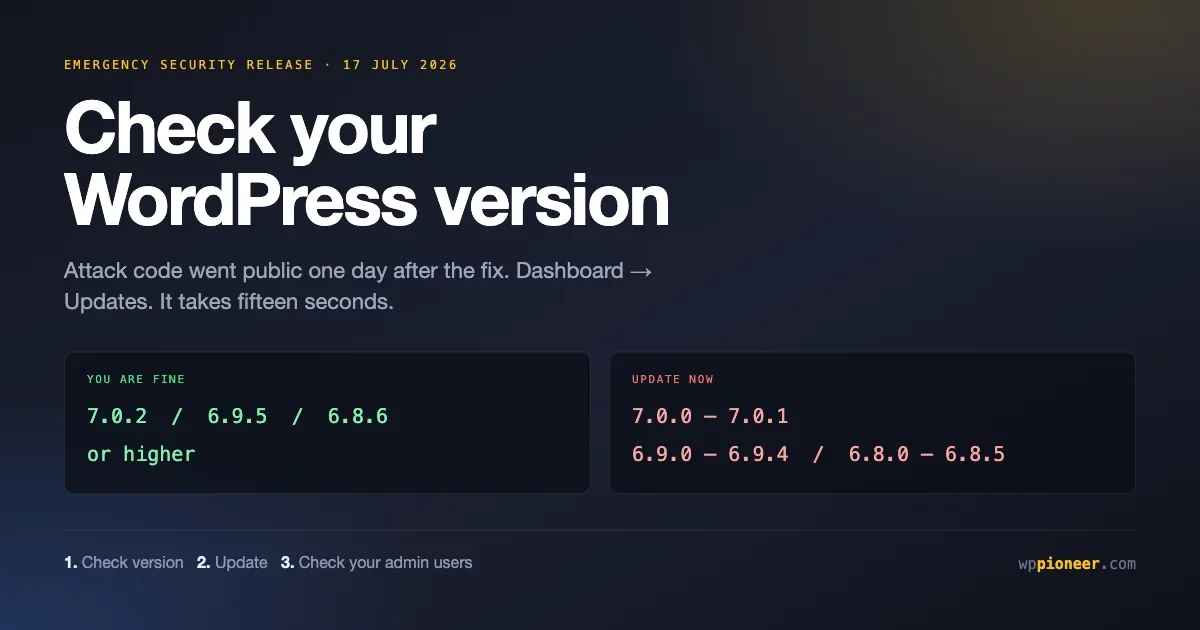
At the top of that screen, WordPress tells you which version you are running. Compare it against this table:
Your version | What it means | What to do |
|---|---|---|
7.0.2 or higher | Fixed version of the 7.0 line | Nothing. You are current. |
6.9.5 or higher | Fixed version of the 6.9 line | Nothing. You are current. |
6.8.6 or higher | Fixed version of the 6.8 line | Nothing. You are current. |
7.0.0 or 7.0.1 | Exposed to the full problem | Update today |
6.9.0 to 6.9.4 | Exposed to the full problem | Update today |
6.8.0 to 6.8.5 | Exposed to the database flaw | Update today |
Older than 6.8 | Not affected by this, but unsupported | Plan an upgrade properly |
If you cannot find the version on that screen, scroll to the very bottom right of any admin page. WordPress prints the version number there in small grey text.
Step two: update
If you are on an affected version, the Updates screen will offer you a button that says Update to version followed by the version number. Click it.
That is the whole process. It usually takes under a minute, your site stays online, and you do not need to touch anything else.
Two things worth doing first if your site is a business rather than a hobby:
- Take a backup. If you have a backup plugin, run it now. If you do not have one, that is the next thing to fix after this, and our guide to the essential plugins every beginner needs covers which type to pick.
- Note the time. If something does go wrong, knowing exactly when you updated makes it far easier for someone to help you.
For a security update on the same version line, the risk of something breaking is genuinely small. These releases fix specific problems and deliberately change as little as possible. The risk of staying on an unpatched version while attack code circulates publicly is considerably larger.
If the update button does not work
Occasionally the update fails, usually because of file permissions on the hosting account. If that happens:
- Try again once. Some failures are temporary.
- If it fails again, contact your host and say precisely this: “My WordPress site is running version X and needs to be updated to the current security release. The update from the dashboard is failing.” Most hosts will do it for you within the hour.
- Do not download WordPress and start replacing files by hand unless you know what you are doing. That is how a security problem becomes a broken site.
Step three: find out why you missed it
If your site was on an old version, something prevented the automatic update from reaching you. Worth knowing what, because it will happen again next time otherwise.
The usual causes, in rough order of how common they are:
Somebody turned automatic updates off. This is by far the most common. A developer disabled them during a project, a plugin offered to manage updates and took over, or a previous agency set it up that way. It is usually a line in a configuration file, and your host or developer can check it in a minute.
The site does not get enough traffic. WordPress checks for updates when someone visits. A site with very few visitors can go a surprisingly long time without running that check. If your site is quiet, this is worth asking your host about, because there are ways to schedule the check properly.
An update management plugin is in charge. Some maintenance plugins and hosting dashboards take over updating and apply their own schedule. That is fine when the schedule is fast. It is not fine when it batches security updates into a monthly window.
Your host manages updates and was slow. Many managed hosts patched this within hours and did it well. Some did not. If your host says they handle updates, ask them for the date and time your site was patched rather than accepting a general reassurance.
Step four: check whether anything happened
This is the step most people skip, and it is the one that matters if your site was unpatched for several days.
Updating fixes the hole. It does nothing about anyone who came through it before you closed it. If your site was running an affected version between Saturday 18 July and whenever you updated, spend ten minutes on the following.
Look at your user accounts
Go to Users in the left-hand menu, then click Administrator at the top to filter to admin accounts only.
You should recognise every single name on that list. Look particularly at:
- Accounts you do not recognise at all
- Accounts with email addresses at domains you do not recognise
- Accounts created recently, which you can see by adding the registration date column if your theme shows it
Creating a hidden administrator account is the most common thing an attacker does after getting in, because it gives them a way back even after you patch. If you find one, do not simply delete it and move on. Read the “if you find something” section below.
Look at your plugins
Go to Plugins and read the whole list, including deactivated ones.
You are looking for anything you did not install. Attackers frequently upload a plugin because it is the easiest way to run their own code on a WordPress site, and they often give it a boring name that looks like it belongs there.
If you see something you do not recognise, search for its name online before you touch it. Some legitimate plugins are installed by hosts or themes and have unfamiliar names.
Look at your site while logged out
Open your site in a private or incognito browser window, so you see it the way a stranger does.
Check the front page, a few posts, and any page that takes payments or collects information. You are looking for content you did not write, links to sites you have never heard of, or redirects that send you somewhere unexpected.
Some attacks only show themselves to visitors arriving from Google, so it is also worth searching Google for site:yourdomain.com and reading the results for anything that is not yours.
Check your scheduled content and settings
Go to Settings and then General. Confirm your site title, tagline, and both address fields are what you expect. Changing the site address is a quick way to redirect all your traffic elsewhere, and it is easy to miss because you rarely look at that screen.
Updating fixes the hole. It does nothing about anyone who came through it before you closed it.
If you find something
Take this seriously and slow down. The instinct is to delete the strange thing and carry on, and that is the wrong move, because you will almost certainly miss something.
- Do not delete anything yet. What you found is evidence, and it helps whoever cleans this up to see it in place.
- Change your passwords. Your WordPress admin password, your hosting account password, and your database password if you know how. Use different passwords for each.
- Get help. If your site takes payments, stores customer details, or matters to your business, this is the point to bring in someone who does this professionally. A partially cleaned site is a site that gets re-infected in a fortnight.
- Tell your host. They may have logs that show what happened and when, and many will help with cleanup on shared hosting because a compromised site on their server is their problem too.
If the site is small and personal and you want to handle it yourself, the practical route is to restore from a backup taken before the compromise, then update immediately after restoring. Restoring to an unpatched version and stopping there puts you straight back where you started.
Making sure this does not happen again
Four things, in order of how much they matter.
Turn automatic updates on for WordPress core
On the Updates screen, look for a line about automatic updates for maintenance and security releases. If it offers to enable them, enable them.
People resist this because they have heard stories about updates breaking sites. Those stories are almost always about major version updates or plugin updates, not about security releases on the same version line. Security releases are narrow, well tested, and the alternative is what this article is about.
Get a real backup running
A backup you have never restored is a hope rather than a backup. Whatever plugin or hosting feature you use, the requirements are the same: it runs automatically, it stores copies somewhere other than the same server, and you have tried restoring one at least once.
The middle requirement matters more than people expect. A backup stored only on the server it is backing up is not much use when the problem is that the server was compromised.
Reduce the number of administrator accounts
Go back to that Users screen. Most sites have more administrators than they need: an old developer, a former colleague, an agency you stopped working with, a plugin support person you granted access to two years ago.
Every administrator account is another way in. Downgrade the ones who do not need full access to Editor, and delete the ones who should not be there at all. While you are tightening things up, it is worth confirming your site is served over a secure connection too, which our beginner guide to SSL and HTTPS walks through.
Know your version without logging in
Sounds trivial, and it is the thing that made this incident expensive for the people it hurt. If you run more than one site, keep a simple list somewhere of what each one runs and who is responsible for it.
When the next advisory lands describing specific version numbers, the difference between a five minute response and a lost afternoon is whether that list exists.
Why security releases are safe to take immediately
The hesitation people feel about clicking update is reasonable and worth addressing directly, because the fear is usually attached to the wrong kind of update.
WordPress ships two kinds of release. A major release brings new features and changes how things look and work. Those arrive a few times a year, they have names, and they occasionally interact badly with an older theme or plugin. Being cautious with those is sensible.
A security or maintenance release is a different animal. It exists to fix specific problems, it changes as little as possible to do that, and it stays on the same version line. The jump from 7.0.1 to 7.0.2 is not a new WordPress. It is the same WordPress with one hole closed.
You can see the difference in the numbers. A major release changes the middle number, so 6.9 to 7.0 is major. A security release changes the last number, so 7.0.1 to 7.0.2 is not. When someone tells you an update broke their site, ask which number changed. It is almost always the middle one.
This distinction is exactly why WordPress treats the two differently for automatic updates. By default, WordPress installs the small ones automatically and asks you about the big ones. That default is well chosen, and most sites should stay on it.
If you look after more than one site
Everything above assumes one site and a dashboard you can log into. If you look after several, the maths changes, because checking eight sites by hand is the kind of task that gets postponed until it is urgent.
A few practical options, none of which require becoming a developer.
Keep a simple list. A spreadsheet with one row per site: the address, the hosting company, who to contact, and the last date you checked the version. It sounds too basic to help. It is the single thing that turns “which of my sites are at risk” from an afternoon into a minute.
Use a management dashboard. Several services connect to all your sites and show versions in one screen, with a button to update everything at once. They cost money and they save exactly the situation this article describes. If you look after client sites, this is a business expense rather than a luxury.
Ask your host what they cover. If all your sites are with one host, they may already patch core automatically. Get that in writing, and get the specifics, because “we handle security” can mean anything from same-day core patching to a firewall and nothing else.
Whichever you choose, the property that matters is being able to answer a version question quickly. Advisories are written in terms of version numbers, and every hour spent working out what you are running is an hour the vulnerable site stays vulnerable.
Questions people are asking
My site looks fine. Do I still need to do this?
Yes. A compromised WordPress site usually looks completely normal, because an attacker who wants to send spam, host malicious files or mine your traffic has every reason to keep the site working. Visible defacement is rare and mostly the work of people who want credit.
Does my security plugin protect me?
Partly. Security plugins with a firewall blocked some early attempts against this, which genuinely helped. They are not a replacement for updating, because they work by recognising attacks they have seen before, and the attack changes faster than the recognition does. Keep the plugin. Update anyway.
I am on WordPress 6.8. The worst part does not affect me, so can I wait?
No. The 6.8 line was affected by the flaw that lets an attacker read your database, which includes every user account and its scrambled password. Those scrambled passwords can be worked out offline given time, and then somebody logs in as you with a legitimate password. Update to 6.8.6.
What if I inherited this site and do not know who set it up?
Common situation, and the version check still works regardless. You do not need to understand how the site was built to read a number on the Updates screen and click a button. What you do need, before anything urgent happens again, is to find out three things: who your hosting is with, whether anyone else has an administrator account, and whether backups are running. Those three answers turn an unknown site into a manageable one, and none of them require technical skill to obtain.
Will updating change how my site looks?
A security release will not. It contains fixes, not design changes, and it stays on the same version line. If your site looks different after a security update, the likely cause is a caching plugin serving a mixture of old and new files, which usually resolves by clearing the cache from that plugin’s settings screen.
How long do I have?
That question had a comfortable answer a few years ago and does not any more. Attack code for this was public roughly a day after the fix was released, and mass scanning started within three days. Treat a security release as something to do today rather than at the weekend.
Should I switch off my site until I have updated?
Almost never. Updating takes less time than taking a site offline and putting it back. The exception is if you have found clear evidence of compromise and the site handles payments, in which case taking it offline while you get help is reasonable.
My host says they handled it. Is that enough?
Check the version yourself on the Updates screen. It takes fifteen seconds and it turns a claim into a fact. Most hosts did handle this correctly, and verifying is still cheaper than assuming.
Your two minute checklist
- Log in and open Dashboard then Updates.
- Read your version number.
- If it is below 6.8.6, 6.9.5 or 7.0.2, click update.
- Open Users, filter to Administrator, and confirm you recognise everyone.
- Open Plugins and confirm you recognise everything, including deactivated ones.
- View your site in a private browser window and check nothing looks wrong.
- Turn on automatic updates for security releases.
- Check that a backup ran recently and that it is stored somewhere else.
Most people reading this will find they were updated automatically on the 17th and never knew it happened, which is the system working exactly as intended. The check is still worth two minutes, because the people who were not updated automatically had no way of knowing that either.
No comments yet