
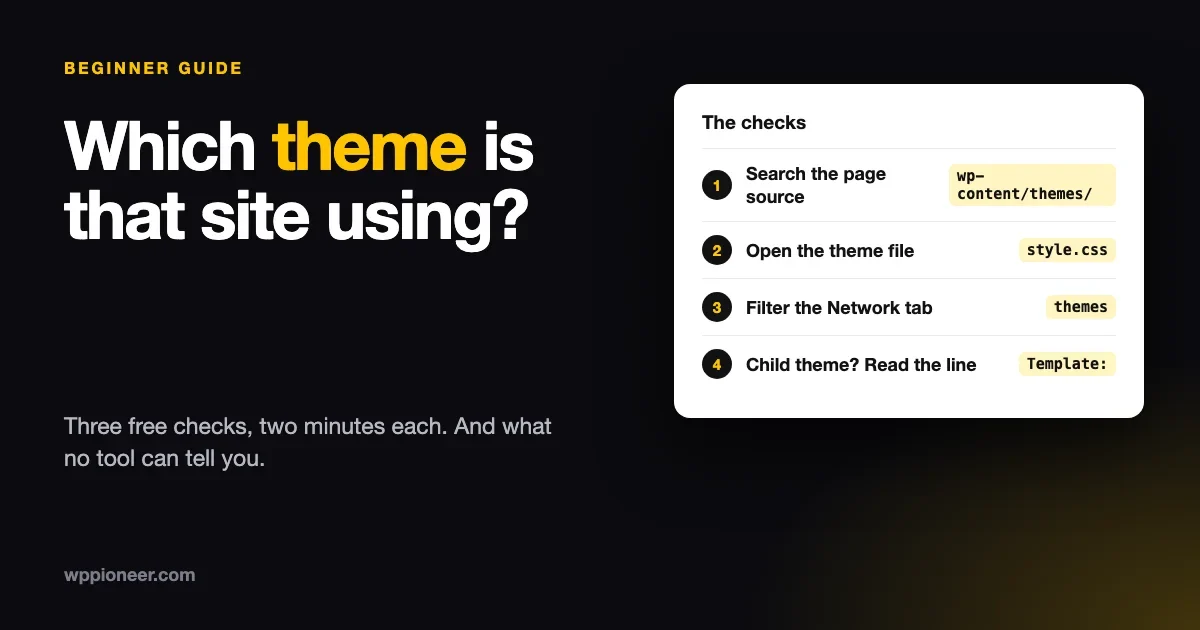
You can find out which theme a WordPress site uses in about two minutes, for free, without installing anything. Open the page source, search for wp-content/themes/, and read the folder name that follows. That name is the theme. Then open that theme’s style.css file to see its real name, its version and its author.
This guide shows the three manual methods step by step, what a theme detector tool does and where it fails, and the things nobody can tell you from the outside. We tested the steps on a live WordPress site while writing this, and we say where something did not work. If you are a beginner, you do not need to understand any code. You only need to be able to read a word in a long page.
Why would you want to know a site’s theme?
Most people ask for one of four reasons.
- You like how a site looks and want something similar for your own.
- You are hiring a developer and want to show them an example of what you mean.
- You inherited a site and nobody wrote down what it runs on.
- You are debugging. A support team will ask which theme and version you use, and “the blue one” is not an answer.
A fifth reason deserves a plain warning. Knowing a theme tells you about the bones of a site. It does not give you the site’s design, text, photos or content, and those belong to their owner. We come back to that near the end.
Method 1: the page source (the fastest way)
Every WordPress site sends a web page to your browser, and that page lists the files it needs. Most of those files sit in a folder named after the theme. You can read that list.
- Open the site in your browser.
- Right-click an empty part of the page and choose View page source. The keyboard shortcut is Ctrl+U on Windows and Linux, and Option+Command+U on a Mac in Chrome.
- A new tab opens with a wall of text. Press Ctrl+F (or Command+F) to search.
- Type
wp-content/themes/and press Enter. - Look at the word right after
themes/. That is the theme’s folder name.
When we did this on the WP Tavern website, the search found the text wp-content/themes/wp-tavern-2021 three times on the home page. So the theme folder is called wp-tavern-2021. That is already your answer: the site uses a theme called “wp-tavern-2021” or something close to it.
What the folder name means
The folder name is called a slug. It is usually the theme’s name in lowercase with hyphens, so twentytwentyfive is Twenty Twenty-Five, the default theme WordPress ships. A slug is not always the pretty name. Sometimes a developer shortens it or adds a client’s name. Do not worry. The next method turns the slug into a proper name.
If the search finds nothing
Three things can cause that.
- It is not a WordPress site. Many sites look similar and run on other systems.
- The site hides its folder names. Some security or speed plugins rename or combine files. We cover that in the limits section.
- You are on the wrong page. A landing page built outside WordPress can sit inside a WordPress site. Try a blog post or the contact page.
A quick second check: search the same source for wp-content. If it appears at all, you are looking at WordPress. If it does not, the site probably runs on something else, or it hides this folder heavily.
Method 2: read the theme’s style.css file
Every classic and block WordPress theme has a file called style.css in its folder. The top of that file has a small block of plain text that WordPress reads to learn the theme’s name. You can read it too.
- Take the folder name from Method 1.
- In your browser’s address bar, type the site’s address, then
/wp-content/themes/, then the folder name, then/style.css. For the example above, that ishttps://wptavern.com/wp-content/themes/wp-tavern-2021/style.css. - Press Enter. A plain text page opens.
The first lines look like this on that site:
/*
Theme Name: WP Tavern 2021
Theme URI: https://github.com/a8cteam51/wptavern
Author: WordPress Special Projects
Description: Full Site Editing theme for WP Tavern.
Version: 1.0.0
Text Domain: wp-tavern
Tags: wp-tavern, fse, gutenberg, full site editing.
*/
Now you have the real name (WP Tavern 2021), the author, the version number and a link to where it lives. This also tells you something useful: the description says “Full Site Editing theme”, which means it is a block theme, the newer kind that you edit in the Site Editor.
How to read the header
Line | What it tells you |
|---|---|
| The name you would search for. |
| A web page about the theme. Sometimes a store, sometimes a code repository. |
| Who made it. |
| The release number. Useful when you ask for support. |
| Only on child themes. It names the parent theme. See below. |
| Short labels such as full site editing or blog. |
We also tried two other files on the same theme folder, screenshot.png and readme.txt. Both returned a “not found” page. Many themes ship them and many do not, so treat them as a bonus, not a rule.
Child themes: the parent is hiding one step up
A child theme is a small theme that borrows everything from another theme, the parent. People use them to change a few things safely. If the site you are looking at uses one, the folder in the page source is the child, and the child’s style.css has a line like Template: parent-folder-name. That line names the parent.
So the full answer is two names: the child that the site loads and the parent that does the heavy lifting. If you only note the child, you may be looking for a theme that nobody sells, because it was built for one site. The parent is usually the one you can actually buy or download. We explain why people build them in our guide on how to undo changes in WordPress, which covers why changes to a theme are safer inside a child.
Look the theme up
If the theme is free, search its name on wordpress.org/themes. The theme directory page shows the version, the number of active installs and a live preview. The directory’s address uses the same slug as the folder, so https://wordpress.org/themes/twentytwentyfive/ opens Twenty Twenty-Five. If the slug gives you a “not found”, the theme is probably sold elsewhere or built just for that site.
Method 3: use your browser’s developer tools
The previous two methods read the page and one file. Developer tools let you see everything the page loads, which helps when the page source is hard to read, as it is on sites that load a lot of code.
- Open the site in Chrome, Edge or Firefox.
- Press F12 (or right-click and choose Inspect).
- Click the Network tab, then reload the page.
- In the filter box, type
themes. - The list now shows only files whose address contains that word. The folder name appears in each one.
This is the same information as Method 1, with one difference. It shows files that load after the page opens, such as fonts and scripts that a theme adds later. That is how you find a theme on a site whose page source mentions the folder only once or twice.
The Elements tab shows the page’s code as a tree. Click the small arrow at the top left of the developer panel and then click any part of the page, and the tool jumps to that part’s code. Use it to check that an image or stylesheet really comes from the theme folder you found.
Method 4: a theme detector tool
A theme detector does Methods 1 and 2 for you. You paste an address, and the tool tells you the theme and sometimes the plugins. Free options exist, and we compare how they work in our sister site’s article on WordPress plugin and theme detector tools and their limits. That article describes how WPThemeDetector, BuiltWith, IsItWP, Wappalyzer and WhatRuns each work, and where each one goes wrong, so we will not repeat the details here.
A few beginner rules that hold across tools:
- A tool reads the same public page you can read. It is not magic. If a site hides its theme folder, the tool is blind too.
- Some tools use old data. A few tools remember what they saw weeks or months ago. If a site changed themes last week, you may get yesterday’s answer. Ask the tool when it last checked, or confirm with Method 1.
- Tools can name the child, not the parent. Always check
style.cssfor aTemplateline. - Treat plugin lists as partial. A tool only sees plugins that leave visible footprints on the page.
We recommend you use a tool to save time, and use Method 1 to double-check anything you plan to spend money on.
Can I check my own site’s theme from inside WordPress?
Yes, and it is easier because you are logged in. Three places show it.
- Appearance, then Themes. The active theme appears first and says “Active”.
- Tools, then Site Health, then the Info tab. Open the “Active theme” section to see the name, version and author. It also lists a parent theme if you use a child theme, and it lists any other installed themes.
- The Site Editor. If your theme is a block theme, Appearance, then Editor opens it. A classic theme shows a Customize link instead.
The Site Health information is the one to copy into a support message. It is complete and has no typos.
What can you not detect?
This is the honest part. You can learn a lot, and there are limits that no tool gets around.
1. A theme that has been renamed
Developers can rename a theme folder to anything. A folder called site-2024 tells you nothing. The style.css file still has a Theme Name, and some developers change that too. When both are renamed, you can still see the technology, but not the product.
2. A custom theme
Agencies often build a theme for one client. It has a real name and a real folder and you will find it, but it is not for sale. Searching for it will return nothing. That is not a failure of your search.
3. Sites that hide their footprints
Some security plugins and some speed plugins combine files into one and rename folders. A site can also be served through a setup that rewrites the addresses. In those cases the folder name may be missing. You may still find a clue in the page’s body class or in a file address that remains.
4. Sites that are not WordPress
A site built with another tool may look like a WordPress site, and some sites mix both. Your search for wp-content is the quick test.
5. Which theme settings the owner chose
Two sites using the same theme can look completely different. Colours, fonts, layouts, menus and widgets are settings, and the owner chooses them. They are stored in that site’s database, not in the theme folder. You can see the result on the page. You cannot download it.
6. The licence or the price they paid
Premium themes are sold with a licence. Whether a site has a valid one is private. Do not assume that a site you found on a premium theme has paid for updates.
7. Everything behind the login
Admin screens, private pages and member areas are not visible from outside. A detector cannot see them. If you are asking because you want to know whether a site uses a plugin that only runs in the admin, you will not find it this way.
8. Settings read through the API
WordPress has a public interface called the REST API, and a page at /wp-json/ that describes it. We tried /wp-json/wp/v2/themes on the same site and it returned a “401” error with the message that we are not allowed to view themes. That is a good thing. It means WordPress does not give your theme list to strangers. So you cannot ask the site directly; you have to read the footprints it leaves on public pages.
I found the theme. What now?
Find out whether you can get it
If the theme is free, you can install it from Appearance, then Themes, then Add New. Search for the name. If it is a premium theme, the Theme URI line in style.css or the author’s website usually points to the store.
Do not expect the same look
This catches almost every beginner. You install the same theme and your site looks like a bare template. The look you admired came from the owner’s settings, their photos, their text and often the page builder or block patterns they used on top. Treat the theme as a starting point.
Check what the theme supports before you commit
Open the theme page and look for three things: when it was last updated, how many sites use it, and what it needs (the minimum WordPress and PHP versions). A theme that has not been updated for years can break as WordPress changes. Our checklist on whether your WordPress site is ready explains why keeping the theme current matters for security and for speed.
Block theme or classic theme?
Check style.css tags and the description. A block theme is edited in the Site Editor, with Appearance, then Editor. A classic theme is edited with the Customizer and widgets. Neither is wrong, but they feel different when you use them. If you are choosing between several examples you like, the block or classic question often decides how easy changes are for you. We look at that choice in our guide to starting a WordPress blog.
Is it okay to copy another site’s look?
Using the same theme is normal. Thousands of sites run the same free themes. What you should not do is copy another owner’s protected work: their text, their photographs, their logo, their custom artwork, and any custom code written for them. A WordPress theme is usually licensed under the GPL, which allows you to use and change the code. That does not give you the right to reuse someone’s brand or content. If you want something very close to a design you like, ask the owner or the developer. Many are happy to answer, and some will point you at the exact theme and settings.
If you are hiring someone to build it, tell them the theme you found, the version and the site you admire. They will know what is realistic.
A quick troubleshooting table
Symptom | Check | Fix |
|---|---|---|
Search for | Search for | If still nothing, the site may not be WordPress, or it hides folder names |
Folder name is odd or generic | Open | If the name is also generic, it is likely a custom theme |
| It is a child theme | Note the parent name and look that up instead |
The tool gives a different answer than your check | The tool may be using old data | Trust the page source, and re-run the tool later |
The wordpress.org page says not found | The theme is sold elsewhere or custom | Use the Theme URI line to find the vendor |
The site looks nothing like the demo after you install the theme | Settings, content and plugins make the look | Rebuild the look with your own content |
Questions people ask
Can I find a theme from my phone?
Yes, but it is awkward. Phone browsers hide the page source. The easiest route is to open the site’s style.css address directly once you know the folder name, or to use a detector website, which works the same on a phone as on a computer. To get the folder name without a computer, many mobile browsers can open a view-source address by typing view-source: in front of the web address. Support differs by browser, so if it does not work, use a detector tool or borrow a laptop for two minutes.
Is it legal to look at another site’s source code?
Reading the page source is ordinary browsing. Your browser already downloads that code to show you the page, and every browser has a button to display it. Looking is fine. Copying someone’s protected text, images or custom code into your own site is a separate matter, as the section above explains.
Will the owner know I checked?
Opening the page source or a theme’s style.css looks like normal traffic. The owner’s server log shows a request for a file, the same as any visitor. Nobody gets a notification. Nothing about it is hostile, and you are asking for files the site already offers to every visitor.
The theme is a page builder, not a theme. Is that possible?
Yes. Some page builders ship their own theme or a very light starter theme, and the real design lives in the pages built with the builder. In that case the theme name tells you little. Look for builder names in the page source as well, for example in file paths under wp-content/plugins/. The theme gives you the frame, and the builder gives you the page.
How often should I recheck my own theme?
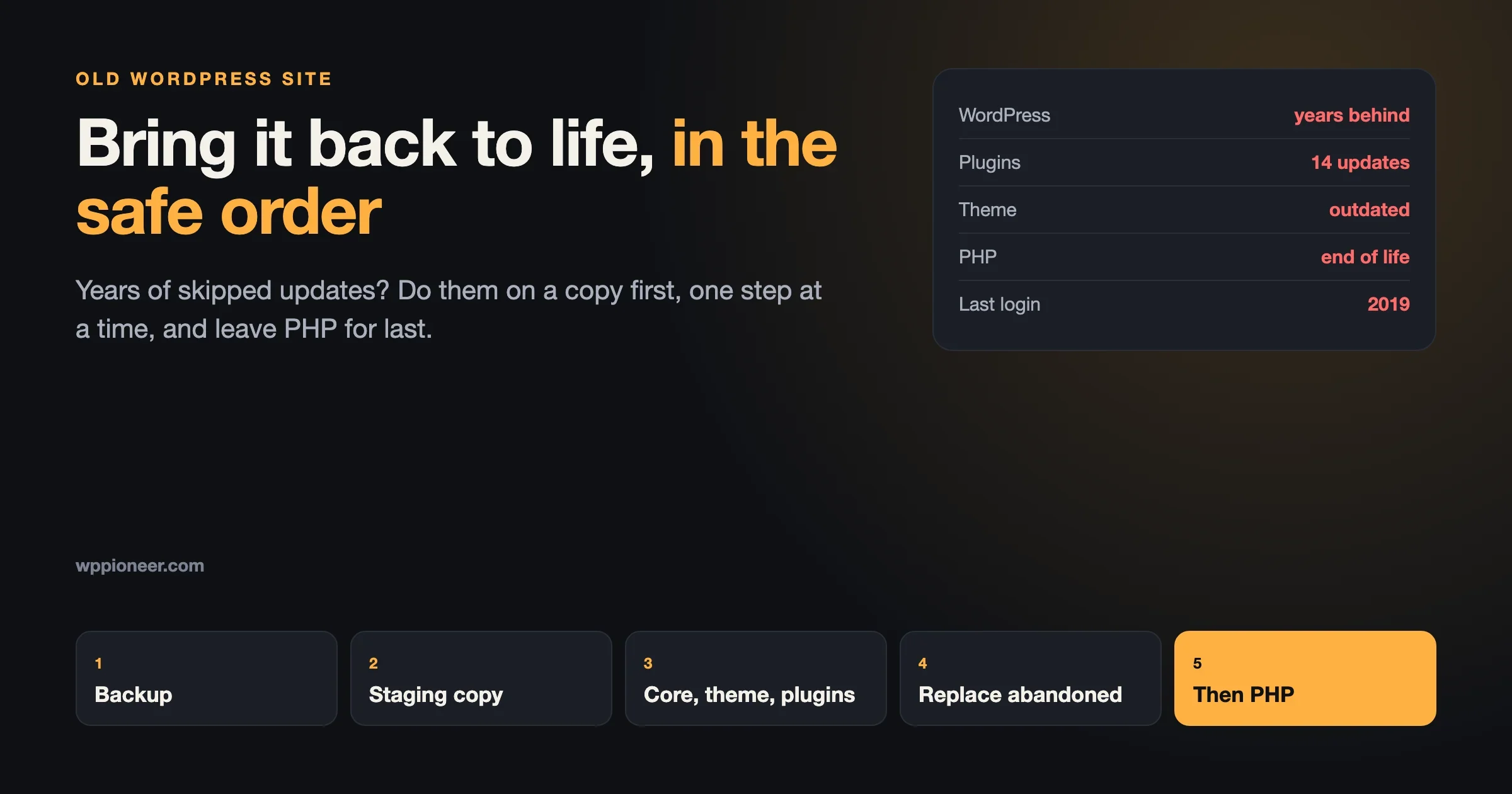
Check the version in Site Health each time you do a round of updates. Themes need updates for the same reason plugins do: security fixes and compatibility with new WordPress versions. If your site has not been looked at in a long time, our guide on bringing an old WordPress site back to life gives the safe order for updating a theme, plugins and WordPress itself.
The short version
Open the page source, search for wp-content/themes/ and read the folder name. Open that folder’s style.css to read the real name, the version and any parent theme. Use a detector tool to save time, and know that it reads the same public clues you do. Remember what you cannot see: custom themes, renamed folders, settings and anything behind a login.
If you own the site you are asking about, skip all of this and open Tools, then Site Health, then Info. And if you have found a theme and are unsure whether it is the right choice for your own site, see our roundups of the best WordPress themes for small business and the best themes for blogs.
No comments yet