
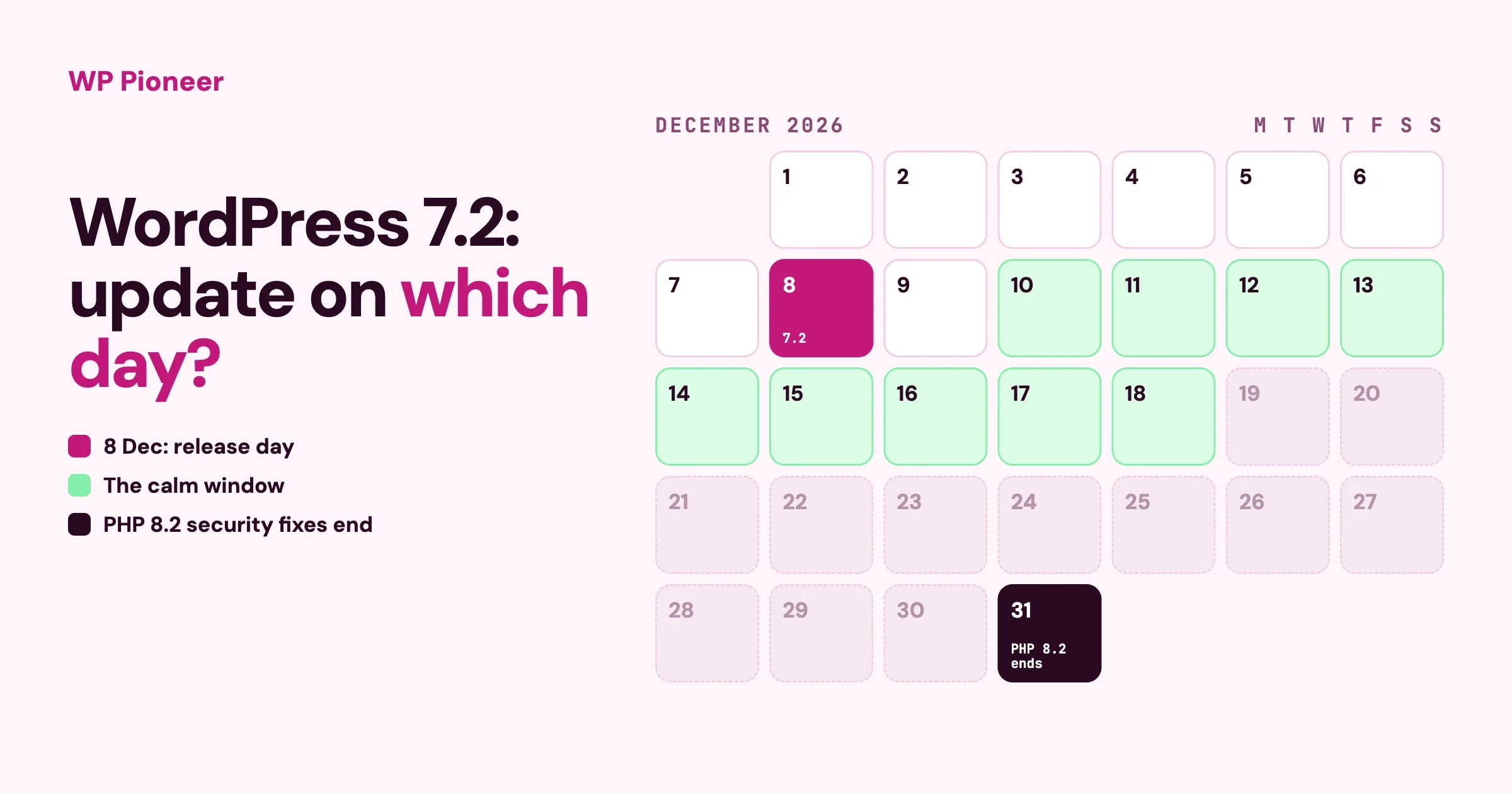
Yes, update to WordPress 7.2, but most site owners should not do it on 8 December. If your site takes orders, bookings or payments, wait about a week and update after you have a backup you have tested. If it is a simple blog or brochure site with few plugins, the first few days are fine. And if your host is also moving you to a newer PHP version in December, do not let both changes happen in the same week.
This guide is for people who run a WordPress site without a developer. It gives you a plain decision, a calendar from now to January, and the three questions to send your host today. We wrote it in October, before the first test version is out, so it is careful about what is known and what is not.
In this guide:
- What is known about 7.2 today, and what is not
- Should you update on day one, after a week, or later?
- Why December is an awkward month for a big update
- The other change: your host and PHP 8.2
- A calendar from now to January
- Four things to do before December
- Update day, step by step
- If something breaks
- Questions people ask
What is known about WordPress 7.2 today?
The dates are known. The feature list is not final. These come from the WordPress 7.2 schedule page, which itself warns that dates can change.
Date | What happens | What it means for you |
|---|---|---|
20 October | Beta 1, the first test version | Nothing to do. Plugin and theme makers start testing |
17 November | Release Candidate 1 | The feature list is settled. A good day to read what is in it |
8 December | WordPress 7.2 is released | Your dashboard shows the update. You choose when to press the button |
A beta is a version for testers. A release candidate is a version the team believes is ready unless someone finds a serious bug. Neither belongs on a live site.
What we will not tell you yet
We are not going to list the new features or state which PHP version 7.2 needs, because the WordPress project has not published its final list. Anything you read before 17 November that promises a feature is a guess. One proposal has been announced publicly: a new default theme called Ipsum, a plain blog theme. A new default theme does not change your site. It is simply offered to new sites, and your current theme stays as it is.
The decision in this guide does not depend on the features. It depends on what kind of site you have and what else is changing around it in December.
Should you update on day one, after a week, or later?
Find your row. If two rows fit, use the more careful one.
Your site | When to update | Why |
|---|---|---|
A personal blog or small brochure site, under ten plugins, nothing sold | The first few days | Little can go wrong, and what does is easy to undo |
A business site with a contact form, a booking form or a page builder | About a week after release | Gives plugin makers time to ship their own fixes |
An online shop, a membership site or a course site | One to two weeks after release, at a quiet hour | A broken checkout costs money for every hour it is down |
A shop in its busiest weeks of the year | After the rush, early January is fine | Do not change the engine during the race |
A site with old plugins nobody has updated in a year or more | Fix the plugins first, then update | Old plugins are the usual cause of trouble, not WordPress |
A site someone else maintains for you | Ask them for their plan this month | You want a date and a name, not “we will look at it” |
Is waiting safe?
Waiting a week or two is safe. Waiting many months is not. A new main version such as 7.2 mostly brings features. Security fixes for older versions arrive separately, in small updates that install themselves on most sites. The WordPress project says the only version it officially supports is the latest one. Older versions often receive security fixes as a courtesy, but that is not a promise. So “wait a week” is sensible and “skip 7.2 entirely” is not.
Why not day one for everyone?
Because the first days are when plugin and theme makers find the last surprises on real sites. Many release a small update of their own in that week. There is also often a quick follow-up from WordPress itself, numbered 7.2.1, that fixes problems found after release. You lose nothing by letting other people find them first.
If you read our guide to the previous release, WordPress 7.1 Arrives 19 August: Should You Update?, the rule is the same. What is different this time is the month.
Why is December an awkward month for a big update?
Three things land together, and none of them is about WordPress itself.
- It is the busiest month for many sites. Shops are in their holiday sales, and service businesses are taking end-of-year bookings.
- People are away. The developer, the host’s senior support staff and you are all more likely to be on leave in the last two weeks of the month.
- Your host may change PHP in the same month. This is the one most owners do not see coming, and the next section explains it.
The practical result: you have a short, calm window between about 10 and 18 December, or you wait until the first full week of January. Both are fine. Updating on 23 December and then leaving for a week is not.
What is the PHP change, and why does it matter this month?
PHP is the programming language WordPress runs on. Your host installs it on the server, and it has version numbers of its own. According to the official PHP support page, security fixes for PHP 8.2 end on 31 December 2026. After that date, hosts have a reason to move every site still on 8.2 to a newer version, and many will do it without asking.
A newer PHP is good for your site. It is faster and it keeps getting security fixes. The risk is in old plugins and themes that were written for an older PHP and were never updated. On a newer PHP, some of them show warnings and a few stop working.
The problem is two changes at once
Picture a Tuesday in mid-December. You update WordPress to 7.2 in the morning. That night your host moves your account to a newer PHP. On Wednesday your booking form shows an error. Which change caused it? You cannot tell, and neither can the support person you call. Each change on its own is easy to undo. Two together turn a ten-minute fix into a day of guessing.
The rule is one change at a time, with at least a week between them.
How to check your PHP version in one minute
- Log in to your WordPress dashboard.
- Go to Tools, then Site Health, then the Info tab.
- Open the Server section and read the line that says PHP version.
If it starts with 8.3 or a higher number, the December deadline does not affect you. If it starts with 8.2 or lower, send your host the email below.
Three questions to send your host today
Hello,

My site is [your address]. Site Health shows it is on PHP [version].

1. Are you planning to move my account to a newer PHP version?
   If so, on what date?
2. Can I choose the date myself, or switch earlier from my control panel?
3. If something breaks after the change, can I switch back for a few
   days while it is fixed?

Thank you.
A good host answers all three in a day. If the answer to the second question is yes, you are in control of the order, and that is all you need. Our sister site has a hands-on guide for the technical side: See What a PHP Upgrade Will Break Before Your Host Does It for You.
Which change goes first?
If your host lets you choose, move PHP first, in November, while nothing else is changing. It is the change more likely to expose an old plugin, and November gives you weeks to replace anything that fails. Then update WordPress in December or January. If your host has fixed a PHP date in December, plan your WordPress update for at least a week before or after it.
What does the calendar look like from now to January?
When | What to do | Time needed |
|---|---|---|
This week | Check your PHP version. Email your host the three questions | 10 minutes |
By end of October | Update every plugin and theme. List anything not updated in a year | 30 minutes |
Early November | Take a backup and restore it once on a test copy. Move PHP if you can choose | 1 hour |
After 17 November | Read what is in 7.2. Check that your theme and main plugins say they support it | 20 minutes |
8 December | Release day. Do nothing unless you are in the first row of the table above | None |
10 to 18 December | Update at a quiet hour, if you are not in a sales rush | 45 minutes |
19 December to 4 January | Leave the site alone unless a security update arrives | None |
First full week of January | Update now if you waited. Confirm your PHP version again | 45 minutes |
For a version of this plan that also covers the database, see Your WordPress Site’s End-of-Year Upgrade Calendar on our sister site.
What should you do before December?
1. Update everything else first
Go to Dashboard, then Updates, and bring every plugin and theme up to date now. An up-to-date plugin on the old WordPress is the safest starting point for the new one. If you are nervous about plugin updates, our guide on how to safely update plugins without breaking your live site walks through it.
2. Find the plugins nobody looks after
Symptom: a plugin that shows no update for a year or more. Check: on the Plugins screen, click View details on each plugin and read “Last updated” and “Compatible up to”. Fix: for each old one, ask whether you still need it. If yes, look for a maintained replacement. If no, deactivate and delete it. Every plugin you remove is one less thing that can break in December.
3. Take a backup and restore it once
A backup is a copy of your site’s files and its database, which is where your posts, orders and settings live. A backup you have never restored is a hope. Restore it once to a test address so you know the steps and how long they take. We cover this in How to Restore Your WordPress Site From a Backup in 15 Minutes.
4. Decide who presses the button
WordPress can update itself to new main versions. To see your setting, go to Dashboard, then Updates, and read the line under the current version. It will say either that the site is updated automatically with maintenance and security releases only, or that it is updated automatically for all new versions. For a site that takes money, keep it on maintenance and security releases only, so 7.2 waits for you. For a simple blog, automatic is fine.
If your host runs updates for you, the setting on this screen may not be the whole story. Ask them directly whether they will move you to 7.2 on their own schedule.
What do you do on update day?
- Pick a quiet hour. Look at your analytics for the time with the fewest visitors.
- Take a fresh backup right before you start, even if a nightly one exists.
- Update plugins and themes first, then WordPress.
- Press Update and wait. Do not close the tab or click around while it runs.
- Log out and log back in. If you can, you have passed the most important test.
- Walk the money path. Send your contact form. Make a test booking. Buy one cheap product with a test card or a 100 percent coupon.
- Look at the site on your phone. Home page, one post, one product or service page.
- Check that emails arrive. The order email, the form notification, the password reset.
- Tell one other person you updated today, so they mention anything odd they see.
Then leave the site alone for a week. Do not add new plugins or change settings while you watch for problems. If something looks wrong on day three, you want only one change to suspect.
What if something breaks?
What you see | Check | Fix |
|---|---|---|
A blank white page | Does the login page load? | Follow WordPress White Screen After an Update: How to Get Back In |
The site works but looks wrong | Clear your caching plugin and your browser cache, then look again | If it still looks wrong, update your theme and page builder |
One feature stopped: a form, a slider, a checkout step | Does that plugin have an update waiting? | Update it. If none exists, contact its maker with your WordPress version |
Warnings printed at the top of pages | Did your PHP version change this week? | Ask your host to switch PHP back for a few days while the plugin is fixed |
You cannot tell what is wrong | How long has it been broken? | Restore the backup you took before updating, then get help |
Restoring is not a failure. It puts the site back in front of visitors while you work out the cause with less pressure. For a fuller recovery plan, see What to Do When a WordPress Update Breaks Your Site.
Questions people ask
Will 7.2 change how my site looks to visitors?
A main WordPress update is not meant to change the look of an existing site. Your theme controls that. The usual visible changes are in the editing screens you use, not in what visitors see. Check again after 17 November, when the final list is published.
My site is on 7.0 or older. Can I go straight to 7.2?
WordPress lets you update from an older version in one step. The longer you have waited, the more your plugins have fallen behind too, so update them first and take the backup seriously. If you are several versions behind, a test copy of the site is worth the extra hour. Our staging site guide shows how to make one.
What if the update happens by itself before I am ready?
Then your site is set to update automatically for all new versions, or your host does it for you. Check the setting described above this week, and ask your host what they do. If it has already happened and the site works, there is nothing to undo.
Does the update cost anything?
No. WordPress updates are free. The only costs are your time and, if you use one, your developer’s.
Can I undo the update afterwards?
The reliable way is to restore the backup you took just before. That returns the files and the database together. Plugins that claim to roll WordPress back exist, but a backup you have tested is the method that works when you are under pressure.
How do I know my theme and plugins are ready for 7.2?
After Beta 1, plugin makers begin to update the “Compatible up to” line on their plugin pages. Check your five most important plugins and your theme in late November. If one is silent, ask its support whether 7.2 has been tested. A maker who answers quickly is a good sign in itself.
Do I need to do anything about the PHP change if my host handles it?
You still want to know the date. Send the three questions. The point is not to stop the change, it is to make sure it does not fall in the same week as your WordPress update.
Is it risky to stay on PHP 8.2 into January?
A few weeks is not an emergency. It means new security problems found in that PHP version will no longer be fixed by the PHP project. Plan the move for early January at the latest, and do not let it drift into spring.
Your checklist
- PHP version checked in Site Health.
- Three questions sent to the host, and the answers saved.
- All plugins and themes updated.
- Old or unused plugins removed or replaced.
- Backup taken and restored once.
- Automatic update setting chosen on purpose.
- Update date picked from the calendar, away from the PHP date and away from your busy weeks.
- Test list ready: login, form, booking or purchase, phone, emails.
- One other person told.
We will update this page after Release Candidate 1 on 17 November with what is confirmed in 7.2. The decision table above will not change, because it never depended on the feature list.
No comments yet