
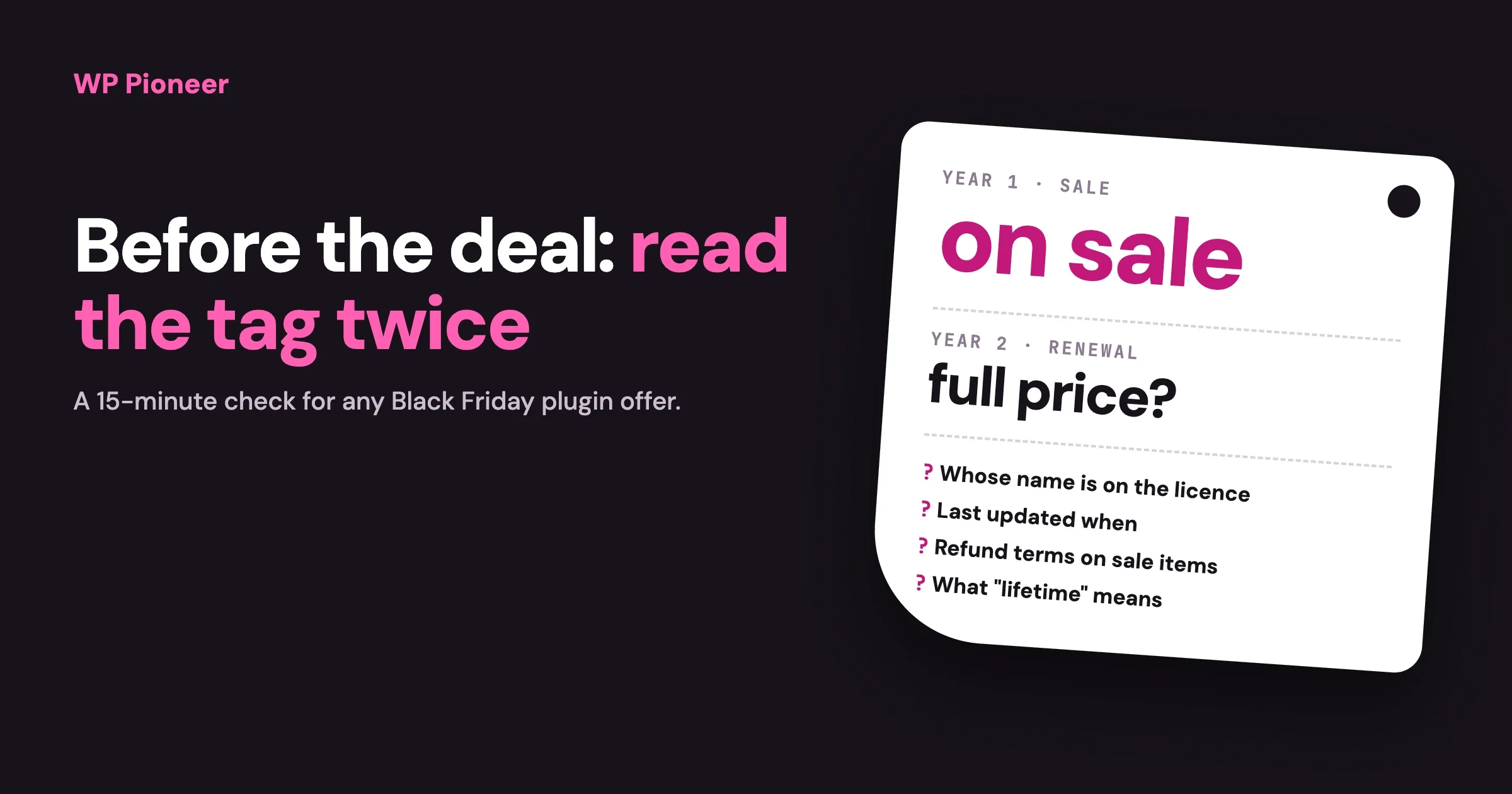
Before you buy a WordPress plugin in a Black Friday sale, check five things: the price you will pay in year two, whose name the licence is in, when the plugin was last updated, the refund terms for sale purchases, and whether your site needs it at all. A discount is only a saving on something you would have bought anyway. This guide gives you a 15-minute routine to run on any deal before you pay.
It is a checklist, not a list of deals. We do not quote any prices here, because sale prices change by the hour and the only number that counts is the one on the seller’s own page on the day you buy. We should also say that our team makes and sells plugins. Use this checklist on ours as well.
In this guide:
- Do you need the plugin at all?
- The renewal price, and what happens if you do not renew
- Whose name the licence is in
- How to read a plugin’s update and support record
- Refund terms on sale purchases
- Lifetime deals and what “lifetime” means
- Bundles, site limits and other small print
- Where you buy matters
- A scorecard you can fill in
- What to do in the first week after buying
- Questions people ask
Do you need the plugin at all?
Start here, because it is the check that saves the most money. A sale makes you ask “is this a good price?” when the useful question is “what problem on my site does this fix?”
Write one sentence before you look at any deal: “I need a plugin that does [one thing] because [what is going wrong today].” If you cannot finish the sentence, close the tab.
Then run three quick checks.
- Does something you already have do it? Open your Plugins screen and read the settings of the plugins you own. SEO plugins often include redirects. Form plugins often include spam protection. Your host may already provide backups and caching. Buying a second tool for a job the first one does adds cost and a new thing to update.
- Does WordPress itself do it? Features move into WordPress over time. Search the plugin’s main feature plus “WordPress built in” before you pay for it.
- Will you set it up this month? A plugin bought in November and first opened in March has used a third of its licence year sitting unused. If you have no time before January, wait. There will be another sale.
Every plugin you add also has a cost that is not on the price tag. It is one more thing to update, one more thing that can clash with another plugin, and one more maker you depend on. Our guide to what a WordPress plugin can actually do to your site explains why “just one more” deserves a second thought.
What will it cost in year two?
Most paid plugins are yearly subscriptions. The sale price usually applies to the first year only, and the licence then renews at the normal price. That is a fair way to sell software, but the checkout page tends to show the first number much larger than the second.
How to find the renewal price
- Look near the Buy button for small text such as “renews at” or “billed annually”.
- Open the pricing page in a second tab and compare the regular price with the sale price. Unless the page says the discount is for life, assume the regular price is what you pay next year.
- Read the seller’s terms or FAQ page for the word “renewal”.
- If you cannot find it, ask. A one-line message to pre-sales support, “What will this licence cost me at renewal next November?”, should get a clear answer. If it does not, that tells you something.
What happens if you do not renew?
Sellers handle this in different ways, and it changes what you are really buying.
If the licence lapses | What it means for you |
|---|---|
The plugin keeps working, but updates and support stop | Common. Fine for a month or two, risky after that, because security fixes stop too |
Some features switch off | You are renting the feature. Budget for it every year |
The plugin stops working | Rare, and worth knowing before you build your site around it |
A service part stops, such as cloud storage or a connected account | The plugin is a front for a service. Compare it as a subscription, not as software |
Ask the seller which row applies. Then do the sum that matters: the first-year sale price plus two years at the regular price. That three-year figure is what you are deciding on, and it is the right number to compare between two competing plugins.
Automatic renewal
Most licences renew automatically on the card you paid with. Check whether you can switch that off from your account page, and whether the seller emails you before charging. Then set a reminder in your own calendar two weeks before the renewal date, so the choice to keep paying is yours.
Whose name is the licence in?
The licence belongs to the account that bought it, and that should be you. This goes wrong in two common ways. A freelancer buys the plugin on their own account “to keep things simple”, or it comes from a developer’s multi-site licence. Both work until the day that person stops answering email. Then the plugin stops updating and you cannot fix it, because you are not the customer.
Before you buy, or before you let someone buy for you:
- Create the account with the seller yourself, using an email address you will still have in five years. Use a business address, not a personal one that may change.
- Pay with a card that belongs to the business.
- Save the licence key and the invoice somewhere you can find them. A shared folder or a password manager is fine.
- If a developer needs the key to install the plugin, give it to them. Do not let them be the account owner.
We cover the wider version of this problem in Who Holds the Keys to Your Website?.
How do you read a plugin’s update record?
You are not only buying what the plugin does today. You are buying next year’s updates, so look at how it has been looked after until now.
If the plugin has a free version on WordPress.org
Many paid plugins do, and its page is the best free evidence you will get. Search for the plugin at wordpress.org/plugins and read four things on the right-hand side and the tabs.
What to read | A good sign | A warning sign |
|---|---|---|
Last updated | Within the last few months | More than a year ago |
Tested up to | The current WordPress version or the one before | Several versions behind |
The Development tab, where the changelog is | Regular entries that say what was fixed | Long gaps, or entries that only say “bug fixes” |
The Support tab | Recent questions with replies from the maker | Pages of unanswered questions |
If it is sold only on the maker’s site
- Find the changelog. A maker who is proud of their update record publishes it. Count the releases in the last twelve months and read what the last three fixed.
- Look for a public documentation site and check whether its screenshots match the current version.
- Search the plugin’s name with the word “support” or “problem” and read what real users wrote in the last six months.
- Send a pre-sales question and time the reply. It is the nearest thing to a free trial of their support.
A plugin that updates rarely is not always neglected. Small plugins that do one simple thing can go months without needing a change. What you are looking for is a maker who is still present.
What do the refund terms say about sale purchases?
Read the refund policy before you pay, and read it for sale purchases in particular. Some sellers offer the same money-back period all year. Some shorten or remove it for discounted purchases, and say so in the small print of the sale page.
Find the answers to four questions.
- How many days do you have? Write the last day in your calendar.
- Is it a no-questions refund, or only if the plugin does not work? “We refund if we cannot fix your problem” is a much narrower promise than “money back within 14 days”.
- Do sale or bundle purchases have different terms?
- How do you ask? A form, an email address, or a button in your account.
A refund window is only useful if you test the plugin inside it. Which leads to the most practical advice in this guide: install and try the plugin in the first week, not in January. If it does not do the job, you still have time to ask for your money back.
What does “lifetime” mean in a lifetime deal?
It usually means the lifetime of the product, not your lifetime. A lifetime deal is a single payment in place of yearly renewals. For a plugin you will use for many years, from a maker who will still be there, it can be good value. The risk is the second half of that sentence.
Think about it from the seller’s side. A yearly licence pays for next year’s updates and support. A lifetime licence pays once, and the seller still has to pay staff every year after. That only works while new customers keep arriving. When they slow down, some sellers stop offering lifetime deals, some move new features into a separate paid add-on, and a few sell the product or close it.
Questions to answer before you buy a lifetime deal:
- Lifetime of what? Updates, support, or both? Some deals give lifetime updates but only one year of support.
- Does it cover future major versions? Or only the current version number?
- How many sites? And can you move the licence from one site to another?
- How long has the plugin existed, and how often was it updated in the past year? A long, steady record matters more here than for a yearly licence.
- Is it sold by the maker or through a deals marketplace? If a marketplace, whose refund terms apply?
- How many yearly renewals does it equal? Divide the lifetime price by the regular yearly price. If the answer is more than three or four, you are betting that both you and the plugin will be around that long.
A lifetime deal on a plugin your business depends on, from a maker with a short record, is the riskiest purchase on this page. A lifetime deal on a small tool from an established maker is among the safest.
What is hiding in bundles and site limits?
Site limits
Licences are sold by number of sites: one, a handful, or unlimited. Check two details. First, does a staging site count as a site? A staging site is a private copy you use for testing. Some sellers do not count it, and some count every address. Second, can you deactivate the licence on one site and use it on another? If you ever move or rebuild your site, you will need that.
Buy for the sites you have now. “Unlimited sites” is good value for an agency and wasted money for someone with one site and a plan.
Bundles and all-access passes
A bundle of twenty plugins at a large discount is tempting. Count how many of the twenty you would install this month. If the answer is two, compare the bundle price with the price of those two. Also check what happens to the bundle at renewal, because the renewal is for the whole bundle, including the eighteen you never used.
Add-ons that are extra
Read the feature table on the pricing page row by row and find the one feature you are buying the plugin for. Make sure it is in the tier that is on sale. A common disappointment is buying the cheapest plan in a sale and finding the feature you wanted is in the next one up.
Countdown timers
A timer that says the deal ends in twenty minutes is there to stop you running this checklist. Real sales have an end date that is printed on the page and is the same for everyone. If a timer restarts when you open the page in a private browser window, ignore it and take the time you need.
Does it matter where you buy?
Yes. Buy from the maker’s own site, or from a marketplace the maker names on their site. Then the licence, the updates and the support all come from the same place.
Be careful with sites that sell hundreds of premium plugins at a small fraction of the usual price. They pass on the plugin files, which the open source licence can allow, but not the maker’s licence key. In practice that means no automatic updates, no support and no way to know whether the file was changed before it reached you. A plugin runs with full access to your site, so a changed file is a real risk and not a theoretical one. The saving is not worth it.
Also check the address bar before you type card details. Sale season is when copycat sites appear with names one letter away from the real one. Reach the seller by typing their address yourself or from the plugin’s page on WordPress.org, not from an advert or an unexpected email.
A scorecard you can fill in
Copy this table and fill it in for each plugin you are considering. It takes about fifteen minutes, and it makes two plugins easy to compare.
Check | Your answer | Pass? |
|---|---|---|
The problem it fixes, in one sentence | ||
Nothing I already own does this | ||
I will set it up within two weeks | ||
Price in year one (sale) | ||
Price in year two (renewal) | ||
Three-year total | ||
What happens if I do not renew | ||
Licence will be in my account, with my email | ||
Last updated, and releases in the past year | ||
Support answered my pre-sales question within | ||
Refund: days, conditions, and whether the sale changes them | ||
Sites covered, and whether staging counts | ||
The feature I want is in this tier | ||
Bought from the maker’s own site |
If three or more rows are blank or a fail, do not buy this week. A plugin that is right for your site will still be right at the next sale, and most makers run several a year.
What should you do in the first week after buying?
- Save the licence key and invoice where you keep your other site records.
- Put two dates in your calendar: the last day of the refund window, and two weeks before the renewal date.
- Take a backup before you install anything. If you have not restored one before, this guide shows how.
- Install on a test copy first if you have one. If not, install at a quiet hour.
- Test the one thing you bought it for. Not every feature. The sentence you wrote at the start.
- Check the rest of the site still works: your forms, your checkout, your pages on a phone.
- Remove what it replaces. If the new plugin takes over a job from an old one, deactivate and delete the old one. Two plugins doing the same job is how conflicts start.
- Decide before the refund window closes. Keep it, or ask for the refund. Do not let the date pass by accident.
Questions people ask
Is Black Friday really the cheapest time to buy plugins?
Often, but not always, and we cannot promise it for any one seller. Many plugin makers run their largest discount of the year in late November. Some match it at other times, such as their own anniversary. If you need the plugin now to fix a real problem, the cost of waiting weeks with the problem unfixed can be more than the discount.
Should you renew existing licences early during the sale?
Ask the seller. Some let existing customers extend at the sale price and add the time to the end of the current licence. Others apply sale prices to new customers only. One email settles it.
Is a free plugin a better choice than a discounted paid one?
If the free version does the job, yes. Free plugins on WordPress.org receive updates through your dashboard and cost nothing to keep. Pay when you need a feature, or support, that the free version does not include.
What if the plugin is abandoned after you buy it?
You keep the files you have, but updates stop, and over time that becomes a security and compatibility problem. This is why the update record and the three-year view matter. If it happens, plan a move to a maintained alternative within a few months, and export your data from the old plugin while it still works.
Can you use one licence on a client’s site?
Only if the licence terms allow it, and even then the client ends up depending on your account. For a site the client owns, the cleaner answer is a licence in the client’s name.
How many plugins is too many?
There is no fixed number. The right question is whether each one is doing a job you need and is being looked after. Ten maintained plugins are safer than three neglected ones.
Should a plugin deal ever be an impulse buy?
For a small price on a tool you will try this weekend, there is little harm. For anything your site will depend on, or anything with a yearly renewal, run the scorecard first. Fifteen minutes is cheap next to three years of payments.
If you are buying because your site has a problem you cannot name yet, start with Is Your WordPress Site Ready? A Step-by-Step Checklist. It will tell you what your site needs before a sale page tells you what to want.

No comments yet