
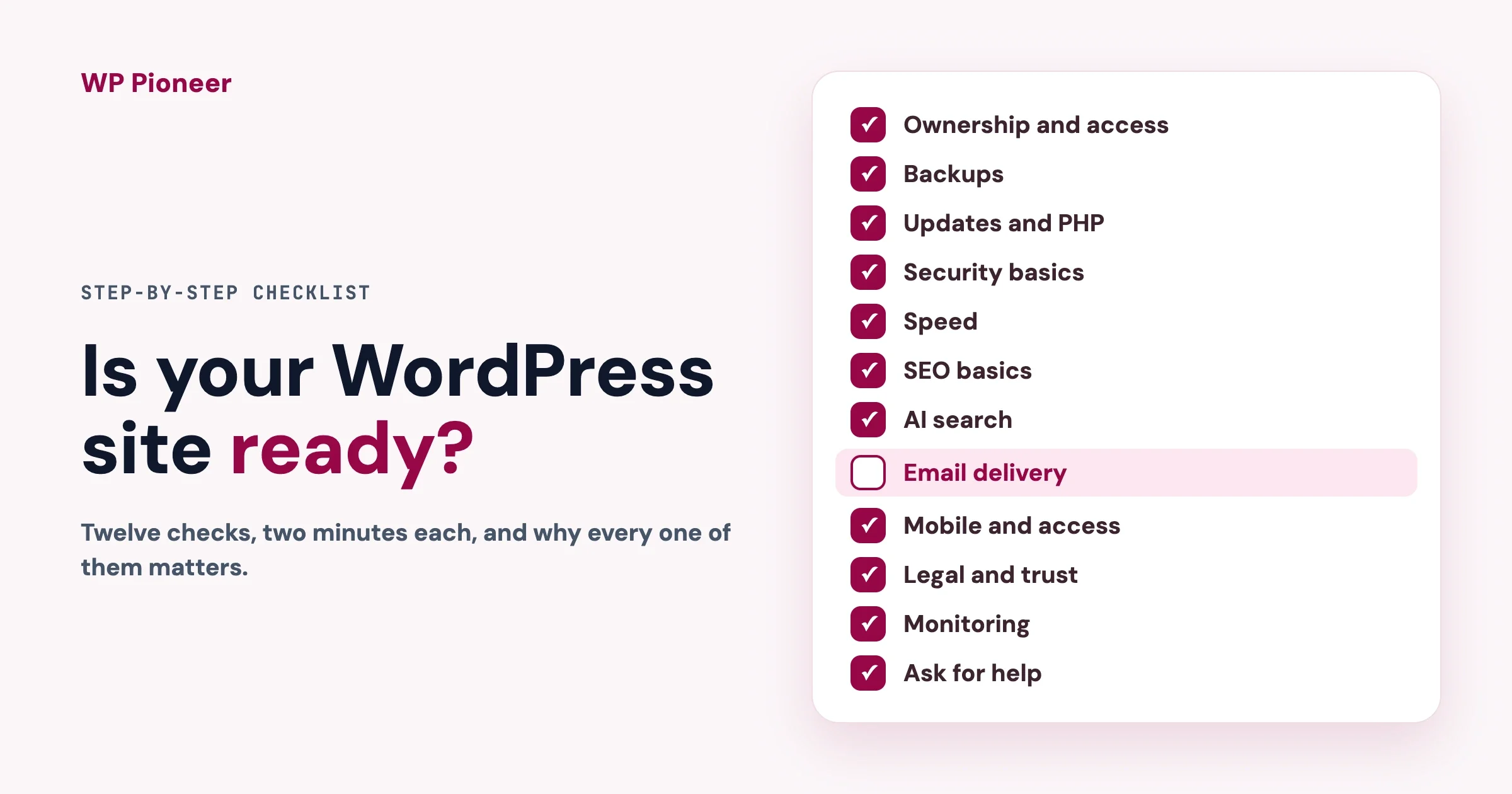
A WordPress site can look finished and still be one failed update, one lost password or one full disk away from going offline. This checklist walks through twelve areas in a sensible order. For each one you get why it matters, a two-minute check and what to do if it fails.
Quick answer: your site is ready when you own the domain and hosting, have a backup you have restored at least once, run supported versions of WordPress, PHP and every plugin, protect admin logins, send email that arrives, and get an alert when the site goes down. Work through the twelve steps below, tick what passes, and fix the rest from the top. A printable one-page summary is at the end.
In this guide
- How to use this checklist
- Steps 1 to 4: ownership, backups, updates and PHP, security
- Steps 5 to 8: speed, search, AI search, email
- Steps 9 to 12: mobile and accessibility, legal and trust, monitoring, when to ask for help
- The printable one-page summary
How do I use this checklist?
Go in order, because the early steps protect you while you fix the later ones. Each step uses the same three parts so you can scan it fast: Why it matters, Check in two minutes and If it fails. You do not need to write code. Where a step needs something technical, we say who to ask.
Plan about two hours for the first pass. Most sites fail three or four steps, and that is normal. Write down what fails, fix the first two, and book the rest for next week.
1. Do you own and control your site?
Why it matters: If the domain or hosting account is in someone else’s name, you can lose the site when that person leaves, forgets to renew or disappears. This is the most common reason a site is lost, and it has nothing to do with hacking.
Check in two minutes:
- Look up your domain at a registrar’s lookup page and confirm the owner email is one you control.
- Log in to your hosting account yourself, not through a developer.
- Go to Users › All Users in WordPress and filter by Administrator. Do you know every person listed?
If it fails: Move the domain and hosting into an account in your own name, with your own email and a payment method that you control. Remove administrator accounts you do not recognise or no longer need, and give everyone else the lowest role that lets them do their job. Turn on two-factor authentication for every administrator. WordPress core does not offer it yet, so you need a plugin. Our guide to passkeys for WordPress login explains your options.
2. Do you have a backup you have actually restored?
Why it matters: A backup you have never restored is a hope, not a backup. Backups fail quietly: the plugin runs out of disk space, the storage login expires, or the file is saved on the same server that just crashed.
Check in two minutes:
- Find the date of your most recent backup. It should be from the last day or two.
- Confirm the copy is stored somewhere other than your hosting account, such as cloud storage.
- Ask yourself: has anyone ever restored this backup to a test site?
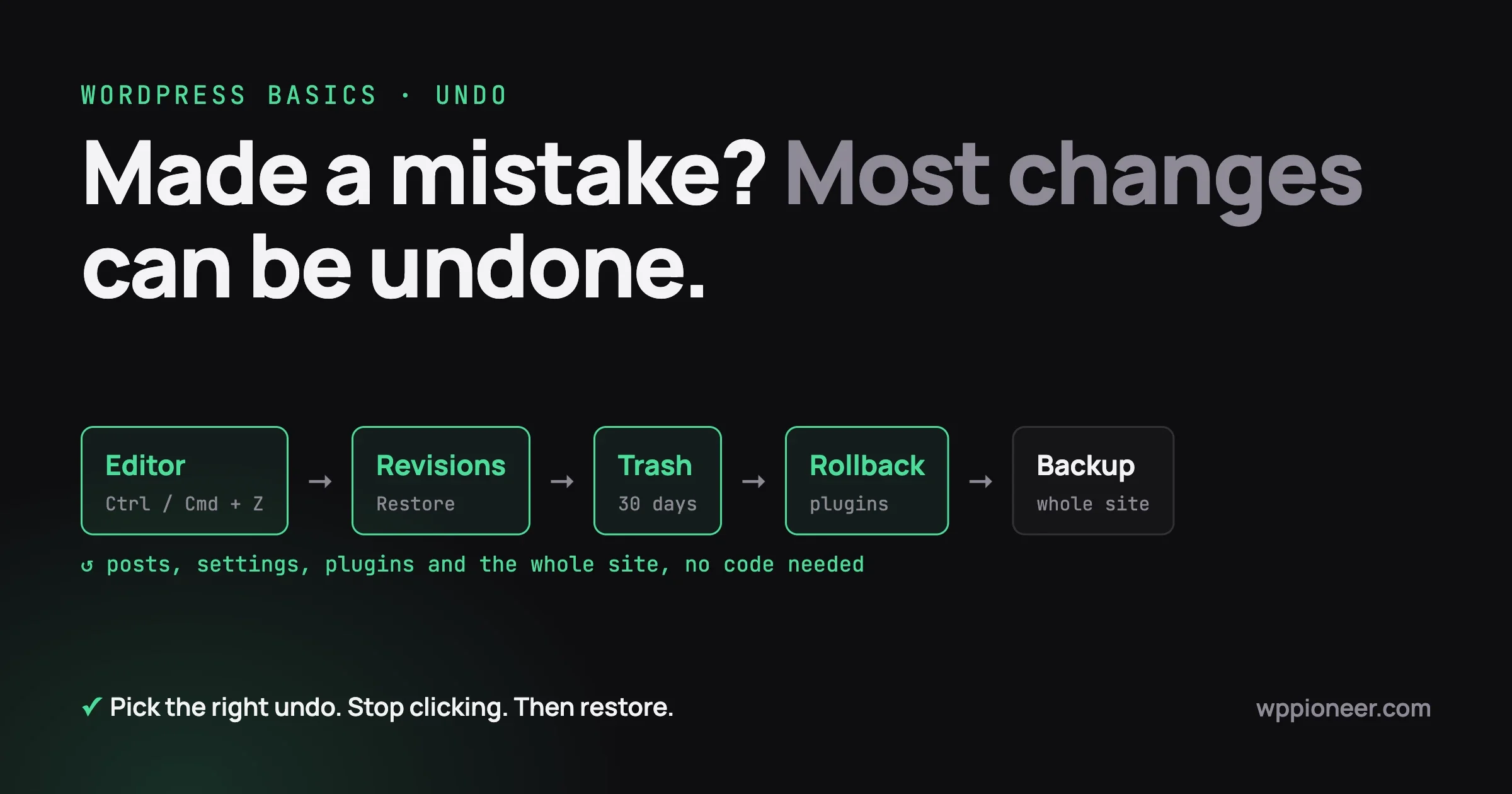
If it fails: Set up automatic daily backups that are stored off-site. Then restore one onto a staging or test copy and click through the home page, a post, the login and any forms or checkout. That test is the real check. For smaller mistakes, you may not need a full restore: how to undo changes in WordPress covers revisions, the trash and rollbacks.
Tip: Take a fresh backup right before you do any update. Then a bad update costs you minutes, not days.
3. Are WordPress, PHP, your plugins and your theme up to date?
Why it matters: Many hacked sites were running software with a known, already-fixed hole. WordPress releases fixes regularly, and attackers read the same release notes you do. PHP matters just as much: it is the language WordPress runs on, and each version stops getting security fixes on a published date.
Check in two minutes:
- Open Dashboard › Updates. Anything waiting?
- Open Tools › Site Health. The Status tab of the Site Health screen lists critical issues, including an outdated PHP version and plugins waiting to be updated.
- Open the Info tab, then the Server section, to read your PHP version.
- Look at Plugins › Installed Plugins for any plugin that has not had an update in more than a year.
Which PHP version should I be on?
WordPress’s own requirements page recommends PHP 8.3 or greater, with MariaDB 10.11 or greater or MySQL 8.0 or greater. The table shows the PHP support dates on php.net, read in October 2026.
PHP version | Released | Active support ends | Security fixes end |
|---|---|---|---|
8.2 | 8 Dec 2022 | 31 Dec 2024 | 31 Dec 2026 |
8.3 | 23 Nov 2023 | 31 Dec 2025 | 31 Dec 2027 |
8.4 | 21 Nov 2024 | 31 Dec 2026 | 31 Dec 2028 |
8.5 | 20 Nov 2025 | 31 Dec 2027 | 31 Dec 2029 |
PHP 8.1 no longer appears in php.net’s list of supported versions at all, so it already gets no fixes. PHP 8.2 gets security fixes only until 31 December 2026, which is close. If you are on 8.2, plan the move to 8.3 or 8.4 now rather than the week your host forces it.
If it fails: Update plugins and themes first, then WordPress, one at a time, on a staging copy if you have one. To change PHP, use your host’s control panel, which usually has a PHP version selector. Test the site afterwards. If something breaks, switch back and contact the plugin author about compatibility. Turn on automatic updates for plugins you trust, and delete plugins and themes you do not use. If a security release lands, read update WordPress now: the security release many sites missed. If an update leaves a white screen, here is how to get back in. If a premium plugin says the update package is not available, see fixing premium plugin updates.
4. Are the security basics in place, and has anything already gone wrong?
Why it matters: Attackers do not choose you, they scan everyone. Basic habits stop most of it. And if something has already slipped in, finding it early is far cheaper than finding it after a customer complains.
Check in two minutes:
- Do all administrators use unique, strong passwords kept in a password manager?
- Is two-factor authentication on for every administrator?
- Open Plugins › Installed Plugins. Do you recognise every plugin, active or not?
- Search Google for
site:yourdomain.comand scan the results for pages you did not write.
If it fails: Remove unknown plugins and users, change passwords, and read the signs of a past hack in how to tell if your WordPress site was hacked. If the same site keeps getting infected, the hidden reason why is usually something the first cleanup missed. Be aware that a free security plugin may get new firewall rules later than the paid version, as we explain in your security plugin is protecting you a month late. Updates matter more than the tier. Also remember that every active plugin runs with the same access as WordPress itself, which is why choosing fewer, better plugins is a security step.
5. Is your site fast enough?
Why it matters: Visitors leave slow pages, and search engines notice. Speed also tells you early when something is wrong, such as a bloated plugin or an overloaded hosting plan.
Check in two minutes:
- Run your home page and one busy page through a free speed test such as PageSpeed Insights.
- Open the page on your phone on mobile data, not on your office wifi.
- Note how long the page takes to show something useful.
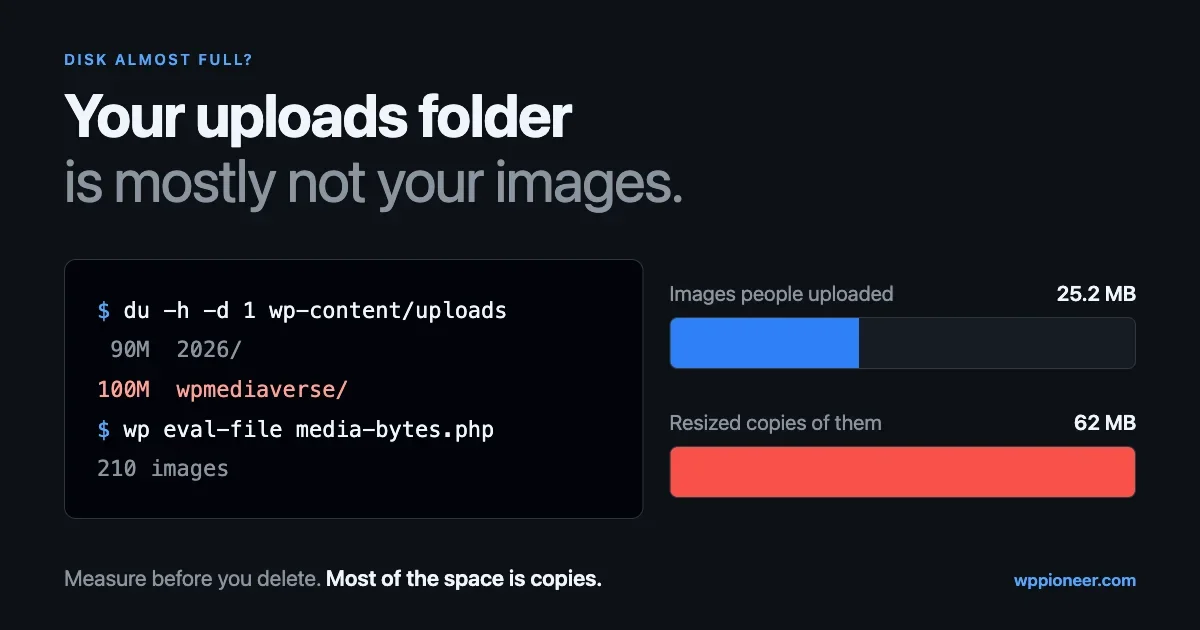
If it fails: Start with the biggest wins. Compress large images and serve them at the size they are shown. Use one caching setup, not several, and check what your host already does for you. Remove plugins you do not use. If the test points at hosting, a better plan is often the cheapest fix. Remember that a speed test does not log in or add things to a cart, so it misses problems that real visitors hit. One of the easiest things to measure is the size of your uploads folder, and this guide shows how to audit what is filling it.
6. Can search engines find and read your site?
Why it matters: A site that search engines cannot read gets no search visitors, however good the content is. The most common causes are simple settings, not clever tricks.
Check in two minutes:
- Open Settings › Reading and confirm that “Discourage search engines from indexing this site” is unticked. Site Health’s Info tab also reports whether your site is discouraging search engines.
- Check that each page has a clear title and a short description, and one main heading.
- Open Google Search Console and find the Sitemaps report. Is your sitemap submitted, and does it show as read?
- Click through your main menu and a few links. Do any lead to a “page not found” error?
If it fails: Untick the search visibility box if it is ticked, which is common on sites that were launched from a staging copy. Install one SEO plugin and let it create the sitemap, then submit it in Search Console. If you change a page’s address, set up a redirect from the old one to the new one. Add short descriptive text to important images so they make sense to people who cannot see them. For the full list and the reasoning, we recommend our sister site’s SEO checklist for website owners rather than repeating it here.
7. Will AI assistants be able to find and quote you?
Why it matters: More people now ask an AI assistant a question instead of typing it into a search box. These tools quote pages that answer questions clearly, so the same plain, helpful writing that helps readers helps you here too.
Check in two minutes:
- Pick your most important page. Does the first paragraph answer the question the page is about?
- Are your headings written as the questions people ask?
- Does your site state basics in text, such as what you do, where, and your prices, rather than only in images?
If it fails: Rewrite the opening of key pages so the answer comes first and the detail follows. Add a short FAQ to pages that get questions. If your SEO plugin supports structured data, turn it on for the page types it fits. Our guides on what to do about AI search and, on our sister site, how to get your WordPress site cited by AI search go further.
8. Do your emails actually arrive?
Why it matters: Order confirmations, password resets and contact form messages all depend on email. When it fails, nothing on the site changes and nobody tells you.
Check in two minutes:
- Submit your own contact form with a Gmail or Outlook address and see whether the message arrives, and in which folder.
- Request a password reset for a test user.
- Ask whether your site sends mail through your host’s basic mail function or through a proper email service.
If it fails: Send site email through an SMTP or email-delivery service rather than the host’s default mail function. Then set up the three DNS records that prove your mail is genuine: SPF, DKIM and DMARC. Google’s sender guidelines say every sender needs SPF or DKIM, and anyone sending 5,000 or more messages a day to Gmail must have SPF, DKIM and DMARC. Even small senders benefit from all three. Your email provider or host will give you the exact records to add. Our guide to how to know if your WordPress emails are arriving walks through the checks.
9. Does your site work on a phone, and for everyone?
Why it matters: Most visitors arrive on a phone, and some use a keyboard, a screen reader or large text. A site that fails these visitors loses them, and in some places the law expects you to cater for them.
Check in two minutes:
- Open your home page and a key page on your own phone. Can you read the text without zooming, and tap every button?
- On a computer, press the Tab key repeatedly. Can you reach every link and button, and can you see where you are?
- Look at your main text and background colours. Is the text easy to read?
If it fails: Choose a mobile-friendly theme, make buttons large enough to tap, and keep text a comfortable size. Add alt text to images that carry meaning. Make sure form fields have visible labels. Our beginner guide to making your WordPress site mobile-friendly covers the details, and accessibility work now does two jobs explains why the effort also helps with AI tools.
10. Are your legal and trust basics covered?
Why it matters: Visitors look for signs that a site is safe. Some of those signs are also legal expectations, depending on where you and your visitors are. This section is general information, not legal advice.
Check in two minutes:
- Does your address start with
https://and show a padlock on every page? - Is there a privacy policy page linked from your footer, and does it match what your site collects?
- If you use analytics, ads or tracking, do you show a cookie notice where your visitors’ laws require one?
- Does your contact page show a real way to reach you?
If it fails: Get an SSL certificate through your host, which is usually free, and set WordPress to use HTTPS. Our beginner’s guide to SSL and HTTPS shows how. WordPress includes tools under Tools › Export Personal Data and Tools › Erase Personal Data, and our guide on what your site quietly keeps about members explains what to do with them. For cookie banners and privacy policies, see WordPress GDPR compliance and ask a qualified adviser about your own situation.
11. Will you know when something breaks?
Why it matters: Most outages are found by customers, not owners. The fix is not hard to build. It is an alert that reaches a real person.
Check in two minutes:
- Do you have an uptime monitor checking your site every few minutes?
- Does the alert go to someone who will see it on a weekend?
- Does Tools › Site Health show critical issues you have been ignoring?
If it fails: Set up a free or low-cost uptime monitor and send alerts to email and your phone. Add a second person as a backup. Check Site Health once a month. Our sister site explains the whole approach in website downtime monitoring: fix issues before your users notice. If you want to see what your server really saw, your access log shows what analytics hides.
12. Do you know when to ask for help, and who?
Why it matters: Some problems are quick to fix yourself. Others cost you days if you guess. Knowing the line, and having a name to call before you need one, turns an emergency into a task.
Check in two minutes:
- Write down who you would call if the site went down tonight: your host, a developer or a maintenance service.
- Keep your hosting login, domain login and backup location in one safe place that someone else can reach in an emergency.
When should I ask for help?
- You see signs of a hack and do not know how far it goes.
- An update breaks the site and you cannot get back in.
- You cannot restore a backup, or you have never tried.
- Your site handles payments or personal data and you are unsure it is set up safely.
- You keep fixing the same problem every few weeks.
If you would like a team to take the checklist off your hands, our sister site’s WordPress maintenance and support service covers updates, backups, monitoring and fixes. You do not need it to use this guide.
What is the one-page summary I can print?
Print this section or save it as a PDF. Tick a box when the check passes, and write the date.
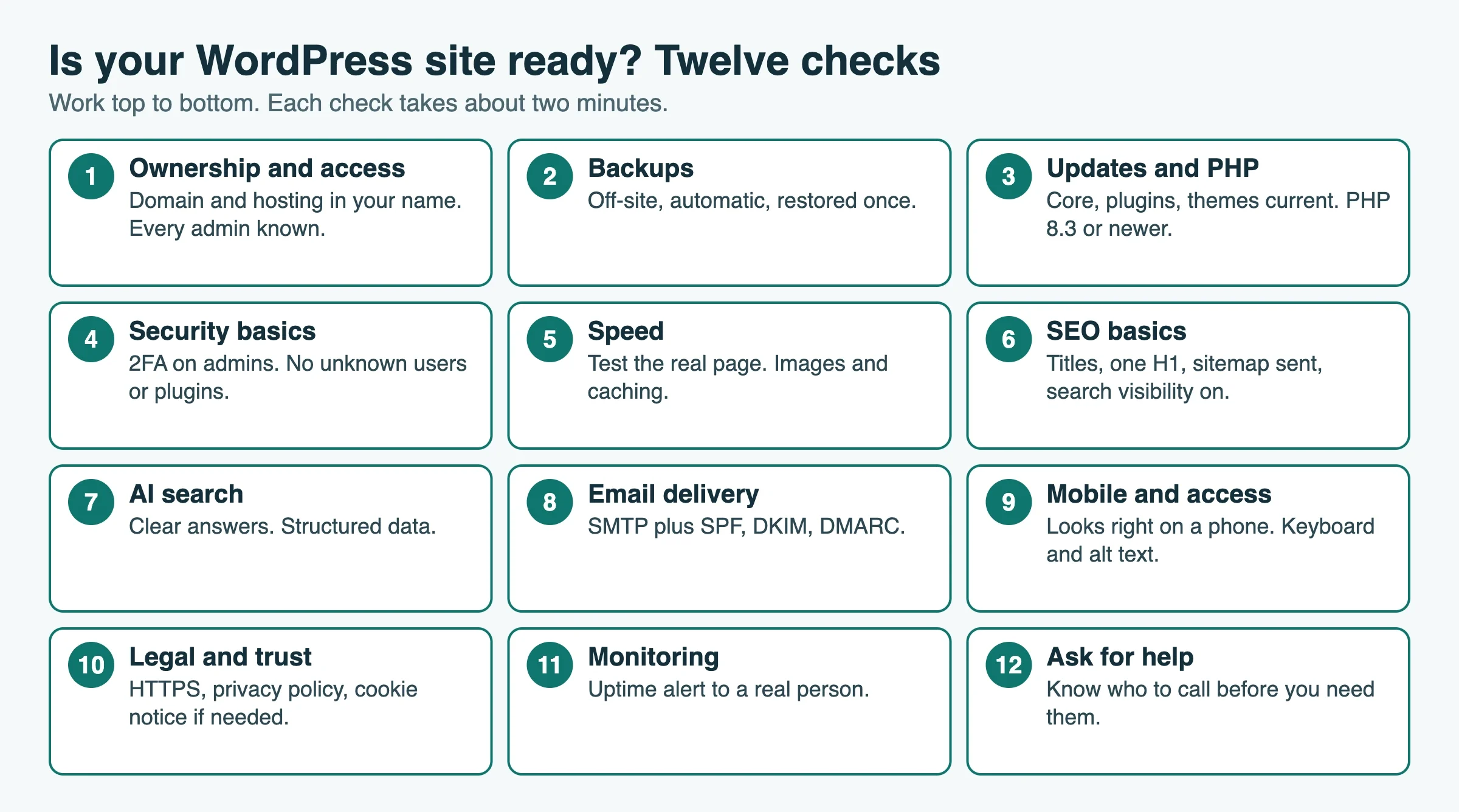
# | Area | Two-minute check | Done |
|---|---|---|---|
1 | Ownership | Domain and hosting in my name; every admin known | [ ] |
2 | Backups | Recent, off-site and restored once | [ ] |
3 | Updates and PHP | No pending updates; PHP 8.3 or newer | [ ] |
4 | Security | 2FA on admins; no unknown users or plugins | [ ] |
5 | Speed | Speed test run on a phone and a computer | [ ] |
6 | Search | Search visibility on; sitemap submitted | [ ] |
7 | AI search | Key pages answer the question first | [ ] |
8 | Test message arrives; SPF, DKIM, DMARC set | [ ] | |
9 | Mobile and access | Readable on a phone; usable by keyboard | [ ] |
10 | Legal and trust | HTTPS; privacy policy; cookie notice if needed | [ ] |
11 | Monitoring | Uptime alert goes to a real person | [ ] |
12 | Help | Know who to call; logins stored safely | [ ] |
How often should I repeat the checklist?
Run the full list twice a year, and run steps 2, 3 and 11 every month. Also run it after you change hosts, change themes or take on a new plugin that handles payments or personal data.
When you don’t need this whole checklist
A site on a fully managed platform, such as a hosted builder where the provider handles updates, backups and security, will not need steps 2 to 4 done by you. A throwaway test site does not need most of this at all. For everything else, even a small personal site benefits from steps 1, 2, 3 and 11.
Verified against: php.net’s supported versions page, WordPress.org’s requirements page and Site Health documentation, and Google’s email sender guidelines, all read in October 2026. Menu names are those of current WordPress; themes and hosts can place extra items around them.
FAQ
What is the most important thing to check first?
Backups, specifically that you have restored one. Everything else on this list can be repaired if you have a good backup, and many things cannot be repaired if you do not.
How do I check which PHP version my site uses?
Go to Tools › Site Health › Info and open the Server section. Your host’s control panel will also show it, and is where you change it.
Is PHP 8.2 still safe to use?
It still receives security fixes until 31 December 2026, according to php.net, so it is not unsafe today. After that date it gets no fixes, so plan your move to a newer version before then.
Do I need a security plugin?
It can help, but it is not the most important layer. Updates, strong logins with two-factor authentication, backups and removing unused plugins protect you more than any single plugin.
How do I know if my site is discouraging search engines?
Open Settings › Reading and look at the box labelled “Discourage search engines from indexing this site”. Site Health also reports it in the Info tab.
Why do my site’s emails go to spam?
Usually because the mail is sent without proof that it is genuine. Use an email-delivery service and add the SPF, DKIM and DMARC records it gives you, then send yourself a test.
What to do next
Pick one hour this week. Do steps 1, 2 and 3 and write down what failed. Fix backups first, then updates. Book the other steps into the next two weeks, and put a reminder in your calendar for six months from now.
No comments yet