
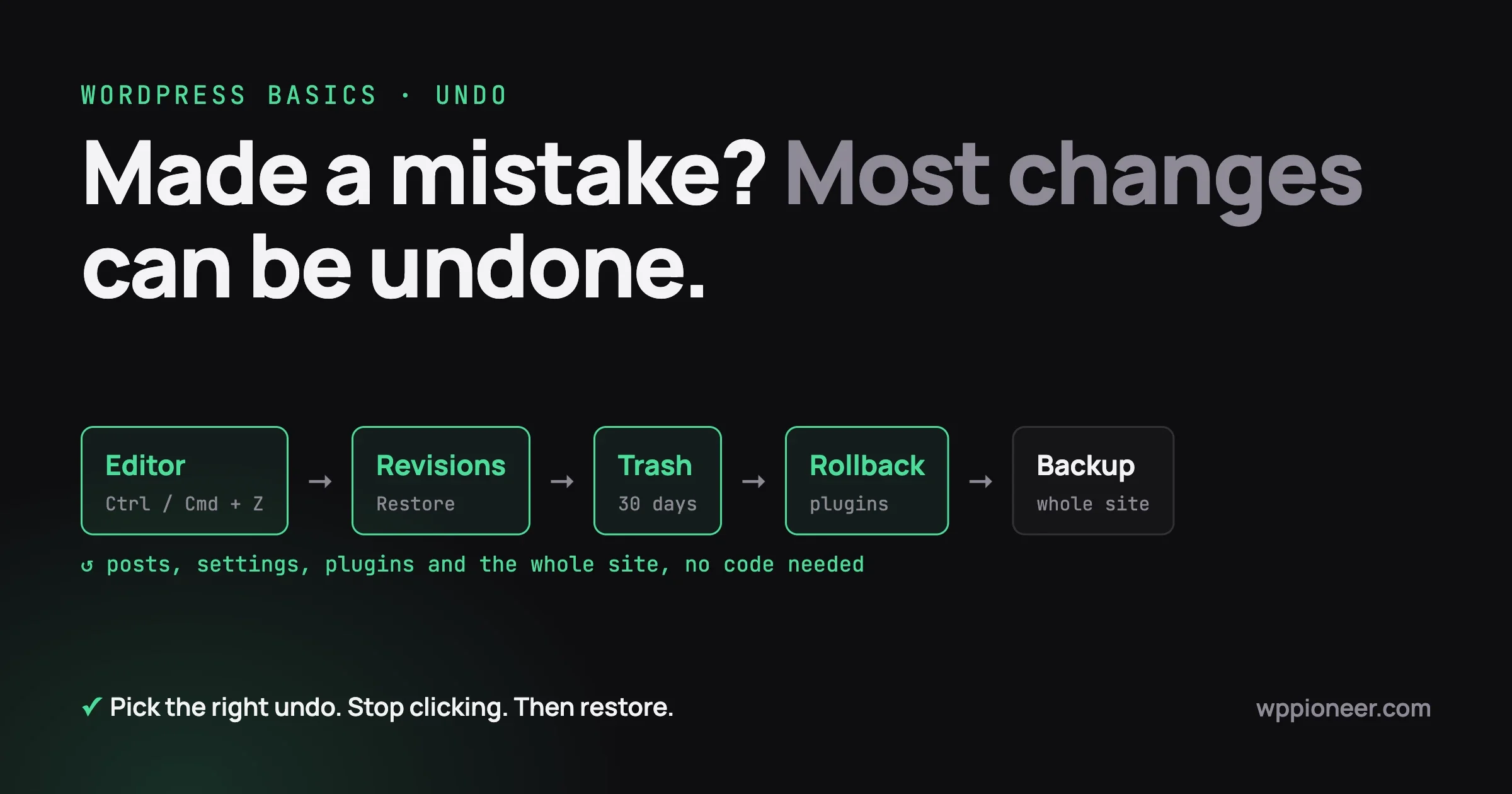
You clicked something, the page looks wrong, and your stomach drops. Good news first: most changes in WordPress can be undone, often in a few seconds, and you do not need to touch any code to do it. The trick is knowing which kind of change you made, because each one has its own undo.
This guide shows you how to undo changes in WordPress for every common case: a paragraph you deleted in the editor, an older version of a post, a page you sent to the trash, a theme or design change, a plugin update that broke something, and finally the whole site. It ends with the few things that cannot be undone, and a ten-minute habit that makes the next mistake easy to fix.
How to undo changes in WordPress: find the right undo first
Before you click anything else, answer one question: what changed, and when? Then jump to the matching section.
What happened | Where to undo it | How long it takes |
|---|---|---|
Deleted or changed text while editing, not saved yet | Editor undo (Ctrl+Z or Cmd+Z) | Seconds |
Saved or updated a post or page and want the old version | Revisions | 1 to 2 minutes |
Deleted a post, page or comment | Trash | 1 minute |
Deleted an image or file from the Media Library | Backup (media is usually deleted permanently) | 10 minutes or more |
Changed the theme, colors, fonts, header or footer | Themes screen, Customizer or Site Editor | 2 to 5 minutes |
Updated a plugin and something broke | Roll back the plugin | 5 to 10 minutes |
Many things are wrong, or you cannot log in | Restore a backup | 15 minutes or more |
One rule for all of them: stop making more changes until you have undone the first one. Every extra click makes it harder to tell what went wrong.
Undo in the block editor (before or right after you save)
The block editor keeps an undo history while the post is open. This is the fastest undo in WordPress, and it works for typing, deleted blocks, moved blocks and style changes.
Use the keyboard
- Undo: Ctrl+Z on Windows, Cmd+Z on a Mac.
- Redo: Ctrl+Shift+Z on Windows (Ctrl+Y also works), Cmd+Shift+Z on a Mac.
Press undo several times to step back through several changes. If you go too far, redo brings them back.
Use the toolbar buttons
At the top of the editor you will see two curved arrows. The left arrow is Undo and the right arrow is Redo. They do the same thing as the keyboard shortcuts. If you cannot find them, your screen may be too narrow; widen the window or use the keyboard.
What editor undo can and cannot do
- It works even after you click Save or Update, as long as you have not closed or reloaded the editor tab.
- It stops working once you close the tab or reload the page. The history is kept in your browser, not on the site. From that point on, use revisions (next section).
- It only covers the post you have open. It will not undo a change you made on another screen.
To see every shortcut the editor supports, press Shift+Alt+H on Windows or Ctrl+Option+H on a Mac, or open the three-dot menu at the top right and choose Keyboard shortcuts. The full list is also on the block editor keyboard shortcuts page.
Lost your work to a crash? Check the autosave
WordPress saves a backup copy of your post automatically while you type. If your browser crashed or your internet dropped, open the post again. When there is an autosave newer than the saved version, WordPress shows a notice at the top of the editor with a link to view and restore it. Take it.
Restore an older version with revisions
Every time you save a draft or update a published post or page, WordPress keeps a copy called a revision. If you saved something you regret yesterday or last month, revisions are how you get the old version back.
How to open revisions
- Open the post or page in the editor.
- Open the Settings sidebar (the square icon at the top right).
- Choose the Post or Page tab.
- Find Revisions and click the number next to it.
If you do not see Revisions, the post has only been saved once, so there is nothing older to go back to yet.
Browse and compare versions
Since WordPress 7.0, clicking the number opens the new revisions screen. You get a list of saved versions and a slider at the top. Drag the slider or click a version in the list to see it. Colored markers show what changed:
- Solid green: blocks that were added.
- Red stripes: blocks that were removed.
- Yellow stripes: blocks that were changed.
Use the Show changes icon next to the slider to turn the highlights on and off. Autosaves appear in the list with an Autosave label.
Prefer the old side-by-side view? In WordPress 7.0 there is a link called Open classic revisions screen in the sidebar. The classic screen has a Compare any two revisions option, which gives the slider two handles so you can compare, say, last Monday’s version with today’s. If your site runs WordPress 6.9 or older, the classic screen is what opens by default.
Restore the version you want
- Move the slider (or pick from the list) to the version you want back.
- Click Restore.
- Check the post in the editor, then click Update or Save if you are happy.
Restoring does not delete the newer versions. They stay in the list, so if you restored the wrong one you can go back again. The official WordPress revisions guide has screenshots of each step.
What revisions do not cover
Revisions save the title, content, excerpt and author. They usually do not save:
- categories and tags;
- the featured image;
- most settings added by plugins, such as SEO titles or page builder layouts saved elsewhere;
- anything that is not a post or page, like menus, widgets or site settings.
If you changed one of those, you will need to set it back by hand or restore a backup.
One more thing to check: some hosts and speed plugins limit or turn off revisions to save database space. If you open Revisions and find only one or two old versions, that is probably why. Ask your host or check your optimization plugin’s settings.
Bring back something you deleted (the trash)
Posts, pages and comments you delete do not disappear straight away. They go to the Trash, and WordPress keeps them there for 30 days by default.
Restore a post or page
- Go to Posts (or Pages) in the dashboard menu.
- Click the Trash link above the list. You only see it when something is in the trash.
- Hover over the item you want and click Restore.
Important: in current WordPress a restored post comes back as a Draft, not as published. That stops an old post from appearing on your site by accident. Open it, check it, and click Publish to put it back live. It keeps its original address (URL) unless another post has taken that address in the meantime.
To restore many items at once, tick their checkboxes, choose Restore from the Bulk actions menu, and click Apply.
Restore a comment
Go to Comments, click Trash (or Spam if it was marked as spam), hover over the comment and click Restore or Not Spam.
Deleted images and files are different
The Media Library does not use the trash by default. When you delete an image, WordPress asks you to confirm, and then it is gone from the site for good. To get it back you need either:
- the original file on your computer or phone, which you can upload again; or
- a backup of the site (see the backup section below).
If you re-upload an image, posts that used it will still point to the old, deleted file, so you will need to re-insert the image in those posts. This is the one delete in WordPress that most often catches beginners out, so take a second before clicking Delete permanently.
Undo a theme, design or layout change
Design changes are stored in different places depending on what you changed and what kind of theme you use. Find your case below.
You switched to a different theme
- Go to Appearance then Themes.
- Hover over your previous theme and click Activate.
Most of your old theme’s settings come back with it, because WordPress stores them per theme. Two things to check afterwards:
- Menus: with a classic theme, go to Appearance then Menus, open Manage Locations, and assign your menus to the right spots again if they are missing.
- Widgets: sidebars and footers may have lost their widgets. Look in Appearance then Widgets for an Inactive widgets area and move them back.
If you deleted the old theme, reinstall it from Appearance then Themes then Add New Theme (or upload it again if it was a premium theme). Its settings are often still saved on the site and return when you activate it.
You changed something in the Customizer (classic themes)
The Customizer is the screen under Appearance then Customize. It works like a preview:
- Before you click Publish: nothing is live yet. Close the Customizer with the X at the top left and confirm that you want to leave. Your changes are thrown away.
- After you click Publish: there is no history button. Open the Customizer again and change the settings back by hand. This is why a quick screenshot of the old settings before you start is so useful.
Tip: next to the Publish button there is a small gear icon. It lets you Save Draft or Schedule instead of publishing, so you can come back to a change later without it going live. The Customizer guide explains each option.
You changed styles in the Site Editor (block themes)
If your theme is a block theme (for example Twenty Twenty-Five), you design the site in Appearance then Editor. You have three ways to undo here:
- Undo and Redo arrows at the top of the Site Editor work just like in the post editor, as long as you have not left the screen.
- Style revisions: open Styles, click the three-dot menu, and choose Revisions. You can step back through earlier versions of your colors, fonts and spacing and apply the one you want.
- Reset styles: from the same three-dot menu you can reset styles back to the theme’s defaults. This removes all your style changes, so try revisions first.
The Styles overview on WordPress.org shows where these menus are.
You changed a template, header or footer (block themes)
Templates control the layout of your pages and posts. Headers and footers are template parts. If you edited one and want the theme’s original back:
- Go to Appearance then Editor then Templates (or Patterns then Template Parts for headers and footers).
- Click the three-dot menu next to the template you changed.
- Choose Reset and confirm.
You can also open the template and use the three-dot menu at the top of its settings sidebar, which shows the same Reset option. If you do not see Reset, the template has not been changed and is already the theme’s version. Resetting removes all of your changes to that template, not just the last one. The Template Editor guide has screenshots of both routes.
You changed a setting under Settings
Screens under Settings (General, Reading, Permalinks and so on) have no undo or history. Change the value back by hand. Two that often cause trouble:
- Settings then Reading: if your home page suddenly shows your latest posts, set Your homepage displays back to A static page and pick your home page again.
- Settings then Permalinks: if links started showing “page not found” errors, pick the structure you had before and click Save Changes. Just saving the Permalinks screen once also fixes many broken-link problems.
If you changed the WordPress Address or Site Address under Settings then General and can no longer log in, do not keep trying. Ask your host to set them back, or see the fixes in our list of WordPress quick fixes every beginner should bookmark.
Undo a plugin update or a new plugin
This is the most common reason people search for how to undo changes in WordPress. A plugin updated, and now a page looks broken or a feature stopped working.
If you just installed or turned on a plugin
Go to Plugins then Installed Plugins and click Deactivate under the plugin. For most plugins that undoes their effect straight away. Only click Delete once you are sure, because some plugins remove their saved settings when deleted.
If a plugin update broke something
WordPress has no built-in “go back one version” button for plugins, but there are three simple routes:
- Use a rollback plugin. The free WP Rollback plugin adds a Rollback link to plugins from the WordPress.org directory. Click it, pick the version you had before, and confirm.
- Upload the older version yourself. On the plugin’s WordPress.org page, open Advanced View and find the list of previous versions at the bottom. Download the one you had, then go to Plugins then Add New Plugin then Upload Plugin. WordPress will ask whether to replace the current version with the uploaded one. Choose Replace current with uploaded.
- Premium plugins: log in to your account on the seller’s site and download the previous version from there, then upload it the same way.
After rolling back, turn off automatic updates for that plugin until the developer fixes the problem, then tell them what broke. Newer versions of WordPress also try to protect you: if an automatic plugin update causes a fatal error, WordPress rolls that update back on its own.
If the update left you with a blank white screen and you cannot even reach the dashboard, follow our step-by-step guide on getting back in after a WordPress white screen first, then roll back. For a wider plan covering WordPress core and theme updates too, see what to do when a WordPress update breaks your site.
What about a WordPress core update?
Do not try to downgrade WordPress itself. Updates often include security fixes, and going back leaves your site exposed. If a WordPress update broke something, the cause is almost always a plugin or theme that is not ready yet. Update or roll back that plugin or theme instead, or restore a backup if the site is unusable.
Undo everything: restore the whole site from a backup
When many things are wrong, you are locked out, or you deleted media and cannot recover it, a backup is your undo button for the whole site. A backup is a copy of your files (themes, plugins, uploads) and your database (posts, pages, settings, users).
Where your backups probably are
- Your host. Most hosts keep daily backups. Log in to your hosting account and look for Backups or Restore. Managed WordPress hosts often have one-click restore.
- A backup plugin. If you use one such as UpdraftPlus, its settings page lists your backups with a Restore button.
- Your own copy. Some site owners download a backup before big changes. If you did, now is its moment.
Before you restore, know what you will lose
A restore puts the whole site back to the moment the backup was made. Anything that happened after that is removed, including:
- new posts, pages and comments;
- new orders, sign-ups or form entries;
- any fixes you made since.
So pick the most recent backup from before the problem started. If your host lets you, restore only the part you need (for example, just the files or just the database). If your site takes orders or member sign-ups, note what came in since the backup so you can re-enter it, or ask your host to help with a partial restore.
For the full step-by-step, including restoring when the site is down, read how to restore your WordPress site from a backup in 15 minutes. WordPress.org also has a plain-English overview of WordPress backups.
What cannot be undone
It helps to know the few actions WordPress cannot take back, so you can slow down before them:
- Emptying the trash or clicking Delete Permanently on a post or page. After that, only a backup can bring it back.
- Deleting images or files from the Media Library, in a default setup.
- Deleting a user. WordPress asks what to do with their content. If you chose to delete it, the content goes too.
- Emails and newsletters that were sent. Once they leave, they are out.
- Payments, refunds and orders processed by your payment provider. Changing the order in WordPress does not reverse the money.
- “Search and replace” in the database done with a plugin or by your host. Always take a backup first.
- Deleting a plugin that removes its data on uninstall. Reinstalling it gives you a fresh, empty plugin.
- Anything older than your oldest backup. If your host keeps 14 days of backups, a problem you notice on day 20 cannot be rolled back that way.
None of these are reasons to be scared of your site. They are the moments to pause, read the confirmation message, and make sure a backup exists.
The 10-minute habit that makes undo possible next time
Undo is easy when you prepared for it and painful when you did not. This short routine, before any big change, covers almost every case above.
- Check your latest backup (2 minutes). Open your host’s backup page or your backup plugin and confirm there is a backup from the last 24 hours. If not, run one now. Our guide to setting up automated WordPress backups shows how to make this automatic.
- Take screenshots of the settings you are about to change (2 minutes). Customizer panels, Reading settings, plugin settings pages. A screenshot is the simplest undo there is for screens with no history.
- Make one change at a time (no extra time). Update one plugin, then check the site. If you update ten at once and something breaks, you will not know which one to roll back.
- Check the site as a visitor (3 minutes). Open the home page, a post, a page with a form, and the shop or checkout if you have one, in a private browser window where you are not logged in.
- Write a one-line note (1 minute). Date, what you changed, and the version numbers. When something breaks next week, this note tells you where to look first.
- Use staging for big jobs. Many hosts offer a free staging copy of your site. Try theme switches, page builder changes and large plugin updates there first. Our guide to safely updating plugins without breaking your live site walks through it.
Optional: turn on a trash for media
If you or your team delete images often, you can make the Media Library use the trash too. This needs one line added to your site’s wp-config.php file, above the line that says “That’s all, stop editing!”. If you are not comfortable editing files, ask your host to add it:
define( 'MEDIA_TRASH', true );After that, deleted media goes to a Trash view in the Media Library for 30 days, just like posts.
Frequently asked questions
How do I undo changes in WordPress after I clicked Update?
If the editor tab is still open, press Ctrl+Z (Cmd+Z on a Mac) or click the Undo arrow. If you already closed it, open the post, go to the Settings sidebar, click the number next to Revisions, pick the older version and click Restore.
Is there an undo button for the whole WordPress site?
Not inside WordPress itself. The closest thing is restoring a backup from your host or backup plugin, which puts the whole site back to an earlier moment. Anything added after that backup is lost, so choose the backup carefully.
How long do deleted posts stay in the trash?
30 days by default. After that WordPress empties the trash automatically and the posts are gone for good, unless you have a backup.
Why is my restored post not showing on my site?
Restored posts come back as drafts. Open the post and click Publish to make it live again.
Can I undo a theme change without losing my settings?
Usually yes. Reactivate your old theme under Appearance then Themes. WordPress keeps each theme’s settings, so most of them return. Check your menus and widgets afterwards, as they sometimes need reassigning.
Can I undo a plugin update?
Yes. Use the free WP Rollback plugin for plugins from WordPress.org, or download the previous version and upload it under Plugins then Add New Plugin then Upload Plugin, choosing Replace current with uploaded.
Quick recap
Knowing how to undo changes in WordPress mostly comes down to picking the right tool. Use the editor’s undo while the post is open, revisions once it is saved, the trash for deleted posts and pages, the Themes screen, Customizer or Site Editor for design changes, a rollback for plugin updates, and a backup when everything else fails. Spend ten minutes before your next big change checking your backup and taking a few screenshots, and the next “oh no” moment will be a two-minute fix instead of a lost weekend.
No comments yet