
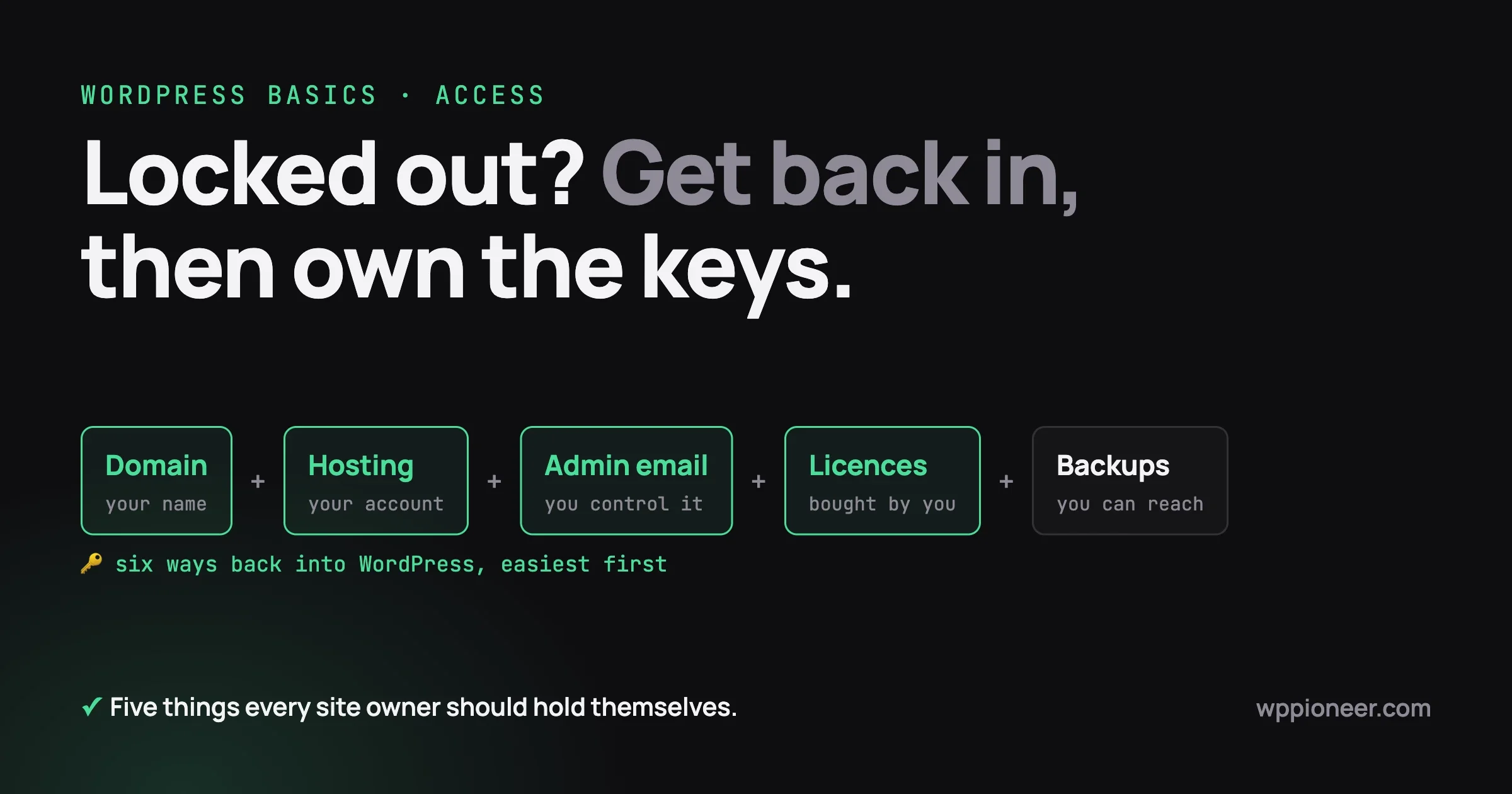
You can almost always get back into a locked WordPress site, as long as you control the hosting account or the email address attached to the administrator login. The lasting fix is to own five things yourself: the domain name, the hosting account, the administrator email address, your plugin and theme licences, and your backups.
If you are locked out right now, take a breath. This is a common problem, it is almost always fixable, and the fix usually takes minutes once you know which door to try. This guide goes through every way back in, from the easiest to the hardest. Then it shows you how to make sure it never happens again.
In this guide
- Part one: getting back in, six routes from easiest to hardest
- What not to do when you are locked out
- Part two: the ownership checklist, so nobody else holds your keys
- What happens when a developer holds your plugin or page builder licence
- A printable “site keys” list
- Questions people ask
Three words first. A WordPress administrator (or “admin”) is a user who can do everything on the site. Hosting is the company that stores your site’s files and shows them on the internet. A domain name is your web address, such as yourbusiness.com. Each usually lives in a different account.
This is general guidance, not legal advice. If a contract or a dispute with a developer is involved, ask a solicitor or lawyer in your country.
Part one: how do you get back into your WordPress site?
Work through the routes below in order. Stop at the first one that works. Each one says what you need, the steps, and when to stop and ask your hosting company for help.
Route 1: Can you use the “Lost your password?” email?
Yes, and this fixes most lockouts. WordPress has a built-in way to set a new password by email. The WordPress documentation calls it the “automatic emailer” and says it is normally the easiest way.
What you need: either your username or the email address saved on your admin account, and access to that email inbox.
- Go to your login page. It is usually your web address followed by
/wp-login.phpor/wp-admin, for examplehttps://yourbusiness.com/wp-admin. - Click the “Lost your password?” link under the login box.
- Type your username or the email address on the account, and submit.
- Open your email, and check the spam folder too.
- Follow the message to set a new password, then log in.
If no email arrives: either the address on the account is not the one you check (Route 2), or your site cannot send email (go to Route 3).
When to stop and ask your host: if the reset page shows an error, send your host its exact wording.
Route 2: Which email address does the admin account use?
If the reset email never arrived, it may be going to an address you no longer read. On sites built by someone else, the developer may have used their own email address.
What you need: any way to see the list of users. Options are another admin who can log in, your host’s control panel tools (Route 3), or a helper with terminal access (Route 5).
How to check:
- If any administrator can log in, go to Users, then All Users. Find each account with the role “Administrator” and read its email address.
- If it is not yours, click Edit on that user, change the email to your own, and click Update User. WordPress may ask you to confirm by email.
If you cannot log in at all, you can still read this information from the database (Route 4) or with WP-CLI (Route 5).
When to stop and ask your host: if you do not know how to see the user list. A host support person can read it for you after they check that you own the hosting account.
Route 3: Can my hosting control panel reset it for me?
Often, yes. Many hosts add WordPress tools to their control panel (the web page where you manage your hosting). Names differ, so look for words like “WordPress Manager”, “WordPress Toolkit” or “Installations”. We have not read every host’s pages, so the steps below are general.
What you need: the login for your hosting account. This is a different login from your WordPress login. If you do not know it, use your host’s own “forgot password” page, or look for the welcome email from when you signed up.
- Log in to your hosting control panel.
- Find the list of websites or WordPress installations on the account.
- Open the one for your site.
- Look for an option like “Log in”, “Admin login”, “Reset password” or “Users”. Some panels log you straight into the WordPress dashboard with one click. Others show a list of admin users and let you set a new password.
- Once in, go to Users, then Your Profile, and set a new password you control. Check the email address on your account at the same time.
When to stop and ask your host: if you cannot find the tools, or the panel offers no WordPress section. Write to the host’s support chat and say: “The owner of this hosting account is locked out of the WordPress admin for this domain. Can you help reset the administrator password?” They will usually ask you to prove you own the account first. That is a good sign. It means they protect your site from strangers.
Route 4: Can you create or reset an admin through phpMyAdmin?
Yes. This is a firmer route, so read it fully first. phpMyAdmin is a tool, found in most hosting control panels, that lets you look at and change your site’s database. The database is where WordPress keeps your users, posts and settings. The WordPress documentation says to use phpMyAdmin at your own risk and to seek advice if you doubt your ability. We agree. A wrong click can damage a site.
Before you start: make a backup. Most phpMyAdmin screens have an “Export” tab that downloads a copy of the database. Do that first and keep the file.
What you need: access to phpMyAdmin through your hosting control panel.
Reset the password of an existing admin
These steps follow the official WordPress documentation page “Reset your password” (read in October 2026).
- Log in to phpMyAdmin and click on Databases. Click your WordPress database. If you see several, your host or the file
wp-config.phpwill say which one is yours (the line startingDB_NAME). - Find the table whose name ends in
users. The default iswp_users, but your site may use a different start, such asabc123_users. Do not pick the table ending inusermeta. - Click Browse to see the rows. Each row is one user. Find your username in the
user_logincolumn. - Click Edit next to that row (it may look like a pencil).
- Find the row called
user_pass. It holds a long string of letters and numbers. Delete it and type your new password in its place. - In the Function drop-down menu next to that field, choose MD5. This turns your typed password into the scrambled form the database stores.
- Check that the new password is correct and that MD5 is showing in the box. Click Go at the bottom.
- Go to your login page and test the new password. Log in, then change the password again from Users, then Your Profile. WordPress will then store it in its stronger, current form.
Create a brand new admin user
Use this only if no admin account is left that you can reset. The official documentation does not list a step by step page for it, so this is a method that hosting support teams commonly use. Ask your host to do it if you are unsure. It needs three new rows in two tables.
- Open the
userstable (wp_usersor similar) and click the Insert tab. - Fill in:
user_login(a new username),user_pass(your new password, with the Function drop-down set to MD5),user_nicename(the same as the username),user_email(an address you control),user_registered(use the Function drop-down and choose NOW),user_status(0), anddisplay_name(the name to show). Click Go. - Note the
IDnumber of the new row. phpMyAdmin usually shows it in the message after you click Go, or you can find it in Browse. - Open the
usermetatable (wp_usermetaor similar) and click Insert. Add two rows, using the new ID asuser_id:meta_keyiswp_capabilitiesandmeta_valueisa:1:{s:13:"administrator";b:1;}meta_keyiswp_user_levelandmeta_valueis10
wp_, use that start in the two meta_key values instead, for example abc123_capabilities and abc123_user_level.When to stop and ask your host: if you cannot find the right table, if phpMyAdmin shows an error, or if any step is unclear. Do not guess. Ask.
Route 5: What if you can use WP-CLI or a terminal?
WP-CLI is the official command line tool for WordPress. A command line (or terminal) is a screen where you type short written instructions to the server instead of clicking buttons. Many hosts offer it through SSH, a secure remote connection. If that sounds unfamiliar, ask your host. It is the quickest route for people who have the access.
What you need: SSH or terminal access to the server where WordPress lives, with WP-CLI installed. The commands must be run from the folder that holds your WordPress files (the folder with wp-config.php). The WordPress documentation lists these two steps for resetting a password.
- List your users to find the right ID:
wp user list
You can limit the list to administrators and see just the useful columns:
wp user list --role=administrator --fields=ID,user_login,user_email123 with the ID from the list, and choose your own password:wp user update 123 --user_pass='choose-a-long-new-password'You can use the login name or the email address instead of the ID. Add --skip-email if you do not want WordPress to email the user about the change.
If no admin exists any more, create one. This prints the new user’s ID, and the password is the one you choose:
wp user create newadmin you@yourbusiness.com --role=administrator --user_pass='choose-a-long-new-password'If you leave out --user_pass, WP-CLI makes a random password and prints it once. Copy it at once.
Use single quotes around the password. Afterwards, log in and change the password again in your Profile, because your terminal may remember the command.
When to stop and ask your host: if the command says “command not found”, if it says it cannot find a WordPress installation, or if you see a database error. Send the exact message to your host.
Route 6: What is the recovery mode email after a crash?
This route is different. It applies when your site shows “There has been a critical error on this website”, rather than just a forgotten password. Since WordPress 5.2, a broken plugin or theme triggers recovery mode. WordPress emails the site’s administrator address, and also the network administrator address on multisite networks, with a secret link.
- Look for an email from your own site. Check the address that is set as the administrator email under Settings, then General. It may be an old address. Also check spam.
- Click the secret link in the email. This stores a small file (a cookie) in your browser so that only your browser is in recovery mode.
- Log in as usual with your admin username and password. If you forgot the password, use Route 1 to Route 5 first.
- WordPress then shows a notice that recovery mode is on and lists which plugins or themes it has paused and what went wrong. Deactivate or update the item that caused the problem. Then leave recovery mode from the notice.
Visitors still see the error until you fix it. Our article WordPress White Screen After an Update: How to Get Back In walks through the crash side in full, so we do not repeat it here.
When to stop and ask your host: if the email never comes and the site is still showing the critical error. Your host can read the error log and tell you which plugin or theme is at fault.
What if every route above is out of reach?
The WordPress documentation lists two older methods, an FTP edit to a theme file and a standalone emergency script. Both change live files and are risky. At this point, ask your host’s support team. They can do it safely and check that you own the account.
What should you not do when locked out?
Panic makes people take risks. Please avoid these.
- Do not install a “password reset” plugin or script from an unknown source. Anyone who can place a file on your site can take control of it. Treat any tool from an unknown source as unsafe. The only script the WordPress documentation points to is its own emergency script, and it says to delete it as soon as you are done.
- Do not give your hosting password to a stranger, including someone who offers help in a comment or message. Your hosting account reaches all your files and your database. Give access only to a person you hired, preferably with their own login (most hosts let you add a second user).
- Do not delete the site and start again. Your content is still in the database.
If your email or password was changed and you did not do it, treat it as a possible break-in. Our guide How to Tell if Your WordPress Site Was Hacked (And What to Do First) tells you what to check and what to do first.
Part two: who holds the keys to your website?
Getting back in is the cure. Owning your keys is the prevention. A common pattern: a developer or agency builds the site under their own email address, hosting account and licences. Years later they are unreachable, and the owner cannot get in.
Tick each line below you can honestly say yes to. For each one you cannot, the fix is shown.
1. Is the domain name registered in your own name and account?
The domain is the most important item, because everything else can be rebuilt but your web address cannot. A registrar is the company where the domain is registered. Log in to the registrar’s website yourself. If you cannot, you do not own it yet.
- Check: use a “whois” search to see the registered owner. If the details are hidden for privacy, the registrar login is your proof.
- Fix: ask the person who registered it to transfer it to an account you create, or to add you as the account owner. Your registrar’s help pages explain their transfer process.
- Prevent: make sure the renewal payment and the renewal reminder email go to you, and turn on auto-renew.
2. Is the hosting account in your name?
- Check: can you log in to the hosting control panel, and does the billing email belong to you?
- Fix: if the developer pays for hosting under their own account, ask them to move your site to a hosting account in your name, or to transfer ownership if the host allows it. Many hosts do this on request.
3. Is the admin email address one you control?
- Check: under Users, then All Users, look at every Administrator’s email. Then check Settings, then General, for the “Administration Email Address”.
- Fix: change both to an address you read every day. Avoid an address that belongs to a staff member who may leave. A shared role address (such as
admin@yourbusiness.com) that goes to more than one person works well.
4. Are there at least two administrator users?
One admin account is one point of failure. Two accounts means that if you lose the password to one, the other can fix it from inside the dashboard.
- Check: Users, then All Users, then filter by Administrator.
- Fix: go to Users, then Add New, and create a second administrator with a different email address that you also control. Give each real person their own account. Do not share one login among several people.
5. Are your plugin and theme licences bought in your own name?
A licence is the permission to use a paid plugin or theme and to receive its updates. It is tied to an account, usually the email used at checkout. This is the one most people miss, so the next section covers it in more detail.
- Check: for each paid plugin or theme, find the account where it was bought. Can you log in to it? Is the email yours?
- Fix: see the section below on moving a licence into your own name.
6. Can you reach your backups?
A backup is a saved copy of your site that you can restore if something goes wrong. The WordPress documentation says a backup has two parts: the database (your posts, comments and settings) and the site files (WordPress itself, themes, plugins and uploaded images). It suggests a weekly backup for a small site and a daily backup for a busy one. It also recommends keeping more than one recent copy, stored in different places.
- Check: where do backups go, and can you log in and download one without anyone’s help?
- Fix: set up a backup that saves to a place you own, such as your own cloud storage account. Ask your host whether they keep backups, how long they keep them, and how you can restore one.
7. Is there a written handover list from your developer or agency?
Ask for it in writing, when the project starts or today. At minimum, it should list the items in the table further down.
What if your developer holds the page builder or plugin licence?
A page builder (a plugin that lets you design pages by dragging blocks) or another paid plugin is often bought under the developer’s account, sometimes on one plan that covers many client sites. The trouble comes when the account is closed, the developer stops paying, or the plan is retired.
What happens to updates if the account is closed or the plan is retired?
In general, a licence has two jobs. It lets the plugin keep running, and it lets the plugin download updates and support. These behave differently from one vendor to the next, so you must check the terms for the plugin you use. The general pattern is:
- The plugin usually keeps working for a while on the version you already have. It does not usually switch itself off the day a licence ends, but that depends on the vendor.
- Updates stop. You stop getting new features, and, more importantly, you stop getting security fixes. Old plugin versions are a common way for sites to be broken into.
- Support stops, since the vendor sees no active customer.
If you see the message about an update package that is not available, our article Update Package Not Available: Fixing Premium Plugin Updates explains what it means and the steps to fix it. We will not repeat that here.
We have not named a vendor in this guide, because each one has its own current terms and plans. Before you act, open the vendor’s own licence terms and “transfer” or “account” help pages and read the current wording.
How do you move a licence into your own name?
The details differ, but the steps are usually the same shape:
- Make a list. Write down every paid plugin and theme on your site. In the dashboard, go to Plugins, then Installed Plugins, and note the name of each one that is not from the free WordPress.org directory.
- Find the vendor’s help page for “transfer licence”, “change account owner” or “change email”. Read it.
- Create your own account with the vendor, using an email address you control.
- Ask the current holder (your developer) to start the transfer, or to send the vendor a request, if the vendor allows it. Some vendors transfer the licence itself. Others only let the holder release a site from their licence so you can add it to a new one.
- If the vendor will not transfer it, buy your own licence. This costs money, but it puts you in control.
- Enter the new licence key on your site (usually under a settings page for the plugin), and check that the update screen says the licence is active.
- Write down where each licence lives, the email used, and the renewal date.
If the developer cannot be reached and the licence is stuck in their account, contact the vendor’s support with proof that you own the site and the domain. Some will help. Others will not. Plan for both.
Your printable site keys list
Print this table and fill it in. Do not write the actual passwords on it, only where they are kept.
Item | What to write down | Who owns it | Renewal date |
|---|---|---|---|
Domain name | Web address, registrar name, registrar login email | ||
Hosting account | Host name, login email, plan, who pays | ||
WordPress login address | The address you use to log in | Not applicable | |
Administrator 1 | Username and email | Not applicable | |
Administrator 2 | Username and email | Not applicable | |
Administration email | Address under Settings, then General | Not applicable | |
Page builder licence | Vendor, account email, plan | ||
Other paid plugins and themes | One line each: name, vendor, account email | ||
Backups | Where they are stored, how often, how to download one | Not applicable | |
Email sending service | If your site uses one for contact forms or orders | ||
Where passwords are kept | Name of your password manager or safe place | Not applicable | |
Who to call | Your developer or agency, and the host’s support link | Not applicable |
What should you ask a developer or agency to hand over?
Before you pay a final invoice, ask for a written list that covers the table above. Also ask for any custom code and where it is stored.
Questions people ask
Can someone get back into a WordPress site if everything is lost?
Usually yes, if you can prove you own the hosting account or the domain. If you lost the hosting login too, start with the host’s own account recovery page, then work down this guide.
Is it safe to reset the password in phpMyAdmin?
Yes, if you follow the steps exactly and back up first. The WordPress documentation warns that you use it at your own risk, so ask your host if you doubt any step.
A developer says the licence is “theirs”. Must you keep paying them?
That depends on your contract and on the vendor’s terms, and we cannot give legal advice. In practical terms, you can ask the developer to transfer the licence to your account, or you can buy your own and enter the key on your site. Either way, ask for the arrangement in writing.
Do you lose your site if a plugin licence ends?
Not usually. The site normally keeps running on the version you have, but updates and support stop, and that raises your risk over time. Check the vendor’s current terms for your plugin, then plan to renew in your own name or replace it.
One last thing
A locked login feels like an emergency, but it is mostly a question of who holds which key. Get back in with the easiest route that works, then spend one hour with the checklist so you own the domain, the hosting, the admin email, the licences and the backups. If you would like a second pair of eyes, the WP Pioneer team can check your setup so every key is in your hands. Get in touch.
No comments yet