
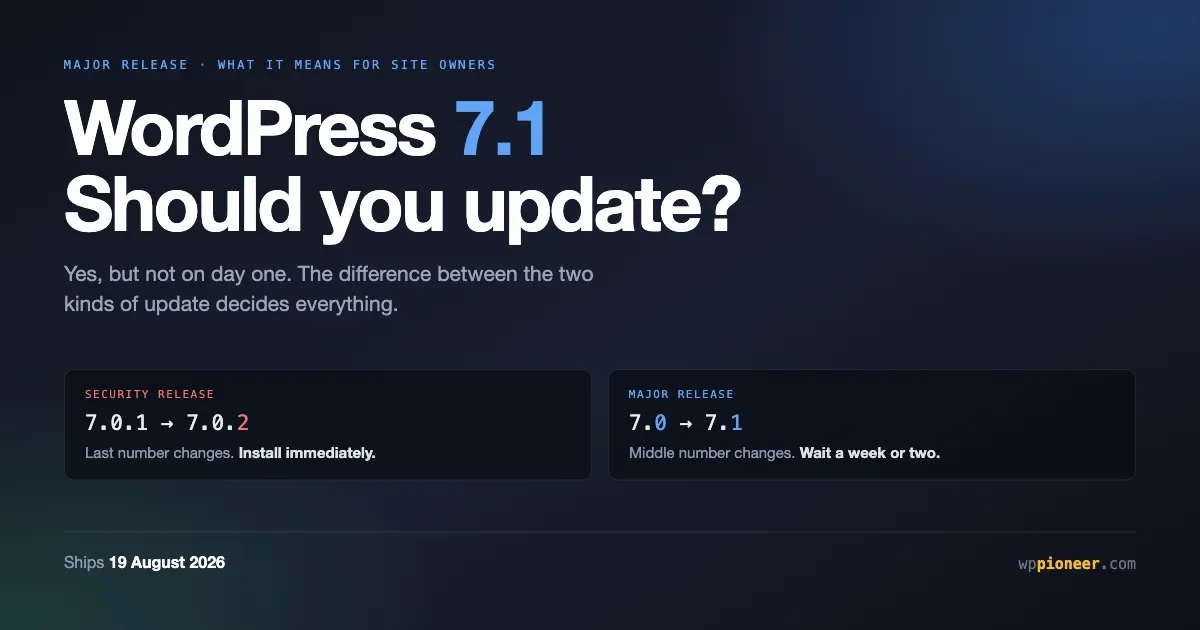
WordPress 7.1 arrives on 19 August 2026. If you own a WordPress site, a notice will appear in your dashboard offering it to you, and you will have to decide whether to click.
The honest answer for most site owners is yes, but not on the first day. This article explains what is actually in 7.1, why waiting a week or two is sensible for a major release when it is not sensible for a security release, and exactly what to do when you decide to go ahead.
First, the difference that matters
WordPress ships two kinds of update, and confusing them is the single most common mistake site owners make.
Security and maintenance | Major release | |
|---|---|---|
Example | 7.0.1 to 7.0.2 | 7.0 to 7.1 |
Which number changes | The last one | The middle one |
What it contains | Fixes only | New features and changes |
How often | As needed, sometimes urgently | Roughly three times a year |
Risk of breaking something | Very low | Low, but real |
When to install | Immediately | Within a few weeks |
WordPress installs the first kind automatically by default, and that default is correct. Leave it alone.
The second kind is the one that arrives with a notice asking you to decide. That is what 7.1 is, and that is what this article is about.
If you take one thing from this: never delay a security release, and never rush a major one.
What is actually in 7.1
Most coverage of a WordPress release is written for developers. Here is the version that matters if you run a site rather than build them.
The editor gets a proper responsive preview
Until now, when you wanted to see how a page looked on a phone, you clicked one of three buttons: desktop, tablet or mobile. Each showed you one fixed width.
That is replaced by a preview you can drag to any width. It sounds minor and it changes how you check your work in a useful way, because real visitors do not arrive at three fixed widths. They arrive at every width, including the awkward ones between a phone and a tablet where layouts commonly go wrong.
Practically: after you update, drag the preview slowly from narrow to wide on your most important pages. You will probably find one or two spots where something wraps badly. Those were always there. You just could not see them before.
Better AI groundwork, not AI features
There is a lot of AI talk around this release and it is worth being precise, because the reality is less dramatic than the headlines.
WordPress is building plumbing that lets plugins do AI things properly. It is not adding a write-my-post button to your editor. If you were hoping 7.1 would generate content for you, it will not. If you were worried 7.1 would start doing things to your content on its own, it will not do that either.
What it means in practice is that AI-related plugins you install later will be better behaved, because they will use a shared standard instead of each inventing their own.
Design and layout improvements
Several small things that add up if you build pages with blocks: better control over vertical alignment in layouts, a clearer way to make grids fill available space, and more predictable behaviour when you set a fixed width on something inside a row.
These are the kind of changes you notice as “the thing I was fighting with last month now just works” rather than as a headline feature.
Media handling
WordPress now accepts HEIC and HEIF images, which is the format iPhones produce by default. Previously many site owners had to convert those before uploading, or install a plugin to do it. That friction is going away.
How to find your version and settings without a developer
Three things are worth being able to check yourself, because every conversation about updates starts with them and waiting on someone else turns a two minute task into a two day one.
Your WordPress version. Bottom right corner of any admin screen, in small grey text. It is also at the top of Dashboard then Updates.
Whether automatic updates are on. On the Updates screen, WordPress states whether this site is set to receive automatic updates for maintenance and security releases, with a link to change it. If that line is missing entirely, something has disabled the updater and it is worth asking your host why.
What your plugins and theme are running. The Plugins screen lists a version next to each name, and Appearance then Themes shows the same for your theme.
If you have hosting with command line access and are comfortable using it, the same three answers come from:
wp core version
wp plugin list --fields=name,version,update
wp theme list --fields=name,version,update
That is optional. Everything in this article can be done from the dashboard, and the command line version is included only because some readers will have a host that makes it easy.
The one setting worth changing before August
While you are on the Updates screen, look for the automatic updates option and make sure maintenance and security releases are enabled.
This is separate from the 7.1 decision and more important than it. Enabling automatic security updates does not mean 7.1 installs itself, because major releases are a different category and stay manual by default. What it means is that when the next urgent fix ships, at a weekend or while you are away, your site receives it without needing you.
The last WordPress security release had working attack code circulating publicly within about a day. Sites that had automatic updates enabled were protected before most owners had heard about it. Sites that had them disabled, usually by someone years earlier for a reason nobody remembers, were exposed for as long as it took someone to notice.
If your dashboard shows automatic updates as disabled and you do not know why, that is the single highest value thing you can fix today, ahead of any decision about 7.1.
Should you update? A decision you can actually make
Work through these in order. The first one that applies is your answer.
- Is your site making money or handling bookings right now, today, with no ability to be offline for twenty minutes? Then wait two to three weeks after release, and update at a quiet time. Nothing in 7.1 is urgent enough to risk a busy period.
- Does your site use a theme or plugins that have not been updated in over a year? Then check those first. Abandoned extensions are the main cause of problems during a major update, and the fix is usually replacing them rather than avoiding the update forever.
- Do you have a working backup you have actually tested? If not, sort that out first. This is true regardless of 7.1.
- Is your site a blog, a brochure site, or a personal project? Then update whenever you like after the first week. Your risk is low and the cost of a problem is an hour of annoyance.
Notice that none of those answers is “never update”. Staying on an old major version means you eventually fall off the end of security support, at which point the decision gets made for you by circumstances rather than by you.
Preparing properly, in about thirty minutes
Update everything else first
Before you touch WordPress itself, bring your plugins and theme current. A plugin that is up to date has probably been tested against 7.1 by its developer. A plugin that is three versions behind has not been tested against anything recently.
Go to Dashboard then Updates, and work through the plugin and theme lists there. Do them in batches rather than all at once, checking your site briefly after each batch, so if something breaks you know what caused it.
Find out what is abandoned
In your Plugins list, look at each one you rely on and check when it was last updated. The plugin directory shows this on every listing page.
The rough guide most people use:
- Updated within six months: fine
- Updated within a year: probably fine, keep an eye on it
- Not updated in over a year: start looking for a replacement
- Marked as untested with recent WordPress versions: this is your risk
Replacing an abandoned plugin is work you will have to do eventually. Doing it before a major release is easier than doing it during an outage. Our guide to the essential plugins every beginner needs covers the categories worth keeping and the ones worth dropping.
Take a backup and know how to restore it
Run your backup plugin manually so you have a fresh copy from immediately before the update.
Then, and this is the part people skip, confirm you know how to restore it. Open the plugin’s restore screen and read what it asks for. You do not need to perform a restore. You need to not be reading those instructions for the first time while your site is broken.
Updating, and the twenty minutes afterwards
The update itself is one button on the Updates screen. It takes a couple of minutes and your site stays online for most of it.
What matters is the check afterwards. Set aside twenty minutes and walk through your own site as a visitor would:
- Your home page, in a private browser window so you see it logged out.
- A blog post or two, checking that images, headings and spacing look right.
- Your contact form. Actually submit it. Forms break quietly and nobody notices until enquiries stop arriving.
- Your shop or booking flow, if you have one, all the way to the payment step.
- Your site on a phone. Not the preview, an actual phone.
- The editor, by opening a page and making a trivial edit to confirm saving works.
If something looks wrong, the most common cause is caching rather than the update itself. Clear your caching plugin’s cache and your browser cache before concluding anything is broken. Our guide to making your site mobile friendly covers what to look for on the phone check.
If something does break
Stay calm and be systematic. The overwhelming majority of post-update problems are caused by one plugin or theme, and finding it is straightforward.
- Clear all caches first. This resolves a surprising share of apparent breakage.
- Deactivate all plugins. If the problem disappears, reactivate them one at a time until it returns. The last one you switched on is your culprit.
- Switch to a default theme temporarily. If the problem only disappears with a default theme active, your theme is the issue.
- Contact the developer of whatever you identified, and tell them the WordPress version and what you see. This is exactly the report they need.
- Restore your backup if the site is unusable and you cannot find the cause quickly. Then try again in a fortnight when the extension has been updated.
If you cannot get into your dashboard at all, your host’s support team can deactivate plugins for you. That is a routine request and most hosts handle it quickly.
What about waiting a really long time?
Some site owners decide to skip a major release entirely and wait for the next one. It is worth understanding what that actually costs.
Security support for older versions is not indefinite. WordPress backports security fixes to a number of older lines, but not forever, and the further behind you fall the more likely it becomes that a fix does not reach you.
You also accumulate migration debt. Updating across one major version is usually uneventful. Updating across three at once combines every change into a single event, which is precisely the scenario most likely to produce a problem you cannot diagnose.
The reasonable position is to treat major releases as something you do a few weeks after they arrive, every time, rather than something you evaluate case by case. That way each update is small, your extensions stay current, and you are never in the position of making a jump nobody has tested.
What a good update routine looks like
Everything above is advice for one release. What actually determines whether updates are a problem for you is the routine you keep between releases, and it is simpler than most people expect.
Weekly, five minutes. Open the Updates screen. Apply plugin and theme updates. Click through your home page and one other page afterwards. That is the whole thing. Doing this weekly means you are never applying twenty updates at once, which is the situation where diagnosing a problem is genuinely hard.
Monthly, fifteen minutes. Look at your plugin list properly rather than just updating it. Ask whether you still use each one. The average WordPress site carries two or three plugins nobody has used in a year, each of which is code running on every page load and a potential security problem. Deleting an unused plugin is the cheapest improvement available to you.
Per major release, one hour. The preparation and checking described in this article, roughly three times a year.
Never. Panic-updating everything at once because something broke. That is what the weekly rhythm exists to prevent.
The sites that have update horror stories are almost never the ones updating often. They are the ones where nobody touched anything for eighteen months, and then a security incident forced a jump across three major versions, four years of plugin releases and a PHP upgrade in a single afternoon. Each of those changes is manageable alone. Together they are a project.
A note on hosting
Your host affects how much of this you need to care about, and it is worth knowing which kind you have.
Managed WordPress hosting usually handles core security updates for you, often within hours, and may test major releases before applying them. If you are paying for this, you are paying partly for exactly the work described above, and it is reasonable to ask them what their policy is in writing.
Shared hosting typically leaves updates to you, with the WordPress automatic updater doing the security ones. This is fine, provided the automatic updater has not been disabled.
A server someone set up for you is the situation that needs the most attention, because whoever configured it made choices you may not know about, including possibly disabling automatic updates. If nobody currently maintains that server, that is a bigger risk than any individual release.
If you are not sure which you have, ask your host directly: does this plan apply WordPress security updates automatically, and if so how quickly? The answer is usually a sentence, and it tells you how much of this article applies to you.
Questions people are asking
Will 7.1 change how my site looks to visitors?
It should not. Major releases change the editing experience and the underlying software rather than your published design, which comes from your theme. If your site looks different afterwards, suspect caching first and your theme second.
Do I need to update immediately when it comes out?
No, and for a business site you probably should not. A week or two lets any release-day issues surface and be fixed by plugin developers. That reasoning does not apply to security releases, which should be installed the day they appear.
What if I miss the notice?
Major releases are not installed automatically by default, so the notice stays in your dashboard until you act on it. You are not going to wake up on 7.1 by accident unless you have specifically configured that.
My site is on WordPress 6.8. Can I go straight to 7.1?
Yes, WordPress handles multi-version jumps in a single update. Being that far behind does mean more changes arriving at once, so the preparation steps above matter more, particularly checking whether your plugins are current.
Should I update on staging first?
If your host offers a staging site, yes, and it costs you very little. Clone the site, update the clone, click through it, and update production once you are satisfied. Many hosts include this and most site owners never use it.
Does updating cost me anything?
WordPress updates are free. What can cost money is discovering that a commercial plugin or theme you rely on requires an active licence to receive updates, and yours lapsed. That is worth checking before a major release rather than during one, because an unlicensed extension stuck on an old version is exactly the thing most likely to cause trouble. Look for licence warnings on your Plugins screen.
Can I undo an update if I change my mind?
Yes, though it is not a one-click operation, which is why the backup matters. Restoring the backup you took immediately before updating is the clean way to reverse it. Going backwards without a backup is possible but fiddly, and it leaves you on a version that will eventually stop receiving security fixes, so treat it as a temporary measure while you sort out whatever broke.
How do I know if my theme supports 7.1?
Check when it was last updated and whether its listing mentions testing against recent WordPress versions. Commercial themes usually publish a compatibility note before a major release. A theme that has been silent for two years is your real risk, independent of 7.1.
Your checklist
- Wait about a week after 19 August unless your site is a hobby project.
- Update all plugins and your theme first.
- Identify anything not updated in over a year and plan to replace it.
- Run a fresh backup and confirm you know how to restore it.
- Update WordPress from Dashboard then Updates.
- Spend twenty minutes checking your own site as a visitor, including a form submission.
- Check it on a real phone, not just the preview.
- If something breaks, clear caches, then deactivate plugins one at a time.
The thing worth remembering is that this decision repeats about three times a year, so it is worth having a routine rather than a debate. Sites that update on a predictable rhythm rarely have update problems. Sites that update once every two years because something forced them to are the ones that have stories.
No comments yet