
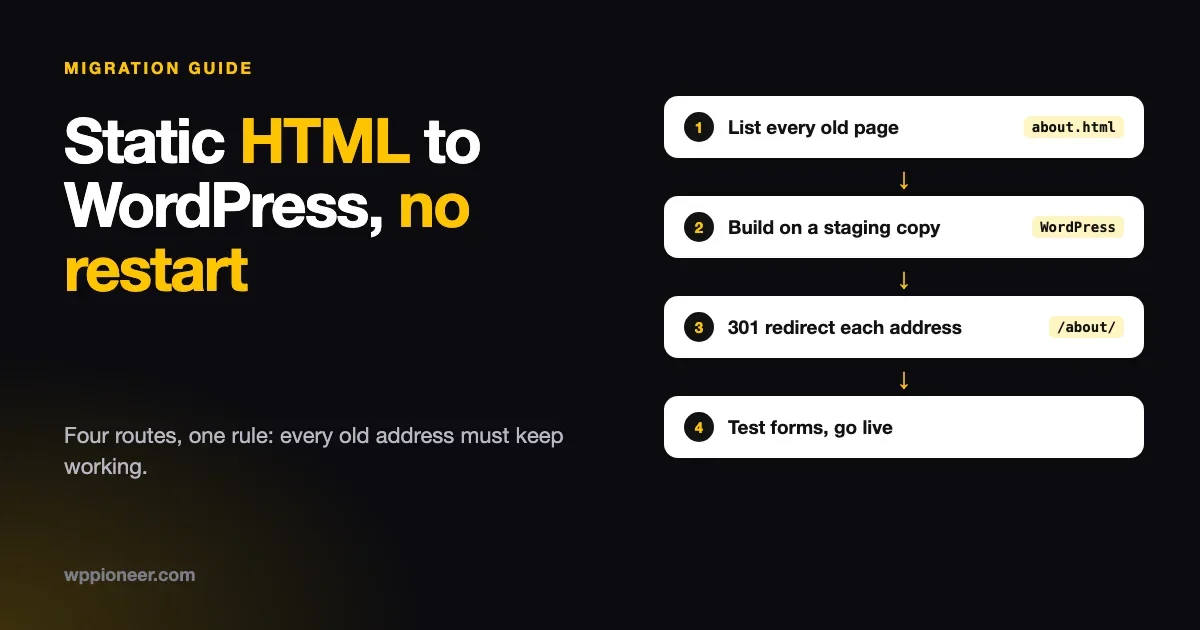
You can move an old HTML website to WordPress without throwing away your content, your design or your search rankings. The part that decides whether it goes well is not the tool. It is the plan for your old web addresses. If every old page address keeps working, either at the same place or through a redirect, Google and your visitors follow you across. If they do not, you lose what you built.
This guide is for people with a small website made of hand-written or exported HTML files, such as index.html, about.html and contact.html. You may have built it yourself years ago, paid someone who did, or exported it from a design tool. We cover the four realistic routes, what each one needs from you, what to do about old links, and a checklist you can follow on a test copy first. We also describe a new importer tool from Automattic, based on its own documentation and a podcast interview with its developer, and we are plain about what it can and cannot do today.
Why move a static site to WordPress at all?
A static site is simple and fast. It is also painful to change. To fix a typo, you open a file, edit it, upload it and hope you did not break the page. To add a blog post, you copy an old one and edit it by hand. To let a second person help, you give them access to files.
WordPress turns that into a dashboard. You edit text in the editor, add posts with a button, change menus with drag and drop and add features with plugins. Several people can work at once with their own logins. If you plan to publish regularly, sell something or take bookings, that convenience is the reason people move.
There are good reasons to stay as well. If your site has five pages that never change, a static site is cheap to host, hard to hack and very quick. Move because you need what WordPress offers, not because everyone else has.
Before you choose a route: take inventory
Every route starts the same way. Write down what you have. This takes an hour and saves days.
- List every page. Write down every address, for example
/index.html,/services.html,/blog/2019/my-post.html. If your site has a sitemap file, open it. If not, look at the folder on your server. - Mark the pages that matter. Open Google Search Console, if you have it, and look at which pages get visits. Those are the ones that must keep working.
- List the things that are not pages: contact forms, image galleries, download files, embedded videos, maps and any script that does something.
- Copy everything. Download the full folder from your server, and keep the original untouched. You can also make a complete local copy of a live site with the standard tool wget, which is built into most Mac and Linux systems:
wget --mirror --convert-links --adjust-extension --page-requisites --no-parent https://example.com/That downloads the pages and the images, styles and scripts they use into a folder named after the site. It is a safe backup even if you already have the original files. Replace example.com with your own address.
Also write down where the site is hosted today, who controls the domain name, and where the contact form sends messages. People forget the last one.
Route 1: rebuild it by hand in WordPress
This is the oldest route and still the most reliable for a small site.
How it works
- Install WordPress on a test address. Many hosts have a one-click install and a one-click staging copy. Our guide to setting up a WordPress staging site shows how.
- Pick a theme that suits your design. A block theme gives you a visual editor for headers, footers and page layouts. Our roundups of the best themes for small business and for blogs are a starting point.
- Create one WordPress page for each old page. Copy the text across. Add the images through the Media Library.
- Rebuild the menu under Appearance, then Menus or in the Site Editor.
- Set the page address (the slug) of each page to match the old address wherever you can.
Good and bad
Good: no tool to trust, you end up with clean content, and you learn how your new site works. For a site with five to twenty pages, it takes a weekend.
Bad: it is slow for a large site, and you have to rebuild the look yourself. If your old design is unique, copying it with blocks takes patience.
A tip: WordPress has a Custom HTML block. If a piece of your old page is a small block of HTML that is hard to rebuild, such as an embed code, you can paste it into that block. Use it for small pieces, not whole pages, because pages made entirely of custom HTML are as hard to edit as the files you came from.
Route 2: convert your design into a WordPress theme
If you love your design and want WordPress to wrap around it exactly, a developer can turn your HTML and CSS into a theme. Your header becomes a header template, your footer becomes a footer template, and the content area becomes the part WordPress fills in with each page.
Good and bad
Good: the site looks like the original, and you keep editing through the dashboard.
Bad: this is development work. If you are not a developer, you will pay someone, and the quality depends on them. Ask for a block theme or a well-structured classic theme, ask how updates to WordPress will affect it, and ask for the finished theme to be yours to keep. For a one-page brochure it is overkill. For a site with a strong brand and a large template, it can be right.
Route 3: use an importer tool
Importer tools read your static files and try to build the WordPress pages and a matching theme for you. This is the route with the most change at the moment, so we describe it carefully.
Static Site Importer from Automattic
The WP Tavern podcast has an episode, number 238, with Chris Huber of Automattic about a Static Site Importer. We read the episode page and the tool’s own README on GitHub. Here is what they say.
What it is. A WordPress plugin that imports static HTML sites into WordPress pages and a block theme. It accepts pasted HTML, one public web address, a single uploaded HTML file, or a ZIP file of a site folder that has an index.html at its root. The README also lists Markdown files as a source.
What you get. WordPress pages with the converted content, and a generated block theme with a header, templates, patterns, theme.json and a style.css. It rewrites local .html links to the new WordPress page addresses, and it produces an import report that lists problems it found.
What it needs. The README says WordPress 7.1 or later and PHP 8.2 or later, with Composer dependencies installed. It documents a WordPress Playground demo and a command-line import, but no simple “upload a plugin ZIP and click” installation. In the podcast, Huber describes it as driven by a command line or API rather than a full interface. In plain terms: today it is a developer’s tool. If you are not comfortable at a command line, treat it as something to watch, or something to hand to a developer.
What it does with scripts. By default it removes executable script markup and bundled JavaScript and notes each decision in the report. If your site depends on animations or interactive widgets, expect to rebuild them.
Old addresses. The README says that the importer relies on a redirect plugin called Redirection to keep old URLs working, creating exact-path 301 rules where the old and new paths differ, including .html and index.html forms. It also says the generated theme contains no redirect logic of its own, so you must keep that plugin active.
What the developer says about the limits
In the podcast, Huber is direct about where it stands. As we read the episode page:
- Large sites fail. He says Wix sites do badly with the current version. Very large or image-heavy sites are hard.
- Stores and event calendars work poorly so far.
- For a small brochure site, more than half the time the result is a good editable site, though not always a perfect one.
- Headers and footers are sometimes repeated on every page instead of being split out as shared parts. SVG images, form fields, buttons and menus can come out wrong.
- Animations built in JavaScript are not handled well.
- Content stored in a database is not captured, since only what is visible from outside can be copied.
- At Automattic, he says about one site in ten is close enough to hand off directly. Many still need manual work.
That honesty is useful. It tells you what to expect: a head start on a small, simple site, and a checklist of repairs afterwards. It is not a button that converts any website. Do not use it on your live site, and do not use it without a full copy of your files.
Other importers
Other tools exist, including plugins that convert a single HTML page into editable page-builder content. We have not tested them for this article, so we do not recommend any one. If you try one, apply the same rules as for any plugin: check when it was last updated, what WordPress version it is tested on, and what the reviews say about the exact thing you need.
Route 4: hire help
If your site matters to your income, paying a developer for a day or two is cheap insurance. Give them the inventory from the first section, the full file copy, and a plain statement of what must not change: the addresses, the forms, the phone number and the look.
Ask three questions before you hire. Will you set up redirects for every old address? Will you work on a staging copy first? What will you hand over at the end: logins, a backup and a list of what was done? If the answers are vague, keep looking.
The part everyone forgets: old web addresses
This is where a move succeeds or fails. Search engines and other sites have stored your old addresses. When someone follows one, three things can happen.
- It still works. Best result. You recreate the same address on WordPress.
- It redirects to the new page. A “301” redirect tells browsers and search engines that the page has moved for good. Visitors and ranking signals follow.
- It gives “page not found”. Visitors leave, and search engines drop the page over time.
WordPress addresses normally look like /about/, not /about.html. So your old /about.html will break unless you do something. There are two clean ways.
Option A: redirect each old address
If your hosting runs Apache, which many shared hosts do, you can add lines to the .htaccess file in your site’s main folder, above the WordPress block. Each line sends one old address to one new address:
Redirect 301 /about.html /about/
Redirect 301 /services.html /services/
Redirect 301 /contact.html /contact/
If your host does not use Apache, or you prefer a dashboard, use the free Redirection plugin from the WordPress directory. You type an old address and a new address, and it handles the rest. Either way, test every old address in a browser after you add the rule.
Option B: keep the old address format
You can ask WordPress to keep the exact old address for a page by naming its slug to match. For a page that used to be /services.html, a WordPress page with slug services lives at /services/, which is the normal form, so a redirect is still needed. Keeping a literal .html ending is possible with extra settings, but it is not worth the trouble for most beginners. Use redirects.
Do not forget
- The home page:
/index.htmlshould redirect to/. - Images and downloads that other sites link to. Keep their addresses if you can.
- Your sitemap. WordPress creates one for you. After launch, submit it in Google Search Console.
- Links inside your pages. Search your content for
.htmland update leftover links.
A step-by-step plan that works for most small sites
- Back up the old site and keep a copy somewhere safe.
- Take inventory of pages, forms and special features.
- Set up WordPress on a staging address that the public cannot see. Ask your host how, or follow our staging guide linked above.
- Choose a theme that is close to your design.
- Build the pages by hand, or run an importer on the staging copy and review its report.
- Rebuild the menu and the footer.
- Re-create the forms with a form plugin. A static contact form usually needs something behind it, and that does not move automatically. Send a test message and confirm it arrives. Our post on how to know if your WordPress emails are arriving explains why this can fail quietly.
- Add redirects for every old address that differs.
- Test on a phone and a laptop. Click every menu item and every button.
- Set up analytics and an SEO plugin, if you used them before.
- Go live. Ask your host how to point the real domain at the new site. Do it at a quiet hour.
- Check Search Console over the next two weeks for pages with errors, and fix them.
If something goes wrong during the move, you want a way back. Our guide on how to undo changes in WordPress covers backups and restore points.
What will not move across by itself?
Whatever route you choose, plan for these.
- Forms. A static form posts to a service or script. In WordPress you need a form plugin and a mail setup.
- Interactive scripts. Sliders, calculators and animations are code. They can be added back, but by hand.
- Anything that ran on the server. If your old site had a PHP script for a guestbook or a counter, it will not work inside a WordPress page. Replace it with a plugin.
- Your exact layout. Even with an importer, expect to adjust spacing and fonts.
- Search rankings, briefly. Even with perfect redirects, rankings can wobble for a few weeks. That is normal. It is worse without redirects.
How long will it take?
We do not want to promise numbers we cannot back up. As a rough guide from our own experience of small sites, a site of about ten simple pages takes one to two days by hand if you have the content ready, plus time for testing. A bigger site, or one with forms, a shop or a members area, takes longer. Anything with a shop or events needs special care, and the importer’s developer says it does not handle those well yet.
Problems after the move, and how to fix them
Symptom | Check | Fix |
|---|---|---|
Old page address shows “not found” | Type the old address in a browser | Add a 301 redirect from the old address to the new page |
The redirect loops or the browser says “too many redirects” | Does the new address send you back to the old one? | Remove the conflicting rule, then clear any cache plugin and your browser cache |
The contact form sends nothing | Send a test message and check spam | Set up a mail plugin or your host’s mail settings, then test again |
Images are missing | Open one broken image in a new tab and read its address | Re-upload through the Media Library, or fix the path in the page |
Pages look unstyled | Open your browser’s developer tools (F12) and look for red lines in the Console and Network tabs | A stylesheet did not load. Re-add the style through the theme, or the page’s custom CSS |
Menu items go to old | Hover over each menu link | Edit the menu so each item points to the new WordPress page |
Search Console reports pages not found after launch | List them and compare with your inventory | Add the missing redirects, then request a re-check |
Header or footer repeated inside each page | Open a page in the editor and scroll to the top and bottom | Remove the copy from the page and keep the one in the theme’s header or footer |
A launch-day checklist
- Confirm the backup of the old site is stored somewhere other than the old server.
- Confirm every page on your inventory list opens on the new site, or redirects to a page that does.
- Submit your sitemap in Google Search Console and check that the site is allowed to be indexed. Staging sites are often set to discourage search engines, and that setting must be turned off on the live site.
- Check the title and description of your home page and your three most visited pages.
- Send a message through every form and confirm you receive it.
- Open the site on a phone and on a laptop in a private browser window.
- Keep the old site’s files for at least a month in case you need to compare something.
Questions people ask
Will I lose my Google ranking?
Not if you keep or redirect every old address and keep your content close to the original. Expect small movement for a few weeks after launch. Do not change your page titles and text heavily on the same day as the move, since that makes it harder to tell what caused any change.
Can I keep my domain name?
Yes. The domain is separate from the hosting. You point the same domain at the new site when you go live.
Do I need new hosting?
Possibly. Static sites run almost anywhere. WordPress needs PHP and a database. Check that your host supports them. If you need to choose, our guide to choosing WordPress hosting for your budget and traffic helps.
Is an importer safe to use?
Use it on a test copy, never on a live site. Read the import report. Keep your original files. The Static Site Importer README says it removes script markup by default, which lowers one risk, and it also says it is built for developers to run.
My site was made with a tool such as Wix. Can I import that?
In the podcast, the developer says Wix sites do badly with the current version. If your site lives on a hosted builder, check whether it can export HTML, and expect to rebuild more by hand.
The short version
For a small static site, rebuild it by hand on a test copy of WordPress, or pay a developer to do it. Try an importer only if you or your developer are comfortable with the command line, and treat its output as a first draft. Whatever route you choose, make a list of every old address, add a redirect for each one that changes, test the forms, and keep the old files until the new site has run cleanly for a month.
Moving takes effort, and it pays back in every edit afterwards. Do it carefully and your visitors will barely notice the change, except that your site is now easier to run.

No comments yet