
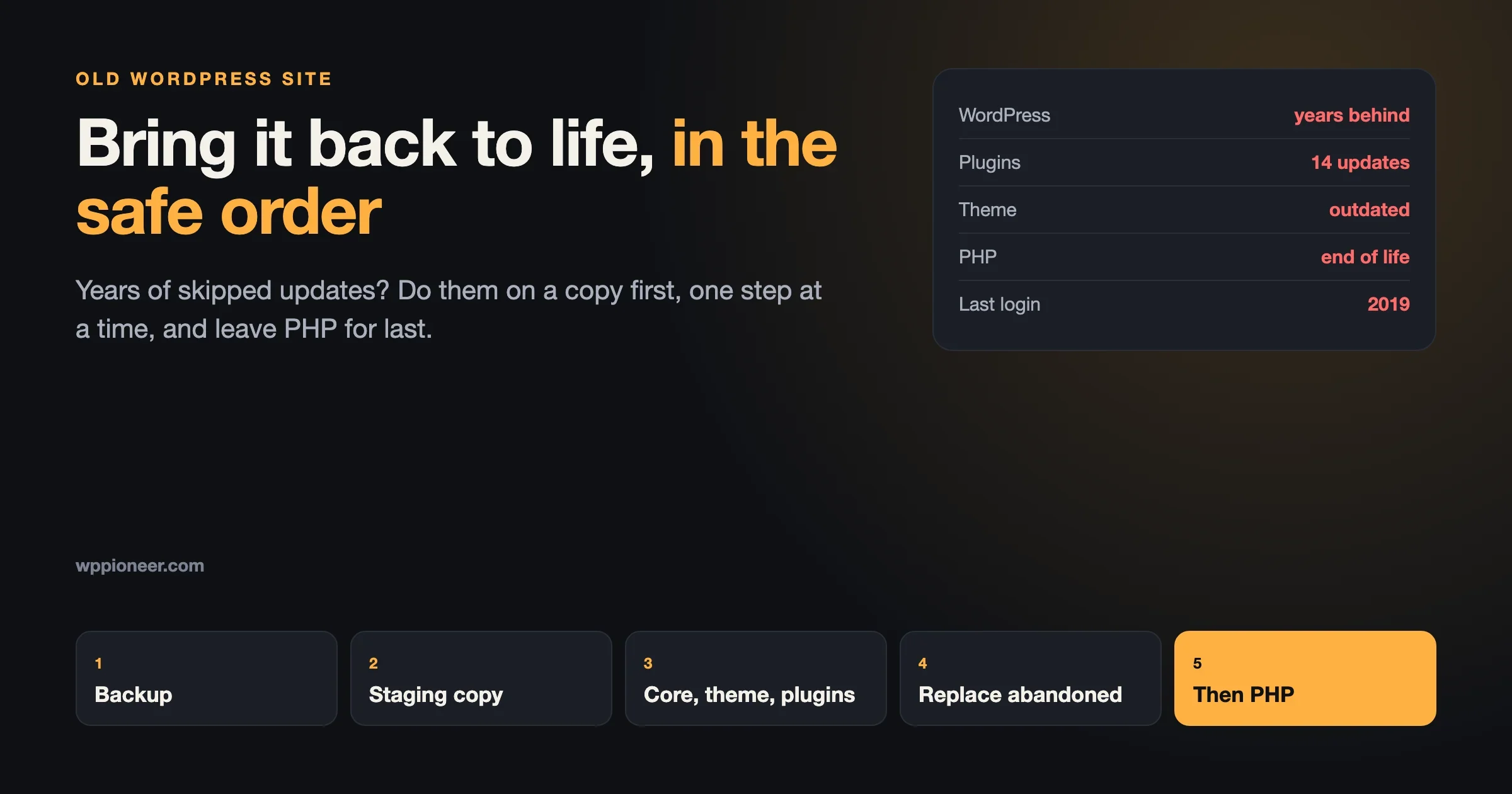
You have a WordPress site that has been sitting untouched for years. Maybe it was a hobby blog, a small business site, a club page someone else set up and then moved on. Now you want it back. You log in (if you can) and the dashboard is a wall of red numbers: WordPress needs an update, every plugin needs an update, the theme needs an update, and your host has been emailing about something called PHP.
The temptation is to click “Update all” and hope. Please do not. On a site that has been asleep for years, the order you update things in decides whether you get a working site back or a white screen. This guide walks you through that order, step by step, in plain words, and tells you what to expect at each stage so nothing surprises you.
How to update an old WordPress site: the short version
- Make sure you can get into everything: WordPress, hosting and the domain.
- Write down what the site runs today, before you touch anything.
- Take a full backup and keep a copy off the server.
- Check the site has not been hacked while nobody was looking.
- Make a staging copy and do all the updates there first.
- Update WordPress itself, then the theme, then plugins one at a time.
- Replace plugins that have been abandoned.
- Only then move to a newer PHP version.
- Fix what broke, then repeat the same order on the live site.
- Set up a small routine so the site never gets this far behind again.
Now the detail, one step at a time.
Step 1: make sure you can get in
An old site often has old logins. Before anything else, check you can sign in to three places:
- WordPress (yoursite.com/wp-admin) as an administrator.
- Your hosting account, where the files, database and backups live.
- Your domain registrar, so the address does not expire halfway through.
If any of these belong to a developer who left, or an email address nobody reads, sort that out first. Our guide to who holds the keys to your website covers how to get back in when the logins are lost.
What to expect: this step often takes longer than the updates themselves. That is normal. Without the hosting login in particular, you cannot make a proper backup, so do not skip it.
Step 2: write down what the site runs today
Before you change anything, take notes. You will need them if something goes wrong, and they help you decide how careful to be.
- WordPress version. It shows at the bottom right of most admin screens, and under Dashboard, Updates. The current release on 18 October 2026 was 7.1.3.
- PHP version. Your hosting control panel shows it. Newer WordPress versions also show it under Tools, Site Health, Info, Server.
- The theme, from Appearance, Themes.
- Every plugin, from the Plugins screen. A screenshot is fine.
- What the site does: contact forms, a shop, a members area, a newsletter signup. These are the things you will test later.
Take screenshots of the home page and two or three important pages too. Then you will know whether the site looks the way it did once the updates are done.
How far behind are you? A site a few versions behind is a small job. A site on a WordPress version from many years ago, on PHP 5 or 7, with plugins that have not been updated in years, needs every step of this guide.
Step 3: take a full backup, and keep it somewhere else
A WordPress backup has two parts: the files (themes, plugins, uploaded images) and the database (posts, pages, settings, users). You need both.
Most hosts have a backup tool in the control panel. Use it to make a full backup, then download it to your own computer. A backup that only lives on the same server as the site does not help if the server is the problem. The official WordPress upgrade instructions make the same point: back up the database and every file, then check the backup is actually usable before you go further.
What to expect: on an old site with years of images, the backup can be large and slow to download. Let it finish. This file is your safety net for everything that follows.
Step 4: check the site has not been hacked
A site nobody updated for years is exactly what automated attacks look for. Before you spend hours updating, spend fifteen minutes looking for signs that someone else got there first:
- Users you do not recognise, especially administrators (Users screen).
- Plugins you never installed.
- The site redirecting visitors to strange pages, especially on phones or from Google results.
- Spam pages or posts you did not write.
- A warning from your host or from Google Search Console.
If you find any of these, stop. Cleaning comes before updating, because updating a hacked site can leave the hidden parts in place. Our guide to why a WordPress site keeps getting hacked explains where infections hide and how to clear them properly.
Step 5: make a staging copy
A staging site is a private copy of your site where you can break things safely. Many hosts offer staging with one click. If yours does not, ask your host or a developer to copy the site to a temporary address.
Two things matter here:
- Use the same PHP version on staging as on the live site, to start with. You will change it later, on purpose, in its own step.
- Stop staging from emailing real people. Old sites often have contact forms, comment notifications or newsletter plugins that could suddenly start sending.
What to expect: the staging copy should look exactly like the live site. If it does not, sort that out with your host before going further, because you need a fair test.
Step 6: update in the safe order
This is the heart of the job. Do all of it on staging first.
6a. Deactivate the plugins
Go to Plugins, select all, and deactivate them. This is the same advice WordPress gives for manual upgrades. It stops an old plugin from crashing the site in the middle of the WordPress update. Your plugin settings are kept; you will switch them back on one at a time.
6b. Update WordPress itself
Go to Dashboard, Updates and update WordPress. On a very old site you may wonder whether you need to climb through every version in between. WordPress’s own documentation says it is possible to jump straight from a very old version to the latest, as long as you have a backup, and that a step-by-step approach can help on large sites. On staging, try the direct update first. If it fails, restore staging and update through a few major versions in turn.
If the Updates screen will not offer an update at all, the server’s PHP may be too old for the current WordPress. The current release needs PHP 7.4 or newer. In that case, ask your host to move staging to PHP 7.4 first, update WordPress, then carry on.
What to expect: WordPress may ask you to update the database afterwards. Click the button. The dashboard will look different if your old version was from years ago, especially the editor. That is the new WordPress, not a problem.
6c. Update the theme
Update your theme from Dashboard, Updates or Appearance, Themes. Then look at the home page and the pages you screenshotted.
- If the theme was customised by editing its files directly, updating it will wipe those changes. Check your notes or ask whoever built the site. A child theme protects those changes; editing the main theme does not.
- If the theme is no longer available or has not been updated for years, plan to replace it. That is a bigger job, so do it after the site is safe and working.
6d. Update and switch on plugins, one at a time
Now the slow, careful part. For each plugin:
- Update it.
- Activate it.
- Look at the site. Check the thing that plugin does (the contact form, the gallery, the shop).
- Move to the next one.
If a plugin breaks the site, you will know exactly which one, because you only changed one thing. Deactivate it and note it down for step 7.
If activating a plugin takes the whole site down, recent WordPress versions usually catch it and email the site’s admin address a link to a recovery mode, where you can log in and switch off the plugin that caused it. That is another reason the admin email from step 1 matters.
Step 7: replace abandoned plugins
Some of your plugins will not have been updated by their authors for years, or will have disappeared from the WordPress plugin directory. Look at each plugin’s page on WordPress.org:
- “Last updated” more than a year or two ago is a warning sign.
- A notice that the plugin has been closed means it is no longer available, sometimes for security reasons. Replace it.
- “Tested up to” a version far older than yours means nobody has checked it works with modern WordPress.
For each abandoned plugin, ask a simple question first: do I still need what it does? Old sites collect plugins for things nobody uses anymore. Deleting a plugin you do not need is the easiest fix of all. For the ones you do need, find a current, well-reviewed plugin that does the same job, install it on staging, and set it up.
What to expect: this is where most of the time goes on an old site. A contact form plugin is quick to swap. A plugin that ran a shop or a members area is a project of its own.
Step 8: now move to a newer PHP version
PHP is the language WordPress runs on, and your host controls which version your site uses. WordPress recommends PHP 8.3 or newer on its requirements page, and notes that older versions still work but have reached end of life and may leave a site open to security problems.
Leave this step until now for a reason. Old plugins and old themes are often written for older PHP, and code that ran fine on PHP 7 can stop working on PHP 8. By this point you have updated or replaced everything, so the chance of a break is much lower.
- On staging, ask your host (or use the control panel) to switch PHP to 8.3 or the newest version they offer.
- Click through the whole site again: home page, key pages, forms, login, anything a visitor or member uses.
- Check Tools, Site Health for new warnings.
If something breaks only on the new PHP version, you have found an old plugin or theme that still needs replacing. For the more technical side of testing a PHP change, our sister site has a guide to seeing what a PHP upgrade will break.
Do not skip this step. Many hosts move old PHP versions forward on their own schedule. If you do not choose the moment, your host may choose it for you, on a day you are not watching.
Step 9: fix what broke, then do it for real
Go back to your list of what the site does and test each one on staging: send a test message through the contact form, place a test order if there is a shop, log in as a member if there is a members area, and look at the site on your phone. Compare with the screenshots you took in step 2.
When staging works, update the live site. You have two options:
- Push staging to live, if your host’s staging tool supports it. This copies your working staging site over the live one.
- Repeat the same order on live: fresh backup, deactivate plugins, update WordPress, update the theme, update and activate plugins one at a time, swap the abandoned ones, then change PHP.
Either way, take a fresh backup of the live site immediately before you start, and pick a quiet time. If anything goes badly wrong, our guide to undoing changes in WordPress covers rolling back, right up to restoring the whole site from a backup.
Step 10: never let it get this far behind again
Bringing an old site back is a one-off job. Keeping it current is ten minutes a month. A simple routine:
- Turn on automatic updates for WordPress minor releases (security fixes) and for plugins you trust. Recent WordPress versions let you switch on auto-updates per plugin from the Plugins screen.
- Once a month, log in, look at Dashboard, Updates, and run anything waiting. Glance at Tools, Site Health.
- Keep automatic backups running, stored away from the server.
- Delete what you do not use. Inactive plugins and themes still need updating, or removing.
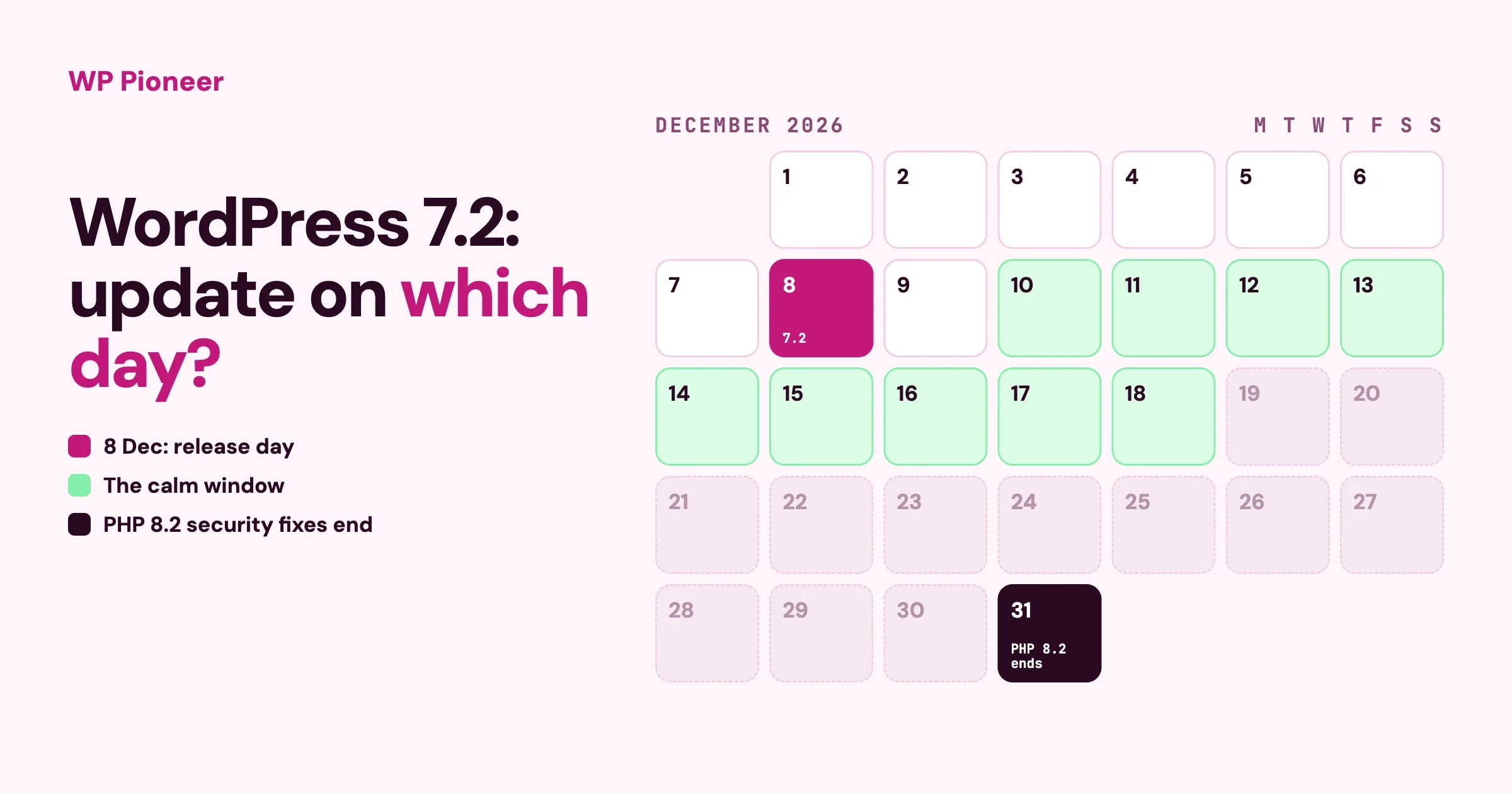
- Watch for big releases. Major WordPress versions come a few times a year. Our note on WordPress 7.2 and whether to update shows how to decide whether to update on day one or wait a week.
An example rescue, start to finish
Here is what this looks like for a typical case. It is an illustration rather than a real customer, but it is the shape we see most often.
A local choir’s website was set up by a member’s nephew about seven years ago. It runs an old WordPress version on an old PHP version, a free theme, and fourteen plugins: a contact form, a gallery, an events list, a newsletter signup, a few social sharing buttons, and several the choir no longer recognises. The new secretary wants to post the concert season.
- Evening one: the secretary recovers the hosting login through the host’s support team, changes the WordPress admin email to the choir’s shared address, writes down the versions and plugins, and downloads a full backup. Nothing on the site changes.
- Evening two: a quick look finds no strange users or pages. The host creates a staging copy. The secretary deactivates all plugins, updates WordPress in one go, then updates the theme. The site loads, with a different-looking dashboard.
- Evening three: plugins are updated and switched on one at a time. The contact form and gallery update cleanly. The events plugin was closed years ago, so it is replaced with a current one and the five upcoming concerts are re-entered. Four plugins nobody can explain are deleted. The social sharing plugin breaks the layout, so it is removed too.
- Evening four: staging moves to PHP 8.3. Everything still works. The host pushes staging to live, the secretary tests the contact form from a phone, and turns on automatic updates.
Four evenings, no downtime the choir noticed, and a site that will now stay current with ten minutes a month. Most of the time went on decisions about plugins, not on the updates themselves. That is typical.
When to rebuild instead of rescue
Sometimes the honest answer is that the old site is not worth saving as it is. Consider starting fresh, and moving just the content across, if:
- The theme is long abandoned and the site’s design depends on it completely.
- The site was built with a page builder that no longer exists or no longer updates.
- Most of the plugins need replacing anyway.
- The site has been hacked repeatedly.
- It is only a handful of pages that would take an afternoon to recreate.
Rebuilding does not mean losing your content. Your posts, pages and images can be exported from WordPress and imported into a fresh install with a modern theme. Keep the same web addresses for your pages where you can, so links and search results still work.
What the whole job looks like, realistically
Your site | Rough effort |
|---|---|
A year or two behind, a few well-known plugins | An evening, mostly testing |
Several years behind, ten to twenty plugins, a few abandoned | A weekend, most of it replacing plugins |
Many years behind, very old PHP, a custom or abandoned theme | A small project; consider whether to rebuild |
Signs of a hack | Clean-up first, then everything above |
Common mistakes
- Clicking “Update all” on the live site. If something breaks, you will not know what.
- Changing PHP first. Old plugins that would have updated cleanly can break before you get the chance.
- A backup that lives only on the server. Download a copy.
- Keeping every old plugin. Delete the ones you no longer need.
- Updating a hacked site. Clean it first.
- Forgetting the admin email. Recovery links and security notices go there.
Questions people ask
Can I update straight from a very old WordPress to the latest?
WordPress’s documentation says yes, it supports a direct update from very old versions, as long as you have a backup. On large or very old sites, a step-by-step approach can be gentler. Try the direct update on staging first.
Why not update PHP first, since the host keeps asking?
Because old plugins and themes are more likely to break on new PHP. Update or replace them first, then change PHP, and you will usually get through without a crash.
What if you cannot log in to WordPress at all?
Use the password reset link if you still control the admin email. If not, your host can help you reset it through the database. Do that before anything else.
Is it safe to delete old plugins?
Deleting a plugin removes its code, and some plugins also delete their settings or data. Make sure you no longer need what it did, and keep your backup, before deleting.
Do I need a developer?
Not for a site a couple of years behind with common plugins. For a very old site, a custom theme, a shop, or any sign of a hack, a few hours of developer help can save you a lot of stress.
Where to start today
Do steps 1 to 3 today: check your logins, write down what the site runs, and download a full backup. None of them change anything on the site, and together they turn a scary job into a planned one. Then book a quiet evening for staging and the updates. Our WordPress site readiness checklist is a good companion once the site is back on its feet.
No comments yet