
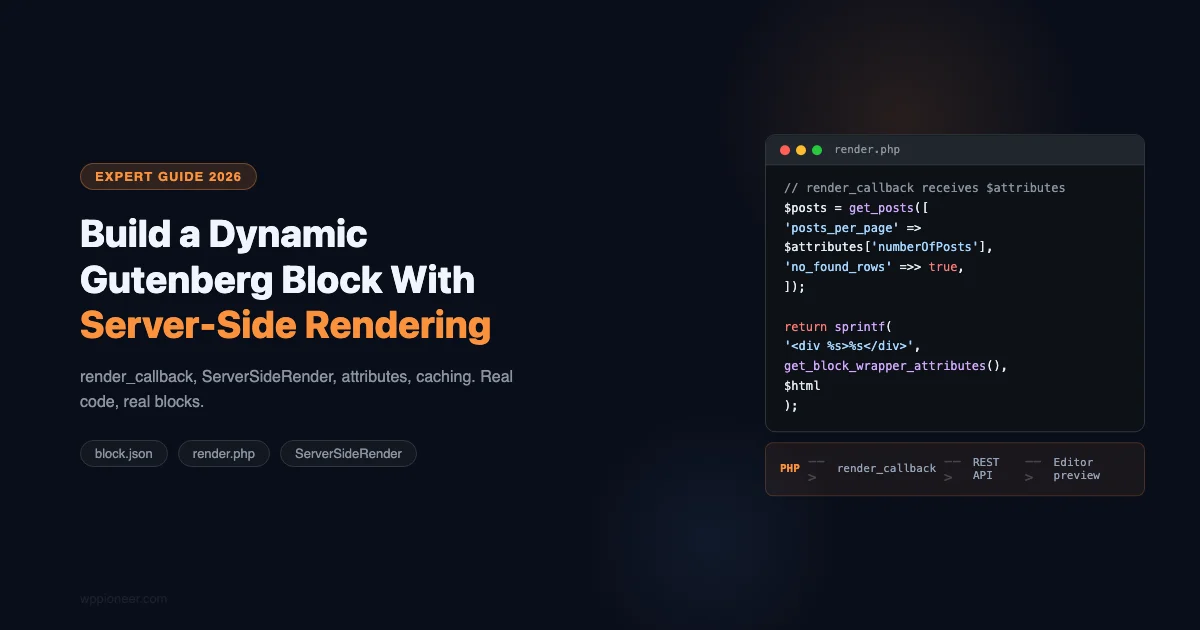
Dynamic blocks are Gutenberg blocks whose content is generated by PHP at render time, not stored as static HTML in the post. Every time someone loads a page containing the block, PHP runs and produces fresh output. This makes them the right tool for anything that shows live data: recent posts, related articles, current user info, inventory counts, API responses.
This guide builds a complete dynamic block with server-side rendering from block.json through the React edit component, PHP render callback, and block registration. Everything here works in WordPress 6.4+ using the modern block.json-first approach.
Static vs. Dynamic Blocks: When to Use Each
Factor | Static Block | Dynamic Block (SSR) |
|---|---|---|
Content source | Stored in post_content HTML | Generated by PHP on each page load |
Works offline / headless | Yes | Requires PHP execution |
Shows live data | No (stale after save) | Yes (always fresh) |
Examples | Paragraph, heading, image, button | Latest posts, related posts, live inventory |
Caching | Page cache handles it | Object cache the render output explicitly |
The key tradeoff: dynamic blocks require a PHP render function and can’t be rendered without WordPress running. If you’re building a headless site using only the REST API, dynamic block output won’t be available as HTML in the post content field.
Project Structure
We’ll build a “Recent Posts” dynamic block. Here’s the file structure:
Step 1: Define the Block in block.json
Key points about this block.json:
- “render”: “file:./render.php” - This tells WordPress to call render.php when the block is rendered on the frontend. No render_callback needed in register_block_type() because block.json declares it.
- “editorScript”: “file:./index.js” - The JavaScript bundle loads in the editor only.
- apiVersion: 3 - Use the latest API version. It enables features like iAPI and the new block wrapper.
- supports.html: false - Prevents the HTML edit mode in the block toolbar. Dynamic blocks shouldn’t allow manual HTML editing because the PHP render overwrites it.
Defining Attributes Properly
Attributes in block.json are the block’s data contract. They define what gets saved to the post’s block comment markup and passed to both the edit component and render callback. For a dynamic block, you typically define configuration attributes (how many posts, which category) rather than content attributes (the actual HTML).
Always specify the correct type for each attribute. WordPress uses the type for validation when saving and for REST API serialization. Using the wrong type causes silent failures where attributes save as null or get coerced to unexpected values.
Default values in attributes avoid null-checking in your PHP render callback. Set them so the block works immediately on insertion without any configuration.
Step 2: Write the PHP Render Callback
Why Return, Not Echo
The render callback must return its HTML string, not echo it. WordPress calls the callback and uses the return value to insert into the page. Echoing from a render callback will cause output to appear before your page’s doctype, breaking the page layout.
get_block_wrapper_attributes()
Always wrap your output in a div with get_block_wrapper_attributes(). This function generates the class name, ID, and inline style attributes that WordPress needs to apply block supports (spacing, colors, custom CSS classes). Without it, the “Additional CSS Class” field and block spacing controls won’t work.
no_found_rows Performance Flag
Setting 'no_found_rows' => true in the query args tells WordPress not to run the SQL_CALC_FOUND_ROWS query used for pagination. Dynamic blocks almost never need pagination totals, so this saves one database query per block render.
Security: Escaping Output
Everything that goes into the HTML output from a render callback should be escaped. Use esc_html() for text content, esc_url() for links, and wp_kses_post() for content that may contain safe HTML. Since the render callback runs on every page load, an XSS vulnerability in a dynamic block is a site-wide vulnerability, not a post-specific one.
The attributes passed to the render callback come from the post database (the block markup), so they’re not user input at render time. But if you’re pulling content from other sources (user meta, option values, external APIs), escape everything before outputting.
Step 3: Build the React Edit Component
ServerSideRender: Live PHP Preview in the Editor
The ServerSideRender component sends the block’s current attributes to the REST API endpoint /wp/v2/block-renderer/wpp/recent-posts-ssr and displays the PHP render output inside the editor. This means the editor preview is always in sync with what the frontend shows: no duplicate logic, no static placeholder.
The skipBlockSupportAttributes prop prevents duplicate wrapper divs when block supports like spacing or colors are applied.
When ServerSideRender Is Too Slow
On complex blocks with heavy PHP queries, ServerSideRender can make the editor feel sluggish (it fires on every attribute change). Two alternatives:
- Debounce: Wrap the ServerSideRender in a debounce so it only fires after the user stops changing attributes for 500ms.
- Static placeholder: Show a simplified placeholder in the editor and use ServerSideRender only on “Save” or on a manual preview trigger. Not ideal for discoverability but fast.
InspectorControls and the Sidebar Panel
For attributes that configure the block (post count, category filter, show/hide thumbnail), use InspectorControls to put them in the sidebar panel rather than inline in the block. This keeps the editor canvas clean. Inline controls are appropriate for content-type attributes (the actual text or link the block displays), while configuration lives in the sidebar.
Here’s how to add a post count control to the sidebar:
Step 4: Register the Block Plugin
The register_block_type( __DIR__ . '/blocks/recent-posts-ssr' ) call reads block.json from that directory, which handles script enqueuing, attribute definitions, and the render callback. This is the modern zero-boilerplate registration approach.
Multiple Blocks in One Plugin
If your plugin contains multiple dynamic blocks, loop through the blocks directory and register each one:
This works because each block directory has its own block.json, and register_block_type accepts a path to a directory containing block.json. As you add new blocks, you don’t need to update the registration code.
Caching Dynamic Block Output
Dynamic blocks run PHP on every page load. For blocks that query the database, this can add meaningful load time. Cache the output with WordPress’s transients or object cache:
Clear the transient when posts are published or updated:
Object Cache vs. Transients
Transients use the database by default but use the object cache automatically when a persistent cache (Redis, Memcached) is installed. For block render caching, transients are the right choice: they work on all environments and scale to persistent cache without code changes.
Key naming strategy: include the block’s attributes in the cache key (via md5( serialize( $attributes ) )) so two instances of the same block with different configurations get separate cache entries. Also consider including the current user’s role if the block renders role-dependent content, or the locale if the site is multilingual.
Passing Context to Dynamic Blocks
Sometimes your dynamic block needs to know which post it’s rendering inside. The $block parameter (a WP_Block instance) gives you this via context:
This is how “related posts” blocks know which post they’re inside, so they can query posts in the same category or with similar tags.
Providing Context to Child Blocks
If your block contains inner blocks that need access to the same post ID, you can provide context downward using the providesContext key in block.json:
The inner block declares "usesContext": ["wpp/selectedPostId"] and receives the value via $block->context['wpp/selectedPostId']. This is how WordPress’s own Query block passes the post ID to Post Title, Post Excerpt, and other inner blocks.
Real-World Examples of Dynamic Blocks
- Related Posts by Taxonomy: Query posts sharing the current post’s primary category. Use the context pattern above to get the current post ID.
- Author Bio Card: Display the current post’s author with a live avatar and post count. Dynamic because author data can change (name, bio, post count).
- Stock Status Badge: Show WooCommerce stock status for a product. Must be dynamic because stock changes without post updates.
- Live Search Results: A block that renders initial search suggestions via SSR and hydrates with client-side JavaScript for interactivity (combine with the Interactivity API).
- Membership Content Gate: Check if the current user has access to content and render either the content or a signup prompt. Must be dynamic so the check runs server-side on every request.
Building and Testing Your Block
Use @wordpress/scripts for building. Your package.json should include:
The wp-scripts start command watches for file changes and rebuilds automatically during development. The built files go to build/ by default. Reference build/index.js and build/style-index.css in your block.json editorScript and style fields.
Debugging Dynamic Block Issues
The most common dynamic block bug is a PHP error in the render callback that produces empty output or a broken page. Enable WP_DEBUG and WP_DEBUG_LOG in wp-config.php during development. PHP errors in render callbacks are swallowed silently in production; they only surface with debug logging enabled.
If the block renders correctly on the frontend but shows a blank preview in the editor, check the network tab in browser devtools for the block renderer REST API request (/wp/v2/block-renderer/namespace/block-name). A non-200 response means the REST endpoint returned an error, which is usually a PHP error in render.php.
The render.php file is just PHP. You can call any WordPress function, query any data, and return any HTML. Dynamic blocks are where block development and WordPress development meet.
Adding Frontend Styles to Your Dynamic Block
Dynamic blocks can enqueue both frontend and editor-only stylesheets via block.json. The style field registers a stylesheet that loads on both the frontend and in the editor. The editorStyle field loads only in the editor.
Keep the frontend stylesheet minimal: only styles that affect the block’s appearance for site visitors. Editor-only styles can be more permissive (preview backgrounds, placeholder states, control panel styles). This separation keeps your frontend CSS footprint small.
When block supports like spacing or typography are enabled, WordPress auto-generates inline styles for those specific controls. Your stylesheet doesn’t need to handle spacing manually if you’ve enabled "spacing": { "margin": true, "padding": true } in block supports.
Using the Interactivity API With Dynamic Blocks
WordPress 6.5+ includes the Interactivity API, which lets you add client-side interactivity to blocks without writing a separate React application. For dynamic blocks that need UI state (a “load more” button, a filter, a togglable section), the Interactivity API is the recommended approach in 2026.
Add "interactivity": true to your block.json’s supports, then use data-wp-interactive, data-wp-on, and data-wp-bind attributes in your render.php output. The Interactivity API runs as a lightweight store-based system and handles hydration automatically, connecting the server-rendered HTML to client-side state without a full JavaScript bundle for every dynamic block.
With dynamic blocks shipping as part of a plugin, version compatibility matters more than with static blocks. A breaking change in the block’s render.php that affects post content stored in the database (the block’s serialized attributes) will affect every post containing that block. Use the deprecated array in block.json to handle migration between attribute schemas when you need to change attribute names or types in a way that would break existing saved content. WordPress runs the deprecation migrations automatically when the editor opens a post containing an older version of the block.
If you are new to block development, start with static blocks before tackling dynamic rendering. Our tutorial on how to build your first custom Gutenberg block with React walks through the React component model, attribute registration, and the edit/save split that all Gutenberg blocks use.
No comments yet