
I’ve built WordPress sites the traditional way: theme files directly in a zip, plugins installed through the admin, wp-config.php with credentials hardcoded, FTP to deploy. That workflow breaks in exactly the places that matter most: when you hand off to a second developer, when you need to reproduce a staging environment, when a client accidentally updates a plugin and breaks production. The Roots stack (Bedrock + Sage + Composer) exists to fix that. After running it on client sites at Wbcom Designs for the past three years, here’s the honest guide: what it solves, how it works, where it bites you, and when to skip it entirely.
The problem with standard WordPress development
WordPress ships with a mental model built for single users managing a single site. That’s fine for a blogger, but it’s a real liability for a development team or an agency shipping a dozen client builds a year.
- No dependency management. Plugins and themes are installed by clicking buttons in the admin panel. There’s no record of exact versions, no lockfile, no way to guarantee that what’s running on staging is the same thing running on production.
- Credentials and config in the database or in
wp-config.php. A standard WordPress install puts all environment-specific values (DB credentials, debug flags, API keys) directly in a file that has to be different in each environment, and since it’s not templated, developers end up copying it around by hand and hoping nothing sensitive ends up committed to Git. - No environment separation. WordPress has
WP_DEBUGas a constant, but that’s about it. There’s no built-in concept of development vs. staging vs. production configuration. - The document root problem. A standard WordPress install puts everything (core, plugins,
wp-config.php,wp-login.php) at the server’s document root. Your web server can theoretically serve every file in the directory, including configuration files, backup archives, and anything else that ends up there. - Templating is PHP soup. The classic WordPress template hierarchy (
single.php,archive.php,page.php) mixes presentation and logic in ways that get hard to maintain quickly. Anyone who has worked on a theme with 40 template files sharing a pile of global variables knows the feeling.
None of these problems are fatal for simple sites. But if you’re building production applications, running CI/CD, deploying to multiple environments, or working with a team, they add up fast. The Roots stack is a targeted answer to each one.
What Bedrock is and how it restructures the project
Bedrock is a WordPress project boilerplate. It doesn’t change WordPress itself. It changes how your WordPress project is organized so that Composer can manage it as a proper dependency tree.
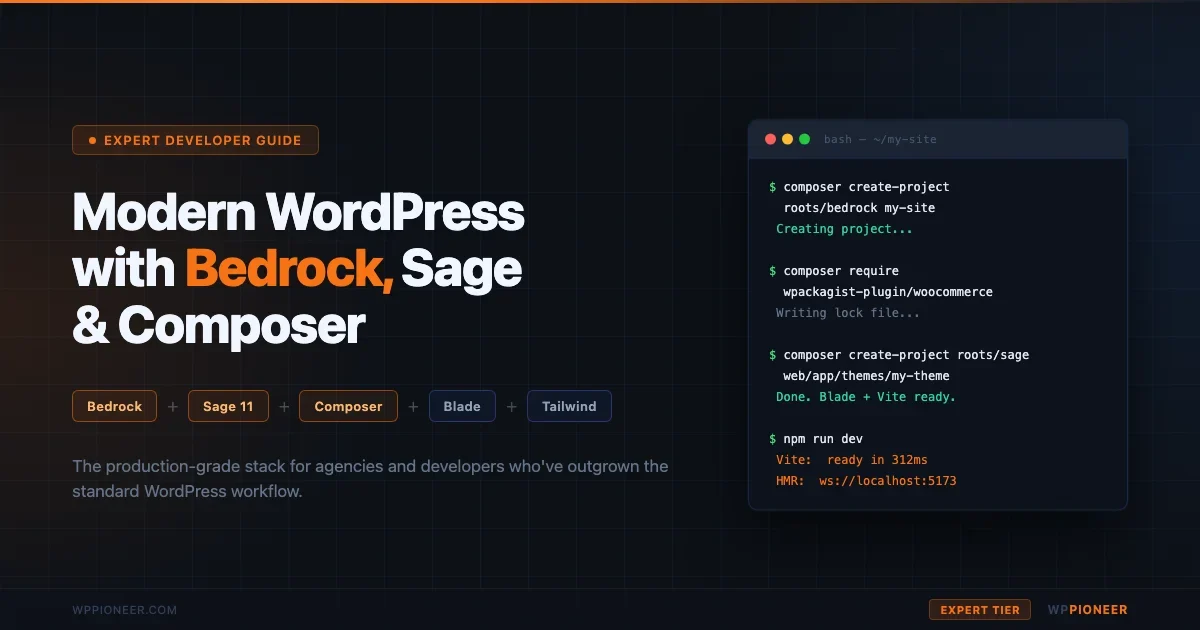
Create a new Bedrock project:
The critical structural difference is the web/ subdirectory. Your web server’s document root points to web/, not the project root: composer.json, composer.lock, .env, and your entire config/ directory sit one level above the document root. Your web server can’t serve them. That’s not an accident: it’s the point.
Environment configuration with .env
Bedrock uses the phpdotenv library (the same one Laravel uses) to load environment variables from a .env file at project root. Your environment-specific configuration lives entirely in that file:
You commit .env.example (with placeholder values) and add .env to .gitignore. Each environment (local, staging, production) has its own .env with real values. The config/application.php file reads from those environment variables and configures WordPress accordingly. No more juggling separate wp-config.php files.
Bedrock also splits the WordPress config by environment. The config/environments/ directory contains separate files for development.php, staging.php, and production.php. In development, WP_DEBUG is on and SCRIPT_DEBUG is true. In production, debug is off and you can add specific caching or CDN constants. Those files are committed to Git. They’re not secrets, just environment-tier defaults.
WordPress core and plugins as Composer packages
This is where the model shifts most for developers coming from traditional WordPress. Both WordPress core and every plugin are installed via Composer:
WPackagist is the key piece here: it mirrors the entire WordPress.org plugin and theme repository as a Composer repository. Any plugin on WordPress.org is installable as wpackagist-plugin/plugin-slug. The version you install gets written to composer.lock, which you commit to Git. When you run composer install on a fresh clone, you get the exact same versions, every time.
For premium plugins that don’t live on WordPress.org, you add a private Composer repository. Most major premium plugin vendors (ACF, WooCommerce extensions, Gravity Forms) now distribute via private Composer repos. For ones that don’t, there’s satishwaghela/wordpress-plugin-packager or you can add them as local path repositories in composer.json. Less elegant, but it works.
The discipline that stings at first is this: you stop updating plugins through the WordPress admin. Updates go through composer update instead. The tradeoff is that you now have an audit trail: every dependency change is a Git commit with a message.Sage: the Blade-powered starter theme
Sage is a WordPress starter theme from the same Roots team. Current release (Sage 11) ships with Blade templating via Acorn (a Laravel package loader for WordPress), Tailwind CSS, and a Vite-based build pipeline. Think of it as the frontend counterpart to Bedrock’s backend restructuring.
Blade templating: what it actually changes
Blade is Laravel’s templating engine. Sage runs it inside WordPress via Acorn. The WordPress template hierarchy still applies: single.php controls single posts, archive.php controls archive pages, but instead of PHP, those files are thin controllers that route to Blade views:
The actual template output happens in the Blade partial. Here’s a realistic content template for a single post:
The @extends and @section directives handle layout inheritance. The @if/@endif syntax replaces the classic <?php if ... ?><?php endif; ?> pattern. All standard WordPress template tags work exactly the same: get_the_title(), the_content(), get_the_date(). Blade doesn’t replace the WordPress API; it cleans up how you call it.
Acorn and Blade components: Laravel patterns in WordPress
Acorn is the piece that makes Sage genuinely interesting beyond “clean templating.” It boots a Laravel application container inside WordPress, which means you get proper dependency injection, service providers, and Laravel-style components.
A Blade component in Sage works exactly as it would in Laravel: a PHP class paired with a view template:
The component class can be injected with any service from the container. You can, for example, inject a custom caching service, a REST API client, or an analytics helper, all properly testable without global state. This is where Sage crosses from “nice templating” into “proper software architecture.”
Tailwind and the Vite build pipeline
Sage ships Tailwind CSS configured out of the box. The config file is at the theme root:
Vite handles the build. In development (npm run dev), it starts a dev server with hot module replacement: your CSS changes reflect in the browser without a page reload, and JS changes update without losing state. In production (npm run build), Vite outputs hashed asset filenames to /public/, which Sage’s asset manifest system resolves at runtime.
The Tailwind @tailwindcss/typography plugin is particularly useful for WordPress: it gives you the prose class that applies sensible default styling to post content rendered by the_content(). You get good-looking long-form text without fighting WordPress’s class-free HTML output.
Git workflow: what to commit, what to exclude
The Bedrock .gitignore embeds an opinionated take on what belongs in version control. Understanding the reasoning matters more than copying the file:
The counter-intuitive part for developers new to this stack: you DO commit composer.lock. The lockfile is a snapshot of exact resolved dependency versions. Committing it means every developer and every deploy gets byte-for-byte identical plugin installs. Running composer install (with a lockfile) vs composer update (which resolves fresh) is a meaningful distinction on a production deploy.
Uploaded media (the uploads/ directory) stays out of Git permanently. It’s binary, it’s large, and it changes constantly. For syncing uploads between environments, the standard options are: rsync from production to local on a schedule, a shared object storage bucket (S3, Cloudflare R2) across environments, or a plugin like WP Offload Media that handles the CDN side automatically.
Timber/Twig: the alternative templating approach
Timber is a different plugin that takes a similar philosophy to Sage’s Blade approach but implements it differently. Where Sage is a full theme framework with its own build toolchain, Timber is a plugin you install in any theme. It adds Twig templating through the twig/twig package and exposes WordPress data as clean objects.
And the corresponding Twig template:
Timber vs Sage/Blade: when to pick which
Timber/Twig | Sage/Blade | |
|---|---|---|
Entry point | Plugin - bolt onto any theme | Full starter theme |
Template syntax | Twig (Django-influenced) | Blade (Laravel-style) |
Build toolchain | You bring your own (Webpack, Vite) | Vite, pre-configured |
Dependency injection | No container | Full Laravel container via Acorn |
Learning curve | Lower - add templating to existing theme | Higher - adopt the full Roots workflow |
Best for | Retrofitting better templating into an existing project; teams familiar with Twig from Craft/Symfony | New builds where you want the full modern stack |
In practice: I reach for Timber when a client has an existing custom theme that needs better maintainability but a full rewrite isn’t on the table. I start new client projects on Sage when the scope is large enough to justify the setup time. For quick builds or sites with no ongoing developer involvement, I skip both.
Server configuration and deployment
Bedrock requires one non-obvious server configuration change: the document root has to point to web/, not the project root. Most hosting control panels assume the document root is the repository root, so this catches people off guard.
For Apache, you’d set DocumentRoot /var/www/my-site/web in your virtual host block and ensure AllowOverride All is set so Bedrock’s web/.htaccess takes effect.
Deployment: what needs to happen on the server
Bedrock deployment has two hard requirements that don’t exist with a standard WordPress zip-and-upload workflow:
- Composer must be available on the server. After a git pull, you need to run
composer install --no-devto install PHP dependencies (including WordPress core and plugins). Most managed hosts have Composer available via SSH; some (like Cloudways) pre-install it. A few budget hosts don’t: confirm before committing to this stack. - Node.js must be available at build time. You need to run
npm run buildin the theme directory after each deploy to compile fresh assets. This can happen on the server directly or in a CI/CD pipeline (GitHub Actions, Buddy, DeployHQ) before deploying the built/publicdirectory.
Here’s a minimal deploy script that covers the essential steps:
For managed hosting on Kinsta, WP Engine, or Pressable: check their documentation for Git deployments. Kinsta supports Bedrock natively with custom document root settings. WP Engine requires specific configuration and has some limitations around the web/wp path. Cloudways works well: SSH in, run Composer, and Nginx config is editable. Budget shared hosting is almost always a no for this stack.
Local development setup
Bedrock works with any local development tool that supports custom document roots. The three realistic options for most teams are DDEV, Laravel Herd, and Docker Compose directly.
DDEV has first-class Bedrock support. After running composer create-project roots/bedrock, you initialize DDEV and it detects the Bedrock structure automatically, setting the document root to web/ without any manual configuration. We’ve covered the full local environment setup (including DDEV, Laravel Valet, and Docker) in the complete local WordPress development environment guide, so I’ll skip the tool-by-tool walkthrough here. The short version for Bedrock specifically: DDEV and Docker work cleanly, Valet requires a custom ValetDriver to handle the web/ document root and the /wp core path.
Honest trade-offs: when this stack is overkill
I’ve been positive about this stack so far because I think it’s genuinely better for the right situations. But “right situation” is doing real work there. Here’s where I’d skip it:
Simple client sites with non-technical owners
If the site owner expects to install plugins through the WordPress admin, update themes with a click, and hand the site to a new developer who’s never heard of Composer: Bedrock creates friction that doesn’t pay off. The plugin update workflow alone (runs through Composer, not the WP admin) is a breaking change for most non-developer clients.
Managed hosting with limited SSH or Composer access
Bedrock needs composer install to run on deploy. If your host’s Git deployment webhook can’t trigger that, you’re stuck. Budget shared hosting on cPanel is almost certainly off the table. Check your host’s Composer availability before starting a Bedrock project.
Teams where Composer is unfamiliar
The learning curve is real. Adding Composer + Dotenv + Bedrock directory structure + Blade + Vite to a team that’s only worked with classic WordPress is four parallel mental models at once. If your team does one WordPress project a year and everyone already knows the classic workflow, the overhead of learning and maintaining this stack may not justify the payoff.
When it does pay off
The stack earns its cost on: agency projects where multiple developers touch the same codebase, sites with CI/CD pipelines and staging environments, long-term client retainers where dependency drift is a real risk, and projects where Tailwind + component-based architecture significantly speeds up frontend work. At Wbcom Designs, the sites we’ve migrated to Bedrock have had meaningfully fewer “it works on my machine” incidents and faster onboarding for new developers on the project.
Connecting this to the broader modern WordPress ecosystem
Bedrock + Sage pairs naturally with two other patterns that are increasingly common in professional WordPress work: headless WordPress and REST API-driven architectures.
If you’re building a decoupled front-end (Next.js, Nuxt, Astro consuming WordPress via the REST API or WPGraphQL): Bedrock is a strong fit for the WordPress layer. It handles the backend cleanly without getting in the way of the API layer. We’ve covered that setup in the full headless WordPress + Next.js tutorial, which walks through the WPGraphQL setup and data fetching patterns that complement this backend stack.
Composer-managed WordPress also plays well with automated testing. With WP core and plugins as versioned dependencies, you can spin up clean test environments reliably. Tools like WP-Browser (built on Codeception) or the newer approach of using the WordPress test suite directly integrate with this project structure without modifications.
Getting started: the minimum viable path
If you want to experiment without committing a full client project to this stack, here’s the minimum path to a working local site:
- Install Composer and DDEV locally.
- Run
composer create-project roots/bedrock my-test-site. - Copy
.env.exampleto.envand configure your local DB settings. - Run
ddev start: DDEV picks up the Bedrock structure automatically. - Visit your local domain and complete the WordPress install.
- From the Bedrock root, run
composer create-project roots/sage web/app/themes/my-themeto install Sage. cd web/app/themes/my-theme && npm install && npm run dev.- Activate the theme in the WordPress admin.
That gives you a working Bedrock + Sage environment to explore before you commit to it on a real project. The first half-hour is mostly unfamiliar directory structures; by hour two, the patterns click.
The official Bedrock docs and Sage docs at roots.io are well-maintained and worth reading end-to-end before you use this in production. Pay particular attention to the deployment documentation, which covers hosting-specific gotchas they’ve accumulated over years of production use.
Common gotchas after your first week on the stack
Running this stack across multiple production projects surfaces a set of friction points that the documentation doesn’t always surface clearly. Here are the ones worth knowing before you hit them:
The “WordPress wants to update itself” problem
By default, WordPress will still show update nags in the admin for core, plugins, and themes, even in a Composer-managed install. The right response is to disable automatic updates entirely and handle all updates through Composer. Add this to your config/application.php:
Config::define('AUTOMATIC_UPDATER_DISABLED', true);
Also set DISALLOW_FILE_MODS to true in production. This blocks the admin from installing or modifying plugins and themes through the UI, which is the behavior you want: all changes go through Git and Composer, not ad-hoc admin clicks.
Salts and database table prefix
Bedrock generates fresh salts the first time you set up a project, but if you clone a project that someone else started, you need to generate your own set for your local .env. The Roots salt generator outputs them in the right format for direct paste into your .env. Never copy salts from another developer’s .env.example if they’ve already populated them.
Sage’s Acorn needs a writable cache directory
Acorn compiles Blade templates to PHP and caches them. On a fresh deploy or after clearing the cache, it writes to web/app/cache/. If that directory doesn’t exist or isn’t writable by the web server, you’ll get a white screen with a filesystem exception. The fix is either to create the directory and set the correct ownership, or to configure a custom Acorn cache path via the config/view.php file in your theme. This is the most common Sage production issue I’ve seen: add it as a checklist item in your deploy script.
Premium plugin licensing in a Composer workflow
Some premium plugins check their license against the domain they’re installed on, and running composer install on a staging server triggers a license check for that domain. If you’re using plugins with domain-locked licenses (some EDD-powered products work this way), factor in activating the license on staging as a separate step, or use the plugin vendor’s staging domain exemption if they offer one. WooCommerce.com subscriptions, for instance, allow up to 3 site activations on most licenses, which covers local + staging + production.
Wrapping up
The Roots stack isn’t a magic upgrade to WordPress development: it’s a trade of WordPress’s simplicity for engineering discipline. You get reproducible installs, environment separation, clean templating, and a proper build pipeline. You give up the low-barrier admin-panel-driven workflow that makes WordPress accessible to non-developers.
For teams building production applications on WordPress, it’s worth the cost. For solo site owners or non-developer clients, it probably isn’t. The useful skill is knowing where that line is for each project before you start, not after you’ve tried to hand a Composer-managed codebase to a client who just wants to update their own plugins.
All the code examples in this tutorial are in a single public Gist: project setup, Bedrock config, Sage templates, Timber examples, Nginx config, and deploy script. Clone it as a reference while you’re getting the stack running.

No comments yet