
Most WordPress tutorials send you straight to a page builder plugin the moment you want to design a landing page. Install Elementor, they say. Get Divi. Buy Beaver Builder. But what if you do not want another plugin eating into your site’s load time, budget, or maintenance overhead? The good news: WordPress ships with a capable block editor that can produce professional, conversion-ready landing pages without any page builder at all.
This guide walks through the entire process, from understanding why you might skip a builder to publishing a finished landing page using nothing but the tools WordPress already gives you.
Why You Might Skip a Page Builder
Page builders became popular because the classic WordPress editor (TinyMCE) gave you very little visual control. Gutenberg changed that in 2018, and each major release since has closed the gap further. Today, skipping a builder is a legitimate choice, not a compromise.
Speed and Core Web Vitals
Page builders load their own CSS frameworks, JavaScript libraries, and inline styles on every page. Even a lightweight builder typically adds 150-400 KB of assets to a page load. That hits your Largest Contentful Paint (LCP) and Total Blocking Time (TBT), two metrics Google uses to rank pages. Native Gutenberg blocks ship with WordPress core, so the CSS is already cached in most visitor browsers. The difference in Time to First Byte and LCP can be significant, often a full second or more on mobile connections.
Plugin Bloat and Compatibility
Every page builder is an abstraction layer on top of WordPress. When WordPress updates its block editor, the builder has to catch up. When your theme updates, conflicts can surface. Add a WooCommerce extension or a membership plugin, and you are managing three separate ecosystems instead of one. Going native means your landing page content lives as standard WordPress block markup, which any future theme or editor version can read.
Cost
Premium page builders run $49-$299 per year. For a small site, a blog, or a freelance project where the client is paying, that adds up. The block editor is free, maintained by Automattic and the open-source WordPress community, and ships with every WordPress installation.
Using the Block Editor to Build Landing Pages Natively
The Gutenberg editor supports everything you need for a landing page: full-width layouts, hero sections, call-to-action buttons, image-text combinations, column grids, and reusable component patterns. The workflow is different from a drag-and-drop builder, but once you understand the block model, it is fast and predictable.
Start With a Full-Width Page Template
The single most important setting for a landing page is removing the sidebar and limiting the header and footer to match your campaign. In most block themes, you control this directly from the editor. In classic themes, you set the page template.
To set a full-width template in the block editor:
- Open your new page or edit an existing one.
- Click the three-dot menu in the top-right corner of the editor (or open the Page panel in the sidebar).
- Under “Template,” select “Full Width” or “No Sidebar,” depending on what your theme provides.
- If your theme does not offer a full-width template, you can assign the “Blank” or “Canvas” template, or use a custom template file in your child theme (a simple PHP file that calls
get_header()andget_footer()with a canvas layout).
For block themes (themes using theme.json and Full Site Editing), go to Appearance > Editor > Templates, create a new custom template named “Landing Page,” and assign it to your page from the editor sidebar. If you want a deeper look at where the block editor is heading, the future of Gutenberg and Full Site Editing covers the roadmap in detail.
Setting Content Width for Full Bleed Sections
In the editor toolbar, each block has an alignment control: None, Wide, Full Width. For hero sections, background color blocks, and image sections, set the block to “Full Width” so it stretches edge-to-edge. For text content, keep it at “None” or “Wide” so it stays readable within the content column.
Key Blocks for Landing Page Layouts
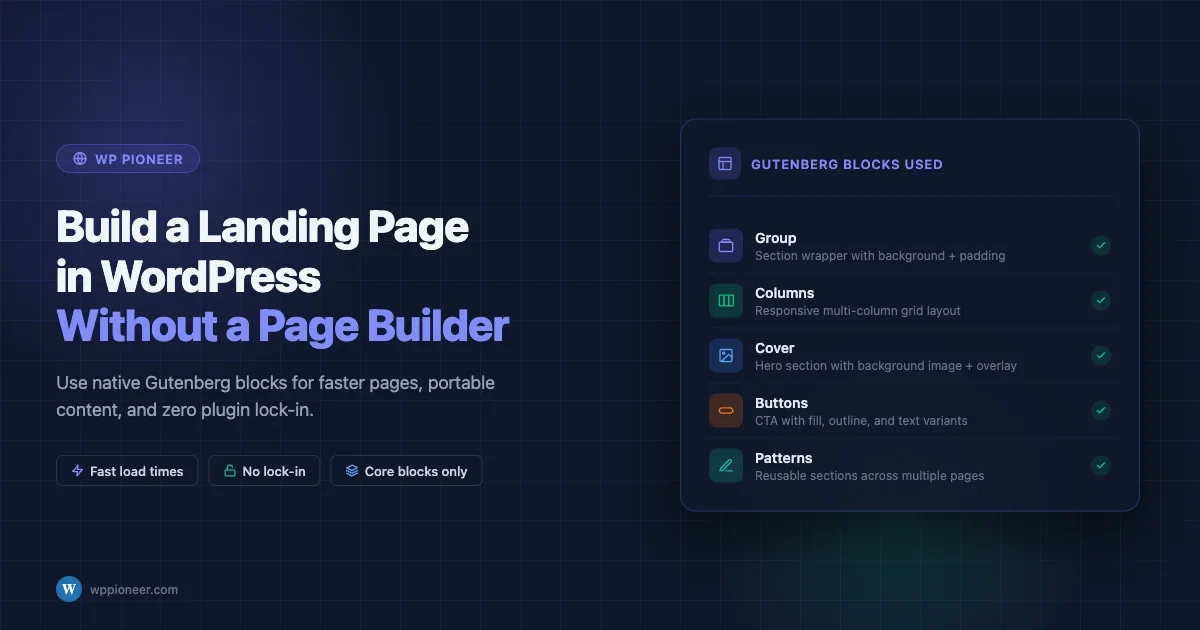
You do not need dozens of blocks to build a high-converting landing page. These six handle most layouts.
Cover Block
The Cover block is the native hero section. You can set a background image or a solid color, overlay it with opacity control, and place text or buttons on top. Use it for your main above-the-fold section. Key settings:
- Set “Minimum height” to 100vh or a pixel value like 600px for a full-viewport hero.
- Use the overlay color picker to darken an image for text legibility.
- Set alignment to “Full Width” for an edge-to-edge hero.
- Add a Heading block and a Buttons block inside the Cover to build a classic hero layout.
Group Block
The Group block is your layout container. It wraps multiple blocks together and lets you apply a background color, padding, and margin to the whole section. This is how you create colored content sections on your landing page without a builder. Add a Group block, set it to Full Width, pick a background color, add inner padding (Settings > Dimensions), then drop your content blocks inside.
Columns Block
The Columns block creates multi-column layouts for features, testimonials, pricing tiers, or team members. You choose how many columns (2 to 6), and each column accepts any block inside it. On mobile, columns stack automatically by default. You can control the gap between columns from the block settings panel.
Buttons Block
The Buttons block renders one or more CTA buttons. You can set fill, outline, or text style, control border radius, and pick colors from your theme palette. Link each button to a checkout page, contact form, or anchor section on the same page using #section-id syntax.
Media and Text Block
This block places an image on the left or right with text content beside it. It is the native equivalent of an “image with content” section in a builder. Use it for feature highlights, testimonials with photos, or product descriptions. It handles responsive stacking automatically.
Spacer Block
The Spacer block adds vertical whitespace between sections. It sounds simple, but controlled spacing is what separates a professional landing page from a cramped one. Set pixel values precisely instead of relying on paragraph blank lines.
Adding Custom CSS Classes for Hero Sections
Native blocks do not expose every CSS property through the settings panel. For fine-grained control over your hero or a specific section, use the “Additional CSS class(es)” field in the block’s Advanced tab.
To add a custom CSS class:
- Select the block (Group, Cover, or any block).
- Open the Settings sidebar on the right.
- Click the “Advanced” tab at the bottom.
- In the “Additional CSS class(es)” field, type a class name, for example:
hero-sectionorlp-features-row.
Then add the corresponding CSS in Appearance > Customize > Additional CSS (for classic themes) or Appearance > Editor > Styles > Additional CSS (for block themes). For example:
.hero-section {
  padding: 80px 20px;
  background: linear-gradient(135deg, #0a2540 0%, #1a4a7a 100%);
}

.hero-section h1 {
  font-size: clamp(2rem, 5vw, 3.5rem);
  color: #ffffff;
  line-height: 1.2;
}

.lp-features-row {
  padding: 60px 0;
  background-color: #f8fafc;
}
This approach keeps your styles attached to semantic class names rather than inline styles, which is better for performance and maintainability.
Reusable Blocks as Landing Page Components
If you build multiple landing pages, you will repeat certain elements: a CTA banner, a social proof row, a pricing table. Reusable blocks (called “Patterns” in WordPress 6.3+) let you save a block or group of blocks and insert them anywhere.
To create a reusable block:
- Select a block or group of blocks.
- Click the three-dot menu in the block toolbar.
- Choose “Create Pattern” (or “Add to Reusable Blocks” in older versions).
- Give it a name like “CTA Banner - Primary.”
The pattern is now available from the block inserter under “Patterns.” When you update the pattern, every page using it updates automatically, which is exactly how a component system works in a page builder.
Note: in WordPress 6.3+, synced patterns behave like global components. Unsynced patterns are one-time copies you can edit independently on each page.
Free Block Plugin Alternatives Worth Knowing
If the core block library does not cover something specific you need, two free plugin options extend it without the overhead of a full page builder.
GenerateBlocks Free Tier
GenerateBlocks adds four high-utility blocks: Container, Grid, Headline, and Buttons. The Container block is more flexible than the core Group block, with better control over padding, margin, borders, and box shadows. The Grid block gives you a CSS grid layout system. The free tier is genuinely useful for landing page work without any artificial feature limits for basic needs.
Kadence Blocks Free
Kadence Blocks provides around 20 additional blocks in the free version: Row Layout (flexible columns), Advanced Heading (text shadows, gradients, letter spacing), Icon (inline SVGs), Info Box (icon + text card), and more. It is a strong complement to core blocks if you want design variety without a page builder license fee.
Both plugins add minimal overhead compared to Elementor or Divi since they do not load a separate editing framework. They integrate directly with the native block editor.
Performance Comparison: Builder vs Native Blocks
Running a real-world comparison gives a clearer picture than general claims. Here is what tends to differ:
- Page weight: A page builder landing page typically loads 300-600 KB of plugin assets before any content. A native Gutenberg landing page loads only WordPress core CSS (around 30-50 KB for block styles) plus theme CSS.
- JavaScript: Page builders load their frontend JS for sliders, animations, and widget interactions. Gutenberg does not load editor JS on the frontend at all. Only blocks that explicitly need frontend JavaScript (like a slider or a map) will load any JS.
- Core Web Vitals: In controlled tests, native Gutenberg pages consistently score higher on LCP and lower on TBT than equivalent builder pages, given the same content and images. The largest variable is image optimization, which affects both equally.
- Hosting impact: On shared hosting, reducing page weight and JavaScript directly reduces PHP execution time and TTFB because the server serves fewer files.
The trade-off is design capability: page builders offer more visual options out of the box, like animation, sticky sections, and complex parallax effects. Native blocks require CSS skills to replicate advanced effects. For most landing pages focused on conversion rather than visual spectacle, native blocks handle the job well. And if overall site speed is a concern beyond landing pages, the best WordPress caching plugins guide covers how to squeeze further performance gains from your setup.
Step-by-Step Walkthrough: Building a Landing Page
Here is a practical walkthrough to build a simple but complete landing page for a service or product.
Section 1: Hero
- Add a Cover block. Set alignment to Full Width.
- Set a background color (dark blue or brand color) or upload a background image.
- Inside the Cover, add an H1 Heading block with your main headline.
- Add a Paragraph block with a one-line subheading.
- Add a Buttons block. Set the button text (“Get Started Free” or “Book a Demo”), link it to your CTA destination, and set it to “Fill” style with a contrasting color.
- Add the CSS class
hero-sectionto the Cover block via the Advanced tab.
Section 2: Social Proof / Trust Bar
- Add a Group block. Set background color to light gray or white. Add padding (40px top/bottom).
- Inside, add a Paragraph or Heading with copy like “Trusted by 5,000+ site owners.”
- Add a Columns block with 4 columns. Place logo images or short text quotes in each column.
Section 3: Features
- Add a Group block with a white background and a CSS class
lp-features-row. - Add an H2 Heading for the section title.
- Add a Columns block with 3 columns.
- In each column, add: an Image or Icon (from Kadence Blocks if installed), an H3 Heading for the feature name, and a Paragraph with 2-3 sentences of description.
Section 4: Media and Text Feature Highlight
- Add a Media and Text block.
- Upload or select a product screenshot or illustration on the left side.
- Add a Heading and Paragraph on the text side describing a specific benefit.
- Add a Buttons block inside the text side with a secondary CTA.
Section 5: CTA Banner
- Add a Group block. Set a strong background color (brand primary).
- Add centered Heading text (“Ready to build your first landing page?”).
- Add a Buttons block with a high-contrast button.
- Save this Group as a synced Pattern named “CTA Banner - Primary” so you can reuse it on other pages.
For teams building community websites or membership platforms, a theme designed for this use case can save significant setup time. The BuddyX theme by Wbcom Designs is built specifically for BuddyPress and community-driven WordPress sites, with full block editor compatibility and clean page templates ready for landing page customization without a builder.
Common Mistakes and How to Avoid Them
Using Paragraph Blocks for Spacing
Pressing Enter repeatedly to create whitespace is the most common mistake. It creates empty paragraph elements in the HTML output, which breaks when viewed at different viewport sizes or in different themes. Always use the Spacer block or control padding via the Group block’s Dimensions settings.
Not Setting a Full-Width Template
A landing page with a sidebar is not a landing page. Forgetting to set the page template to full-width leaves the sidebar visible, wastes half the horizontal space, and gives visitors an off-ramp to browse your site instead of converting. Set the template before you add a single block.
Inline Styles Everywhere
Using the color picker and padding controls inside every block is tempting, but it leads to inconsistent spacing and colors across sections. Define colors in your theme.json or Customizer palette and pull from there. Use CSS classes for section-level styles. Inline styles should be the exception, not the rule.
Forgetting Mobile at the End
The block editor does not have a mobile preview built into the editing canvas. You have to use the Preview dropdown and select “Mobile” to see a mobile view, or use browser DevTools. Check your landing page at 390px width before you publish. Common issues: Cover block text overflowing, Columns not stacking naturally, buttons too small to tap, hero height too tall on mobile.
To fix column stacking on mobile, Gutenberg’s Columns block stacks automatically, but if you have used a custom Grid layout via CSS, you need a media query:
@media (max-width: 640px) {
  .lp-features-row .wp-block-columns {
    flex-direction: column;
  }
  .hero-section h1 {
    font-size: 1.75rem;
  }
  .hero-section {
    padding: 40px 16px;
  }
}
Not Adding a Focus Keyword and Meta Description
A landing page without SEO meta is invisible in search. Before publishing, install RankMath or Yoast SEO (free tier), set your focus keyword, write a meta description under 160 characters, and confirm the page title is under 60 characters. This takes two minutes and is non-negotiable for any page you want to rank.
Linking to Multiple Destinations
A landing page should have one CTA. Multiple outbound links (your homepage, your blog, your about page) scatter attention and reduce conversions. The navigation menu on a landing page should ideally be hidden or simplified to a single logo link. If you use a block theme, create a custom template with a stripped header that contains no navigation.
Taking It Further: Block Theme Advantages
If you are starting a new site or willing to switch themes, a block-based theme (also called an FSE theme) gives you more control over landing pages than a classic theme. With a block theme:
- You can create custom page templates directly from the editor, no PHP required.
- You can design the header and footer as blocks, so a “no header” landing page template is just a template with the header block removed.
- Styles are controlled through theme.json, giving you a single source of truth for typography, colors, and spacing that applies across your entire site.
- Child themes are no longer needed for most layout customizations; you make changes in the editor and they are saved as custom templates.
Themes built with block theme architecture and community features in mind, like Wbcom Designs themes, integrate these capabilities while providing pre-built patterns and layouts that speed up landing page construction considerably.
Connecting a Contact Form or Lead Capture to Your Landing Page
A landing page without a form is just a page. The entire point is capturing a lead, a booking, an email address, or a sale. Here is how to add that without a page builder dependency.
Using WPForms Lite or Contact Form 7
Both are free and work cleanly with the block editor. After installing either plugin:
- Create your form (name, email, and a single CTA field).
- In the block editor, search for the “WPForms” block or use the Shortcode block for Contact Form 7.
- Drop the block into your CTA section inside a Group block with a contrasting background.
- Style the surrounding Group block, not the form itself, to maintain compatibility with plugin updates.
For landing pages without a page builder, keep forms short: two fields maximum. Every additional field reduces conversion rates. Name and email is the standard for lead magnets. Email alone works for newsletter signups.
Anchor Links for Single-Page Navigation
If your landing page is long, you may want a sticky header button that jumps to the form section. You can do this with anchor links, which require no JavaScript:
- Add the CSS class
cta-form-sectionto the Group block containing your form. - Also add an HTML anchor in the block’s Advanced tab: type
cta-formin the “HTML anchor” field. - Link any button on the page to
#cta-form(just the hash, no domain needed).
Browsers handle anchor scrolling natively. For smooth scrolling, add one line to your Additional CSS:
html {
  scroll-behavior: smooth;
}
Testing Your Landing Page Before Launch
Before you share a landing page URL publicly, run through this checklist:
- Mobile at 390px: Use browser DevTools or the editor’s mobile preview. Check that every section stacks cleanly, text is readable without zooming, and buttons are large enough to tap.
- Load time: Use Google PageSpeed Insights or GTmetrix. A native Gutenberg landing page should score 90+ on mobile Performance if images are optimized. If it scores below 80, the issue is almost always image size or an unoptimized web font.
- Form submission: Test the actual form. Confirm the confirmation message or redirect fires. Check the notification email lands in your inbox and not spam.
- CTA button: Click every button on the page. Confirm the destination URL is correct. Broken button links are the most common last-minute error on landing pages.
- Meta title and description: Use a browser social preview tool or the Facebook Sharing Debugger to confirm your OG tags are correct before sending traffic.
- No navigation distractions: If you want a focused landing page, temporarily hide the header navigation using a custom template or a CSS rule targeting the header block, so visitors have no easy exit to other pages on your site.
Summary
Building a WordPress landing page without a page builder is not a workaround. It is a deliberate choice for a faster, lighter, more maintainable page. The block editor gives you Cover, Columns, Group, Buttons, Media and Text, and Spacer blocks that cover every section type a conversion-focused landing page needs. Layer in custom CSS classes, reusable patterns, and a full-width template, and you have a complete landing page workflow with no additional plugins required.
If you need a few extra blocks, GenerateBlocks and Kadence Blocks both offer free tiers that extend the editor without the performance cost of a full builder. And if you are building a community or membership site, a theme designed for that purpose gives you the block-ready foundation to skip the builder entirely from day one.
The performance gains are real. The cost savings are real. The maintenance reduction is real. Start with a blank page, assign a full-width template, drop in a Cover block, and build from there.
No comments yet