
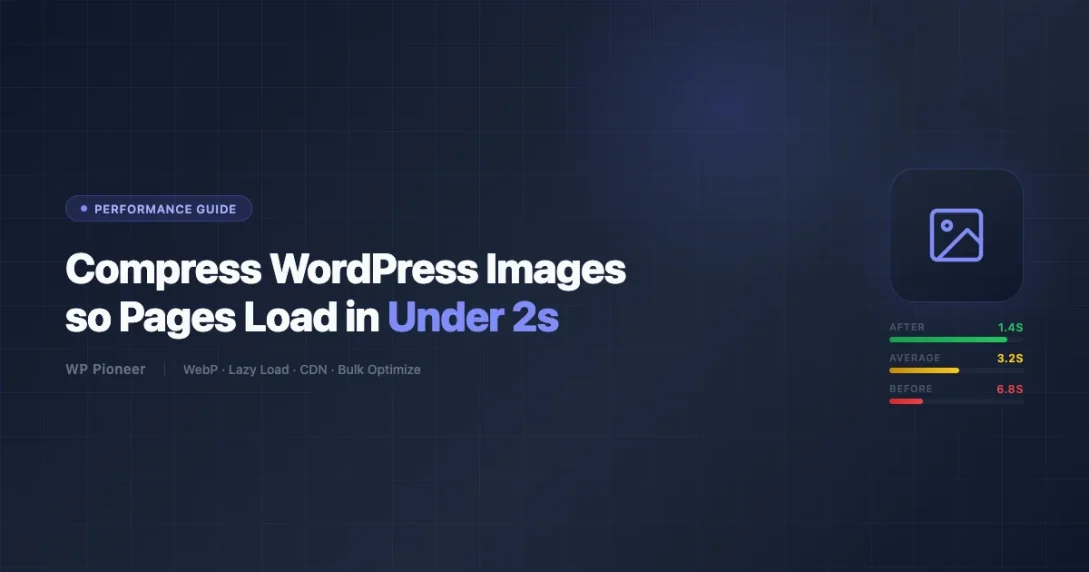
Images are beautiful. They make your site look professional, keep visitors engaged, and help explain complex ideas in seconds. But images are also the single biggest reason most WordPress sites load slowly.
Google’s Core Web Vitals data shows that Largest Contentful Paint (LCP), the metric that measures how fast your main page content appears, is almost always caused by an unoptimized image. When PageSpeed Insights grades your site a 42 out of 100, a bloated hero image is usually the culprit.
The good news: image compression is one of the highest-ROI fixes you can make to a WordPress site. You do it once, set up a few automated workflows, and your pages load in under 2 seconds without sacrificing visual quality. This guide walks you through the entire process, from understanding formats to bulk-optimizing your existing media library.
Why Images Are the Number One Cause of Slow WordPress Sites
Before diving into tools and tactics, it helps to understand why images hurt performance so badly. A typical JPEG photo from your phone or a stock site is 3 to 8 megabytes. Your WordPress theme might display that image at 800 pixels wide inside a blog post column. The browser still downloads the full 4000-pixel, 6 MB original and then scales it down visually. That’s wasted bandwidth on every page load.
According to HTTP Archive data, images account for roughly 50% of the total page weight on an average website. For WordPress blogs with multiple post images, that number climbs even higher. A 5 MB unoptimized image on a blog post can push your LCP score above 4 seconds, putting you firmly in Google’s “Poor” range and hurting both rankings and bounce rate.
Core Web Vitals thresholds to know:
- LCP under 2.5 seconds = “Good” (target for most sites)
- LCP 2.5 to 4 seconds = “Needs Improvement”
- LCP above 4 seconds = “Poor” (rankings penalty territory)
Getting your images right is the fastest path from “Poor” to “Good” for most WordPress sites. If your admin dashboard is also crawling, check out why WordPress admin gets slow and how to fix it as a companion read.
Image Formats: Which One to Use and When
Choosing the right format before you even compress is step one. Different formats suit different types of content.
JPEG
JPEG is best for photographs and images with lots of colors and gradients. It uses lossy compression, which means some data is discarded, but at quality settings of 75 to 85%, you get very small file sizes with no visible quality difference. Use JPEG for blog post photos, team headshots, product lifestyle shots, and any image that came from a camera.
PNG
PNG uses lossless compression and supports transparency. It’s the right choice for logos, icons, screenshots, and graphics with sharp lines or text. PNGs tend to be larger than JPEGs for photos, so never use PNG for photography. If your logo is a PNG with a transparent background, that’s correct usage.
WebP
WebP is Google’s modern image format and delivers 25 to 35% smaller file sizes than JPEG at equivalent visual quality. It supports both lossy and lossless compression, as well as transparency. Browser support is now 97%+ globally, so WebP is safe to serve to virtually all visitors. Most WordPress image optimization plugins can automatically convert your JPEGs and PNGs to WebP on upload.
AVIF
AVIF is newer than WebP and can achieve 50% smaller files than JPEG at comparable quality. Browser support is now above 90% globally (Chrome, Firefox, Safari 16+). ShortPixel and Imagify both support AVIF output. If you want cutting-edge compression, AVIF is worth testing, though most sites see excellent results with WebP alone.
Practical rule: serve WebP to all modern browsers (99% of your traffic), with a JPEG/PNG fallback for the rare legacy browser. Most WordPress optimization plugins handle this fallback automatically using the <picture> element.
Compress Images Before You Upload
The best time to optimize an image is before it ever enters your WordPress media library. If you compress at upload time with good tools, you start with a clean library instead of playing catch-up later.
Squoosh (Free, Browser-Based)
Squoosh is a free tool from the Google Chrome team. You drag an image in, choose your output format (WebP, AVIF, JPEG, PNG), adjust the quality slider, and see a live side-by-side comparison. No account needed, no file size limits, and it runs entirely in your browser. This is the fastest way to manually optimize one or two images before uploading to WordPress.
For most photos, set WebP quality to 80 and check whether the visual difference is noticeable. Often you can drop to 70 with no visible degradation, cutting file size by 60 to 70% compared to the original JPEG.
TinyPNG / TinyJPG
TinyPNG (tinypng.com) offers batch compression for up to 20 images at a time on the free tier. It uses smart lossy compression for PNGs (stripping unnecessary metadata and reducing color palettes) and solid JPEG compression. The free tier processes files up to 5 MB each. Paid plans allow larger files and API access. It’s a solid choice if you work with lots of PNG screenshots or graphics.
ImageOptim (Mac)
ImageOptim is a free Mac desktop app that runs multiple compression algorithms (MozJPEG, OptiPNG, Guetzli, Zopfli) on your images in sequence and keeps the smallest result. It’s lossless by default, meaning it strips metadata and applies optimizations without affecting pixel quality. Drag a folder of images onto it before uploading. ImageOptim is especially useful if you have a batch of screenshots or graphics from design tools that carry large embedded metadata.
WordPress Plugins for Automatic Image Optimization
Pre-upload compression is good practice, but WordPress image optimization plugins are what make your site truly automatic. Every new upload gets compressed, WebP versions get generated, and existing images in your library can be bulk-processed. Here are the four plugins worth knowing.
Smush (Free Tier Available)
Smush by WPMU DEV is one of the most popular image optimization plugins on WordPress.org, with over 1 million active installs. The free version automatically compresses images on upload using lossless compression, strips EXIF metadata, and provides bulk smush for up to 50 images per run. It also supports lazy loading and correct image sizing (detecting oversized images).
The paid Smush Pro tier adds WebP conversion, CDN delivery via WPMU DEV’s network, and unlimited bulk compression. For a basic site that doesn’t need WebP and just wants automatic compression, the free tier is a solid starting point.
One limitation: Smush free uses lossless compression only, which means the file size reductions are smaller than lossy alternatives. A 2 MB JPEG might only become 1.6 MB instead of 400 KB with aggressive WebP conversion.
ShortPixel (Paid, Best Quality-to-Compression Ratio)
ShortPixel is widely considered the best overall WordPress image optimization plugin for sites that take image quality seriously. It offers three compression levels:
- Lossless: No quality change, moderate size reduction
- Lossy: Aggressive compression, typically 60 to 80% smaller, visually nearly identical
- Glossy: A middle setting between the two, excellent for product photos
ShortPixel automatically generates WebP and AVIF versions of every image, serves them to compatible browsers using the <picture> element, and falls back to the original format for older browsers. Setup takes about 3 minutes: install the plugin, enter your API key (free plan includes 100 images/month), set your compression level, and enable WebP delivery.
ShortPixel’s bulk optimization is fast and reliable. For a media library with 500 images, a one-time payment for a large credit bundle is often more economical than a monthly subscription.
Imagify
Imagify is made by the WP Media team (same people behind WP Rocket) and integrates well with WP Rocket if you use that for caching. It offers three levels (Normal, Aggressive, Ultra) plus WebP and AVIF output. The free plan gives you 20 MB of images per month, which is enough to test the plugin on a few dozen images. Paid plans start at around $4.99/month for 500 MB/month of compression.
Imagify is a solid choice if you already use WP Rocket and want a single vendor for performance optimization. The integration means fewer plugin conflicts and a cleaner settings experience.
Kraken.io
Kraken.io offers an API-first approach with a WordPress plugin. It supports lossy and lossless compression and WebP output. The free tier is limited (1 MB per image, 100 MB total per month). Kraken is a good option for developers who want fine-grained API control or who already use Kraken in other projects, but for most site owners ShortPixel or Imagify is more straightforward.
Enabling WebP Conversion in WordPress
WebP delivery is the single biggest performance win you can get from image optimization. Here’s how to set it up.
Via ShortPixel or Smush Pro (Easiest)
Both ShortPixel and Smush Pro generate WebP versions automatically during compression. In ShortPixel, go to Settings > Delivery > WebP Delivery and choose “<picture> tags”. This wraps every image in your content in a <picture> element that serves WebP to supporting browsers and falls back to the original for others. No server configuration needed.
Server-Side with .htaccess (Apache)
If you generate WebP files alongside your originals (which ShortPixel does), you can serve them server-side using Apache rewrite rules. Add this to your .htaccess file, above the WordPress block:
<IfModule mod_rewrite.c>
  RewriteEngine On
  RewriteCond %{HTTP_ACCEPT} image/webp
  RewriteCond %{REQUEST_URI} \.(jpe?g|png)$
  RewriteCond %{REQUEST_FILENAME}.webp -f
  RewriteRule ^ %{REQUEST_URI}.webp [L,T=image/webp]
</IfModule>
This tells Apache: if the browser accepts WebP, and the request is for a JPEG or PNG, and a matching .webp file exists on disk, serve the WebP version instead. This approach has zero PHP overhead since it runs at the web server level before WordPress even loads.
Lazy Loading: Only Load Images That Are Visible
Lazy loading defers the loading of off-screen images until the user scrolls close to them. Instead of loading every image on a 30-image blog post index page on initial load, the browser only loads images currently in the viewport and loads the rest as the user scrolls.
Native WordPress Lazy Loading (WordPress 5.5+)
Since WordPress 5.5, released in August 2020, WordPress automatically adds loading="lazy" to all images inserted via the block editor or the Classic Editor’s media insert. You don’t need a plugin for basic lazy loading.
To verify it’s working, open your post in Chrome, right-click on an image below the fold and select “Inspect”. You should see loading="lazy" in the <img> tag attributes. If you see it, lazy loading is active.
One important note: WordPress 6.3 added fetchpriority="high" to the largest image in the viewport (usually your featured image or hero). This tells the browser to prioritize loading that specific image early, which directly improves your LCP score. You want that on your above-the-fold image and loading="lazy" on everything below.
Responsive Images: Let WordPress Handle srcset Automatically
WordPress generates multiple sizes of every uploaded image automatically: thumbnail, medium, large, and full, plus any custom sizes your theme registers. It then outputs a srcset attribute on every image tag listing all available sizes, and a sizes attribute telling the browser how wide the image will display at different viewport widths.
Example output WordPress generates:
<img src="photo-800x533.jpg"
     srcset="photo-300x200.jpg 300w, photo-600x400.jpg 600w, photo-800x533.jpg 800w"
     sizes="(max-width: 800px) 100vw, 800px"
     loading="lazy"
     alt="Description of photo" />
The browser uses this to pick the most appropriately sized image for the current device. A phone with a 390px display downloads the 300w or 600w version. A desktop downloads the 800w version. This alone can cut image payload in half for mobile visitors.
The key requirement: this only works well if you upload images at the right dimensions to begin with. If you upload a 4000px wide photo, WordPress generates sizes from that 4000px base. It still works, but you’re storing a 4000px file when you never need anything bigger than 1200px on your site.
Upload the Right Dimensions: Stop Uploading 4000px Images
This is one of the most common and easy-to-fix mistakes on WordPress sites: uploading full-resolution photos from a phone or camera when the theme never displays images wider than 1200 pixels.
Common Display Widths to Know
- Blog post content column: 700 to 900px on most themes
- Full-width hero image: 1400 to 1920px
- Sidebar thumbnail: 300px
- Archive/grid thumbnails: 400 to 600px
- WooCommerce product image: 600 to 800px
Check your theme documentation or use the browser’s Inspector to see the rendered width of images on your site. Then resize images to 2x that width before uploading (2x for high-DPI / Retina screens). For a 900px content column, upload images at 1800px wide maximum. That’s still a meaningful step down from 4000px.
If you’ve already uploaded thousands of oversized images, the Smush plugin’s “Resize large images” feature can automatically resize new uploads to a maximum dimension you define. Set your maximum width to 1920px in Smush’s settings, and every future upload gets resized before compression runs.
Featured Image Size Guidelines
Featured images appear in different contexts (hero, archive card, social share preview) so they need a specific dimension strategy:
- Standard blog featured image: 1200 x 628px (ideal for social sharing and Open Graph)
- Full-width hero (Astra, GeneratePress, OceanWP): 1920 x 1080px maximum
- Square card thumbnail (archive pages): 800 x 800px
- WooCommerce shop thumbnail: 600 x 600px
The 1200 x 628px dimension works across nearly every WordPress theme and is also the optimal size for Facebook, LinkedIn, and Twitter link preview cards, so you get double duty from a single image.
CDN for Images: Move Files Closer to Visitors
Even perfectly compressed images can load slowly if your hosting server is in New York and your visitor is in Singapore. A Content Delivery Network (CDN) stores copies of your images on servers around the world and delivers them from the nearest location.
Cloudflare (Free Tier)
If your domain’s DNS runs through Cloudflare (free), your static assets including images are automatically cached at Cloudflare’s edge network in 300+ locations. You don’t need to change any image URLs or configure WordPress differently. Just having Cloudflare in front of your site cuts image delivery time for international visitors significantly.
Cloudflare’s paid Polish feature (available on Pro plan at $20/month) automatically compresses images and serves WebP to compatible browsers without any plugin needed. For sites already on Cloudflare Pro, Polish is worth enabling in the Speed > Optimization section of the Cloudflare dashboard.
BunnyCDN
BunnyCDN is a paid CDN that’s popular among WordPress users for its low cost (around $0.01 per GB for storage zones in North America/Europe) and excellent performance. The BunnyCDN WordPress plugin or a plugin like CDN Enabler can rewrite your image URLs to point to your BunnyCDN pull zone. Bunny also offers BunnyOptimizer (Perma-cache) which handles automatic WebP conversion at the CDN edge.
Cloudflare Images
Cloudflare Images is a dedicated image optimization and delivery product ($5/month for up to 100,000 images stored) that handles resizing, WebP conversion, and CDN delivery all in one. You upload images to Cloudflare’s API or use their WordPress integration, and they serve optimized variants on demand. It’s a more expensive but very clean solution if you want to offload the entire image pipeline.
Bulk Optimize Your Existing Media Library
If your site has been running for years, you likely have hundreds or thousands of unoptimized images already in your media library. All the right settings going forward won’t fix what’s already there.
Using ShortPixel Bulk Optimizer
In your WordPress dashboard, go to Media > Bulk ShortPixel. The plugin shows you a count of unoptimized images and a progress bar as it processes them. ShortPixel processes images server-to-server (it sends your images to ShortPixel’s servers for compression and returns optimized versions), so it uses image credits from your account. Plan for roughly 3 to 4 credits per image (original + generated sizes).
For a 500-image media library, you’d need roughly 1,500 to 2,000 credits. ShortPixel sells one-time credit packs starting at $9.99 for 10,000 credits, which is enough for a medium-sized blog. Alternatively, their monthly plans include a rolling credit allowance.
Using Smush Bulk Optimization
Smush’s free bulk optimizer runs in batches of 50 images. Go to Smush > Bulk Smush and click “Bulk Smush Now”. For large libraries, you may need to click multiple times as it works through batches. The free version uses lossless compression only, so file size reductions are moderate but still meaningful, especially for metadata-heavy images from professional cameras.
Measuring Results: Before and After
Don’t skip the measurement step. Seeing your PageSpeed score jump from 45 to 82 after optimization is motivating and confirms your work had the intended effect.
Google PageSpeed Insights
Go to PageSpeed Insights and enter your URL. Before you start optimization, run the test and screenshot the results, specifically the LCP score and the “Properly size images” and “Serve images in next-gen formats” recommendations. These two recommendations will disappear or shrink significantly after you optimize.
After bulk optimization and WebP delivery are set up, run the test again on the same URL. Compare the LCP value (in seconds), the Performance score (0 to 100), and the estimated savings listed under opportunities. A well-optimized WordPress blog post should show less than 500 KB total page weight from images and LCP under 2.5 seconds on a standard connection.
GTmetrix
GTmetrix (gtmetrix.com) gives you a detailed LCP waterfall chart that shows exactly which image triggered the LCP event and how long it took to load. In the “Performance” tab, look at the “Largest Contentful Paint” section. It identifies the element, its file size, and its loading time. This is particularly useful for diagnosing why your featured image is slow even after optimization — it might still be uncompressed, not lazy-loaded correctly, or served without CDN caching.
A Practical Optimization Checklist
Here’s the sequence that gets most WordPress sites to sub-2-second LCP:
- Install ShortPixel or Smush. Enable lossy compression and WebP output.
- Set a maximum upload width of 1920px in your plugin settings.
- Run bulk optimization on your existing media library.
- Verify
loading="lazy"is present on below-fold images (WordPress 5.5+ handles this automatically). - Confirm
fetchpriority="high"is on your above-fold featured image (WordPress 6.3+ handles this automatically). - Enable Cloudflare (free) on your domain if you haven’t already.
- For new uploads, resize to appropriate dimensions before uploading or let your plugin’s auto-resize handle it.
- Run PageSpeed Insights after each step and track your LCP improvement.
Most sites that follow this sequence see LCP drop from 4 to 6 seconds down to 1.5 to 2.5 seconds. Combined with a caching plugin and a fast host, hitting that under-2-second target becomes straightforward for the majority of WordPress blogs and business sites. For a broader look at all the levers available, see this guide on how to speed up your WordPress site without hiring a developer.
Common Mistakes to Avoid
Uploading Full-Resolution Camera Files
The iPhone 15 Pro takes 48-megapixel photos at 48 MB. Even with aggressive compression, a 48 MB source file produces a large output. Always resize before upload: aim for no more than 1920px on the longest edge for most website use cases.
Using PNG for Photos
PNGs of photographs are dramatically larger than JPEGs or WebP at equivalent visual quality. If you see any PNG files above 500 KB in your media library that are photos (not graphics or logos), convert them to WebP or JPEG. ShortPixel handles this automatically during bulk optimization if you enable the PNG to JPEG conversion option.
Compressing the Same Image Twice
If you compress an image with TinyPNG before upload AND then run ShortPixel on it in WordPress, you’re double-compressing. The second pass on an already-compressed JPEG can introduce artifacts. Pick one workflow: either compress before upload and use ShortPixel in lossless mode, or upload originals and let ShortPixel handle lossy compression. Both approaches work, but doing both lossy passes degrades quality.
Not Setting Alt Text
Alt text is required for accessibility (screen readers) and helps search engines understand your images. When you upload an image to WordPress, fill in the Alt Text field in the media library. A descriptive alt text like “WordPress dashboard showing plugin install screen” is better than “screenshot” or leaving it blank. This doesn’t affect file size but it affects your SEO score and accessibility audit results.
Putting It All Together
Faster pages aren’t just about rankings. They directly affect how long visitors stay, whether they trust your site, and whether they come back. Google’s research shows that as page load time goes from 1 second to 3 seconds, the probability of a mobile visitor bouncing increases by 32%. That’s a third of your traffic leaving before they read a word.
Image optimization is the most impactful single change most WordPress sites can make. It’s not complicated once you have the right plugin installed and the right workflow in place. ShortPixel with lossy compression and WebP delivery, combined with the correct upload dimensions and Cloudflare caching, can take a sluggish WordPress site from a 4-second LCP to under 2 seconds without touching your theme, your hosting, or any other part of the stack.
Start with your most-visited pages. Run PageSpeed Insights now, note your LCP score, install ShortPixel or Smush, run bulk optimization, and run the test again. The before-and-after numbers will show you exactly what you gained.
Beginner WordPress Tips Caching Plugins Image Optimization Optimize WordPress performance Plugin Comparison
Last modified: April 29, 2026















Beginner’s Guide • How-To Guides • Site Maintenance Basics
April 29, 2026 • Views: 0
How to Moderate WordPress Comments Without Checking Them Every Day