How to Tell if Your WordPress Site Was Hacked (And What to Do First)

A few weeks ago WordPress released an emergency security update, and we told you to install it right away. Since then, attack code has gone public and attackers have been actively going after sites that were slow to update.
Which raises the question that post only touched on: how would you actually know if something had already happened to your site?
Most people imagine a hack looks dramatic. A skull on the homepage, a ransom note, the site gone. That does happen, and it is the rarest version. Someone who breaks into a WordPress site usually wants to use it quietly, for as long as possible, which means their first priority is that you do not notice. The real signs are much more mundane, and if you know what they are you can spot them in about ten minutes.
This guide is written for site owners, not developers. There is no code, no command line, and nothing here requires technical skill.
The signs something is wrong
None of these alone proves a hack. Several together is a strong signal.
Visitors see something you do not
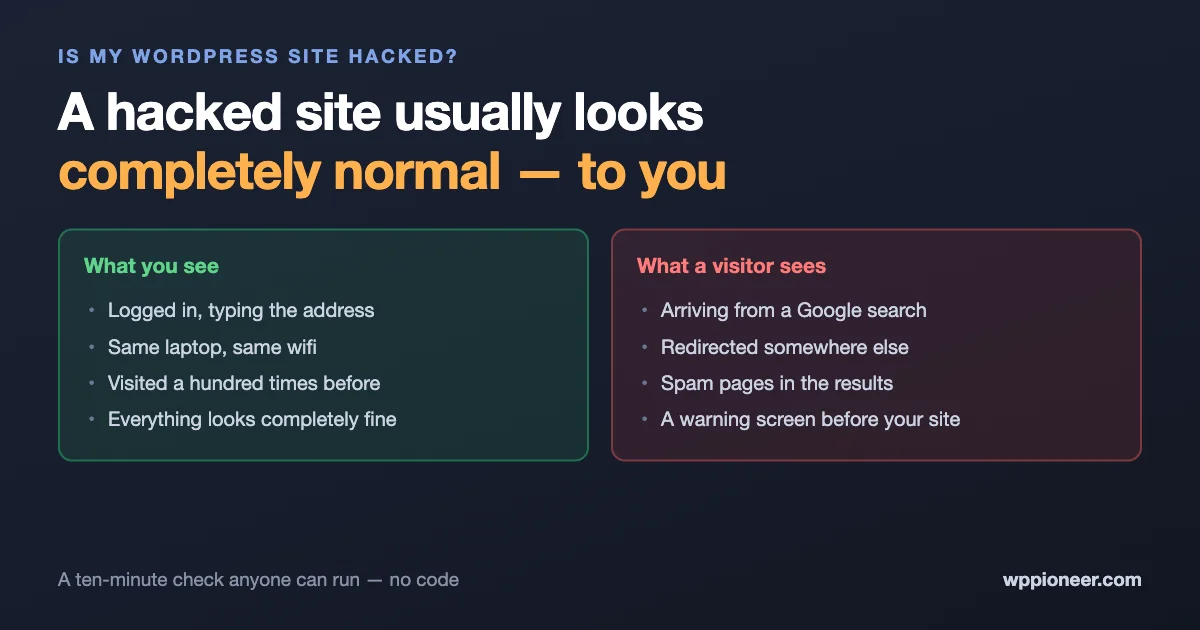
This is the single most common pattern and the one that fools people longest. You visit your site and it looks completely normal, because it is normal, for you. Attackers commonly show the bad version only to people arriving from Google, or only to people on phones, or only to visitors who have not been there before. You are logged in, visiting directly, on the same device every day, so you are precisely the person they hide from.
The way to catch this is to stop looking at your site the way you normally do. Search for your business on Google and click the result rather than typing your address. Try it on your phone, on mobile data rather than your home wifi. Open a private or incognito window. If any of those show you something different, you have your answer.
Google is showing pages you never wrote
Search Google for site:yourdomain.com, using your actual domain. That lists the pages Google knows about on your site. Read through them. If you find pages about pharmaceuticals, designer handbags, essay writing, loans or casinos, and you do not run any of those businesses, someone is using your site’s reputation to rank their content. This is one of the most common outcomes of a WordPress compromise, because it makes money quietly and takes months to be noticed.
Your browser or Google warns people away
A red warning screen, or a “This site may be hacked” note under your search result, means an automated system has already found something. Take it seriously even if the site looks fine to you. These warnings are not usually wrong, and by the time one appears the problem has generally been there a while.
Your host emails you
Hosting companies notice compromised sites because they generate spam, consume resources, or get reported. If your host has emailed about suspicious activity, suspended your account, or mentioned malware, that is not a formality to file away. They can see things about your server that you cannot.
There are user accounts you did not create
Log in to your dashboard and go to Users. Look at everyone listed as an Administrator. You should recognise every single one. An account you did not create, especially one added recently, is among the clearest signs there is. Attackers give these accounts sensible-looking names, so treat anything you cannot personally account for as suspicious even if it looks official.
The site got slow, or emails stopped arriving
A site that suddenly becomes sluggish for no reason may be doing work for someone else, such as sending spam or participating in attacks on other sites. Relatedly, if your contact form emails or order confirmations have quietly stopped reaching people, it may be because your domain has been blacklisted for sending spam you did not know about.
Files or content changed on their own
Posts you did not edit showing a recent modified date, new plugins you did not install, or settings that reverted after you changed them. Any of these is worth investigating.
The ten-minute check
Work through these in order. Nothing here can break anything.
- Look at your site as a stranger. Private browsing window, then your phone on mobile data, then arriving via a Google search rather than typing the address.
- Search
site:yourdomain.comon Google. Read the list of pages for anything you did not create. - Check your Users list. Dashboard, then Users. Confirm you recognise every administrator.
- Check your Plugins list. Anything installed that you do not remember installing, or a plugin with a vague name and no author information.
- Check your WordPress version. The dashboard home screen shows it. If you are not on the latest version, update now regardless of anything else you find.
- Look at your recent posts and pages. Sort by date modified. Anything edited on a day you were not working is worth opening.
- Run a security plugin scan. Wordfence and Sucuri both have free versions that scan for known malware. A clean result is reassuring but not conclusive, for reasons covered below.
If all seven come back clean, you are in reasonable shape. Make sure WordPress and all your plugins are up to date, and move on with your day.
What to do in the first hour if you find something
If something above came back wrong, the order of what you do next genuinely matters.
1. Do not delete anything yet
The instinct is to remove the strange admin account or the unfamiliar plugin immediately. Resist it for a few minutes. Those things are the evidence that tells you, or the person you hire, how someone got in and how long they have been there. Deleting them first is like cleaning up a crime scene before anyone looks at it: the intruder is often still able to get back in, and now you have destroyed the only clues about how.
Instead, write things down. Note the username, the email address and the date the account was created. Take screenshots. This takes two minutes and makes everything afterwards easier.
2. Tell your host
Contact your hosting provider and tell them you believe your site has been compromised. Most hosts have dealt with this many times, some will help directly, and they have access to server logs you do not. They may also be able to tell you whether other sites on the same account are affected.
3. Take a backup of the current state
This sounds odd when the site is compromised, and it is still worth doing. You want a copy of the site as it is now, kept separately from your clean backups, because if the cleanup goes wrong you have not lost the ability to look at what was there.
4. Change your passwords, in the right order
Start with your hosting account, then your WordPress administrator accounts, then your database password if you know how or your host can do it. Use new, unique passwords rather than variations of the old ones.
Then do the step most people miss: log every user out. WordPress has a “Log Out Everywhere Else” option in your profile, and most security plugins can force a logout of all users. Changing a password does not always end a session that is already active, so without this an intruder may still be signed in while you work.
5. Update everything
WordPress core, every plugin, every theme. Outdated software is how the majority of compromises begin, and the recent security release is a live example of exactly that.
6. Turn on two-factor authentication
If a stolen password was the way in, 2FA makes that password useless on its own going forward. Do this before you consider the incident closed.
Three mistakes that make it worse
Deleting files at random. Poking around your site’s files and removing anything that looks unfamiliar is a reliable way to break your site without removing the actual problem. Most files in a WordPress install look strange if you have not seen them before.
Restoring a backup without checking its date. If you restore a backup taken after the break-in, you restore the break-in along with it, then conclude the cleanup failed. You need a backup from before the compromise started, which means knowing roughly when that was. This is the main reason step one is to gather information rather than to act.
Assuming a clean scan means a clean site. Security scanners look for known malware, the way antivirus software does. A backdoor written for your site specifically, or one that is only a few days old, may not be in any scanner’s list yet. A clean scan is good news and not a guarantee, which is why the manual checks above matter alongside it.
When to call someone
Handling it yourself is reasonable if you found one clear problem, you know when it started, and the site is otherwise behaving normally.
Get professional help if any of these apply. The problem comes back after you clean it, which almost always means a backdoor is still in place. Your site takes payments or stores customer details. You cannot work out how or when they got in. Your host has suspended you. Or you have found several unrelated problems, which usually indicates someone had thorough access rather than a passing visit.
Professional cleanup typically costs somewhere in the low hundreds. Set against a customer data breach or weeks of lost search rankings, that is usually the cheaper option, and there is no shame in it: this is a specialist job and the people who do it see the same patterns every week.
Making it much less likely next time
Nearly every WordPress compromise traces back to one of three things, and all three have straightforward fixes.
Outdated software. Turn on automatic updates for WordPress core and for plugins you trust. The recent security release is a textbook case: the fix existed, and the sites that suffered were the ones that had not applied it yet.
Weak or reused passwords. Use a password manager and a genuinely unique password for your site, plus 2FA on every administrator account.
Abandoned plugins and themes. Every plugin is code someone else maintains, and a plugin whose author stopped updating it years ago will never be fixed when a flaw is found. Delete what you do not use, rather than just deactivating it, because deactivated plugins still sit on your server. Our guide to the plugins a beginner actually needs is a good pass to make: fewer plugins is genuinely safer.
Add reliable backups you have restored from at least once, so you know they work, and you have covered most of the realistic risk.
Frequently asked questions
My site looks completely normal. Could it still be hacked?
Yes, and this is the most important thing to understand. A compromised site that looks broken is a failed compromise. The valuable outcomes for an attacker, spam pages, hidden redirects, sending mail through your server, all work best when the owner sees nothing unusual. Check as a stranger rather than as yourself.
How did they get in if my password is strong?
Most break-ins are not password guessing. They exploit a flaw in outdated WordPress core, a plugin or a theme, which requires no password at all. That is why updating promptly matters as much as password strength.
Will I lose my Google rankings?
Possibly, temporarily. Google may flag or demote a site serving spam or malware. Rankings usually recover once the site is genuinely clean and you request a review through Google Search Console. Speed matters here, since the longer the bad content is indexed, the longer recovery takes.
Should I take my site offline while I fix it?
If it is actively serving malware to visitors or your host has warned you, yes, putting up a maintenance page protects your visitors and your reputation. For a suspected but unconfirmed problem, it is usually not necessary while you run the ten-minute check.
Is a free security plugin enough?
It is much better than nothing and worth installing today. Be aware that free tiers commonly receive new protection rules later than paid ones, sometimes weeks later, so a free plugin is a solid baseline rather than complete cover.
My host says they cleaned it. Am I done?
Ask what they actually did. Some hosts remove the malicious files but not the way in, which means it returns. Confirm they addressed how access was gained, then change your passwords, log all users out and update everything yourself. Watch the site closely for a couple of weeks.
How often should I check?
The ten-minute check once a month is plenty for most sites, plus any time something feels off or your host contacts you. Keeping automatic updates on does far more for your safety than checking frequently.
The bottom line
Hacked WordPress sites rarely announce themselves. They serve different content to visitors than to you, quietly publish spam pages, add an administrator account with a plausible name, and otherwise behave normally. Look at your site the way a stranger arriving from Google would, search site:yourdomain.com, and read your Users list. If you find something, write it down before you delete it, tell your host, change your passwords and log everyone out. And whether or not you find anything today, update WordPress and your plugins, because being behind on updates is how most of this starts.