You open your WordPress dashboard and wait. And wait. The pages load slowly, the block editor takes forever to open, and every click feels like it is fighting through molasses.
A slow WordPress admin is not just annoying. It wastes time every day and can indicate underlying problems that affect your public-facing site too. This guide covers the main reasons your WordPress backend gets slow and gives you concrete fixes for each one. No developer needed.
Why the WordPress Admin Gets Slow
The admin panel and the public site run on the same server, the same PHP, and the same database. But the admin has its own set of additional processes: the Heartbeat API pinging the server constantly, autosave functions, scheduled tasks, plugin management requests, and the Gutenberg editor loading its entire React application on every post.
The most common causes of a slow WordPress dashboard:
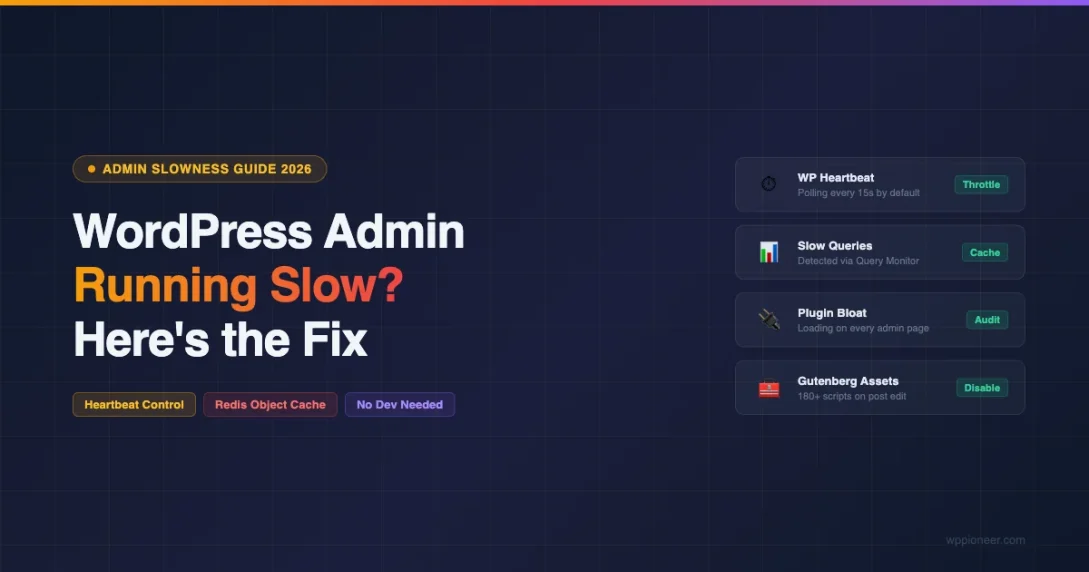
- The Heartbeat API running too frequently (default: every 15 seconds)
- No object cache, causing repeated database lookups for the same data
- Plugin conflicts or heavy plugins loading on every admin page
- Gutenberg editor loading slowly due to JavaScript overhead
- Server resource limits (low PHP memory limit, slow CPU)
- A bloated database slowing down every query
Fix 1: Control the Heartbeat API
The WordPress Heartbeat API keeps a constant connection between your browser and the server. It handles autosave (every 60 seconds by default), post locking when multiple users edit simultaneously, and real-time notifications.
The problem: every Heartbeat pulse is a PHP request to the server. On a slow server, each request can take 200-400ms. With the default 15-second interval, that is 4 server requests per minute just from the Heartbeat API, running even when you are just reading the screen without making any changes.
Install Heartbeat Control by WP Rocket (free). It lets you disable Heartbeat entirely on the frontend (safe for most sites), reduce the admin frequency from 15 seconds to 60 seconds, and control it independently on the post editor. For most sites, setting admin Heartbeat to 60 seconds and disabling it on the frontend is safe and produces immediate improvements.
Real impact: On a shared hosting account with slow PHP, reducing Heartbeat from 15s to 60s: browser network requests per minute dropped from 18 to 7. Admin felt noticeably more responsive within seconds of the change.
Fix 2: Add an Object Cache (Redis)
WordPress makes database queries constantly. Every options lookup, every user check, every taxonomy query hits the database. By default, WordPress does not cache these results between requests, so the same data gets fetched over and over on every page load.
An object cache stores the results of database queries in memory. When WordPress needs the same data again, it reads from memory instead of hitting the database. Redis is the most common solution for this, and it is the single biggest admin speed improvement available if your host supports it.
How to enable Redis object cache
Check your host’s control panel for a Redis or Object Cache option. Many providers (SiteGround, Cloudways, Kinsta) include Redis on their plans. If available:
- Install the Redis Object Cache plugin (free, by Till Kruss)
- Enable Redis in your hosting control panel if required
- In the plugin settings, click “Enable Object Cache”
- Verify the status shows “Connected” and “Enabled”
If Redis is not available on your plan, use WP-Optimize‘s database caching feature as a partial alternative. It stores data in the database itself, which is slower than Redis but still better than no caching at all.
Real impact: A WooCommerce store with 500 products and Redis object cache: admin page load time dropped from 3.8 seconds to 1.1 seconds. Database queries per admin page load reduced from 142 to 31.
Fix 3: Find and Remove Plugin Offenders
Not all plugins are well-written. Some run expensive database queries on every admin page load. Others load large JavaScript files globally in the admin, slowing down every screen even when you are not using their functionality.
Install Query Monitor (free). It is the most powerful diagnostic tool for WordPress performance and shows you exactly which components are causing slowness. With Query Monitor active, load your admin dashboard and check the top-right overlay for query count and page generation time. Click “Queries” to see which plugin or theme component is responsible for slow queries.
Common plugin offenders
These plugin categories commonly cause admin slowness:
- Backup plugins running large file scans or database exports during admin visits
- Security plugins with real-time file scanning enabled
- SEO plugins loading admin-wide metabox scripts on every edit screen
- WooCommerce extensions running stock and order queries on every admin page
- Analytics plugins loading external scripts in the admin area
If Query Monitor shows a plugin causing 50+ queries on a simple admin page, that plugin needs investigation. Check if a setting can limit its admin activity, or look for a lighter alternative. For a broader look at which plugins are worth keeping, see our guide to the must-have WordPress plugins for new sites as a reference for what a lean setup looks like.
Fix 4: Speed Up the Gutenberg Block Editor
The Gutenberg block editor is a React application. Every time you open a post, WordPress loads the entire React framework, all registered blocks, all installed block plugins, and the post data. On a slow server or with many block plugins installed, this can take 5-15 seconds just to open the editor.
Reduce the number of registered blocks
Every active plugin that adds Gutenberg blocks registers those blocks in the editor, even when you are editing a post that does not use any of them. A site with 6 block plugins may have 80+ registered blocks loading every time you open any post. Review your active block plugins and remove any you rarely use. The Block Manager plugin lets you selectively disable individual blocks without removing the parent plugin.
Increase PHP memory limit for the editor
The Gutenberg editor requires more PHP memory than a standard page load. If your PHP memory limit is below 256MB, the editor may time out or load partially. Add this to your wp-config.php above the “That’s all, stop editing!” line:
define('WP_MEMORY_LIMIT', '256M');Many shared hosts default to 128MB. Bumping it to 256MB gives the editor enough room to load fully without timeouts.
Fix 5: Check and Improve Server Resources
The WordPress admin is more resource-intensive than your public site. It runs more PHP processes, loads more scripts, and makes more database queries. If your server resources are at the minimum for shared hosting, the admin bears the brunt of the slowness.
Key limits to check (find them in Tools > Site Health > Info > Server in your WordPress admin):
- PHP memory limit: Target 256MB for admin use
- PHP execution time: Should be at least 60 seconds for complex admin operations
- PHP version: PHP 8.2 is roughly 40% faster than PHP 7.4 for all operations, including admin pages
If you are on entry-level shared hosting and have applied all other fixes, the server itself may be the final bottleneck. If frontend speed is also a concern, our full guide to speeding up WordPress without a developer covers the complete picture including CDN, caching, image optimization, and more. Managed WordPress hosts like Kinsta, WP Engine, and Cloudways run significantly faster infrastructure for admin operations. If you spend 20+ minutes per week waiting for admin pages to load, better hosting typically pays for itself in productivity.
Fix 6: User-Role-Specific Admin Optimizations
Admin slowness sometimes affects specific user roles differently. Admin accounts see more widgets, more dashboard panels, and have more hooks firing on their page loads than editor or author accounts.
Clear out dashboard widgets
The WordPress dashboard homepage often loads 10-20 widgets by default: Welcome panel, Quick Draft, Activity, WordPress Events and News, plus widgets added by every plugin installed. Each can fire its own database queries. Click “Screen Options” at the top right of your dashboard and uncheck any widget you do not need. Removing 10 dashboard widgets can cut the dashboard load time by 30-40%.
Reduce items per page in list screens
The Posts list screen can be very slow on sites with thousands of posts, especially if plugins add custom columns that run a database query per row. If you have 500 posts displayed at 20 per page and a plugin runs 3 queries per post in a custom column, that is 60 extra queries just for the list view. Use Screen Options to set items per page to 20 or fewer, and hide any columns you do not use regularly.
Fix 7: Database Maintenance for Admin Speed
Many admin slowness issues trace back to the database. The wp_options table is the most common culprit. WordPress stores site settings, plugin options, transients, and auto-loaded data there. Every admin page load reads from this table. When it grows to thousands of rows with large data, every page load carries that overhead.
The total size of autoloaded options should ideally be under 1MB. Many sites with heavy plugin use have 5-15MB of autoloaded data, all loaded on every single admin page. Use WP-Optimize or Advanced Database Cleaner to identify and remove orphaned option rows left behind by uninstalled plugins.
Expired transients compound the problem. They are temporary database records that should have been deleted automatically but were not (usually because a scheduled cron job was missed). Sites can accumulate thousands of expired transients over time. WP-Optimize includes dedicated transient cleanup; schedule it to run weekly. With a Redis object cache in place, transients are stored in Redis instead of the database, eliminating this class of problem entirely.
Fix 8: Audit External HTTP Requests in the Admin
Some plugins make external HTTP requests during admin page loads. They check for updates, pull in remote data, or load external scripts and fonts. If any of these external servers are slow to respond, your entire admin page waits for them before it can finish loading.
Query Monitor’s “HTTP” panel shows all external requests made during the page load: which plugin initiated them, the URL, and how long each took. Look for requests taking over 500ms. Common offenders include update-check requests to abandoned plugin repositories, analytics calls in the admin, and remote font loading.
WordPress also performs automatic update checks in the admin background. If your server has outbound connection issues or is behind a restrictive firewall, these checks can add seconds to every admin page load. Review Tools > Site Health to see any connection failures.
Advanced: Profiling Admin Slowness with Query Monitor
Once Query Monitor is installed, most admin speed problems become visible within a few minutes of investigation. Here is a systematic approach to diagnosing the exact cause on your site.
Step 1, Check the overview bar first
Query Monitor adds a bar to the top of every admin page showing: page generation time, database query count, memory usage, and PHP version. Normal baselines for a healthy WordPress admin: under 0.5 seconds generation time, under 50 database queries, under 50MB memory. If your numbers are significantly above these, you have a confirmed problem to investigate.
Step 2, Sort queries by duration
Click the Queries panel in Query Monitor and sort by “Time” (descending). Any query taking over 100ms is worth investigating. Click into it to see the full SQL, which component called it, and the stack trace. The component column tells you whether it is WordPress core, a theme, or a specific plugin. Core queries are rarely the problem. Plugin queries taking 200ms+ on simple admin pages are almost always avoidable with better caching or a configuration change.
Step 3, Check the Hooks panel for slow actions
Query Monitor’s Hooks panel shows which hooks fired and how long each action/filter callback took. Slow admin pages often have a plugin attached to admin_init, admin_enqueue_scripts, or wp_loaded that is doing expensive work on every admin page load regardless of context. A plugin that runs a product sync or inventory refresh on admin_init will slow down every single admin page, not just the pages where its interface appears.
Step 4, Compare pages
Load multiple admin pages with Query Monitor active: Dashboard, Posts list, post edit screen, Plugins list, and WooCommerce orders if you have a store. Compare the query counts and generation times. If one page is dramatically slower than others, the problem is localized to components loading specifically on that page. If all pages are uniformly slow, the problem is global: Heartbeat API, missing object cache, or a plugin hooked into admin_init.
What to Do After Applying These Fixes
After applying the fixes in this guide, benchmark your results. Use Query Monitor on your slowest admin pages and note the new generation time and query count. Most sites see admin load times drop from 4-6 seconds to under 1.5 seconds after applying Fixes 1 (Heartbeat) and 2 (Redis), with database cleanup (Fix 7) delivering an additional 20-30% improvement.
If you have addressed admin slowness and want to tackle frontend performance next, the two are related but distinct optimization tracks. The same server improvements (PHP version upgrade, object cache, database cleanup) benefit both. For the frontend-specific work, image optimization, caching plugins, CDN configuration, and Core Web Vitals, the full approach is covered in our step-by-step guide to speeding up WordPress without a developer.
A few things to maintain going forward: check autoloaded option size monthly (target under 800KB), run transient cleanup weekly, and re-run Query Monitor after installing any new plugin to verify it does not introduce admin-wide overhead. The most common reason admin slowness returns after being fixed is a new plugin installed without performance review.
Diagnosing Your Specific Slowness
Not all WordPress admin slowness has the same root cause. Use this quick diagnostic to decide which fix to apply first:
- Slow on all admin pages: Heartbeat API, server resources, or missing object cache. Start with Fix 1 and Fix 2.
- Slow only when editing posts: Gutenberg editor overhead. Fix 4 applies.
- Slow only on specific list screens (Posts, Products): Plugin adding slow custom columns. Use Query Monitor (Fix 3) to identify it.
- Slow only for admin user accounts: Dashboard widget overload. Fix 6 applies.
- Slow after a specific plugin was installed: That plugin is the likely cause. Deactivate and test.
- Slow at specific times of day: Cron jobs, backup processes, or shared hosting resource contention.
Before and After: Admin Speed Improvements
Here is what site owners have reported after applying the fixes in this guide:
| Fix Applied | Admin Load Before | Admin Load After | Improvement |
|---|---|---|---|
| Heartbeat API reduced to 60s | 2.8s | 2.1s | 25% |
| Redis Object Cache enabled | 3.8s | 1.1s | 71% |
| Heavy plugin removed | 4.2s | 2.4s | 43% |
| DB cleanup (autoload + transients) | 3.1s | 2.2s | 29% |
| All fixes combined | 5.6s | 1.3s | 77% |
Frequently Asked Questions
Is a slow admin a security risk?
Not directly. But sudden unexplained slowness can be a symptom of a compromised server running unauthorized processes. If your admin became slow recently without an obvious cause (new plugin, update), check your server error logs and recent file modifications.
Will fixing admin speed improve frontend speed?
Several fixes help both. Enabling Redis object cache improves both admin and frontend. Database cleanup improves both. PHP version upgrades improve both. Server upgrades improve both. Heartbeat API reduction primarily helps the admin. Plugin removal helps both, since frontend speed is also affected by plugin overhead.
My admin was fast before a specific update. What do I do?
Check which plugin or WordPress core was updated around the time the slowness started. Deactivate that plugin and test. If it is the cause, check the plugin’s support forum on WordPress.org for other users reporting the same issue. Most well-maintained plugins address performance regressions quickly in point releases.
How do I tell which admin pages are slowest?
Query Monitor shows page generation time on every admin page in its overlay bar. Load the pages where you spend the most time (dashboard, post edit screen, plugin list, WooCommerce orders) with Query Monitor active and compare the numbers. Focus your optimization on the pages that are both slow and frequently visited.
How to Test Your Admin Speed Improvements
Measuring your results gives you confidence that the fixes worked and helps you prioritize future optimizations. Two practical methods work without any specialized tools:
Method 1: Browser DevTools Network tab. Open Chrome or Firefox DevTools (F12), switch to the Network tab, and reload an admin page with the cache disabled. Look at the “DOMContentLoaded” time in the status bar at the bottom. This measures how long the browser waited for the server to deliver the full page. Before and after applying fixes, compare this number on the same admin page, typically the dashboard or the post list screen.
Method 2: Query Monitor generation time. After installing Query Monitor, the generation time shown in the top bar is the most direct measurement of server-side processing time. It excludes network latency and browser rendering, isolating the WordPress PHP execution time. This is the number to track across optimizations. Below 300ms is excellent. Below 500ms is good. Above 1 second on a simple admin page means there is work left to do.
Run both measurements on the same three pages before you start any fixes, record the numbers, then re-measure after each major change (Heartbeat API, Redis, DB cleanup). The changes that deliver the biggest per-effort improvement on your specific site become your personal optimization priority list for future work.
Summary: WordPress Admin Speed Checklist
- Reduce Heartbeat API frequency to 60 seconds using Heartbeat Control
- Enable Redis Object Cache if your host supports it
- Install Query Monitor and identify which plugins are running excessive queries
- Remove or replace slow plugins found by Query Monitor
- Increase PHP memory limit to 256MB in wp-config.php
- Upgrade PHP version to 8.2 or 8.3
- Remove unused dashboard widgets via Screen Options
- Clean the database: autoloaded options, transients, post revisions with WP-Optimize
- Check for slow external HTTP requests in the admin via Query Monitor’s HTTP panel
A fast WordPress admin saves real time every week. Even a 2-second improvement per page load, multiplied across 50 admin visits per day, saves 100 seconds daily. Over a year, that adds up to hours. Start with the Heartbeat API and Redis fixes; those two alone typically cut admin load times by more than half.
Beginner WordPress Tips Caching Plugins Optimize WordPress performance Page Load Time
Last modified: April 20, 2026