
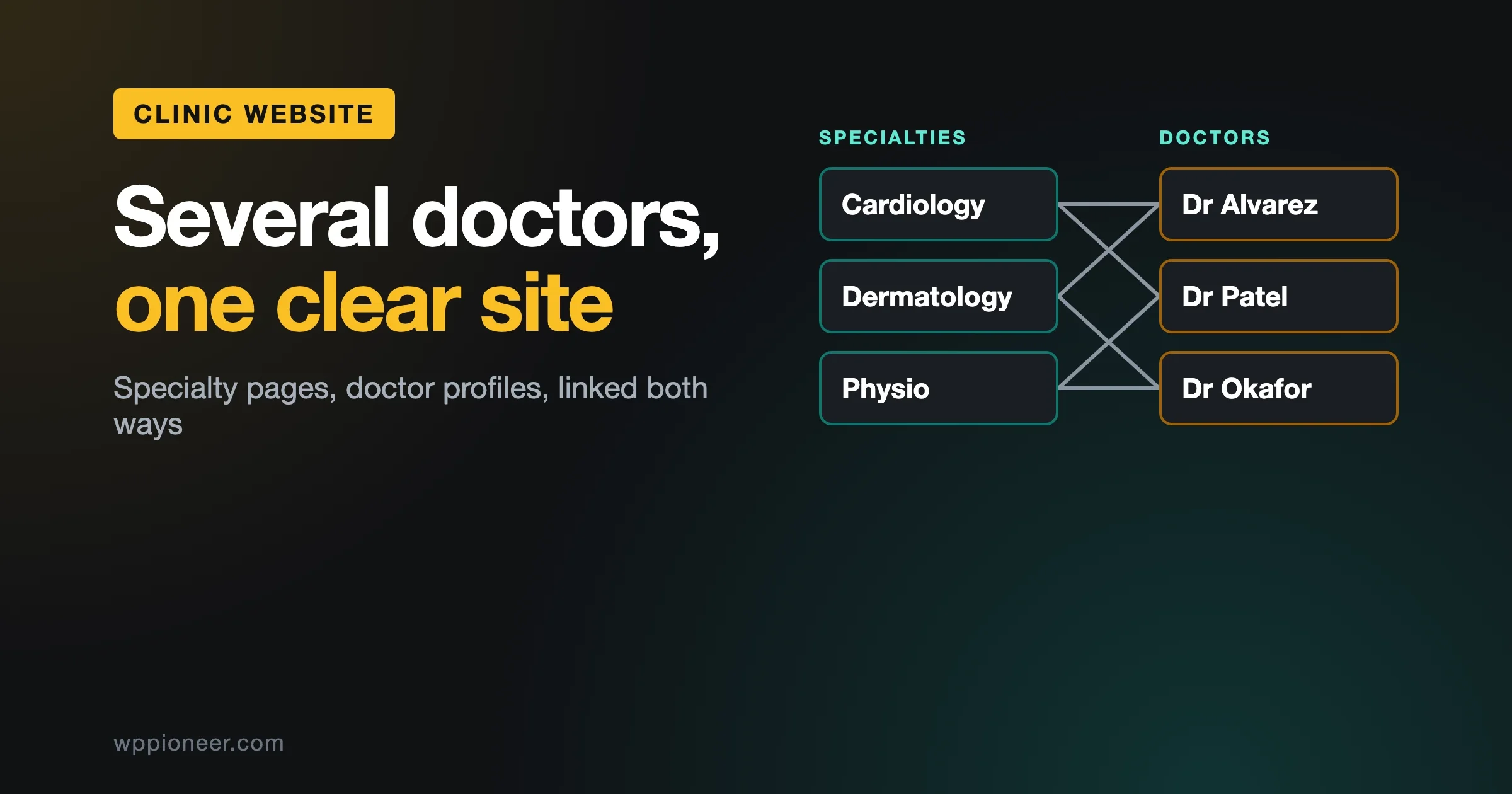
The best structure for a medical practice website with several doctors is two kinds of page that link to each other: one page per specialty or service, and one profile page per doctor. Patients arrive by searching for a problem (“knee pain clinic”) or a person (“Dr Patel”), and each kind of page answers one of those searches. Link them both ways, give every doctor their own booking route, and keep patient details out of your forms.
This guide is for a practice manager, a clinic owner or a freelancer building a site for one. We assume you can use the WordPress editor but have not built a clinic site before. It covers the structure, two ways to build it in WordPress, how to link the pages, booking for each doctor, schema markup as schema.org defines it, privacy basics, and what to do when a doctor joins or leaves. Facts about schema.org, Google and data protection come from their own pages, which we read on 25 November 2026. None of this is legal or medical advice.
The symptom: one long “Our team” page
You will recognise the problem. The site has a page called “Our team” with twelve photos, each with a two-line bio. A patient who needs a dermatologist scrolls past the cardiologist, the physiotherapist and the receptionist. A patient who was told “see Dr Alvarez” has to scan every face. Nobody can link to one doctor, and search engines see one thin page instead of twelve useful ones.
The fix is not a nicer grid. It is a different structure.
The check: how do your patients look for care?
Before you build anything, ask five recent patients how they found you and what they typed or asked. You will usually hear two answers:
- By need: “I have back pain”, “my child needs a check-up”, “I want a skin check”. They know a problem, not a name.
- By name: “my neighbour sees Dr Alvarez”, “the hospital said to book with Dr Patel”. They know a person.
A good site gives both groups a door. Specialty pages are the door for the first group. Doctor profiles are the door for the second. The rest of this guide builds both doors and joins them.
The structure: specialty pages, doctor profiles, and links both ways
Here is the site map we recommend for a clinic with several doctors:
Home
├── Services (specialties)
│   ├── Cardiology
│   ├── Dermatology
│   └── Physiotherapy
├── Our doctors
│   ├── Dr Alvarez
│   ├── Dr Patel
│   └── Dr Okafor
├── Book an appointment
├── Locations and opening hours
├── Contact
└── Privacy and patient information
Every doctor appears in two places. They have their own profile under “Our doctors”, and they are listed on the page for each specialty they cover. Every specialty page lists its doctors, and every doctor profile lists its specialties. That two-way link is the whole idea.
Page type | Answers the question | Main content | Links to |
|---|---|---|---|
Specialty (service) page | “Can you help with this?” | What the service is, who it is for, what to expect, common questions | The doctors who offer it, the booking page, related services |
Doctor profile | “Who will I see?” | Photo, name and title, short bio, languages, locations, who they see | Their specialties, their booking route |
Booking page | “How do I get an appointment?” | Choose a service or a doctor, then a time | Phone number, emergency notice |
Location page | “Where and when?” | Address, map, hours, parking, access | The doctors based there |
Why separate them?
- Patients find the right page faster. A page for “Dermatology” matches a dermatology search. A page for “Dr Okafor” matches her name.
- Each page stays accurate. When the clinic adds a service, you edit one page. When a doctor changes hours, you edit one profile.
- You can link to exactly what you mean. A referral letter can point to one doctor’s page, and a newsletter can point to one service.
- Search engines see many useful pages instead of one crowded page.
Build it in WordPress: two ways
You can build this structure with ordinary pages, or with custom content types. Neither needs code. The right choice depends on how many doctors and services you have and how often they change.
Option A: ordinary pages | Option B: a Doctors type plus a Specialty taxonomy | |
|---|---|---|
Best for | Up to about ten doctors and a handful of services | Larger clinics, or lists that change often |
Setup effort | Low: create pages, link by hand | Medium: set up the type, then templates |
Linking both ways | You add each link by hand | Lists on each page build themselves from the specialty tag |
Risk | A link gets forgotten when someone changes a page | Needs more care at setup, and a plugin to keep updated |
Cost | Free | Free options exist |
Option A: ordinary pages with a clear address pattern
Create a “Services” page and make each specialty a child page of it. Create an “Our doctors” page and make each profile a child page of it. WordPress then builds addresses like /services/cardiology/ and /our-doctors/dr-alvarez/. The WordPress documentation on pages explains the parent setting.
To link both ways, add a short “Our cardiologists” list to the specialty page, with each doctor’s name linking to their profile, and a “Specialties” line on each doctor profile, with each specialty linking back. It is manual, so keep a simple sheet that lists each doctor and their specialties. When something changes, the sheet tells you which pages to touch.
Option B: a Doctors content type and a Specialty taxonomy
For a bigger clinic, make “Doctors” its own content type and “Specialty” a way to group them, like categories. A free plugin such as Custom Post Type UI does this without code. Its WordPress.org page describes it as an interface for registering custom post types and taxonomies, and lists a staff directory as one example use.
Once the Doctors type and the Specialty grouping exist, you tag each doctor with the specialties they cover. The block editor’s Query Loop block can then show “all doctors tagged Cardiology” on the Cardiology page, so the list updates by itself when you tag a new doctor. A page template for the Doctors type gives every profile the same layout.
We have not built this exact set-up for a clinic in this post, so test it on a staging copy of your site first. If you are new to custom content types, our beginner posts on site structure will help, and the safest habit is to take a backup before you add a plugin. Our checklist is your WordPress site ready covers backups and ownership.
Which one should you pick?
If you have under ten doctors and your services rarely change, start with Option A. You can move to Option B later, because the content (bios, photos, text) transfers easily. If you already know the clinic will grow, or if several staff will edit profiles, go straight to Option B.
What goes on a doctor profile
A profile page should help a patient decide, and then act. Use the same layout for every doctor, so patients learn where to look.
- Name and title, as the doctor uses them professionally.
- A clear photo, with the doctor’s permission.
- Specialties and areas of interest, each linking to the matching specialty page.
- Who they see: adults, children, new patients, referral only.
- A short bio in plain language: training, years in practice, approach. Keep it to what the doctor has approved and can prove.
- Languages spoken.
- Where and when they work: locations and days, with a link to the location page.
- A booking button that goes straight to that doctor’s calendar or form.
- A contact route for people who prefer the phone.
Avoid claims you cannot support, such as “the best” or “guaranteed results”. Your professional regulator may have rules on how doctors may advertise, so ask the doctors to check their own bios against those rules before you publish.
What goes on a specialty page
- What the service is, in the words a patient would use, not hospital jargon.
- Who it is for, and common reasons to book.
- What to expect: how long a visit takes, what to bring, whether a referral is needed.
- The doctors who offer it, as cards linking to their profiles.
- Questions people ask, answered briefly.
- A booking button, and a phone number.
- An emergency notice: “If this is an emergency, call your local emergency number.” Put it on every service page, in the same place.
That last line is easy to forget, and it is the one that matters most if a patient lands on a page about chest pain and your clinic is closed.
Linking both ways, in practice
On the Cardiology page, you might write:
Our cardiology team
Dr Alvarez sees adults with heart rhythm concerns. Dr Patel sees adults and teenagers for general cardiology. Book with Dr Alvarez or book with Dr Patel.
On Dr Alvarez’s profile, you might write:
Specialties: Cardiology, Heart rhythm checks
Use descriptive link text: the doctor’s name or the service name, not “click here”. This helps patients who use screen readers, and it helps search engines understand each link.
The change that makes the structure last
Do not copy the doctor’s bio onto every specialty page. Show a short card (photo, name, one line) and link to the profile. Then there is one source of truth for each bio, and updating it takes one edit.
Booking for each doctor
Patients usually want to book with a particular doctor, or with “the next free” doctor in a specialty. Your site should support both without making anyone guess.
Route | How it works | Good for |
|---|---|---|
Phone or contact form only | The patient asks, reception books | Very small clinics, or when you do not want online booking |
An external booking link per doctor | Each profile has a button to that doctor’s page on a scheduling service | Clinics that already use a scheduling or practice-management system |
A WordPress booking plugin with staff calendars | Staff, services and hours are set up in the plugin; the site shows a booking form | Clinics that want booking inside the site |
If you choose a plugin, check the free tier before you plan around it. For example, the WordPress.org page for Bookly states that online payments, an unlimited number of staff members and services, and add-ons are not available in the free version. Many booking plugins limit staff or features in their free tier, so count your doctors and services first and read the plugin’s own page for current limits.
Whichever route you use, apply three rules:
- One booking button per profile that goes to that doctor, not to a general form.
- One “book a [specialty]” button per specialty page that lets the patient pick a doctor or the first available time.
- Test every button after any change, by booking a test appointment and cancelling it.
Schema markup: MedicalClinic and Physician, as schema.org defines them
Schema markup is a small block of structured data in your page that tells search engines what it is about. For a clinic, schema.org has types made for the job. Use them only as the schema.org site defines them, and only for what the page truly shows.
Type | schema.org definition | Use it for |
|---|---|---|
“A facility, often associated with a hospital or medical school, that is devoted to the specific diagnosis and/or healthcare.” | The clinic itself: home page, contact or location page | |
“An individual physician or a physician’s office considered as a MedicalOrganization.” | A doctor profile page | |
“Any specific branch of medical science or practice.” An enumerated type. | The value of the |
Both MedicalClinic and Physician carry properties such as medicalSpecialty (“a medical specialty of the provider”), availableService (“a medical service available from this provider”) and isAcceptingNewPatients, along with the usual local business details like address, telephone and opening hours. Physician also has hospitalAffiliation.
Here is an example for a doctor profile, using made-up details:
{
  "@context": "https://schema.org",
  "@type": "Physician",
  "name": "Dr Example Alvarez",
  "url": "https://example-clinic.test/our-doctors/dr-alvarez/",
  "medicalSpecialty": "https://schema.org/Cardiovascular",
  "isAcceptingNewPatients": true,
  "telephone": "+00 000 000 0000",
  "address": {
    "@type": "PostalAddress",
    "streetAddress": "1 Example Street",
    "addressLocality": "Example City",
    "postalCode": "00000"
  }
}
The clinic’s home or contact page would use MedicalClinic with the same kind of details, plus its opening hours. You can place the block with a code or SEO plugin that supports custom JSON-LD, or ask your developer to add it to the profile template.
Rules to follow with schema
- Mark up only what is visible. Google’s structured data guidelines say not to mark up content that is not visible to readers of the page, and that “your structured data must be a true representation of the page content”. If the page does not say the doctor is accepting new patients, do not claim it in markup.
- Keep it current. A doctor who has left must not stay in your markup. See the maintenance section.
- Do not expect a ranking switch. We did not find a doctor-specific rich result in Google’s local business structured data guide on 25 November 2026. Treat schema as a clear label that helps machines understand the page.
- Test it. Use a structured data testing tool and fix errors, then check again after theme or plugin updates.
For the general rules, see Google’s structured data policies and its local business guide.
Patient privacy: keep it simple and keep health details out
A clinic website sits close to sensitive information. The safest rule is to collect as little as you can. This section is general. The law that applies depends on where your clinic and your patients are, so check with a qualified adviser for your country.
Know which rules may apply
- UK and EU. The UK data protection regulator describes health data as special category data, which gets extra protection, and defines it as personal data related to the physical or mental health of a person. See the ICO page on what is special category data. The EU rules treat health data in a similar way.
- United States. HIPAA is a US law about protected health information. Whether it applies to you depends on whether your organization is a “covered entity” under the law. Ask your lawyer or compliance adviser, and read the guidance from the US Department of Health and Human Services.
- Elsewhere. Many countries have their own health privacy rules. Search for your national data protection authority.
Practical habits that reduce risk everywhere
- Do not ask for symptoms or medical history in a general contact form. Ask for a name, a phone number and a preferred time. Discuss health matters by phone, in the appointment, or through a secure patient system built for it.
- Know where form entries go. A form plugin may store entries in the WordPress database and also send them by email. Email is not a secure channel for health details. Our guide to choosing a contact form plugin without spam or GDPR trouble explains how to check where entries are kept and how long.
- Ask each tool’s vendor how it handles data. A booking plugin or external scheduling service becomes part of how you handle patient information. Ask where data is stored and request their data processing terms.
- Use HTTPS everywhere, and keep WordPress, themes and plugins updated.
- Limit who can log in. Give each staff member their own account and only the role they need. See our guide on who holds the keys to your website.
- Get permission for photos and bios, in writing, and remove them promptly when a doctor asks.
- Write a clear privacy notice that says what you collect, why, who sees it and how long you keep it, and link it from every form.
- Do not publish patient stories or photos without explicit written consent, and consider whether to publish them at all.
Maintenance: who edits what, and what to do when a doctor leaves
A clinic site goes stale when nobody owns it. Decide ownership early.
Content | Owner | Review |
|---|---|---|
Doctor profile text and photo | The doctor approves, the practice manager edits | Every six months |
Specialty pages | Clinical lead approves, practice manager edits | Every year |
Opening hours and locations | Practice manager | When anything changes |
Booking setup | Practice manager with the booking vendor | Every time a doctor joins or leaves |
Schema markup and technical updates | Web developer or freelancer | After updates |
When a new doctor joins
- Create the profile with the standard layout and the doctor’s approval.
- Tag or link the specialties.
- Add the doctor’s calendar to the booking tool and test a booking.
- Add the doctor to the list on each specialty page (Option A) or confirm the tag works (Option B).
- Check the schema markup and add the profile to your sitemap through your SEO plugin.
When a doctor leaves
- Remove the doctor from the booking tool first, so nobody books an appointment that will not happen.
- Unpublish the profile, or better, redirect its address to the matching specialty page or to the doctors page, so old links and search results do not hit an error.
- Remove the doctor from specialty lists and from schema markup.
- Update any printed or social material that points to the profile.
- Keep a note of the date and what was changed.
Redirects matter. If a patient bookmarked a profile and later lands on an error page, they may think the clinic closed. Most SEO plugins can create redirects.
A launch checklist
- Every doctor has a profile with the standard layout and written approval.
- Every specialty has a page that lists its doctors and links to each profile.
- Every profile links back to its specialties.
- Every doctor has a working booking route, tested with a real test booking.
- An emergency notice appears on every service page and the contact page.
- Forms ask for no health details, and the privacy notice is linked from each form.
- Pages load well on a phone, since many patients search on one. Check text size and button size.
- Schema markup is present, matches the visible page and passes a testing tool.
- A search for a doctor’s name finds the profile on your own site search.
- The ownership table is filled in with real names.
Frequently asked questions
What should a medical practice website include?
A home page, one page per service or specialty, one profile per doctor, a booking page, locations and opening hours, contact details, an emergency notice and a privacy notice. Link specialties and doctors to each other.
Should I put every doctor on one page or give each their own page?
Give each doctor their own page. A single page for all doctors is hard to search and hard to link to, and it becomes outdated quickly. Use a short card for each doctor on listing pages, and link to the full profile.
How do I let patients book a specific doctor?
Put a booking button on each doctor’s profile that goes to that doctor’s calendar. Use an external scheduling link, a WordPress booking plugin with staff calendars, or a phone number if you prefer reception to book.
Which schema type should I use for a clinic?
Use MedicalClinic for the clinic and Physician for each doctor’s profile, as schema.org defines them, and only for what the page shows. The medicalSpecialty property takes a MedicalSpecialty value.
Do I need HIPAA or GDPR compliance for my clinic website?
It depends on where you and your patients are and on what your site collects. Health data is special category data under UK GDPR, and HIPAA may apply to covered entities in the United States. Ask a qualified adviser, and keep health details out of general forms.
Can I use a normal contact form?
For general enquiries, yes, if it collects only basic details such as name, phone number and preferred time, and you know where entries are stored. Do not ask for symptoms or medical history in it.
What do I do with a doctor’s page when they leave?
Remove them from booking first, then redirect their page to the relevant specialty page or the doctors page, remove them from lists and schema, and keep a note of the change.
Is a free setup enough?
For a small clinic, yes: ordinary pages, a free form plugin chosen for privacy, and an external scheduling link cost nothing. Larger clinics may want a custom content type and a booking plugin, where free versions often limit staff or features.
The short version
- Build two doors: specialty pages for patients who know a problem, doctor profiles for patients who know a name.
- Link them both ways, and show short cards instead of copying bios.
- Give every doctor their own booking button, and test it.
- Use MedicalClinic and Physician schema as schema.org defines them, for what the page shows.
- Keep health details out of forms, check your local privacy rules, and write down who edits what.
- When a doctor leaves, remove booking first, then redirect the page.
No comments yet