
You have a WordPress error log. Maybe your host showed it to you, maybe a developer turned it on last month, or maybe a support person asked you to “check the log” and you found a file with five thousand lines in it. Now what?
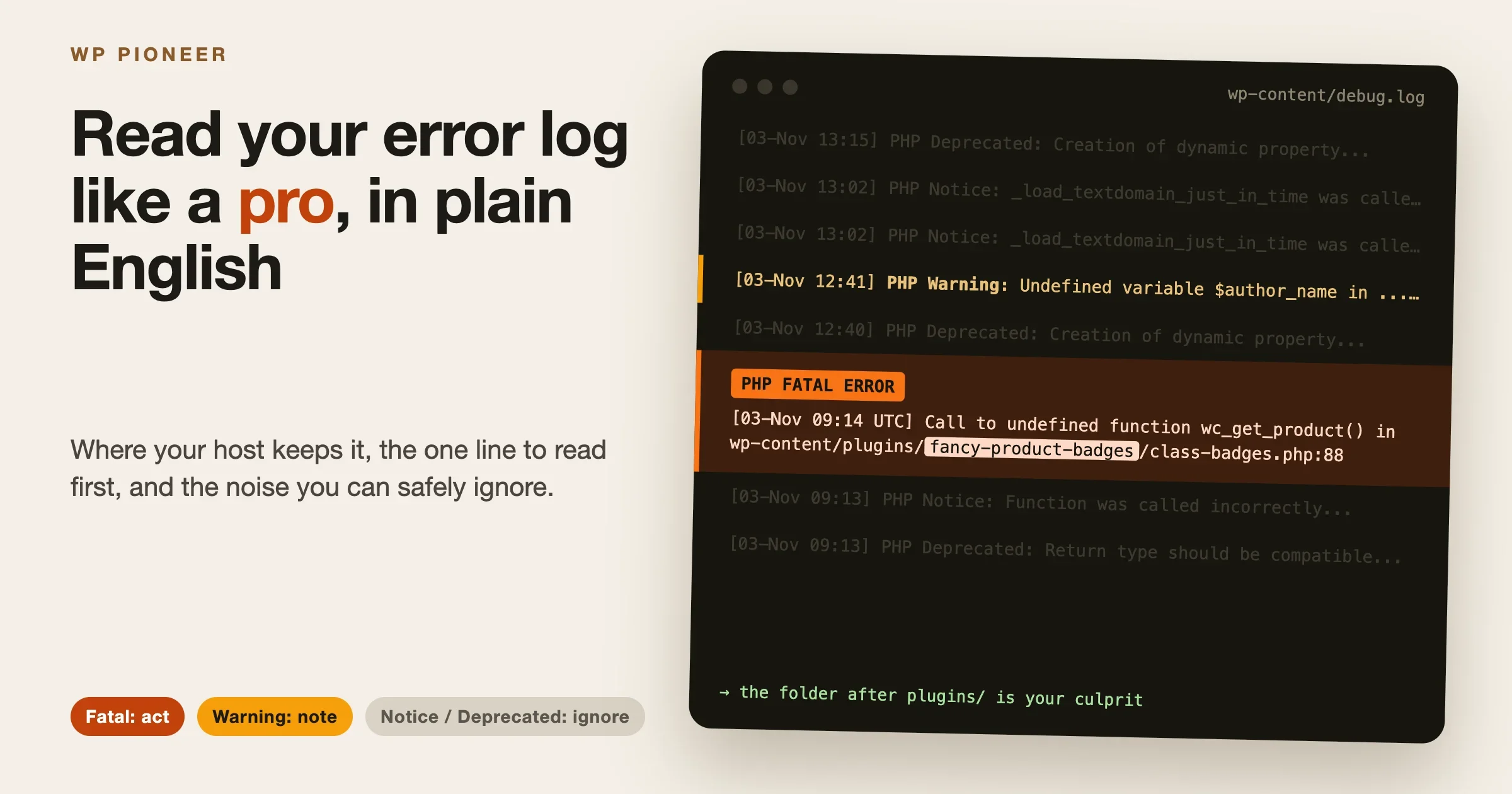
Here is the short answer. Read the newest lines first. Look for the words Fatal error and Parse error, because those are the lines that break pages. Treat Warning as worth a note, and mostly ignore Notice and Deprecated unless the same line appears thousands of times. Then look at the file path in the line, because the folder name after plugins/ or themes/ tells you which plugin or theme wrote it.
This guide is for site owners, not developers. It covers where the common hosts keep the log, how to read one line from left to right, which messages matter and which you can safely leave alone, what to copy when you ask a developer or plugin support for help, and when to switch logging off again.
Two things this guide does not cover. If you have not turned logging on yet, or the debug.log file never appears, start with why the WordPress debug log is not created and how to fix it. And if your site is down right now, go to how to get back in after a white screen first. Come back here once you can breathe.
And if you are staring at a message on screen rather than a log file, such as “There has been a critical error on this website” or “Error establishing a database connection”, our guide to WordPress error messages decoded explains each one. This guide picks up where that one stops: the log behind the message.
What a WordPress error log actually is
A WordPress error log is a plain text file. Every time PHP (the language WordPress, your theme and your plugins are written in) runs into something it does not like, it can write one line to that file. Each line has a date and time, a type of problem, a short message and usually the exact file and line number where it happened.
Most lines in a typical log never caused a visible problem. Think of a car dashboard that also records every sensor blip: one red light matters, two hundred “tyre pressure slightly low” entries from last winter do not.
There are usually two separate logs on a WordPress site, and it helps to know which one you are looking at:
- The server or PHP error log. Your host runs this. It is usually on all the time and catches errors from every PHP file on the account. It is often called
error_log,error.logorphp_error.log. - The WordPress debug log. WordPress writes this one only when debug logging is switched on in
wp-config.php. By default it lives atwp-content/debug.log. It tends to be more detailed, because debug mode also records notices and deprecation messages that hosts often hide.
There is also a third log that people mix up with these two: the access log, which records every visit and request rather than errors. That is a different tool for a different job, and we cover it in what your access log shows that analytics hides.
Where your host keeps the WordPress error log
Every host puts the log somewhere slightly different. Below are the common places, checked against each host’s own help pages in November 2026. Menu labels change from time to time, so if a button has moved, search your host’s help centre for “error log” and you will usually land on the right page.
cPanel hosts (most shared hosting)
Many budget and mid-range hosts use cPanel. There are two places to look:
- The Errors page in cPanel. Under the Metrics section, the Errors tool shows the most recent web server errors for your account. It is a quick look, not the full history.
- A file called
error_log. cPanel’s PHP setup usually writes PHP errors into a file namederror_login the same folder as the script that failed. So you may find one inpublic_html/, another inpublic_html/wp-admin/, and more inside plugin folders. Open File Manager, make sure hidden files are shown, and look for any file with that exact name.
If you find several error_log files, the one in the folder where you saw a problem is the one to read first. An error on the admin side often lands in wp-admin/error_log.
SiteGround
In Site Tools, open Statistics and choose Error Log. SiteGround shows the recent entries on screen and gives you a Copy to clipboard button, which is handy when you want to paste lines into an email to support.
Kinsta
In MyKinsta, open your site and click the Logs tab. The log viewer opens on error.log by default, with a dropdown to switch to access.log and the cache log, and a search box that searches the current file. Kinsta’s own documentation notes two things worth knowing. Log files are kept for a few days, so old problems may already be gone. And if WordPress debug logging is turned on, PHP errors go to debug.log in wp-content instead of showing up in error.log, so an empty error.log does not always mean nothing is wrong. Source: Kinsta server logs documentation.
WP Engine
In the User Portal, go to Sites, pick the environment (production or staging), and click Logs in the side menu. You may need to open the Advanced section to see it. Then choose Error at the top. WP Engine shows roughly the last day or two of PHP errors, lets you filter and download them, and displays times in UTC unless you change the time zone in your profile settings. Source: WP Engine error logs guide.
Cloudways
Cloudways has a log viewer inside each application’s monitoring area, under Logs. It shows the most recent 1,000 entries for the web server and PHP, with a filter for error types such as fatal and parse errors. For anything older than those 1,000 entries, the full files live in the logs folder of the application, which you can reach over SFTP. Source: Cloudways’ own support guide to viewing application logs.
Hostinger
Hostinger keeps PHP error logs in a hidden .logs folder. In hPanel, open File Manager, use the option to access all files of your hosting account, then open .logs and look for a file named like error_log_yourdomain.com. If that file is missing, PHP error logging may be switched off under Advanced and PHP Configuration. Source: Hostinger’s PHP error log tutorial.
The WordPress debug log
If you or a developer switched on debug logging, the file is normally at wp-content/debug.log. You can open it with your host’s File Manager or an SFTP app. A developer can point the log somewhere else, though. To check, go to Tools, then Site Health, then the Info tab, and open the WordPress Constants section. The WP_DEBUG_LOG row tells you whether logging is on, and shows a file path if it was moved.
The email WordPress may already have sent you
Before you go digging in files, check your inbox. When a plugin or theme causes a fatal error, WordPress sends the site admin email address a message with a subject like “Your Site is Experiencing a Technical Issue”. That email names the plugin or theme that failed and includes the error details, often the exact same line you would find in the log. It also contains a special recovery link that lets you log in with the broken plugin paused. Many owners already have the answer sitting in a spam folder.
How to read one line of a log
Log lines look scary because they are long and full of slashes. They are actually built the same way every time. Let’s take one apart.
[03-Nov-2026 09:14:22 UTC] PHP Fatal error: Uncaught Error: Call to undefined function wc_get_product() in /home/u123456/public_html/wp-content/plugins/fancy-product-badges/includes/class-badges.php:88Read it left to right in five parts:
- The timestamp:
[03-Nov-2026 09:14:22 UTC]. When it happened. Note the time zone. Many logs use UTC, which may be hours away from your local time. If you updated a plugin at 2pm in New York, that shows up around 19:00 UTC. - The severity:
PHP Fatal error. How serious it is. This is the single most useful word in the line, and the next section explains each level. - The message:
Uncaught Error: Call to undefined function wc_get_product(). What went wrong, in programmer language. Here, the plugin tried to use a WooCommerce function, but WooCommerce was not available. - The file path:
/home/u123456/public_html/wp-content/plugins/fancy-product-badges/includes/class-badges.php. Where it went wrong. - The line number:
:88. The exact line inside that file. You do not need to open the file. A developer will.
Plain English: at 09:14 UTC, the plugin “fancy-product-badges” crashed because it expects WooCommerce to be active and it was not. The likely cause is that WooCommerce was deactivated or failed to load, and this add-on did not check first.
Finding the plugin or theme from the path
This is the trick that saves owners the most time. Look for one of these folder names in the path, and the next word is your culprit:
wp-content/plugins/something/means the plugin in the folder “something”.wp-content/themes/something/means the theme in the folder “something”.wp-content/mu-plugins/means a “must-use” plugin, often added by your host or a developer. These do not appear on the normal Plugins screen.wp-includes/orwp-admin/means WordPress core itself. That rarely means WordPress is broken. It usually means a plugin handed WordPress something it could not use, and the error surfaced inside core. Look a few lines above or below for a plugin path.
Folder names do not always match the plugin’s display name. If the folder is called wpforms-lite, the plugin is WPForms. If you are not sure, go to Plugins in your dashboard. Each plugin’s row has a details or settings link, and hovering over links often reveals the folder name in the address. Your host’s File Manager will also show you the folder list in wp-content/plugins/ so you can match them up.
A server log line looks a little different
Some hosts write PHP errors through the web server, which wraps the PHP message in extra details. It looks like this:
[Tue Nov 03 09:14:22.481203 2026] [proxy_fcgi:error] [pid 20417] [client 203.0.113.45:51022] AH01071: Got error 'PHP message: PHP Warning: Undefined array key "price" in /var/www/site/wp-content/themes/storefront-child/functions.php on line 142'Do not panic at the extra pieces. The part between PHP message: and the closing quote is the same kind of line as before. The rest is the web server saying when it happened, which process handled it and which visitor’s request triggered it. That client IP address is a visitor or bot, not an attacker by default, and it is personal data, which matters later when you share the log.
Plain English: the child theme’s functions.php file, at line 142, tried to read a “price” value that was not there. The page still loaded. It is a warning, not a crash.
Fatal, Parse, Warning, Notice, Deprecated: what each one means
PHP labels every message with a severity. This is the part of the guide to bookmark, because it tells you what to ignore.
PHP Fatal error: act on it
A fatal error stops PHP in its tracks. Whatever page was loading when it happened did not finish. That might be a whole page, the admin area, a checkout, or a background task like sending emails. Fatal errors are what produce “There has been a critical error on this website” and white screens.
[03-Nov-2026 10:02:51 UTC] PHP Fatal error: Allowed memory size of 268435456 bytes exhausted (tried to allocate 20480 bytes) in /home/u123456/public_html/wp-content/plugins/big-gallery-pro/src/Thumbnail.php on line 210Plain English: the gallery plugin used up all 256 MB of memory PHP was allowed (268,435,456 bytes is 256 MB) while making thumbnails, and the page died. The fix might be more memory from your host, or the plugin might have a problem with very large images. Either way, this is one to send to someone.
[03-Nov-2026 10:05:13 UTC] PHP Fatal error: Maximum execution time of 30 seconds exceeded in /home/u123456/public_html/wp-content/plugins/old-importer/import.php on line 57Plain English: a task ran longer than the 30 seconds the server allows, so the server stopped it. Common with imports, backups and big exports. If it happened once while you ran an import, it explains why the import stopped halfway. If it happens every hour, something is stuck in a loop.
PHP Parse error: act on it, usually right after an edit
A parse error means PHP could not even read a file, because something in the code is typed wrong. A missing semicolon, a stray bracket, a half-pasted snippet.
[03-Nov-2026 11:20:04 UTC] PHP Parse error: syntax error, unexpected token "}" in /home/u123456/public_html/wp-content/themes/astra-child/functions.php on line 31Plain English: someone edited the child theme’s functions.php and left an extra closing bracket on line 31. Parse errors almost always follow a manual code edit or a code snippet added by hand. If you just pasted something from a tutorial, undo that paste. Our guide to undoing changes in WordPress covers how to roll back safely.
PHP Warning: note it, look for a pattern
A warning means something unexpected happened, but PHP carried on. The page loaded. Sometimes a small part of it might be missing or a calculation might be slightly off, but often nobody can tell anything happened.
[03-Nov-2026 12:41:37 UTC] PHP Warning: Undefined variable $author_name in /home/u123456/public_html/wp-content/plugins/simple-author-box/templates/box.php on line 19Plain English: the author box plugin tried to print an author name that it never set. Maybe that box shows an empty space on some posts. Worth telling the plugin author, not worth losing sleep over.
[03-Nov-2026 12:44:02 UTC] PHP Warning: file_get_contents(https://api.example-weather.com/v2/today): Failed to open stream: HTTP request failed! HTTP/1.1 503 Service Unavailable in /home/u123456/public_html/wp-content/plugins/weather-widget/weather.php on line 64Plain English: the weather widget asked an outside weather service for data, and that service was down. This is not your site’s fault. If it only appears for a few minutes, ignore it. If it appears every day, the plugin is relying on a service that has gone away.
Worth knowing: since PHP 8, several messages that used to be notices are now warnings, such as “Undefined variable” and “Undefined array key”. So a site that moved from PHP 7.4 to PHP 8.x can suddenly show many more warnings without anything actually getting worse. The code was always doing this. The new PHP version is just louder about it.
PHP Notice: mostly ignore
A notice is PHP saying “this might be a mistake”. Nothing broke. Notices are aimed at developers.
[03-Nov-2026 13:02:18 UTC] PHP Notice: Function _load_textdomain_just_in_time was called <strong>incorrectly</strong>. Translation loading for the <code>my-booking-plugin</code> domain was triggered too early. This is usually an indicator for some code in the plugin or theme running too early. Translations should be loaded at the <code>init</code> action or later. Please see Debugging in WordPress for more information. (This message was added in version 6.7.0.) in /home/u123456/public_html/wp-includes/functions.php on line 6121This one is extremely common. WordPress added it in version 6.7, and since then it fills logs on many sites. Plain English: the booking plugin loads its translations slightly too early in the page load. For an English-only site, it changes nothing you can see. For a translated site, a few words might show in English on some screens. Notice that the path points at wp-includes, but the message itself names the real source: the my-booking-plugin text domain, which almost always matches the plugin’s folder name.
When WordPress itself writes a notice with “was called incorrectly”, it is WordPress pointing at a plugin or theme, not a problem with WordPress.
PHP Deprecated: ignore for now, plan for later
Deprecated means “this way of writing code still works today, but a future version of PHP or WordPress will remove it”. It is a heads-up, not a fault.
[03-Nov-2026 13:15:44 UTC] PHP Deprecated: Creation of dynamic property Old_Slider_Plugin::$settings is deprecated in /home/u123456/public_html/wp-content/plugins/old-slider/class-slider.php on line 23Plain English: the slider plugin uses a coding style that PHP 8.2 warns about and a future PHP version may turn into an error. Today, your slider works. If the plugin has not been updated in years and the log is full of these, it is a sign to look for a maintained replacement before your host’s next PHP upgrade.
Lines that are not PHP errors at all
You may also see lines that start with “WordPress database error”. These come from WordPress talking to the database:
[03-Nov-2026 14:08:09 UTC] WordPress database error Table 'u123456_wp.wp_fancy_badges' doesn't exist for query SELECT * FROM wp_fancy_badges WHERE product_id = 42 made by require('wp-blog-header.php'), wp, WP->main, do_action_ref_array('wp'), Fancy_Badges->loadPlain English: the badges plugin is looking for its own database table, and the table is not there. This often happens after a site migration, or when a plugin’s setup step did not finish. The last part of the line, starting with “made by”, is a trail of which code asked for the data. The name at the very end (Fancy_Badges) points to the plugin.
Quick reference
Label in the log | Did something break? | What to do |
|---|---|---|
PHP Fatal error | Yes, that request stopped | Act now, send to a developer or plugin support |
PHP Parse error | Yes, the file could not load | Undo the last code edit or snippet |
WordPress database error | Often, for that feature | Send to the plugin named in the trail |
PHP Warning | Usually not visible | Note it, report if it repeats a lot |
PHP Notice | No | Ignore unless it floods the log |
PHP Deprecated | No, not yet | Ignore today, plan updates before PHP upgrades |
What to read first when your WordPress error log is huge
A busy log can have tens of thousands of lines. You do not read it like a book. Here is the order that works:
- Jump to the bottom. New lines are added at the end, so the newest problems are at the bottom of the file. Most hosting log viewers show newest first, which saves you the scroll.
- Match the time. Think about when the problem happened. “The checkout broke around lunchtime yesterday” gives you a window. Convert it to the log’s time zone, then look at lines from a few minutes before to a few minutes after.
- Search for “Fatal”. Use your browser’s find (Ctrl+F or Cmd+F) in the log viewer, or your text editor’s search. Then search for “Parse error”. If neither appears in your time window, the visible problem is probably not a PHP error at all.
- Read the path, not just the message. Note which plugin or theme folder each fatal line points to.
- Only then look at warnings from the same plugin in the same window. They sometimes explain what led up to the fatal error.
If the log is too big for your browser, download it and open it in a plain text editor. For very large files, a free code editor such as Visual Studio Code opens them comfortably and has good search.
Repeated lines versus one-offs
The same line repeated a thousand times feels alarming. Often it is the least important thing in the file.
Think about why a line repeats. PHP writes a line every time the code runs. If a notice comes from code that runs on every single page view, a site with 5,000 visits a day writes it 5,000 times a day. The message is no more serious on visit 5,000 than on visit one. It is just noisy.
So judge repeated lines like this:
- A repeated notice or deprecated line: background noise. It is fine to report it to the plugin author once, as a favour. It is not urgent. The one real cost is file size. A log that grows by hundreds of megabytes a week can eat your hosting disk space, so it is a reason to tidy up or turn off debug logging, as covered below.
- A repeated warning: worth one report to the plugin author, especially if it started after an update.
- A repeated fatal error: serious. Something on your site is failing over and over. It might be a page visitors hit, or a scheduled background task that keeps crashing, such as order emails, renewals or backups. Find it today.
And one-offs?
- A single fatal error during an update is very common. For a few seconds while a plugin updates, its files are half old and half new. A visitor who hits the site at that moment can trigger one fatal error. If it never happens again after the update finished, you can usually let it go.
- A single fatal error weeks ago with nothing since is history, not a current problem.
- A single fatal error that matches the exact time a customer complained is your answer. Send it.
A useful habit: when you look at a log, note the date of the first and last time a line appeared. “This started on 28 October and is still happening” is far more useful to a developer than “there are lots of these”.
What to copy and send to a developer or plugin support
A few good lines from your WordPress error log turn a support ticket that takes a week into one that takes a day. Plugin support teams see hundreds of “my site is broken” messages. The ones with a clean log excerpt get answered first, because the answer is often right there in the line.
What to include
- The full fatal error line, or lines, exactly as written. Copy and paste, do not retype or summarise. A single changed character can send someone down the wrong path.
- Five to ten lines before it from the same minute. These often show what was happening just before the crash.
- The stack trace, if there is one. Some fatal errors are followed by lines starting with
Stack trace:and then#0,#1,#2and so on. Copy all of them, down to the line that saysthrown in. That trail shows exactly which code called which, and it is gold for a developer. - When it happens: every page, only on checkout, only when you save a post, only overnight.
- What changed recently: a plugin update, a new plugin, a PHP version change, a host move.
- Your versions: WordPress version, PHP version and the plugin’s version. All three are listed under Tools, Site Health, Info. The Info tab also has a Copy site info to clipboard button that many support teams are happy to receive.
Here is what a stack trace looks like, so you recognise it:
[03-Nov-2026 15:30:12 UTC] PHP Fatal error:  Uncaught TypeError: count(): Argument #1 ($value) must be of type Countable|array, null given in /home/u123456/public_html/wp-content/plugins/event-calendar-lite/src/Views/Month.php:144
Stack trace:
#0 /home/u123456/public_html/wp-content/plugins/event-calendar-lite/src/Views/Month.php(98): ECL\Views\Month->build_week()
#1 /home/u123456/public_html/wp-includes/class-wp-hook.php(324): ECL\Views\Month->render()
#2 /home/u123456/public_html/wp-includes/plugin.php(205): WP_Hook->apply_filters()
#3 {main}
  thrown in /home/u123456/public_html/wp-content/plugins/event-calendar-lite/src/Views/Month.php on line 144
Plain English: the event calendar’s month view tried to count a list of events, but got nothing at all instead of a list, and on PHP 8 that is a fatal error. It is very likely a month with no events, a case the plugin did not plan for. Send this whole block to the calendar plugin’s support, and mention which month you were viewing.
What to remove before you send it
Logs can contain information you should not post publicly, especially on a public support forum. Before you paste, tidy up:
- Your server username and home folder. In a path like
/home/u123456/public_html/, theu123456is often your hosting account username. Replace it with something like/home/USER/public_html/. The plugin path afterwp-contentis the useful part, so keep that. - Email addresses. Some plugins log the email of a customer or user they were working on. Replace them with
customer@example.com. - Visitor IP addresses. The
[client 203.0.113.45:51022]part of a server log line is a real person’s or bot’s IP address. Replace it with[client x.x.x.x]. - Anything that looks like a key or password. Long random strings after words like
key=,token=,secret=orpassword=. Replace the value withREDACTED. If you ever spot what looks like a real password or payment API key in a log, change that key at the provider afterwards, because log files are often readable by more people than you think. - Order or customer details such as names, addresses or order numbers that tie back to a real person.
Here is the earlier memory error, cleaned up and ready to send:
[03-Nov-2026 10:02:51 UTC] PHP Fatal error: Allowed memory size of 268435456 bytes exhausted (tried to allocate 20480 bytes) in /home/USER/public_html/wp-content/plugins/big-gallery-pro/src/Thumbnail.php on line 210Nothing useful was lost. The developer still sees the error, the plugin, the file and the line.
A private support ticket with the plugin’s own team is a safer place for a full log than a public forum. If a developer you hired asks for “the whole log”, it is fine to send the file directly to them, but still strip customer emails if the file has any.
A short message template
Hi, since updating [plugin name] to version [x.y.z] on [date], [what goes wrong, e.g. the month view of the calendar shows a critical error].

It happens [every time / only when ...].
WordPress [version], PHP [version], plugin version [x.y.z].

Here is the error from the log (paths and emails removed):

[paste the lines here]

Thanks!
What you can safely ignore
Beyond the quick reference above, three things look alarming but rarely need you: old lines from plugins you have since deleted (a log keeps history), a single fatal error during an update that never repeated, and lines from a staging copy. On WP Engine and Kinsta, staging and live logs sit a click apart, so check you are reading the right environment.
And here is what you should never ignore, however quiet the rest of the log is: fatal errors that repeat, any error that matches a time a customer complained, database errors about missing tables, and errors that mention payments, orders, subscriptions or emails, because those failures often happen in the background where no visitor sees a broken page.
Signs the log is telling you about something else
Sometimes the log points at a problem bigger than one plugin. A few patterns are worth recognising:
- Many different plugins all hitting memory limits in the same window usually means the site needs more memory overall, or one plugin is using far more than its share and the others are just unlucky. Ask your host what memory limit your plan has.
- A flood of new warnings and deprecated lines on one specific date, across many plugins, usually means your host upgraded PHP. Check the PHP version in Site Health. Our guide to what to do when an update breaks your site covers how to handle that calmly.
- Errors from files with odd names in places they should not be, such as a PHP file inside
wp-content/uploads/, or a plugin folder you have never heard of. The uploads folder is for images and documents, not code. That can be a sign of a hacked site, and it is worth asking a security professional to look. - Nothing at all in the log, but the site is clearly broken. Not every failure is a PHP error. A database connection problem, a server that ran out of disk space, a DNS problem or a firewall block may not write anything to the PHP log. Your host’s support team can see server-level logs that you cannot.
When to switch logging off again
The server error log your host runs can usually stay on. It is designed to be on, the host rotates it, and you do not need to touch it.
The WordPress debug log is different. It is meant for troubleshooting, not for everyday running. Once the problem you were chasing is fixed, switch it off. There are three good reasons:
- Privacy and security. The default
wp-content/debug.logsits in a folder that is often reachable from the web. On many servers, anyone who guesses the addressyoursite.com/wp-content/debug.logcan read it, which may reveal file paths, plugin names and sometimes personal data. Some hosts block that address, but not all of them do. - Disk space. A busy site with notices on every page can grow a debug log by gigabytes. Hosting plans with small disk limits can fill up, and a full disk can stop backups, uploads or the whole site.
- Noise. A clean, fresh log next time makes the next problem much easier to spot.
To switch it off, whoever turned it on (you, your developer or your host) changes the debug lines in wp-config.php back to false, or removes them. If you used a plugin or your host’s control panel toggle to turn debugging on, turn it off in the same place. The WordPress debugging documentation lists the exact settings. Then go back to Tools, Site Health, Info, WordPress Constants, and check that WP_DEBUG and WP_DEBUG_LOG show as disabled.
After that, download a copy of the old debug.log if you might still need it for a support ticket, then delete the file from the server. Deleting it does not affect your site. WordPress makes a fresh one the next time logging is switched on.
One more tip: never leave debug display switched on on a live site. That setting prints errors onto the page for every visitor to see, which looks broken and exposes details about your setup. Logging to a file is fine for a short troubleshooting window. Displaying errors on screen is for staging sites and local copies only.
A quick routine for next time
Once a month, open your host’s log viewer and search for “Fatal”. After a big update day, check again an hour later, because a new fatal error right after an update points straight at the plugin you just updated. And set a mail filter so the “Technical Issue” emails from WordPress never land in spam. They are free early warnings.
For the problems you will most often trace from a log, such as a broken plugin after an update, memory limits or login loops, our list of 15 WordPress quick fixes every beginner should bookmark walks through the fix for each one.
Frequently asked questions
My log is full of “Deprecated” lines. Is my site in danger?
Not today. Deprecated lines are warnings about the future. They are a reason to check that the plugins writing them are still maintained, especially before your host upgrades PHP. They are not a sign of a hack or a crash.
The log blames a file in wp-includes. Is WordPress broken?
Almost never. Errors that show a wp-includes path usually happen because a plugin or theme passed WordPress something it could not use. Look at the message itself, the lines just before it, and any stack trace for a path containing wp-content/plugins/ or wp-content/themes/. That is the real source.
Why are the times in my log wrong?
They are probably right, just in UTC. Many hosts write logs in UTC no matter where you are. Work out the difference from your time zone and you will find the lines line up with what you saw. WP Engine lets you change the time zone shown in its log viewer from your profile settings.
Do I need a plugin to read the error log?
No. Your host’s control panel, File Manager or an SFTP app is enough, and Site Health tells you whether WordPress debug logging is on. Log viewer plugins exist and can be handy, but they are one more plugin to keep updated, and they need logging switched on to have anything to show.
No comments yet