
You need a child theme only when you want to change a theme’s template files or add PHP code, and you want those changes to survive theme updates. For colours, fonts, spacing or a few lines of CSS you do not need one: Additional CSS and the Site Editor do that job and are much harder to get wrong. This guide shows both routes, the classic child theme with a functions.php and the block-theme child with a theme.json, and how to tell which one you are looking at. We checked every step against the official Theme Handbook, WordPress core source and the wordpress.org plugin directory on 15 November 2026 (current stable WordPress is 7.1.4).
Do I need a WordPress child theme?
Short answer: probably not yet. Most people who ask want to change how the site looks, and the built-in tools handle that.
You do need a child theme if you can say yes to any of these:
- You want to edit a theme template file, such as the single post layout or the footer, and keep that edit after the theme updates.
- You want to add PHP code that belongs to the look of your site (a widget area, a menu location, a theme feature) and not to a plugin.
- You have a large amount of custom CSS and want it kept in files you can back up and move to another site.
When don’t you need a child theme?
Each tool below is part of WordPress itself, so it works the same on any host and keeps working when the theme updates.
What you want to change | Use this | Child theme needed? |
|---|---|---|
A few lines of CSS on a classic theme | Appearance, Customize, Additional CSS | No |
Colours, fonts and spacing on a block theme | Appearance, Editor, then Styles | No |
Site-wide custom CSS on a block theme | Editor, Styles, three-dot menu, Additional CSS | No |
Header, footer or page layout on a block theme | Editor, Templates and Patterns | No |
Small PHP snippets that are not about the theme’s look | A small plugin | No |
Edit a classic theme’s template files | Child theme | Yes |
Ship block-theme changes as files you can reuse or version | Child theme | Yes |
WordPress documents the Additional CSS options in its CSS handbook page and in the Styles overview. Per that overview, the Styles screen has had a site-wide CSS editor since WordPress 6.2, and in 6.9 the Additional CSS controls moved into the three-dot menu in the header of the Styles page.
One warning about Additional CSS: it is tied to the active theme, so it does not follow you if you switch themes. Keep a copy of it.
The Theme Handbook itself adds a caveat that cuts the other way. It says extensive customisation from inside a child theme can turn into a management headache, and that for big projects it is often better to fork the original theme and build a full theme of your own. A child theme suits small, steady changes.
What is a child theme, in plain words?
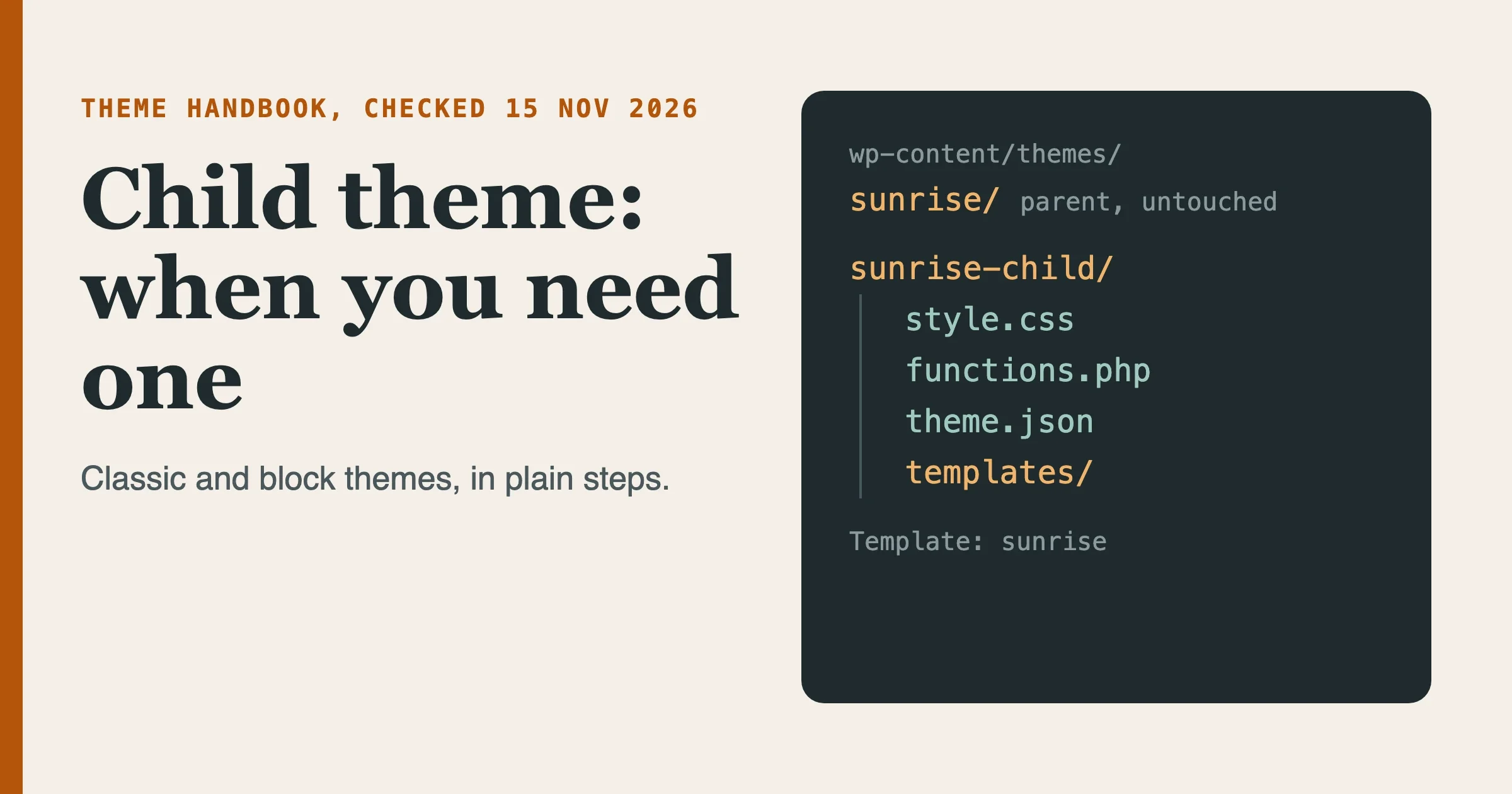
A child theme is a small theme that points at another theme (the parent) and borrows everything from it: the design, the templates and the features. Per the Theme Handbook, a child theme includes everything from its parent by default, so you only write the parts you want to change. The parent stays untouched, which means it can update safely.
The one file a child theme must have is style.css, with a header that names the parent. Everything else is optional. A child theme with only that file looks identical to its parent.
Is my theme a classic theme or a block theme?
This decides which steps you follow, so check first. Open your WordPress dashboard and look at the Appearance menu.
- If you see Editor (and often no Customize link), you are on a block theme. Templates are edited visually in the Site Editor.
- If you see Customize plus Menus and Widgets, you are on a classic theme. Templates are PHP files such as
single.phpandfooter.php.
Not sure what your theme is called? Our guide on how to find out which theme a WordPress site uses covers it.
Before you start: back up and use a test copy
Creating a child theme does not change your parent theme, but activating one changes what your visitors see. Take a backup first, and if your host offers a staging site, build and activate the child there. Our guide to setting up a WordPress staging site walks through it.
To find the parent’s folder name, open your host’s file manager (or an SFTP program) and look inside wp-content/themes. The folder name, not the display name on the Themes screen, is what a child theme needs. It is usually lowercase with hyphens, for example twentytwentyfour.
How do I create a child theme for a classic theme?
There are four steps: a folder, a stylesheet, a way to load the CSS, and activation. Checked on 15 November 2026 against the Child Themes page of the Theme Handbook.
Step 1: Create the folder
Inside wp-content/themes, create a new folder next to the parent. Use lowercase letters and hyphens, for example sunrise-child. Do not put it inside the parent’s folder.
Step 2: Create style.css with the header
Create a file named style.css in that folder and paste in the header below. Change the names to match your parent.
/*
Theme Name:   Sunrise Child
Template:     sunrise
Version:      1.0.0
*/
Theme Name is what shows in the Themes screen. Template is the part that makes it a child theme, and it has one strict rule: it must match the parent’s folder name exactly, letters and case included. The handbook’s own example uses twentytwentyfour because that is the folder name of Twenty Twenty-Four. Everything below the header is your own CSS.
Step 3: Load the stylesheet (the step that depends on your parent)
This is where older tutorials, including the first version of this one, give advice that is too simple. The handbook now says the right method depends on how the parent theme loads its own CSS, and that you must look at the parent’s code to find out. There are no hard rules. It also marks this step as optional, because some parents already load the child stylesheet for you.
In short, the handbook describes these cases:
- The parent loads both its own stylesheet and the child’s: you do nothing. The child stylesheet loads on its own.
- The parent loads only its own stylesheet, or no stylesheet at all (Twenty Twenty-Four is the handbook’s example of a theme that loads none): enqueue the child’s
style.cssfrom the child’sfunctions.php. - The parent loads only the active theme’s stylesheet, for example through
get_stylesheet_uri(): that call now returns the child file, so you enqueue the parent’sstyle.cssyourself.
To see which case you are in, open the page with your child theme active, view the page source and search for style.css. Which stylesheets appear, and in what order, tells you what the parent already does. If you are unsure, ask the theme’s support forum which stylesheet the theme loads.
Create a file named functions.php in the child folder. It must start with <?php. Pick the snippet that matches your case.
Case A: the parent loads only its own CSS (or none). This is the handbook’s pattern, with a version number added so browsers fetch your CSS again after you edit it.
<?php
/**
 * Child theme functions.php, case A: the parent loads only its own CSS.
 */
add_action( 'wp_enqueue_scripts', 'sunrise_child_enqueue_styles' );

function sunrise_child_enqueue_styles() {
	wp_enqueue_style(
		'sunrise-child-style',
		get_stylesheet_uri(),
		array(),
		wp_get_theme()->get( 'Version' )
	);
}
Case B: the parent loads its CSS under a handle you can see in its code. List that handle as a dependency so your CSS loads after the parent’s and wins ties. This is a common pattern in the wild, not the handbook’s main example, and the handle name parent-style below is a placeholder you must replace with the real one.
<?php
/**
 * Case B: the parent loads its own CSS under a known handle, so list it as a dependency.
 */
add_action( 'wp_enqueue_scripts', 'sunrise_child_enqueue_styles' );

function sunrise_child_enqueue_styles() {
	wp_enqueue_style(
		'sunrise-child-style',
		get_stylesheet_uri(),
		array( 'parent-style' ), // Replace with the handle the parent theme really uses.
		wp_get_theme()->get( 'Version' )
	);
}
Case C: the parent loads whatever get_stylesheet_uri() returns. Now that is your child file, so bring in the parent’s own stylesheet. This follows the handbook’s second snippet.
<?php
/**
 * Case C: the parent loads whatever get_stylesheet_uri() returns, which is now the child file.
 */
add_action( 'wp_enqueue_scripts', 'sunrise_child_enqueue_styles' );

function sunrise_child_enqueue_styles() {
	wp_enqueue_style(
		'sunrise-parent-style',
		get_parent_theme_file_uri( 'style.css' ),
		array(),
		wp_get_theme( get_template() )->get( 'Version' )
	);
}
PHP checked with php -l on PHP 8.5.5 on 15 November 2026: no syntax errors in any of the three. That proves the syntax, not that your parent matches the case, so always do the page-source check afterwards.
A word on two functions that tutorials mix up. get_template_directory_uri() always points at the parent theme’s folder. get_stylesheet_directory_uri() and get_stylesheet_uri() point at the active theme, which is the child when a child is active. For images and other files in your child theme, the handbook recommends get_theme_file_uri(), and for PHP files get_theme_file_path():
<?php
// Load an extra PHP file that lives in the child theme.
require_once get_theme_file_path( 'inc/helpers.php' );
Both functions look in the child first and fall back to the parent if the file is not found there.
Step 4: Activate it
Go to Appearance, then Themes. Your child theme should appear with the name you gave it. Click Activate. If you built the files on your computer, zip the child folder and upload it through Appearance, Themes, Add New. The site will look the same as before until you add changes. The handbook says as much: it will not look any different from the parent until you customise it.
Then check the front page, a post and any special layout. If something looks wrong, suspect a mismatched Template line or a stylesheet that is not loading. Both are in the mistakes box below.
Skip @import
Old tutorials load the parent’s CSS with an @import line in the child’s style.css. Use the enqueue snippets above instead, which is the method the handbook’s Including Assets page teaches.
How do I create a child theme for a block theme?
A block-theme child is smaller than a classic one. You do not need a functions.php at all unless you want PHP, because the handbook notes that block themes mostly handle their styling through theme.json and may not need the stylesheet step.
There are two ways to build it: by hand, or with a plugin.
By hand: style.css, then theme.json and templates as needed
The folder and the style.css header work exactly like the classic steps above. The Template line must still match the parent block theme’s folder name. Then you add only what you want to change.
A theme.json in the child is merged on top of the parent’s. We checked this in WordPress core: the theme resolver reads the parent’s theme.json, reads the child’s, and merges the child into the parent, with the child taking precedence. Here is a small example that changes one colour and the page background:
{
  "$schema": "https://schemas.wp.org/trunk/theme.json",
  "version": 3,
  "settings": {
    "color": {
      "palette": [
        {
          "slug": "accent",
          "name": "Accent",
          "color": "#b4540a"
        }
      ]
    }
  },
  "styles": {
    "color": {
      "background": "#fffdf8"
    }
  }
}
The merge has one catch that surprises people. Settings like single values and nested options are merged key by key, so you only need to list what you change. But preset lists, such as color.palette, color.gradients, typography.fontSizes and typography.fontFamilies, are replaced as a whole when your child defines them. Core’s source comment says this directly: associative arrays such as presets are replaced by the incoming value, not merged. So if the parent has eight palette colours and your child lists one, you may lose the other seven in the editor. To keep them, copy the parent’s full list into your child and edit it.
That is core’s behaviour as read on 15 November 2026. Test it on a staging site before you rely on it.
For templates and template parts, the handbook is simple. You can override any template, part or pattern from the parent by adding a file of the same name in the child theme, and you can add new ones the parent does not have. For patterns, the handbook adds one condition: the file must also have the same registered Slug field.
See our theme.json guide for what you can control from that file.
With a plugin: Create Block Theme
If you would rather click than type, the Create Block Theme plugin from WordPress.org builds the child for you from inside the Site Editor. According to its plugin page, it can create a blank theme, a new theme based on the active one, a child theme of the active parent, or a style variation, and it can export a theme as a zip file.
The steps from the plugin’s own description: install and activate it, open the new panel using the icon beside the Save button in the Editor, choose Create Theme, then choose Create Child Theme. The new child has the active theme as its parent and includes the changes you made in the Editor.
Facts we pulled from the WordPress.org plugin API on 15 November 2026:
- Version 2.10.2, last updated 1 October 2026.
- 20,000+ active installs.
- A rating of 96 out of 100 from 38 ratings.
Its plugin page also warns that it is like a development mode and that changes made through it could change your site or theme permanently, so know what you are doing before you press Save. One reviewer in September 2025 liked that it produced a minimal child with their settings intact, but said it activates the new child theme straight away and that felt risky. We agree. Do this on staging, or take a backup first.
The finished child theme works without the plugin, so you can delete it afterwards.
Your own edits sit on top of everything
One layer of block themes catches people out. Per the handbook, a block site has layers: WordPress defaults, then the parent theme, then the child theme, then your own customisations from the Site Editor. Those user changes can override theme.json, templates and patterns, and they are stored in the database, not in files.
That means if you edited the footer in the Site Editor, and then later change the footer template file in your child theme, you may see no change. The database copy still wins. Open the Site Editor, find the template, and use the reset option to clear your customisation so the file applies.
What happens to my settings when I switch to a child theme?
On a classic theme, expect some of them to look reset. WordPress stores Customizer settings per theme, and a child theme counts as a separate theme with its own empty set. Core’s theme switching code stores theme settings under a name built from the active theme’s folder, and the child has a different folder from the parent.
Your parent theme’s settings are not deleted. Switch back to the parent and they are still there. Core does carry across one thing on its own: your menu locations. For the rest, the options are to re-enter the settings in the Customizer, to copy them with a Customizer export and import plugin, or to use a child theme plugin that offers to migrate them. A forum helper on a wordpress.org thread pointed to the Child Theme Configurator plugin for that (its option to carry the parent’s Customizer settings across). That plugin has 300,000+ active installs and a 94 out of 100 rating from 280 ratings, but its last update on the plugin API was 10 June 2025, so check it still fits your setup before you rely on it.
Block themes behave the same way. The Create Block Theme reviewer quoted above said a basic child did not inherit their settings, and the plugin fixed that by building the child with their changes included.
Take screenshots before the switch so you know what to rebuild.
How do I override a template file?
Overriding is the main reason people make a child theme.
Classic theme. Copy the template file from the parent into the child theme, keeping the same folder path and file name, then edit the copy. For example, to change the single post layout, copy single.php from the parent theme’s folder into the child folder and edit it there. WordPress uses the child’s copy and ignores the parent’s. If the file sits in a subfolder, such as template-parts/content.php, keep the same subfolder in the child.
Do not copy functions.php this way. It is the one file that is not overridden: the handbook says the child’s functions.php and the parent’s are both loaded, the child first. So the child’s file must hold only your new code. Copying the parent’s whole file into the child usually causes a fatal error from repeated function names, which the handbook warns about directly.
Block theme. Add a file of the same name inside the child’s templates or parts folder. Or make the change visually in the Site Editor and let Create Block Theme save it into the child’s files.
An override is a copy: when the parent improves its version of that template, yours does not get the change.
How do I add custom code safely?
Code in a child theme’s functions.php is loaded on every page and ties your site to that theme. That is fine for code about the theme’s look, such as extra widget areas, menu locations or theme features. Code that adds features unrelated to the design, like a custom post type or a payment tweak, belongs in a small plugin, so it keeps working if you change themes.
The handbook’s advice is plain: if you need to add a PHP function, put it in a child theme’s functions.php and not the parent’s, because a parent update would delete it. The rule we add: a bug in functions.php can take the whole site down, and a missing semicolon or a repeated function name is enough. If that happens, our guide to getting back in after a white screen shows how to recover.
What should I do after the parent theme updates?
Back up, update the parent (on staging first for a big theme), then check the pages that use your overrides. The templates you copied keep the old parent code, so compare them with the parent’s new versions and copy over any fix you want. Raise the child’s Version number when you change its CSS so browsers fetch the new file.
Common mistakes people report
These are the problems that come up again and again in forums and issue trackers. We checked each source on 15 November 2026, and we paraphrase them.
- The Template line does not match the parent’s folder. WordPress then shows an error that the parent theme is missing (the message is in core, in
class-wp-theme.php). Check capital letters and look at the real folder name, not the display name. Note that this message was once reported wrongly during the 6.5 alpha even with correct folders, in Gutenberg issue 58549 (opened 1 February 2024, closed 26 February 2024), so if you are on a pre-release build, test on a normal release first. - Copying the parent’s whole functions.php. A user on the GeneratePress forum (March 2015, now archived) got a “Cannot redeclare” fatal error this way. The reply was that the child file should hold only your own functions. The handbook gives the same warning today.
- Expecting settings to carry over. A wordpress.org thread (about five years old) shows a site that looked different after activating a child theme. The theme’s support team said the fix was to migrate the Customizer settings with a plugin. The long-standing core request is Trac ticket 27177, which asks for child themes to inherit parent customizer settings. Our check of core’s theme-switch code on 15 November 2026 found no automatic copy of those settings.
- Block-theme parts that go missing in a child. A Newspack issue (opened 27 October 2026, closed 5 November 2026) describes template parts that did not show in a child theme because the parent’s nested patterns were only registered from the child’s own directory. Parent themes that reference their own paths directly can break a child, so test every template after you switch.
- Editing a file and seeing no change. On a block theme this is usually a Site Editor customisation sitting on top of the file, as described above. Reset the template in the editor. On a classic theme it is often a caching plugin, so clear the cache and reload.
- Styles that load but lose. If your CSS loads before the parent’s, the parent wins ties. Fix the load order with the dependency handle in Case B, rather than adding more and more specific selectors.
The forum threads are older, so treat them as examples of patterns that the handbook still confirms, not as evidence about WordPress 7.x. Recent threads on these exact problems were scarce in our search, so we kept the list to what we could source.
Which route fits you? Our suggestion
- You want a new colour, font or a few CSS tweaks: skip the child theme. Use Additional CSS (classic) or Styles in the Site Editor (block).
- You are on a block theme and want to change layout: try the Site Editor first. Only build a child theme if you need your changes as portable files or want them under version control.
- You are on a classic theme and need to edit templates or add theme code: create a child theme, and confirm how the parent loads its CSS before you pick a snippet.
- You are not comfortable with files and folders: use the Create Block Theme plugin on a block theme, on staging, or ask your theme’s author whether they ship a ready-made child theme.
- You are changing the whole design: a child theme becomes a pile of overrides. Pick another parent instead, using our guide to choosing and installing a WordPress theme.
Frequently asked questions
Does a child theme slow my site down?
Barely. It adds one small stylesheet, and overridden files replace the parent’s versions. A very large custom stylesheet is the only real cost.
Can I make a child theme of a child theme?
No. The handbook says there are only two levels, parent and child, and no standard way to create an installable grandchild theme.
Will a child theme keep working after the parent updates?
Yes, that is its purpose. Your child folder is not touched by the parent’s update. You should still check any templates you overrode, because they keep the old parent code.
Do I need a child theme if I only add custom CSS?
No. Use Additional CSS. A child theme is worth it for CSS only when the stylesheet is large or you want it kept in a file you control.
Can I delete the parent theme?
No. A child theme needs its parent installed, even though the parent is not the active theme. Without it, WordPress reports that the parent theme is missing.
Sources checked on 15 November 2026
- Child Themes, Theme Handbook (page last updated 26 January 2024 per the page).
- Create Block Theme on WordPress.org and the plugin API record.
- Styles overview, WordPress documentation.
- CSS, Advanced Administration Handbook.
- WordPress core source: the theme.json merge and resolver classes, and the theme-switching function, read on the development trunk.
- Child Theme Configurator on WordPress.org.
No comments yet